
Have you ever wondered if you can use your iPad and laptop together to create amazing drawings? Imagine turning your laptop into a powerful drawing station by simply connecting your iPad.
Whether you’re a beginner or a professional artist, this setup can change the way you work and boost your creativity. You’ll discover how to connect your iPad to your laptop for drawing, the tools you need, and tips to make the process smooth and effective.
Keep reading to unlock the full potential of your devices and take your art to the next level!
Ways To Connect Ipad To Laptop
Connecting an iPad to a laptop for drawing can be done in a few ways. Using a USB cable is the simplest method. Just plug the cable into both devices, and the laptop will recognize the iPad. This allows you to draw using apps that support direct connection.
Wi-Fi connection offers more freedom. Both devices must be on the same network. This method lets you draw without wires. It might be slower than USB but works well for most users.
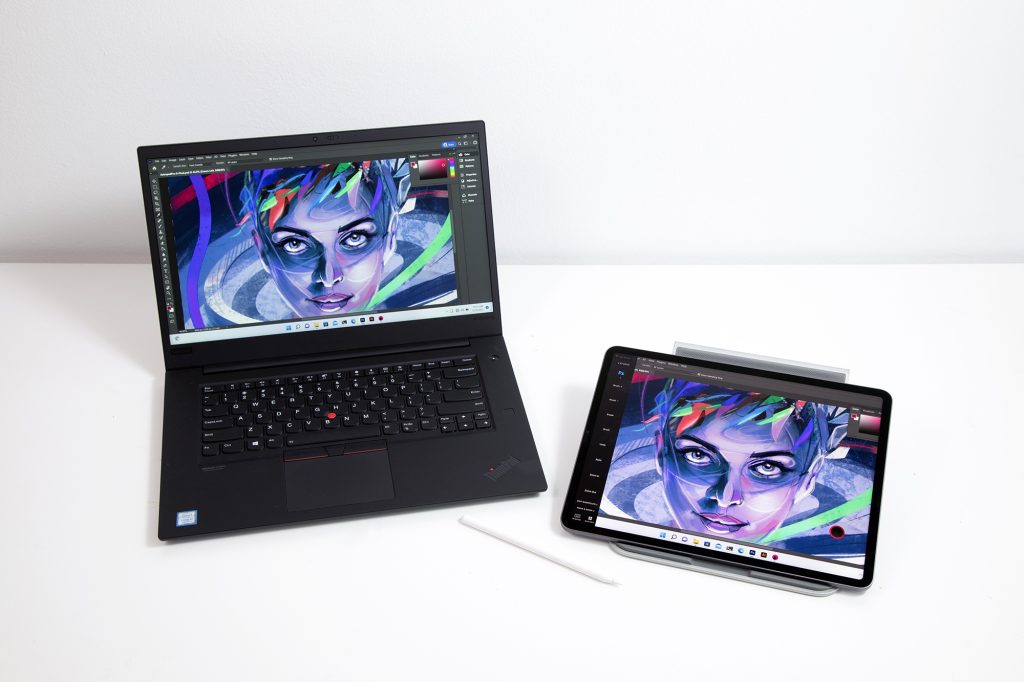
Third-party apps can help link your iPad and laptop. Apps like Duet Display or Astropad create a virtual connection. These apps turn your iPad into a drawing tablet for your laptop. Usually, they need installation on both devices. Some apps work over USB, others via Wi-Fi.
Credit: astropad.com
Setting Up For Drawing
Choosing the right drawing app is key for a smooth experience. Apps like Procreate, Astropad, and Adobe Fresco work well to connect your iPad to your laptop. These apps let you draw directly on the iPad and see it on your laptop screen.
Calibrating the stylus and screen helps improve accuracy. You can do this in the app settings by following simple steps. This makes sure your pen strokes match exactly where you draw.
Adjusting display settings on both devices is important. Set the resolution and brightness to match. This makes the colors look better and drawing easier on your eyes.
Best Apps For Drawing With Ipad And Laptop
Sidecar lets you use your iPad as a second screen for your Mac. It works well with Apple Pencil for drawing. Apps like Photoshop and Illustrator support Sidecar, making it easy to sketch and paint.
Popular third-party apps include Procreate, Autodesk SketchBook, and Clip Studio Paint. These apps offer many brushes and tools. They work on both iPad and laptops, but some features may differ.
| App | Supports Sidecar | Free or Paid | Key Features |
|---|---|---|---|
| Photoshop | Yes | Paid | Advanced editing, layer support |
| Procreate | No | Paid | Wide brush library, easy to use |
| SketchBook | No | Free | Good brushes, user-friendly |
| Clip Studio Paint | Yes | Paid | Comics and illustration tools |
Free apps help beginners start drawing without cost. Paid apps give more tools and options. Choose based on your needs and budget.
Troubleshooting Common Issues
Connection Problems can happen if the cable or Wi-Fi is weak. Use a strong USB cable or a fast Wi-Fi network. Restart both devices to fix simple issues. Check that the laptop and iPad trust each other.
Lag and Performance Issues may occur if the laptop is slow or the app uses too much power. Close other programs to free up space. Lower the drawing app’s quality settings for smoother use. Keep both devices charged.
Stylus Compatibility matters a lot. Some pens only work on iPads, not on laptops. Make sure the stylus supports your devices. Test the stylus on the iPad before connecting. Look for apps that support your pen well.
Tips For A Smooth Drawing Experience
To keep your battery life long, lower the screen brightness on both devices. Use power-saving modes during drawing sessions. Charge your devices fully before starting to draw. Avoid running many apps at once to reduce battery drain.
Check that your iPad and laptop are compatible. Use apps that support both devices for smooth connection. Keep your software updated to prevent bugs. Use the right cables or wireless options for stable links.
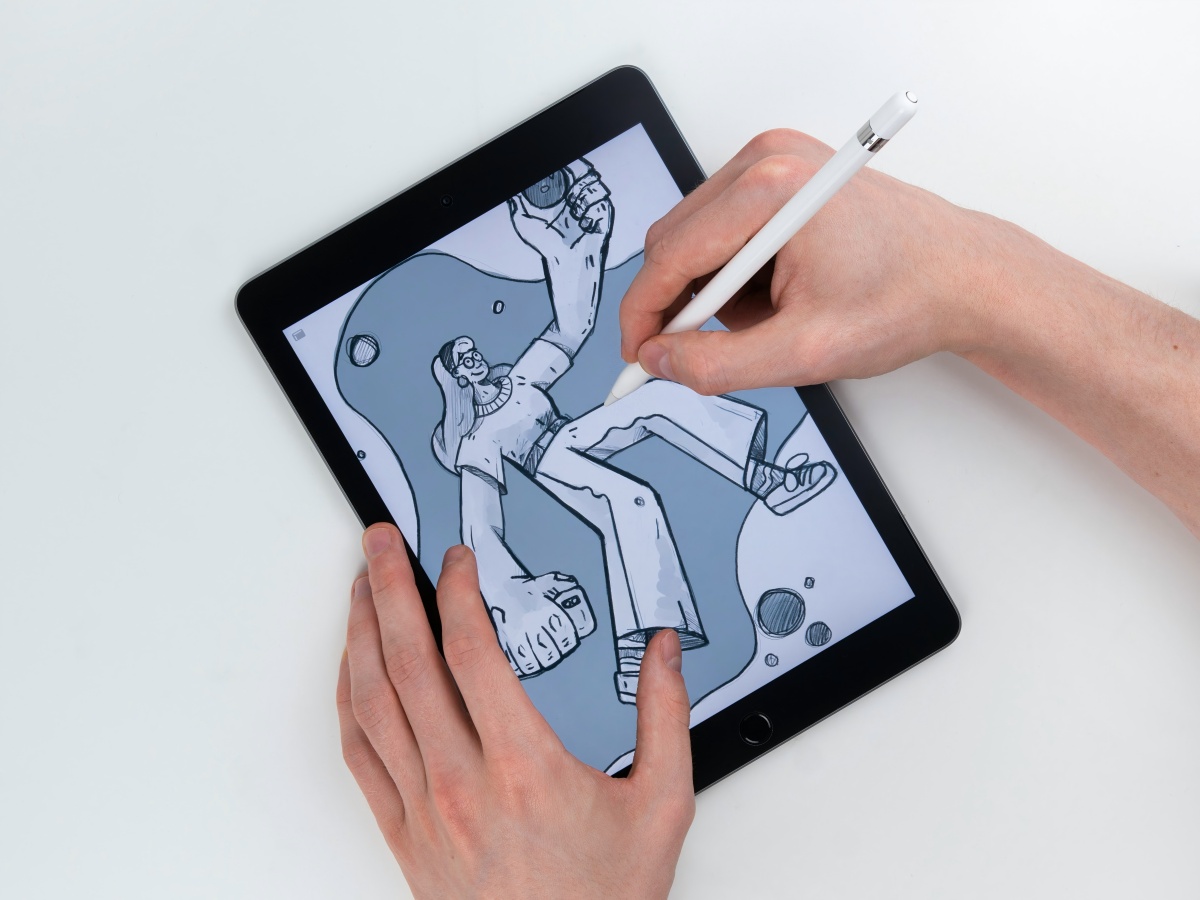
Use a stylus with good pressure sensitivity for better control. Adjust the drawing app’s settings for smooth strokes. Place your devices on a flat surface to keep your hand steady. Try different screen angles to find what feels best.

Credit: www.youtube.com
Credit: www.ugee.com
Frequently Asked Questions
Can I Use My Ipad As A Drawing Tablet For My Laptop?
Yes, you can use your iPad as a drawing tablet by connecting it to your laptop. Apps like Astropad and Duet Display enable this functionality. They mirror your laptop screen and allow you to draw directly on your iPad with an Apple Pencil, enhancing your digital art experience.
What Apps Help Connect Ipad To Laptop For Drawing?
Astropad, Duet Display, and EasyCanvas are popular apps for connecting iPads to laptops. These apps turn your iPad into a graphic tablet, allowing seamless drawing and editing on your laptop. They support Apple Pencil, providing pressure sensitivity and precision for digital artists.
Do I Need Special Cables To Connect Ipad To Laptop?
You can connect via USB or wirelessly using Wi-Fi. A USB cable offers a more stable and faster connection. Wireless connections provide flexibility but may have slight latency. Ensure your app supports the chosen connection method for the best drawing experience.
Is It Possible To Draw On Ipad And Save Files On Laptop?
Yes, when connected, you can draw on your iPad and save files directly on your laptop. Apps like Astropad mirror your laptop’s screen, so all edits save to your laptop’s storage in real time. This setup helps streamline your workflow efficiently.
Conclusion
Connecting your iPad to a laptop for drawing is simple and helpful. It lets you use your iPad as a drawing tablet. Many apps make this connection smooth and easy. This setup improves your drawing experience and saves time. You can work on bigger screens and use better tools.
Just choose the right app and cable or wireless method. Start creating art with both devices together. Drawing becomes more fun and flexible this way. Try it and see how it fits your style.
As an Amazon Associate, I earn from qualifying purchases.

