
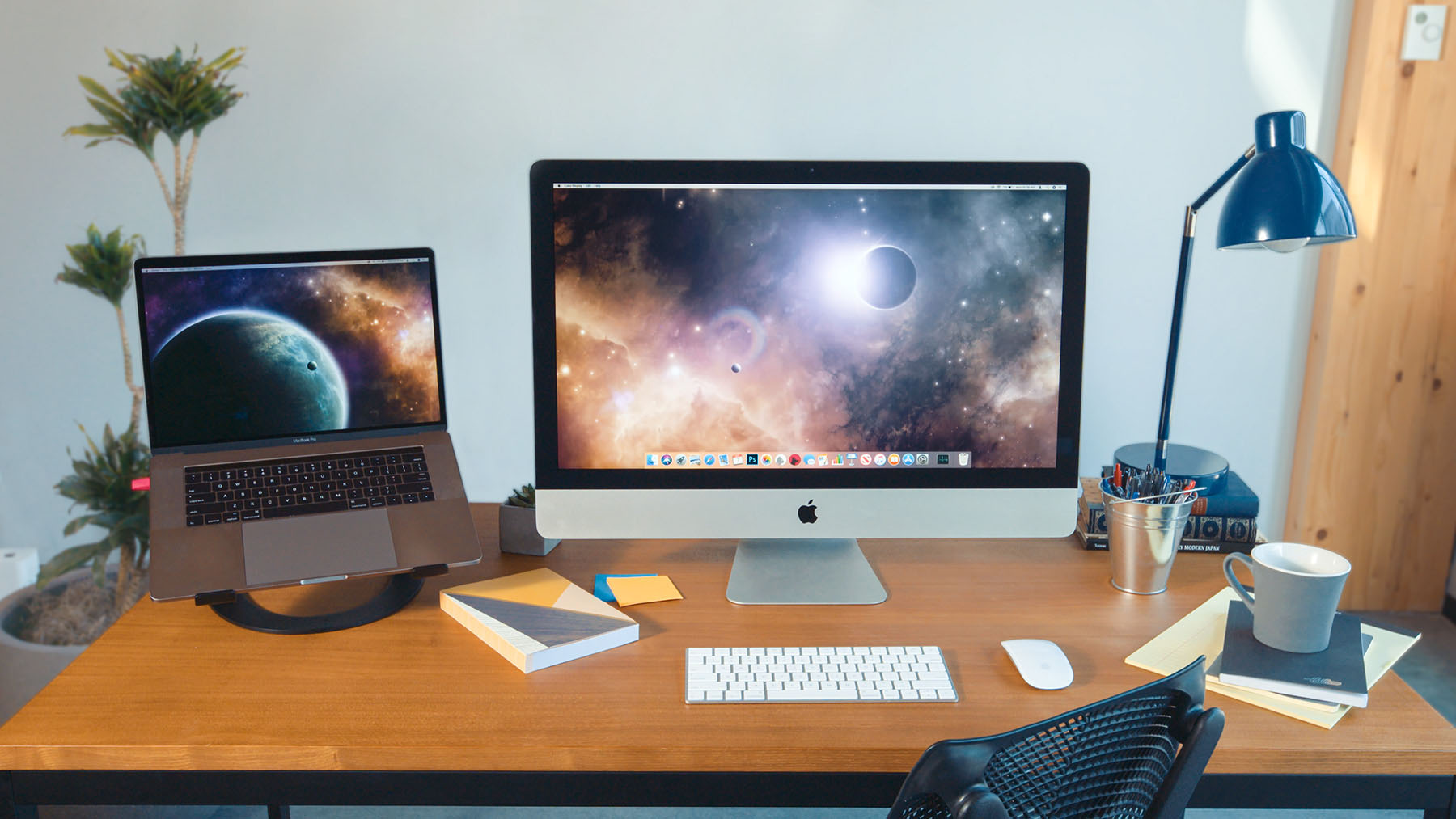
Have you ever wondered if you can use your Mac as a monitor for your PC? If you’re looking to save space, cut costs, or simply make the most of your existing devices, this question probably popped into your mind.
The idea sounds great—why not turn your sleek Mac screen into a second display for your PC? But is it really possible? And if so, how can you do it without technical headaches? Keep reading, because we’re about to uncover the truth and share simple ways to make your Mac and PC work together smoothly.
This could change how you set up your workspace forever.
Credit: astropad.com
Using Mac As A Pc Monitor
Using a Mac as a PC monitor might sound useful. It can save space and money. But it is not simple. Macs and PCs use different systems. This makes direct connection tricky. You need to check some things first. This helps know if it will work or not.
Compatibility Requirements
Not all Macs can be used as monitors. You need a Mac that supports Target Display Mode. This mode allows Macs to act as screens for other devices. Usually, only older iMacs have this feature. Check your Mac model and macOS version. Your PC must also support video output to a Mac. Without this, the connection will fail.
Hardware Connections
Connecting your Mac to a PC needs the right cables. Most Macs use Thunderbolt or Mini DisplayPort. Your PC must have matching ports or adapters. A simple HDMI or VGA cable will not work. Sometimes, a special Thunderbolt cable is necessary. Make sure both devices are turned off before connecting. Power on the Mac first, then the PC for best results.
Software Solutions
Software can help if hardware does not connect directly. Apps like Duet Display or Luna Display let Macs act as extra screens. They work over Wi-Fi or USB. These apps need installation on both Mac and PC. The connection is slower than a direct cable. But it allows more flexibility and works on many devices.

Credit: www.duetdisplay.com
Wired Connection Methods
Using a Mac as a monitor for a PC is possible with wired connections. These methods offer stable and fast video signals. You can connect devices through special modes or use common ports with adapters. Each option has its own steps and limits.
Using Target Display Mode
Target Display Mode lets some older Macs act as a monitor. It works with certain iMac models from 2009 to 2014. Connect the Mac to your PC using a Thunderbolt or Mini DisplayPort cable. Press Command + F2 on the Mac keyboard to enable the mode. The Mac screen shows the PC’s display. This method does not work on newer Macs or MacBooks.
Hdmi And Thunderbolt Options
Most PCs use HDMI output for video. Macs often use Thunderbolt or USB-C ports. Direct HDMI to HDMI connection is usually not possible. You can use Thunderbolt ports on the Mac for input, but only on some models. Thunderbolt supports high-speed video and audio. It provides better quality than HDMI in some cases. Check your Mac’s ports before trying this method.
Adapters And Cables
Adapters help connect different ports on Mac and PC. For example, you can use a USB-C to HDMI adapter. This allows the Mac to connect to an HDMI output from a PC. Cables vary by type and length. Choose good-quality cables for a clear picture. Remember, not all adapters support video input on Macs. Research your Mac model to find compatible options.
Wireless Connection Methods
Using a Mac as a monitor for a PC can be done wirelessly. This method avoids cables and allows more freedom. Wireless connection methods use apps and tools to share your PC screen on a Mac. These solutions work over Wi-Fi or local networks. Each method has its own strengths and limits. Understanding them helps you choose the best option.
Screen Sharing Apps
Screen sharing apps let you mirror your PC screen to a Mac. They use Wi-Fi to send the video signal. Popular apps include VNC-based tools and third-party software. These apps are easy to set up and use. Most offer basic control options and display settings. Screen sharing apps work well for light tasks like presentations or browsing.
Remote Desktop Tools
Remote desktop tools provide full access to your PC from a Mac. They send the entire desktop environment over the network. Common tools include Microsoft Remote Desktop and TeamViewer. These tools allow you to control your PC remotely. You can run programs and manage files as if on the PC. Remote desktop tools need good network speed for smooth use.
Latency And Performance
Wireless connections may cause some delay in display updates. Latency depends on Wi-Fi strength and network traffic. Higher latency can affect tasks needing fast responses, like gaming. Performance varies by app and network quality. Using a strong Wi-Fi router and a close connection helps reduce lag. For best results, a wired connection is usually faster than wireless.
Limitations And Challenges
Using a Mac as a monitor for a PC sounds useful but comes with clear limits and problems. These issues affect how well the setup works. Understanding them helps avoid frustration and wasted time.
Resolution And Display Quality
The Mac screen may not show the PC’s full resolution correctly. Macs have unique display settings that sometimes lower image clarity. Colors might look different or washed out. Text and pictures can appear blurry or pixelated. This reduces the overall viewing experience.
Input Lag Issues
Input lag means a delay between your PC commands and what appears on the Mac screen. This delay is often noticeable and distracting. It makes fast actions, like gaming or video editing, hard to do smoothly. The lag happens because the Mac is not designed to be a PC monitor.
Compatibility Constraints
Not all Macs support video input from a PC. Many models lack the needed ports or software. Special cables or apps may be required but can be unreliable. Different operating systems add to the difficulty. This limits which Mac and PC combinations can work together.
Alternative Monitor Options
Using a Mac as a monitor for a PC is not always easy or practical. Many users want other options that work better. There are several alternative ways to add more screen space to your PC. These options fit different needs and budgets. Explore these choices to find what suits you best.
Using Dedicated Monitors
Dedicated monitors are the most common choice for extra screen space. They connect easily to PCs with HDMI, DisplayPort, or VGA cables. These screens come in many sizes and resolutions. They offer good picture quality and fast response time. Many models support multiple inputs to switch between devices. A dedicated monitor provides a smooth and reliable experience.
Using Ipad As A Second Display
The iPad can work as a second display for a PC. Apps like Duet Display or Splashtop make this possible. You connect the iPad via a cable or Wi-Fi. The iPad shows your PC screen and lets you drag windows onto it. This method is handy if you already own an iPad. It is portable and easy to use but may have some lag.
Third-party Display Devices
Third-party devices offer unique ways to extend your screen. Products like Luna Display use hardware to link a Mac or iPad as a monitor. Some adapters convert USB or Thunderbolt ports to video outputs. These devices can work with various computers. They are useful when standard connections do not fit your setup. Costs and compatibility vary, so check details before buying.
Step-by-step Setup Guide
Using a Mac as a monitor for your PC is possible with the right steps. This guide explains how to set up your Mac to display your PC screen. Follow the simple instructions below to get started quickly.
Preparing Your Mac
First, check your Mac model. It must support Target Display Mode, usually older iMacs from 2009 to 2014. Newer Macs do not support this feature.
Next, update your Mac to the latest macOS version available for your model. This ensures compatibility and stability during connection.
Download and install any required software for screen sharing or remote desktop, like Luna Display or Duet Display, if Target Display Mode is unavailable.
Connecting To Your Pc
Use a compatible cable for connection. For Target Display Mode, connect a Thunderbolt or Mini DisplayPort cable between the Mac and PC.
If using software like Luna Display, connect both devices to the same Wi-Fi network. This allows wireless screen sharing.
Turn on both devices and unlock your Mac. Press Command + F2 on the Mac keyboard to activate Target Display Mode, if supported.
Configuring Display Settings
Open display settings on your PC. Right-click on the desktop and select Display settings.
Choose the Mac as a secondary display. Adjust resolution and orientation for the best viewing experience.
Set the Mac as extended or mirrored display based on your needs. Save changes and test the setup for smooth performance.

Credit: www.wikihow.com
Frequently Asked Questions
Can I Use A Mac As A Monitor For A Pc?
No, Macs do not natively support video input from PCs. You cannot directly use a Mac as a monitor for a PC without third-party software.
What Software Allows Mac To Work As Pc Monitor?
Apps like Luna Display and Duet Display enable Mac to act as a secondary display for PCs. They require installation on both devices.
Is It Possible To Connect Pc To Mac Via Hdmi?
No, Macs lack HDMI input ports. HDMI ports on Macs are output-only, so direct PC-to-Mac HDMI connection is not possible.
Can I Use Target Display Mode On A Mac?
Target Display Mode works only with some older iMacs and requires a Mac-to-Mac connection. It does not support PC connections.
Conclusion
Using a Mac as a monitor for a PC is not simple or common. Most Macs do not support video input, so direct connection often fails. Some apps and workarounds exist but may cause lag or quality loss. This setup suits only basic needs or short-term use.
For better display quality and ease, a dedicated monitor is the best choice. Think carefully about your needs before trying this method. It’s not impossible but not ideal for regular use. Choose the right tool for your setup.
As an Amazon Associate, I earn from qualifying purchases.

