
Have you ever wondered if your monitor has built-in speakers? It’s a question that can save you from buying extra equipment or help you troubleshoot sound issues.
Knowing whether your monitor can play audio directly can make your setup cleaner and your experience better. You’ll discover easy ways to find out if your monitor has speakers and what to do next. Keep reading—you might be closer to enjoying sound without extra cables than you think.

Credit: www.reddit.com
Check The Monitor’s Specifications
Checking your monitor’s specifications is the best way to know if it has built-in speakers. The specs provide clear details about the monitor’s features. This saves time and helps avoid guesswork.
Specifications often list audio capabilities. They show if speakers are included and the type of audio connections available. This information is usually easy to find and reliable.
Look For Audio Features
Search the monitor’s spec sheet for words like “speakers,” “audio out,” or “headphone jack.” These terms indicate sound support. Some monitors list speaker wattage or sound quality details too. If these features are missing, your monitor likely has no speakers.
Visit The Manufacturer’s Website
The official website offers the most accurate and updated specs. Find your monitor model and read the product description. It often mentions built-in speakers or audio ports. Manufacturer sites also have user manuals for detailed info. Manuals show exact speaker setup and how to use audio features.
Inspect Physical Ports And Buttons
Checking your monitor’s physical ports and buttons is a simple way to find out if it has speakers. These features often give clear clues about audio capabilities. You can examine the sides, back, or bottom edge of your monitor for ports and buttons related to sound.
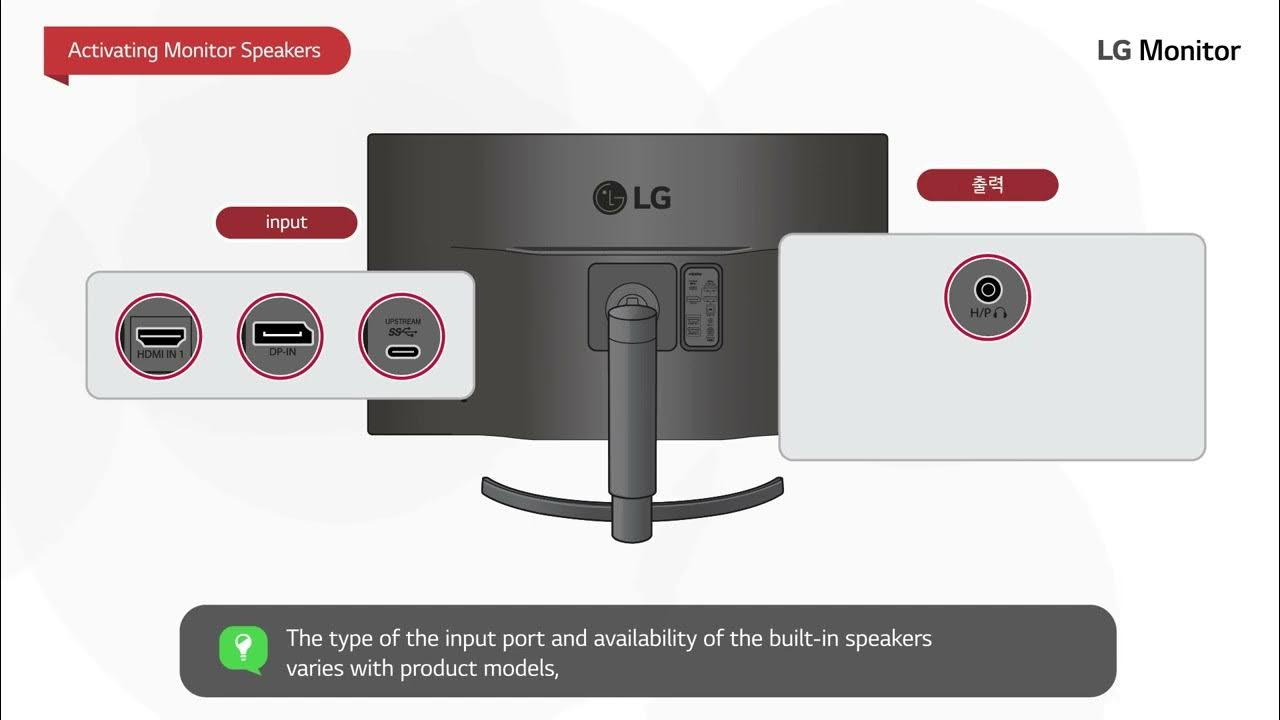
Identify Audio Input Or Output Ports
Look for small round ports, usually green or marked with a headphone icon. These are headphone or audio-out jacks. If your monitor has this port, it likely has built-in speakers. Some monitors also have audio-in ports, often labeled as “Audio In” or with a microphone icon. These ports allow sound to come into the monitor from your computer or other devices.
Locate Volume Or Audio Control Buttons
Find buttons on the monitor’s frame. They might be on the front, side, or bottom edge. Look for buttons with speaker icons or volume symbols. These controls adjust the sound level from the monitor’s speakers. If you see these buttons, your monitor probably includes built-in speakers for audio output.
Test Audio Playback
Testing audio playback helps you know if your monitor has built-in speakers. It lets you hear sound directly from the screen. This is a quick way to check speaker presence without extra tools. Follow these simple steps to test your monitor’s audio capabilities.
Play Sound Directly Through The Monitor
First, connect your monitor to the computer using HDMI or DisplayPort. These cables carry both video and audio signals. Next, play a sound or video on your computer. Listen carefully to see if sound comes from the monitor. If you hear clear audio, your monitor has speakers. No sound means it likely does not have built-in speakers.
Adjust System Audio Settings
Open your computer’s sound settings. Set the output device to your monitor’s name. Sometimes the system uses other speakers by default. Changing output to the monitor sends sound to it. Play audio again to confirm sound plays through the monitor. Adjust volume levels to ensure sound is not muted or low.
Credit: www.reddit.com
Use Device Manager Or System Information
Checking if your monitor has built-in speakers can be simple. Two useful tools on Windows help you find this out: Device Manager and System Information. These tools show all hardware connected to your computer, including audio devices. They help confirm if your monitor is listed as an audio device. This method does not require opening your monitor or guessing from its model.
Check Audio Devices In System Settings
Open the Control Panel or Settings on your PC. Navigate to the Sound section. Look for playback devices listed there. If your monitor has speakers, it might appear as an audio output device. Sometimes it shows as “Digital Audio” or the monitor’s brand name. If you see your monitor listed, it likely has built-in speakers. No listing means no speakers or they are not connected properly.
Look For Monitor Audio Drivers
Open Device Manager by right-clicking the Start button. Find the “Sound, video and game controllers” section. Expand this section to see all audio devices. Check if your monitor is mentioned here. Some monitors require specific audio drivers to work. If no monitor audio driver is present, your monitor may not have speakers. You can also check under “Audio inputs and outputs” for any monitor audio entries.
Consult User Manuals And Support Forums
Finding out if your monitor has built-in speakers can save time and money. Consult user manuals and support forums. These resources often hold clear answers. They help confirm features and guide setup steps.
Read The Monitor’s User Guide
The user guide is the best place to start. It shows all the monitor’s features. Look for sections about audio or sound. The guide may list speaker specs or audio ports. Check diagrams for speaker placement or sound controls. This helps you know if sound comes from the monitor itself.
Search Online Forums For Similar Queries
Support forums have real user experiences. Many users ask about monitor speakers. Search your monitor model along with “speakers” or “sound”. Read through posts to find answers. Users often share tips on how to enable or test speakers. Forums also reveal if external speakers are necessary.
Credit: www.youtube.com
Frequently Asked Questions
How To Check If My Monitor Has Built-in Speakers?
Look for speaker grills or audio input ports on your monitor. Check the user manual or product specifications online for speaker details.
Can I Use Monitor Speakers For Gaming Sound?
Yes, if your monitor has built-in speakers, they can handle basic gaming audio. For better sound, consider external speakers or headphones.
Do All Monitors Come With Built-in Speakers?
No, not all monitors include speakers. Many budget or professional monitors exclude speakers to reduce cost or improve display quality.
How To Connect Audio To A Monitor With Speakers?
Use an audio cable like 3. 5mm or HDMI if supported. Connect from your PC’s audio output to the monitor’s audio input port.
Conclusion
Knowing if your monitor has speakers helps you plan your setup better. Many monitors include basic speakers, but sound quality varies. Some models need external speakers for clear audio. Check your monitor’s specifications or look for speaker grills. Simple steps like this save time and avoid surprises.
Now, you can decide if extra speakers are necessary for your needs. Sound matters, so choose wisely.
As an Amazon Associate, I earn from qualifying purchases.

