
Are you struggling to access your Android phone’s storage from your computer? Whether you want to transfer photos, back up important files, or free up space, knowing how to connect your phone to your PC can save you time and hassle.
In this guide, you’ll discover simple, step-by-step methods to easily access your Android storage. By the end, you’ll be able to manage your files quickly and securely without any technical headaches. Keep reading to unlock the easiest way to get your phone’s data right on your computer screen.

Credit: www.youtube.com
Prepare Your Android Phone
Preparing your Android phone is the first step to access its storage from your computer. This ensures smooth connection and easy file transfer. You need to adjust some settings on your phone. These settings help your computer recognize the device properly. Follow the steps below to get your phone ready quickly and safely.
Enable Developer Options
Start by unlocking Developer Options on your Android phone. Go to Settings, then find About Phone. Tap Build Number seven times fast. You may need to enter your phone password. A message will confirm Developer Options are active. This menu gives access to important settings for connecting to a computer.
Turn On Usb Debugging
Next, enable USB Debugging inside Developer Options. Open Settings again, scroll to Developer Options. Find USB Debugging and switch it on. This feature allows your computer to communicate with your phone. It also helps transfer files and run commands smoothly. Always turn off USB Debugging when not in use for security.
Check Usb Connection Mode
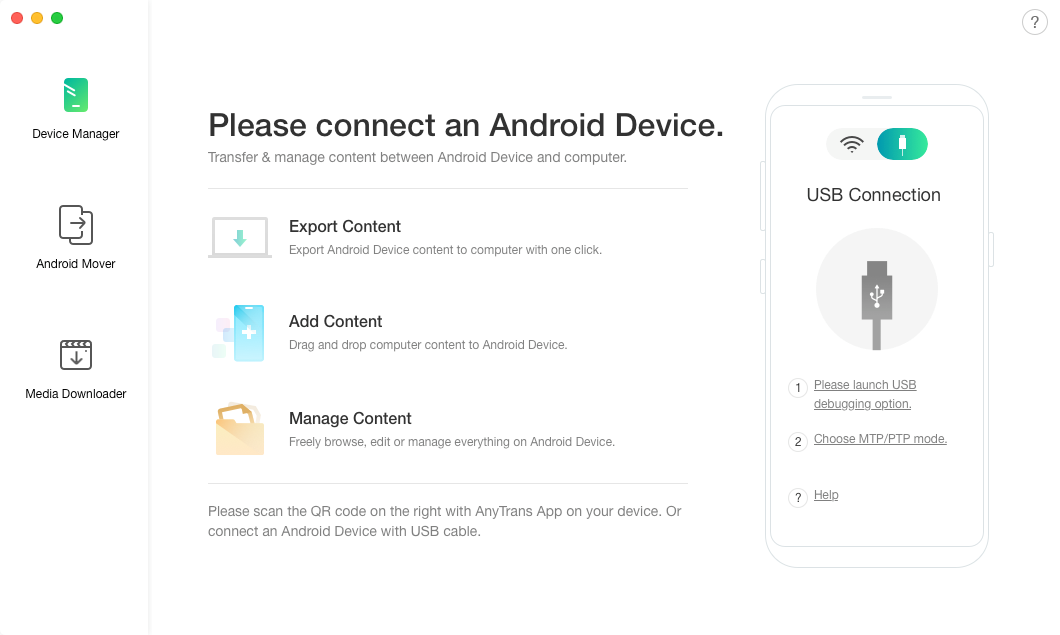
Finally, check the USB connection mode on your phone. Connect your phone to your computer with a USB cable. Swipe down the notification bar and tap the USB options. Choose File Transfer or MTP mode. This mode lets your computer access the phone’s storage. Confirming the correct mode avoids connection issues and data transfer problems.
Credit: www.imobie.com
Connect Android To Computer
Connecting your Android phone to a computer is the first step to access your phone storage. This process lets you move files, back up data, or manage your phone easily. The connection must be set up correctly for your computer to recognize the phone.
Use A Compatible Usb Cable
Choose a USB cable that fits your phone and computer ports. Most modern phones use a USB-C or micro USB cable. Avoid charging-only cables; they do not support data transfer. Using the right cable ensures a stable connection.
Select File Transfer Mode
After connecting the cable, unlock your phone screen. A notification will appear about the USB connection. Tap the notification and select “File Transfer” or “MTP” mode. This mode allows your computer to access phone storage.
Troubleshoot Connection Issues
If the phone does not appear on your computer, try these steps. Reconnect the USB cable or try a different port. Restart your phone and computer to refresh the connection. Check if your phone drivers need updating on the computer.
Access Phone Storage On Windows
Accessing your Android phone storage on a Windows computer is simple and fast. This process lets you move files, photos, and videos between your phone and PC easily. Follow clear steps to connect and explore your phone’s content directly from your computer.
Open File Explorer
Start by opening File Explorer on your Windows PC. You can do this by clicking the folder icon on the taskbar or pressing Windows + E on your keyboard. File Explorer helps you browse files stored on your devices and drives.
Locate Android Device
Connect your Android phone to the PC using a USB cable. On your phone, select “File Transfer” or “MTP” mode if prompted. In File Explorer, look under “This PC” or “Devices and drives” for your phone’s name. Click it to open your phone’s storage.
Browse Internal And Sd Card Storage
Your phone may show two storage options: Internal Storage and SD Card. Click each folder to view files stored in these locations. You can copy, paste, and manage files between your phone and computer easily here.
Access Phone Storage On Mac
Accessing your Android phone storage on a Mac is simple. Mac does not support Android phones natively. You need a special app to connect and manage files. This app is called Android File Transfer. It helps you move photos, videos, and documents between your phone and Mac easily.
This guide shows how to set up and use Android File Transfer. Follow each step to access your phone storage quickly.
Install Android File Transfer
First, download Android File Transfer from its official website. The file is free and safe. Open the downloaded file and drag the app to your Applications folder. Installing it takes just a few seconds.
Open Android File Transfer App
Connect your Android phone to the Mac using a USB cable. Unlock your phone screen and choose “File Transfer” mode on your phone. Open the Android File Transfer app on your Mac. The app will detect your phone automatically.
Navigate Phone Storage
Once connected, the app shows your phone’s internal storage and SD card if available. Browse folders to find photos, music, or documents. Drag and drop files to copy them between your phone and Mac. Close the app when done and safely disconnect your phone.
Transfer Files Between Devices
Transferring files between your Android phone and computer is simple. It lets you move photos, documents, and videos quickly. You can copy files to your computer or move new items to your phone. Managing permissions keeps your data safe during transfers.
Copying Files To Computer
Connect your Android phone to the computer using a USB cable. Choose the “File Transfer” mode on your phone screen. Open the phone storage folder on your computer. Select files or folders you want to copy. Drag and drop them into a folder on your computer. This method saves your files safely for backup or editing.
Moving Files To Phone
Use the USB cable to link your phone and computer. Open your phone’s storage folder on your PC. Find files on your computer that you want on your phone. Drag and drop these files into the phone folder. The files will transfer and appear in your phone apps. This helps you carry important documents or media everywhere.
Managing File Permissions
Your phone may ask for permission to access storage. Always allow access to transfer files smoothly. You can change permissions in the phone’s settings under “Apps” or “Storage.” Keep permissions limited to trusted computers. This protects your phone from unwanted file changes or theft.
Use Wireless Alternatives
Wireless options let you access Android phone storage without cables. They offer easy ways to transfer files using Wi-Fi or the internet. No need to connect your phone physically to your computer.
These methods work well for quick file sharing. They are perfect when you don’t have a USB cable nearby. Wireless access also reduces clutter and keeps your workspace tidy.
Connect Via Wi-fi
You can connect your Android phone to your computer over Wi-Fi. Apps like FTP servers or local file sharing apps help create a connection. Once connected, your phone storage appears as a network folder on your PC.
This lets you drag and drop files easily. The transfer speed depends on your Wi-Fi signal strength. Make sure both devices use the same network for a smooth connection.
Use File Transfer Apps
File transfer apps simplify wireless file sharing between devices. Apps like SHAREit, AirDroid, or Pushbullet work on Android and PC. They allow you to browse, upload, and download files remotely.
These apps often include extra features like notifications or SMS sync. Simply install the app on both devices and follow the instructions to pair them.
Access Storage With Cloud Services
Cloud services offer an easy way to access phone files from any computer. Upload your files to Google Drive, Dropbox, or OneDrive from your phone. Then open the same cloud service on your PC to download or edit files.
This method does not require devices to be on the same network. It provides secure backup and easy sharing with others. Keep in mind that large files may take longer to upload or download.
Secure Your Data
Accessing your Android phone storage from a computer is easy. But protecting your data is very important. Taking steps to secure your files keeps your information safe from damage or theft. Follow these simple tips to protect your phone and computer.
Disable Usb Debugging After Use
USB debugging lets your computer access your phone deeply. It helps transfer files and run commands. But leaving it on can expose your phone to risks. Turn off USB debugging after you finish using your phone with the computer. This stops unwanted access and keeps your data safer.
Safely Eject Your Device
Always eject your Android device properly before unplugging. This prevents data loss and file corruption. Use the “Safely Remove Hardware” option on your computer. Wait until the system confirms it is safe to disconnect. This simple step protects your files from damage.
Backup Important Files
Regular backups protect your data from loss. Copy important files to cloud storage or an external drive. Backups make sure you can restore your data if your phone or computer fails. Keep your most valuable files backed up to avoid stress later.

Credit: www.amazon.com
Frequently Asked Questions
How To Connect Android Phone Storage To Pc?
Connect your Android phone to your PC using a USB cable. Enable “File Transfer” mode on your phone. Your device storage will appear as a drive on the computer, allowing you to access files easily.
Can I Access Android Storage Wirelessly From Computer?
Yes, you can access Android storage wirelessly using apps like AirDroid or FTP servers. Both require your phone and PC to be on the same Wi-Fi network for file transfer.
What Software Helps Access Android Storage On Windows?
Windows File Explorer allows direct access when your phone is connected via USB. For wireless access, apps like AirDroid, Pushbullet, or WiFi File Transfer are useful and easy to set up.
Why Isn’t My Android Phone Storage Showing On Pc?
Ensure your phone is unlocked and USB mode is set to “File Transfer” or “MTP. ” Check your USB cable and drivers. Restart both devices if the storage does not appear.
Conclusion
Accessing Android phone storage from a computer is simple. Connect your phone with a USB cable. Choose the right mode on your phone to allow file transfer. Open your computer’s file explorer to see your phone’s files. You can now copy, move, or delete files easily.
This method saves time and keeps your data organized. Try these steps anytime you want to manage your phone storage. It’s quick, safe, and works with most Android devices. No need for extra apps or tools. Just a cable and a few clicks.
As an Amazon Associate, I earn from qualifying purchases.

