
As an Amazon Associate, I earn from qualifying purchases.
Do you want to connect two computers to one monitor but aren’t sure how to do it? You’re not alone, and the good news is—it’s easier than you think.
Whether you’re working from home, gaming, or just trying to save space on your desk, hooking up two computers to a single screen can make your setup cleaner and more efficient. Keep reading, and you’ll discover simple, step-by-step ways to make this happen without headaches or extra costs.
By the end, you’ll have a smooth, seamless connection that lets you switch between computers with ease. Ready to get started?
Choosing The Right Monitor
Choosing the right monitor is key to connecting two computers easily. The monitor must support multiple input types. This lets you switch between computers without hassle. Picking the right size and resolution also improves your experience. A clear display helps with work and entertainment.
Check Input Ports
Look at the monitor’s input ports. It should have more than one port type. Common ports include HDMI, DisplayPort, and VGA. Two different ports let you connect two computers directly. No need for extra adapters or switches. Make sure the ports match your computers’ outputs. This makes the connection simple and stable.
Consider Resolution And Size
Monitor size affects how much you can see. A bigger screen shows more details and windows. Resolution matters too. Higher resolution means sharper images. Choose a size that fits your desk space. Pick a resolution that suits your daily tasks. A 1080p screen is good for most needs. For detailed work, a 1440p or 4K monitor works better. Balance size and resolution to avoid eye strain.

Credit: www.youtube.com
Using A Monitor With Multiple Inputs
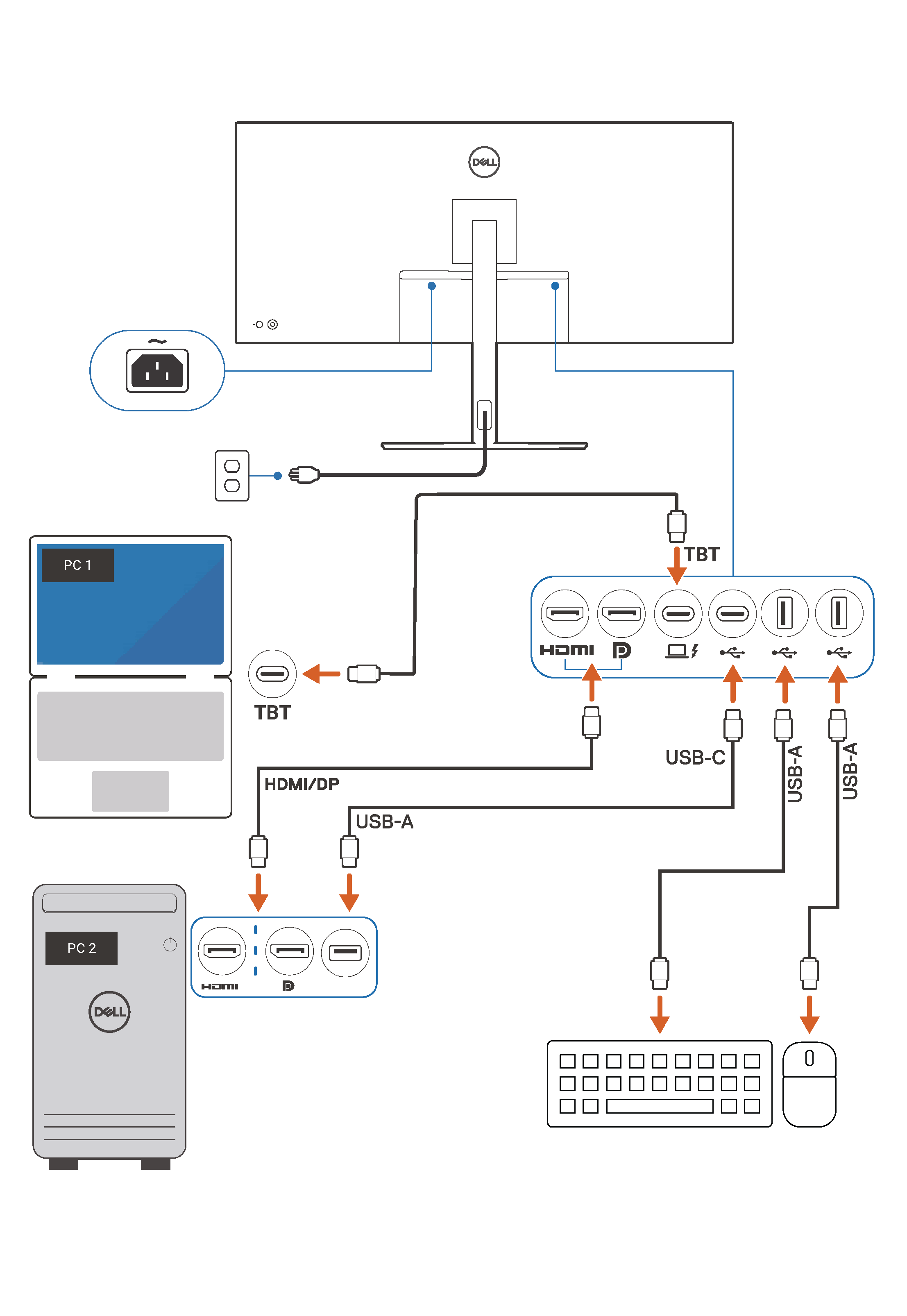
Using a monitor with multiple inputs is a simple way to connect two computers to one screen. Many modern monitors have more than one input port. These ports allow you to plug in different devices without unplugging cables. This setup saves space and makes switching between computers easier.
You can connect one computer to the HDMI port and the other to the DisplayPort. Both connections carry high-quality video signals. This way, you get clear images from both devices. The monitor can switch between these inputs with just a button press.
Connecting Via Hdmi And Displayport
First, check your monitor for HDMI and DisplayPort inputs. Most monitors have at least one HDMI port and one DisplayPort. Use an HDMI cable to connect the first computer to the HDMI port. Then, use a DisplayPort cable for the second computer. Make sure both cables are securely plugged in. Your monitor will detect both signals automatically.
Switching Between Inputs
To change the display from one computer to another, use the monitor’s input button. This button is often on the side or bottom of the monitor. Press it to cycle through the connected inputs. The screen will switch from HDMI to DisplayPort or vice versa. Some monitors also allow input switching through the on-screen menu. This method lets you choose the active computer without unplugging cables.
Employing A Kvm Switch
Employing a KVM switch is a smart way to connect two computers to one monitor. It helps you save space and avoid constant unplugging of cables. This device lets you control multiple computers using a single keyboard, mouse, and monitor. Switching between computers is quick and easy. It is ideal for home offices and small workspaces.
What Is A Kvm Switch?
A KVM switch stands for Keyboard, Video, and Mouse switch. It allows one set of these devices to control multiple computers. The switch connects to each computer with cables. It sends video signals from the computer to the monitor. It also sends keyboard and mouse input back to the computer. You can select which computer to control using buttons on the switch or a keyboard shortcut.
Setting Up The Kvm Switch
First, connect the monitor, keyboard, and mouse to the KVM switch. Next, use the cables that came with the switch to connect each computer. Plug the video cable into each computer’s video port. Connect the USB or PS/2 cables for the keyboard and mouse. Turn on the computers and the KVM switch. Use the switch button or shortcut to choose which computer shows on the monitor. Test the keyboard and mouse to make sure they work with each computer.
Using Hdmi Splitters And Switches
Using HDMI splitters and switches is a practical way to connect two computers to one monitor. These devices help manage multiple video sources without constantly unplugging cables. They save space and keep your workspace neat.
HDMI splitters and switches have different functions. Knowing their differences helps you choose the right device for your setup. Both are easy to use and work with standard HDMI cables.
Differences Between Splitters And Switches
An HDMI splitter takes one video source and copies it to two or more displays. It shows the same image on each screen. This is useful for presentations or watching the same content on multiple monitors.
An HDMI switch, by contrast, allows multiple video sources to connect to one display. You can switch between inputs without unplugging cables. It is perfect for sharing one monitor between two computers.
How To Connect And Use Them
To use an HDMI splitter, plug the single video output from your computer into the splitter’s input. Then connect each monitor to the splitter’s outputs. Turn on the devices, and the same image appears on all screens.
For an HDMI switch, connect both computers’ HDMI outputs to the switch’s inputs. Connect the switch’s output to your monitor. Press the switch button to select which computer’s display appears on the monitor.
Both devices require power from an adapter or USB. Always use good quality HDMI cables for the best signal. Test the setup before regular use to ensure everything works smoothly.
Configuring Display Settings
Configuring display settings is essential after connecting two computers to one monitor. This step ensures both computers show clear and smooth visuals. Proper settings help avoid blurry images and screen flickers.
You can control how the screen looks for each computer. This includes adjusting resolution and refresh rate. Also, managing multiple displays helps use the monitor efficiently. Understanding these settings improves your viewing experience.
Adjusting Resolution And Refresh Rate
Resolution determines how sharp the screen image appears. Higher resolution means more detail but may slow the computer. Choose a resolution that fits your monitor’s size and capabilities.
Refresh rate controls how fast the screen updates images per second. A higher refresh rate means smoother motion. Set the refresh rate to match your monitor’s maximum for best results.
Adjust these settings in your computer’s display options. Change resolution and refresh rate separately for each computer. This keeps both displays clear and comfortable to view.
Managing Multiple Displays
Managing multiple displays lets you switch between computers smoothly. You can extend or duplicate the screen on the monitor. Extending allows using parts of the screen for each computer.
Use your operating system’s display settings to arrange screens. Set which computer controls what part of the monitor. This setup reduces confusion and improves workflow.
Assign easy shortcuts to switch displays quickly. This saves time and avoids manual cable changes. Proper management creates a seamless dual-computer setup on one monitor.

Credit: www.youtube.com
Tips For Seamless Switching
Switching between two computers on one monitor should be smooth and quick. Interruptions can waste time and cause frustration. Follow simple tips to switch without hassle. These tips improve your workflow and save effort.
Keyboard Shortcuts
Keyboard shortcuts make switching fast. Some monitors or KVM switches have built-in hotkeys. Press a key combination to change the input source. This avoids using the monitor menu. Check your device manual for the correct keys. Practice the shortcut to remember it easily.
Shortcuts reduce the need to click buttons. This keeps your hands on the keyboard. Switching becomes almost instant. No waiting or searching for controls.
Using Software Solutions
Software can manage multiple computers on one screen. Programs like Input Director or Synergy let one keyboard and mouse control both PCs. They switch control automatically or with a simple command. This means no manual input switching on the monitor.
These tools work over your network. They need setup but offer smooth control. You move the cursor from one screen to another naturally. Software solutions create a seamless workspace across computers.
Troubleshooting Common Issues
Troubleshooting common problems helps keep your dual-computer setup smooth. Issues can arise even with the best equipment. Knowing how to fix them saves time and frustration. Let’s review frequent problems and easy fixes.
No Signal Problems
No signal means the monitor shows nothing from the computer. Check if all cables are tightly connected. Try switching the input source on your monitor. Use different cables to rule out damaged ones. Restart both computers and the monitor. Confirm the computer is powered on and not in sleep mode.
Display Flickering And Artifacts
Flickering or strange lines on the screen can be annoying. This usually happens due to loose connections or bad cables. Make sure all cables are firmly plugged in. Try using a different cable to test the problem. Update your computer’s graphics drivers. Lower the screen refresh rate in display settings. Keep the monitor away from strong magnetic fields or devices that cause interference.
Credit: www.dell.com
Frequently Asked Questions
Can I Connect Two Computers To One Monitor Simultaneously?
Yes, you can connect two computers to one monitor using a KVM switch or a monitor with multiple inputs. This setup allows easy switching between computers without unplugging cables, improving efficiency and saving desk space.
What Cables Do I Need To Hook Up Two Pcs To One Monitor?
You typically need HDMI, DisplayPort, or VGA cables compatible with your monitor and computers. Ensure the monitor has multiple input ports to connect both computers simultaneously for seamless switching.
How Do I Switch Between Two Computers On One Monitor?
You switch by using the monitor’s input source button or a KVM switch. The monitor or switch toggles the display output between the connected computers quickly and easily.
Will Using One Monitor For Two Computers Affect Display Quality?
No, display quality remains the same if cables and monitor support the resolution. Using high-quality cables and compatible ports ensures optimal display performance for both computers.
Conclusion
Connecting two computers to one monitor is simple with the right tools. Choose a monitor with multiple input ports or use a KVM switch. Switch between computers easily without unplugging cables. This setup saves space and cuts costs. It works well for work or home use.
Remember to check cable compatibility and monitor settings. You can enjoy using two computers on one screen quickly and smoothly. Try it today and make your workspace more efficient.
As an Amazon Associate, I earn from qualifying purchases.

