
Are you struggling with a slow Toshiba laptop or facing software issues? Restoring your Toshiba laptop to factory settings can be the quick fix you need.
It wipes away all the clutter and brings your device back to its original, fresh state. But how exactly do you do it without losing important data or causing more problems? In this guide, you’ll find simple, step-by-step instructions that anyone can follow.
By the end, you’ll know exactly how to reset your Toshiba laptop safely and effectively—so keep reading and take control of your device today.
Prepare For Factory Reset
Backing up important data is the first step before a factory reset. Save files like photos, documents, and videos to an external drive or cloud storage. This keeps your data safe.
Make sure to charge your laptop fully. A reset can take time, and a power loss may cause problems. Keep your laptop plugged in during the process.
Disconnect all external devices like USB drives, printers, or headphones. These can interfere with the reset. Only keep the power cable connected.
Credit: www.easeus.com
Access Recovery Options
Using Toshiba Recovery Media is one way to restore your laptop. This media might be a CD, DVD, or USB drive. Insert the recovery media and restart your laptop. Follow the on-screen steps to begin the reset process.
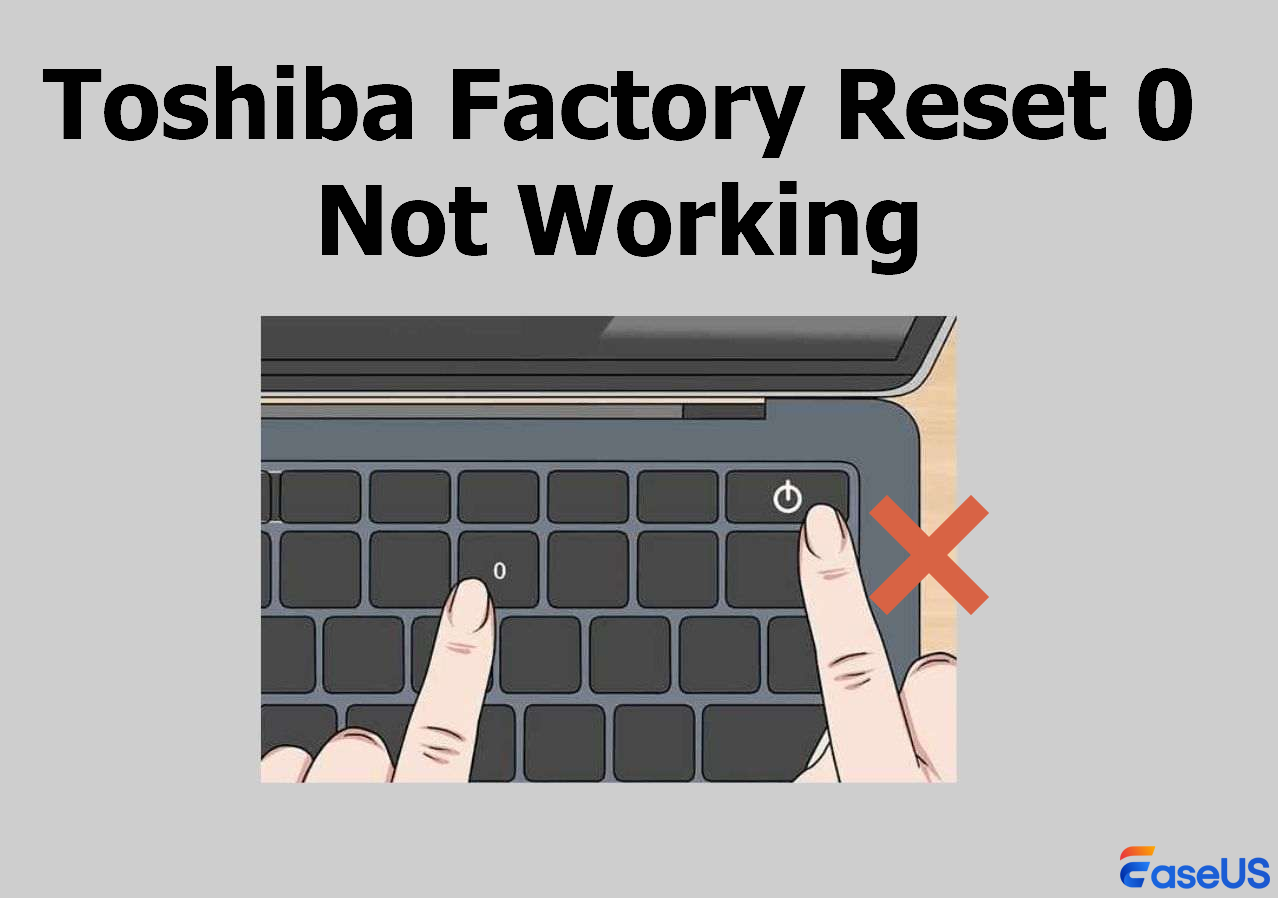
Using Built-in Recovery Partition does not require extra media. This partition stores factory reset files. Restart your laptop and press the specific key (like F8 or 0) to access recovery. Then choose the option to restore factory settings.
Booting into Recovery Mode lets you reset without starting Windows. Turn off the laptop. Press and hold the recovery key, then turn it on. Release the key when the recovery screen appears. Follow instructions to restore the system.
Perform Factory Reset
Start by following the on-screen instructions carefully. The system will guide you step-by-step.
Next, choose the reset options that best fit your needs. You can select to keep files or remove everything.
Finally, wait for the reset process to complete. This may take some time, so be patient.
Do not turn off your laptop during the reset. Let it finish to avoid errors.

Credit: www.wikihow.com
Post-reset Setup
Start by choosing your language and region in the Windows setup screen. Connect to the internet to get the latest updates and security patches. Create or sign in with a Microsoft account to sync your settings and files.
Reinstall important programs like web browsers, office tools, and antivirus software. Use installation files saved on a USB drive or download them from trusted websites. Keep your software updated to avoid security risks and bugs.
Restore your backed-up files from an external drive or cloud storage. Copy documents, photos, and videos to their original folders. Double-check that all important files are correctly restored before deleting backups.
Troubleshooting Reset Issues
The recovery partition may not work if it is damaged or deleted. In such cases, the reset process cannot start. Try using a recovery USB drive if available. Error messages during reset often show codes or simple phrases. These messages help find the exact problem.
Common errors include “reset failed” or “unable to find recovery files.” Restart the laptop and try again. Sometimes, a simple reboot fixes the problem. Check if your laptop has enough power and storage space before resetting.
Contact support when multiple attempts fail or if error messages persist. Keep your laptop model and serial number ready. Support can guide through advanced steps or provide recovery tools. Professional help ensures data safety and proper resetting.
Credit: www.youtube.com
Frequently Asked Questions
How Do I Start Toshiba Factory Reset Process?
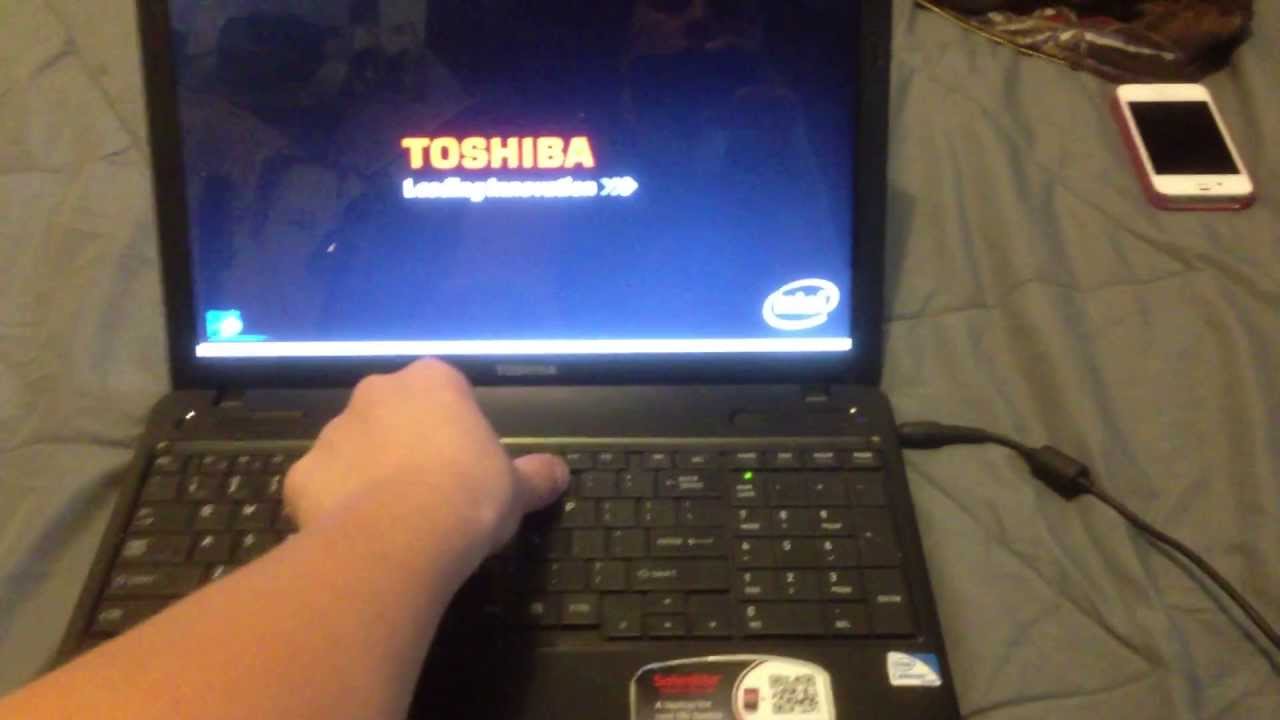
To start a Toshiba factory reset, power off your laptop. Then, press and hold the 0 (zero) key while powering on. Release the key when the recovery screen appears. Follow on-screen instructions to restore factory settings safely and completely.
Can I Restore Toshiba Laptop Without Recovery Disk?
Yes, you can restore a Toshiba laptop without a recovery disk using the built-in recovery partition. Access it by pressing 0 (zero) key during startup. This partition holds factory default files to reset your system efficiently and securely.
Will Restoring Toshiba Delete All My Files?
Restoring a Toshiba laptop to factory settings deletes all personal files and installed applications. It resets the system to its original state. Always back up important data before starting the reset to avoid losing valuable information permanently.
How Long Does Toshiba Factory Reset Usually Take?
A Toshiba factory reset typically takes 30 to 60 minutes. The time depends on your laptop model and data amount. Ensure your laptop is plugged into power during the process to prevent interruptions and complete the reset successfully.
Conclusion
Restoring your Toshiba laptop to factory settings is simple and effective. It helps fix software problems and makes your device like new. Follow the steps carefully to avoid mistakes. Remember to back up important files before starting. This process clears personal data and resets system settings.
After restoring, your laptop runs smoother and faster. Keep your device updated to prevent future issues. A clean start can improve your computer’s performance and reliability. Take your time and enjoy a fresh, clean Toshiba laptop.
As an Amazon Associate, I earn from qualifying purchases.

