
Is your Acer laptop running slow or acting strangely? Sometimes, the best fix is to reset it.
But how do you reset an Acer laptop without losing important files or causing more trouble? You might feel unsure or worried about making a mistake. Don’t worry—this guide will walk you through simple, clear steps to get your laptop back to its best condition.
Keep reading, and you’ll be able to reset your Acer laptop quickly and safely, even if you’re not tech-savvy.
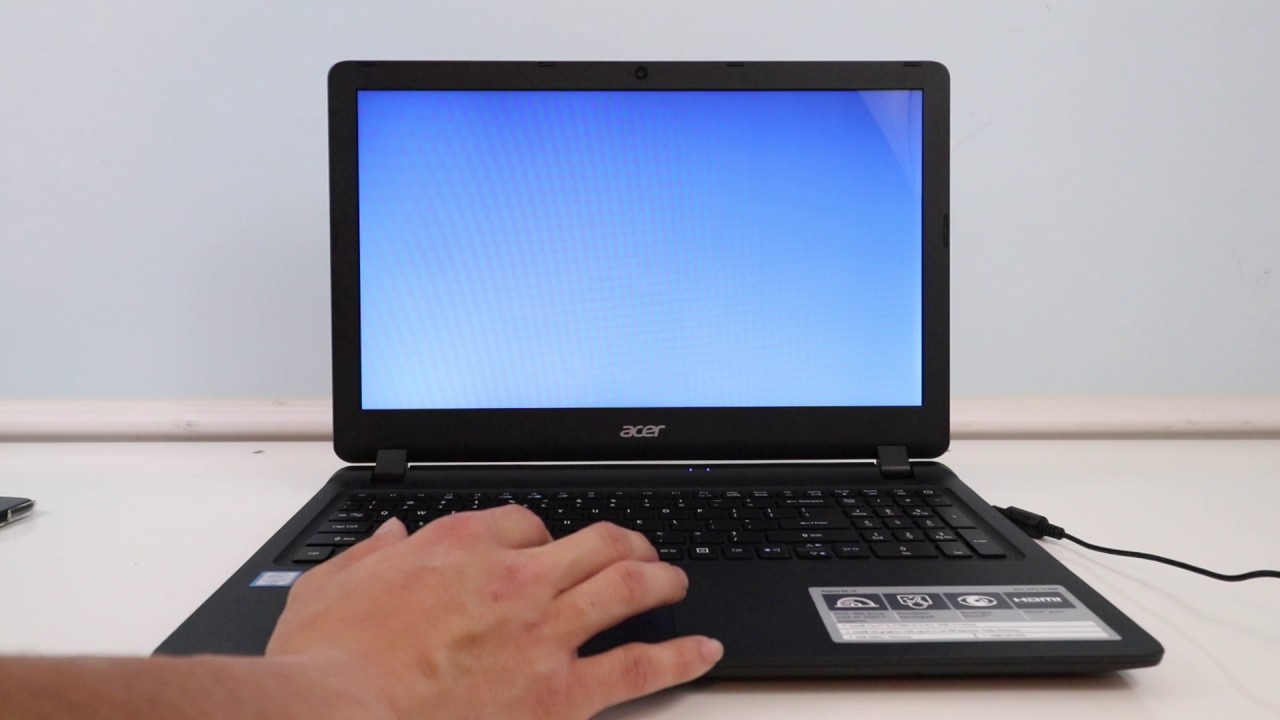
Credit: www.youtube.com
Preparing To Reset Your Acer Laptop
Backing up important data is a must before resetting your Acer laptop. Save files like documents, photos, and videos to an external drive or cloud storage. This keeps your data safe. Resetting will erase everything on the laptop.
Check that your laptop has enough battery or is plugged into a power supply. A reset can take some time. Losing power during the process may cause problems or stop the reset.
| Reset Option | Description |
|---|---|
| Soft Reset | Restarts the laptop without deleting files. |
| Factory Reset | Deletes all data and returns the laptop to original settings. |
| Custom Reset | Lets you choose which data to keep or remove. |
:max_bytes(150000):strip_icc()/A1-FactoryResetanAcerLaptop-annotated-677d89d492fc4744ba8c8ed26c6cdd13.jpg)
Credit: www.lifewire.com
Resetting Through Windows Settings
Start by clicking the Start menu and selecting Settings. Then, go to Update & Security and choose Recovery. Under Reset this PC, click Get started. This opens the recovery options.
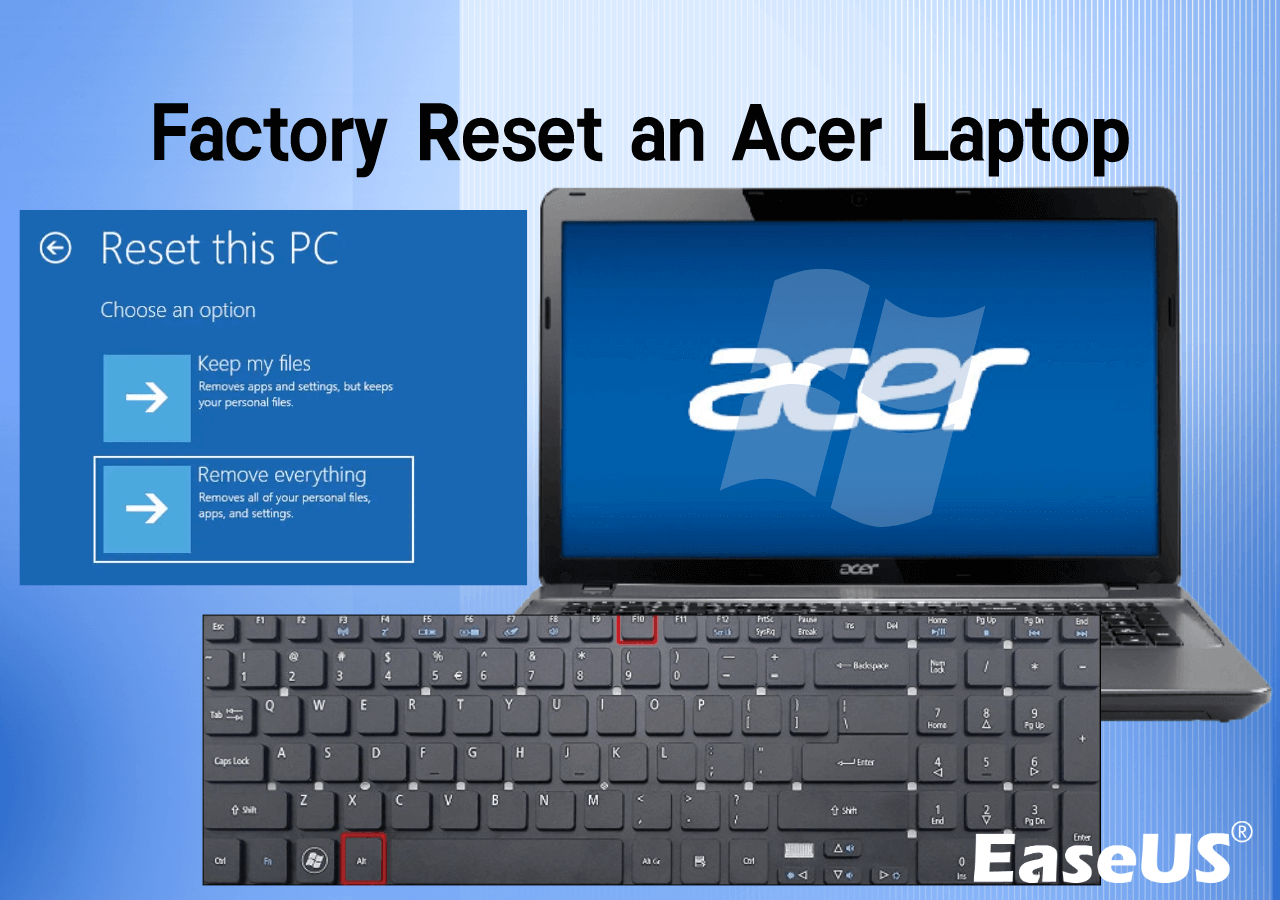
Choose the reset type carefully. Keep my files removes apps but saves personal files. Remove everything deletes all files and apps. Pick the option that fits your needs best.
Follow the on-screen steps to complete the reset. The laptop will restart several times. Make sure it stays plugged in during the process. After finishing, the Acer laptop will be like new, ready to use.
Using Acer Recovery Management
First, open the Acer Recovery Manager from the Start menu or search bar. This tool helps you reset your laptop safely.
Choose Factory Reset from the options. This will erase all files and settings.
Follow the on-screen instructions carefully. The system will guide you step-by-step to complete the reset.
Make sure your laptop is plugged into power during the process. The reset may take some time.
After finishing, your Acer laptop will restart like new, with original settings.
Resetting With Recovery Partition
To enter recovery mode on an Acer laptop, restart the computer first. Press Alt + F10 keys immediately as the Acer logo appears. Keep holding the keys until the recovery screen shows up. This step allows access to the recovery partition stored on the hard drive.
Once inside, use the keyboard or mouse to navigate the recovery menu. Options include system repair, backup, or factory reset. Choose carefully depending on the problem with your laptop.
Select restore to factory settings to reset the laptop. This deletes all personal files and reinstalls the original operating system and apps. Confirm the choice, then wait while the process completes. The laptop will restart automatically when done.
Resetting Using A Usb Recovery Drive
Start by connecting a blank USB drive with at least 16GB space. Search for “Create a recovery drive” in the Windows search bar. Follow the steps to copy system files to the USB drive. This process takes some minutes.
To boot from USB, first turn off your Acer laptop. Insert the recovery USB drive. Press the power button and quickly press the F12 key to open the boot menu. Select the USB drive from the list and press Enter. The laptop will start from the USB.
Once booted, choose the Recover from a drive option on the screen. Follow the instructions to reset the laptop. This will remove all files and reinstall Windows. Keep the laptop plugged in during the process.
Troubleshooting Reset Issues
Reset failures can happen for many reasons. Sometimes, the laptop does not start the reset process. Other times, errors may appear on the screen. Try to restart your laptop and attempt the reset again. If problems continue, check if the laptop is fully charged or plugged in.
Acer support should be contacted when reset attempts fail multiple times. They can help with advanced troubleshooting or hardware checks. Use official Acer contact methods to avoid scams. Keep your laptop model and serial number ready for faster help.
To prevent future problems, keep your laptop updated. Install the latest Windows and Acer software updates. Avoid downloading unknown files or programs. Regularly clean your laptop’s disk using built-in tools. Back up important files before resetting or updating. Simple care can help your laptop run smoothly longer.
Credit: www.easeus.com
Frequently Asked Questions
How Do I Factory Reset My Acer Laptop?
To factory reset your Acer laptop, go to Settings > Update & Security > Recovery. Click “Get started” under Reset this PC and choose “Remove everything” to restore factory settings.
Can I Reset Acer Laptop Without Losing Data?
Yes, choose the “Keep my files” option during the reset process. This keeps your personal files but removes apps and settings.
What Keys Reset Acer Laptop To Factory Settings?
Press Alt + F10 during startup to access Acer’s recovery system. Follow the prompts to reset your laptop to factory defaults.
How Long Does Acer Laptop Reset Take?
Resetting an Acer laptop usually takes 20-40 minutes. Time varies based on system speed and reset type chosen.
Conclusion
Resetting an Acer laptop can solve many common problems. Follow the steps carefully to avoid errors. Back up important files before starting the reset process. The reset will restore your laptop to its original settings. This can improve speed and fix software issues.
Take your time and be patient during the reset. If problems continue, seek professional help. A clean reset gives your Acer laptop a fresh start. Keep this guide handy for future reference.
As an Amazon Associate, I earn from qualifying purchases.

