
Have you ever needed to capture exactly what’s on your Samsung laptop screen but didn’t know how? Whether it’s saving an important message, sharing a funny moment, or keeping a record of something important, taking a screenshot is one of the easiest ways to do it.
But if you’re unsure how to do it on your Samsung laptop, you’re not alone. You’ll discover simple, step-by-step methods to take screenshots quickly and effortlessly. By the end, you’ll be able to save and share anything on your screen in no time.
Keep reading to unlock these handy tricks!
Credit: www.youtube.com
Screenshot Methods On Samsung Laptops
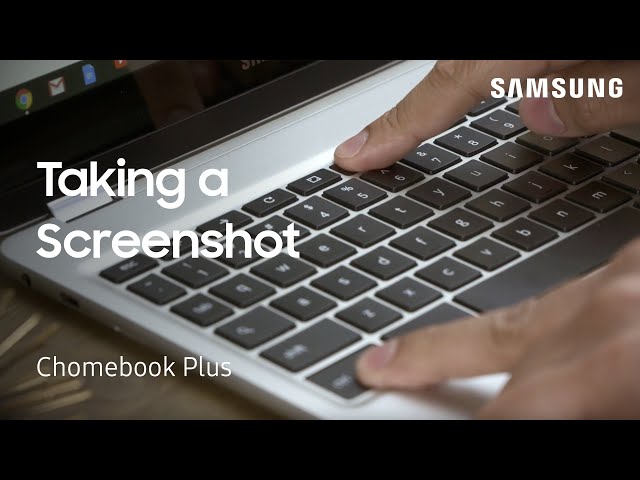
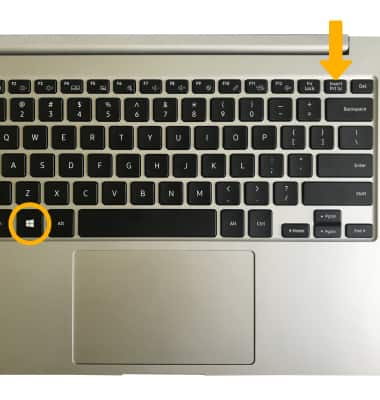
Keyboard shortcuts offer a quick way to capture your screen. Press Windows key + PrtScn to save the screenshot automatically. For copying only, press PrtScn alone and paste it into a program like Paint. Press Alt + PrtScn to capture just the active window.
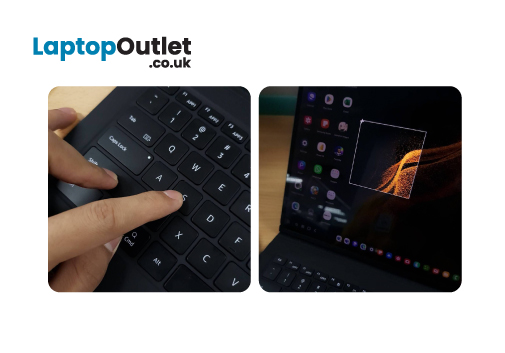
The Snipping Tool lets you select any part of the screen. Open it from the Start menu. Click New, drag to select, then save or copy your snip. It works well for custom screenshots.
Snip & Sketch is a newer tool. Press Windows key + Shift + S. The screen dims and a small menu appears. Choose from rectangular, freeform, window, or full-screen snip. The screenshot copies to your clipboard for easy pasting.
| Method | Key Combination | Result |
|---|---|---|
| Full Screen Capture | Windows + PrtScn | Saves screenshot automatically |
| Copy Full Screen | PrtScn | Copies screen to clipboard |
| Active Window Capture | Alt + PrtScn | Copies active window only |
Credit: www.laptopoutlet.co.uk
Saving And Editing Screenshots
Samsung laptops save screenshots automatically in the Pictures folder. Look for the “Screenshots” subfolder inside it. Screenshots are saved as PNG files with the date and time in the name. This helps find them easily later.
Use built-in tools like Snipping Tool or Snip & Sketch to edit screenshots. You can crop, draw, or highlight parts quickly. These tools open right after taking a screenshot, so editing is fast and simple.
Third-party editors like Paint.NET or GIMP offer more editing options. These let you add text, shapes, or filters. Use them to make detailed changes or improve image quality.
Troubleshooting Screenshot Issues
Print Screen key may not work due to keyboard issues. Try pressing Fn + PrtSc keys together. Check if the function lock (Fn Lock) is on. Restart the laptop to fix temporary glitches. Update your keyboard drivers from the device manager.
The Snipping Tool might not open because of software problems. Use the Windows search to find it manually. Restart your laptop to refresh system apps. Try opening the tool from the Start menu > Windows Accessories. If it still fails, reset the app via Settings > Apps.
Screenshots not saving can happen if the save location is full or changed. Check the Pictures > Screenshots folder for your images. Make sure there is enough storage space on your laptop. Use Save As options if available. Restarting your device may also help resolve save errors.
Tips For Better Screenshots
To capture specific windows, press Alt + PrtScn. This saves only the active window. It helps avoid editing out extra parts later. Use this for focused screenshots.
The delay feature allows time before screenshot. Open the Snipping Tool or Snip & Sketch app. Set a delay of 3 or 5 seconds. This helps capture menus or pop-ups that disappear quickly.
Organize screenshots by creating folders. Sort images by date or project. Rename files with clear names. This saves time searching later and keeps your work tidy.
Credit: www.att.com
Frequently Asked Questions
How Do I Take A Screenshot On A Samsung Laptop?
Press the “PrtSc” (Print Screen) key to capture the entire screen. Paste it into an image editor or document to save or edit.
Can I Screenshot Only A Portion Of The Screen On Samsung Laptops?
Yes, press “Windows + Shift + S” to open the Snip & Sketch tool. Select the area you want to capture.
Where Are Screenshots Saved On Samsung Laptops?
Screenshots captured using “Windows + PrtSc” save automatically in the Pictures > Screenshots folder. Others require manual saving.
How To Screenshot On Samsung Laptops Without A Print Screen Key?
Use the Snipping Tool or Snip & Sketch app. Open the app, select the snip type, and capture your screen.
Conclusion
Taking screenshots on a Samsung laptop is simple and quick. Use the keyboard shortcuts or built-in tools to capture your screen. Save or edit your screenshots easily for sharing or later use. Practice a few times to get comfortable with the process.
Now, capturing important information or fun moments is just a few clicks away. No need to search again—your Samsung laptop has everything you need. Give it a try today and see how easy it can be.
As an Amazon Associate, I earn from qualifying purchases.

