
Want quick access to your favorite apps on your Samsung Smart TV? Imagine opening your TV and instantly finding the apps you use the most, right on your home screen.
No more scrolling through endless menus or searching every time you want to watch something. In this guide, you’ll learn exactly how to add apps to your Samsung Smart TV home screen, making your viewing experience faster and more enjoyable.
Keep reading, and you’ll be set up in just a few simple steps!

Credit: www.samsung.com
Accessing The Home Screen
Accessing the home screen on your Samsung Smart TV is the first step to adding apps. It acts as the central hub where you can find your favorite apps and settings. Knowing how to get there quickly makes your TV experience smoother.
Using The Remote Control
Start by picking up your Samsung TV remote. Press the Home button. It usually looks like a house icon. This action brings up the home screen instantly. If your remote has a Smart Hub button, pressing it works the same. No need to press other buttons.
Navigating The Interface
Once on the home screen, use the arrow keys on your remote. Move left, right, up, or down to explore options. The home screen shows apps, settings, and other features. Highlight the part you want by moving the cursor. Press OK or Enter to select.
Opening The Apps Section
Opening the Apps section on your Samsung Smart TV is the first step to adding new apps to your home screen. This section holds all the apps you have installed and many more to explore. Knowing how to access it quickly saves time and helps you find your favorite apps easily.
Follow simple steps to open the Apps section and start customizing your TV experience.
Locating The Apps Icon
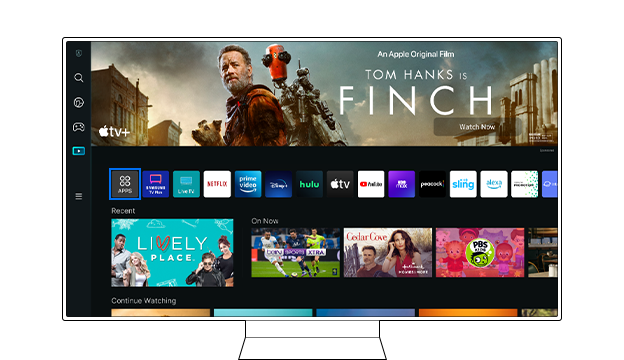
The Apps icon is usually found on the TV’s home screen. It looks like a grid of small squares or dots. Use your remote control to navigate the bottom menu. Move left or right until you see the Apps icon. Press the Enter or Select button to open it.
Browsing Available Apps
Inside the Apps section, you can see many apps ready to download. Apps are sorted by categories like Entertainment, Games, and Lifestyle. Use the arrow keys on your remote to scroll through the list. Select any app to view details or install it on your TV. This is where you find new apps to add to your home screen.
Adding An App To Home Screen
Adding an app to your Samsung Smart TV home screen makes it easy to open your favorite apps. It saves time and keeps your apps organized. This guide shows simple steps to add any app you want.
Selecting Your Desired App
Start by turning on your Samsung Smart TV. Use the remote to open the Apps section from the home screen. Browse through the available apps or use the search function to find the app you want. Highlight the app by moving the cursor over it. Make sure it is the app you want to add.
Pinning The App
With the app selected, press and hold the enter button on your remote. A menu will appear with options. Choose “Add to Home” or “Pin to Home.” This action places the app on your home screen. Now, the app is easy to access anytime you use your TV.
Managing Home Screen Apps
Managing apps on your Samsung Smart TV home screen helps keep it neat and easy to use. You can change app order or remove apps you do not need. This makes finding your favorite apps faster and your TV look cleaner.
Rearranging App Positions
Press the Home button on your remote to open the home screen. Navigate to the app you want to move. Press and hold the Select button until the app icon starts to move. Use the arrow buttons to place the app in a new spot. Press Select again to confirm the new position. This helps you put important apps at the front.
Removing Unwanted Apps
Open the home screen by pressing the Home button. Highlight the app you want to remove. Press and hold the Select button until options appear. Choose “Remove” or “Delete” from the menu. Confirm the action if asked. This frees up space and removes clutter from your screen.
Troubleshooting Common Issues
Adding apps to your Samsung Smart TV home screen usually works smoothly. Still, some common issues may arise. This section helps solve those problems fast. It focuses on two main issues: apps not showing on the home screen and remote control not responding.
App Not Showing On Home Screen
Sometimes, the app you added does not appear on the home screen. First, check your internet connection. A weak connection can stop apps from loading. Restart your TV to refresh its system. Also, make sure the app is compatible with your TV model. Older models may not support new apps.
Try removing the app and adding it again. This can fix minor glitches. Clear the TV cache by going to Settings > Apps > System Apps. Select the app and choose Clear Cache. This step often solves display problems.
Remote Control Not Responding
The remote control may stop working properly. Check the batteries and replace them if needed. Make sure nothing blocks the remote sensor on the TV. Restart the TV to reset the connection.
Try using the Samsung SmartThings app on your phone as a remote. This helps identify if the remote or TV causes the issue. If the problem continues, reset the remote by removing batteries, pressing all buttons, then reinserting the batteries. This can restore normal function.
Credit: www.samsung.com
Tips For Faster Access
Getting quick access to your favorite apps on Samsung Smart TV saves time. You can enjoy shows and games faster without searching. Small changes make a big difference in your TV experience.
Here are two simple tips to help you reach apps quickly and enjoy your TV more.
Using Voice Commands
Speak to your Samsung Smart TV to open apps instantly. Use the remote’s microphone button. Say the app name clearly, like “Open YouTube.” The TV will launch the app right away. This method reduces navigation time and effort.
Voice commands work well for those who want hands-free control. It is faster than scrolling through menus. Make sure your TV model supports voice features.
Setting Up Favorites
Add your most-used apps to the Favorites list on the home screen. This puts them in one easy spot. Highlight an app, press the options button, and select “Add to Favorites.”
Favorites show up at the top of the home screen. You do not need to search or scroll for them. Change the order of favorites for better convenience. This simple setup helps you open apps in seconds.

Credit: www.youtube.com
Frequently Asked Questions
How Do I Add An App To Samsung Smart Tv Home Screen?
To add an app, press the Home button on your remote. Navigate to Apps, select the desired app, then choose “Add to Home. ” The app icon will appear on your home screen for quick access.
Can I Customize The Order Of Apps On Samsung Smart Tv?
Yes, you can rearrange apps. Highlight the app on the home screen, press and hold the Select button, then drag it to your preferred spot. This helps organize your apps for easier use.
What If The App Is Not On My Samsung Smart Tv?
If the app isn’t available, check for software updates in Settings. Alternatively, visit the Samsung App Store to search and download compatible apps for your model.
Is It Possible To Remove Apps From Samsung Smart Tv Home Screen?
Yes, to remove apps, highlight the app on the home screen, press and hold the Select button, then choose “Remove. ” This keeps your home screen clean and organized.
Conclusion
Adding apps to your Samsung Smart TV home screen is simple and fast. Just follow the steps carefully. This lets you find your favorite apps quickly. You can enjoy shows, movies, and more with ease. Try adding the apps you use most often.
It helps keep your TV organized and fun. Now, your Samsung Smart TV feels more personal and useful. Give it a try today!
As an Amazon Associate, I earn from qualifying purchases.

