Are you tired of digging through menus just to find your favorite apps on your Samsung Smart TV? Imagine having all your go-to apps right on your home screen, ready to launch with a single click.
It’s easier than you think to customize your TV’s home screen exactly the way you want it. In this guide, you’ll learn step-by-step how to add apps to your Samsung Smart TV home screen, making your viewing experience faster and more enjoyable.
Keep reading, and you’ll be navigating your TV like a pro in no time!

Credit: www.youtube.com
Accessing The Smart Hub
Accessing the Smart Hub is the first step to add apps on your Samsung Smart TV home screen. The Smart Hub is the main menu where all your apps and settings live. It lets you browse, download, and open apps quickly. Finding and opening the Smart Hub is easy.
Using The Remote Control
Press the Smart Hub button on your Samsung remote. It often looks like a house icon or has the word “Smart Hub” on it. This button takes you directly to the Smart Hub screen. If your remote does not have this button, use the Home button instead.
Navigating The Smart Hub Menu
Use the arrow keys on the remote to move through the Smart Hub. You will see different categories like Apps, Live TV, and Settings. Highlight the Apps section to see all available applications. Press the Enter or OK button to open it.
Using Voice Commands
Newer Samsung remotes have voice control. Press the microphone button and say “Open Smart Hub.” The TV will open the Smart Hub screen for you. This method is quick and hands-free.
Navigating To The Apps Section
Navigating to the Apps section on your Samsung Smart TV is simple. This step lets you find all the available apps quickly.
Knowing how to reach the Apps section is the first step to customizing your home screen. It helps you add your favorite apps and enjoy a better TV experience.
Using The Home Button On The Remote
Press the Home button on your Samsung TV remote. The Home menu will appear on the screen. Look for the Apps icon, usually at the bottom. Select it by pressing the Enter button.
Accessing Apps Via The Smart Hub
Open the Smart Hub by pressing the Smart Hub button on the remote. This opens a full menu with different sections. Find and select the Apps section to see all available apps.
Finding Apps With The Search Function
In the Apps section, find the Search icon. Use the on-screen keyboard to type the app name. This saves time if you know the app you want.
Searching For Apps
Finding the right apps for your Samsung Smart TV is easy with the built-in search tools. These tools help you locate apps fast. You can either type the name of the app or browse through different categories. Both methods let you explore many options to enjoy on your TV.
Using The Search Function
Start by pressing the search button on your remote. A keyboard will appear on the screen. Type the name of the app you want. Suggestions show up as you type. Select the app from the list. This method saves time and finds apps quickly.
Browsing Categories
Open the app store on your TV. You will see many categories like movies, games, and news. Pick a category to see all related apps. Scroll through the list to find apps you like. This way helps discover new apps you might enjoy.
Installing Selected Apps
Installing selected apps on your Samsung Smart TV helps you access favorite content quickly. You can choose apps that suit your entertainment needs. The process is simple and takes only a few steps.
Checking App Details
Start by opening the Samsung App Store on your TV. Browse or search for the app you want. Look at the app’s description to understand what it offers. Check user ratings to see if the app is reliable. Make sure the app supports your TV model and software version. This prevents issues after installation.
Downloading And Installing
Once you find the app, select it to open the app page. Click the “Download” or “Install” button. The TV downloads the app and installs it automatically. Wait for the process to finish before using the app. After installation, the app icon appears on your home screen. You can move the icon for easy access anytime.
Adding Apps To The Home Screen
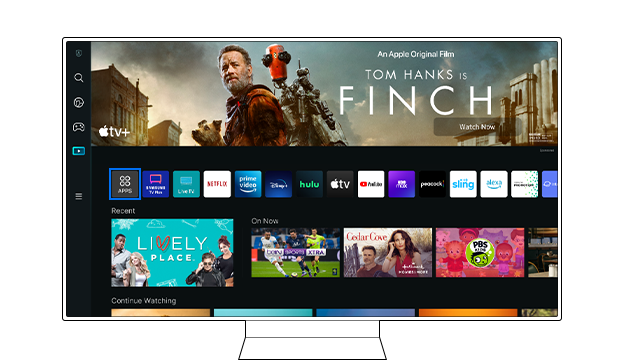
Adding apps to your Samsung Smart TV home screen helps you access your favorites quickly. It keeps your most-used apps right where you want them. This section explains how to pin apps and rearrange their order on the home screen.
Pinning Apps
To pin an app, first open the home screen. Use the remote to highlight the app you want to pin. Press and hold the select button. A menu will appear. Choose “Add to Home” or “Pin.” The app will now stay on your home screen for easy access.
Rearranging App Order
Rearranging apps lets you place them in the order you prefer. Highlight the app on the home screen. Press and hold the select button to open the menu. Select “Move” or “Rearrange.” Use the arrow keys to move the app to a new spot. Press select to confirm the new position.
Credit: www.samsung.com
Managing Installed Apps
Managing installed apps on your Samsung Smart TV helps keep your home screen organized. It also improves the TV’s performance. Removing apps you do not use frees up space. Updating apps ensures they run smoothly with the latest features.
Removing Unwanted Apps
Start by pressing the Home button on your remote. Navigate to the app you want to remove. Highlight the app and press the Down button. Select “Remove” or “Delete” from the options. Confirm your choice to uninstall the app. This clears clutter and keeps your home screen tidy.
Updating Apps
Press the Home button and go to the Apps section. Select “Settings” or the gear icon in the upper right corner. Choose “Update Apps” to check for new versions. You can update apps individually or select “Update All.” Regular updates fix bugs and add new features.
Troubleshooting Common Issues
Troubleshooting common issues can save time and frustration. Problems may stop apps from showing or installing. Knowing simple fixes helps keep your Samsung Smart TV running smoothly. Below are common problems and easy solutions.
App Not Showing On Home Screen
Sometimes, apps do not appear on the home screen after installation. Check if the app is downloaded properly. Restart your TV to refresh the home screen. Clear the cache from the settings menu. This often makes missing apps appear. Make sure your TV software is up to date. Outdated software can cause display problems.
Installation Errors
Installation errors can block new apps from downloading. Ensure your internet connection is stable and fast. Restart your Wi-Fi router to fix connection issues. Free up storage space on your TV if needed. Lack of space may stop installations. Try installing the app again after these steps. If errors continue, reset your TV to factory settings as a last resort.

Credit: www.samsung.com
Frequently Asked Questions
How Do I Add Apps To Samsung Smart Tv Home Screen?
To add apps, press the Home button on your remote. Navigate to Apps, select the desired app, then choose “Add to Home. ” The app will appear on your home screen for easy access.
Can I Customize The Samsung Smart Tv App Layout?
Yes, you can rearrange apps on the home screen. Highlight an app, press and hold the Enter button, then move it to your preferred position.
Why Can’t I Add Certain Apps To The Home Screen?
Some apps may be restricted by Samsung or unavailable in your region. Ensure your TV firmware is updated for the latest app compatibility.
How Do I Remove Apps From Samsung Smart Tv Home Screen?
Highlight the app you want to remove, press and hold the Enter button, then select “Remove from Home. ” This keeps your screen organized and clutter-free.
Conclusion
Adding apps to your Samsung Smart TV home screen is simple and quick. Just follow the steps carefully. You can customize your screen to find your favorite apps fast. This saves time and makes your TV experience better. Try adding new apps to enjoy more shows and features.
Keep your apps updated for the best performance. Now, your TV feels more personal and easy to use. Enjoy watching with your newly arranged apps right at your fingertips.
As an Amazon Associate, I earn from qualifying purchases.