
Is your computer running slower than usual? You might be surprised to learn that cluttered storage could be the main culprit.
Cleaning your computer storage isn’t just about freeing up space—it can boost speed, improve performance, and even protect your files. In this guide, you’ll discover simple, effective steps to clear out the digital mess and get your computer working like new again.
Ready to unlock your device’s full potential? Let’s dive in.
Credit: www.wideanglesoftware.com
Signs Of A Cluttered Storage
Cluttered computer storage can slow down your device and cause many problems. It fills up space with unnecessary files. This makes it hard for your computer to work well. Knowing the signs of cluttered storage helps you act fast. It keeps your computer running smoothly and saves time.
Slow Performance
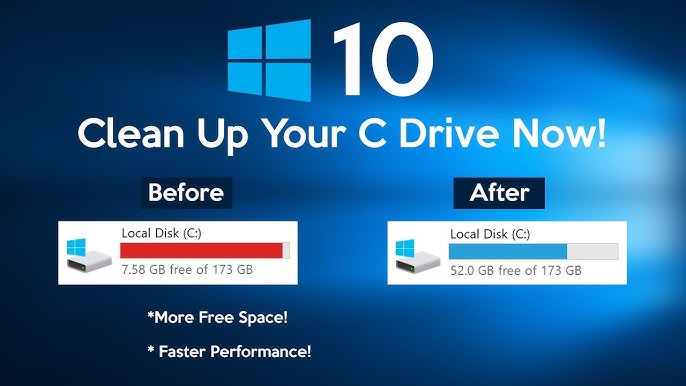
A cluttered storage often leads to slow computer speed. Programs take longer to open. Files load sluggishly. Your computer may freeze or lag during simple tasks. This happens because the system struggles to find free space. Clearing storage improves speed and responsiveness.
Frequent Crashes
Crashes happen more when storage is full or cluttered. Your system may shut down without warning. Apps might close unexpectedly. This causes loss of work and frustration. Cluttered storage increases the chance of errors and conflicts. Keeping storage clean reduces crashes and errors.
Low Disk Space Alerts
Computers warn you when disk space is low. These alerts pop up often with cluttered storage. You might see messages like “Low disk space” or “Storage almost full.” Such alerts mean you must delete files soon. Ignoring them can cause more serious issues.
Credit: www.youtube.com
Preparing For Storage Cleanup
Preparing for storage cleanup is the first step to free up space on your computer. It helps avoid losing important files and makes the process smoother. Proper preparation saves time and prevents mistakes.
Backup Important Files
Start by copying important files to a safe place. Use an external hard drive, USB flash drive, or cloud storage. This prevents data loss during cleanup. Double-check that all needed files are backed up before deleting anything.
Choose Cleanup Tools
Select the right tools for cleaning your storage. You can use built-in tools like Disk Cleanup on Windows or Storage Management on Mac. Third-party apps offer extra features but pick trusted ones. Good tools help find and remove unnecessary files quickly and safely.
Removing Unnecessary Files
Removing unnecessary files is a key step to free up space on your computer. These files take up storage but do not help your system work better. Cleaning them regularly keeps your computer faster and more organized.
Focus on temporary files, browser cache, and unused programs. These are common places where extra files hide. Clearing them can quickly improve your storage situation.
Delete Temporary Files
Temporary files store data for short-term use. They include installation files, logs, and leftover data from apps. Deleting these files can free up a lot of space. Use your system’s built-in tool or third-party software to find and remove them safely.
Clear Browser Cache
Your browser saves images and pages to load sites faster. This saved data is called cache. Over time, cache grows and uses much storage. Clearing the browser cache removes old files and helps protect your privacy. Check your browser settings to clear cache regularly.
Uninstall Unused Programs
Unused programs take up space without any benefit. Some apps run in the background and slow your computer. Review all installed programs and remove those you no longer use. This frees storage and improves overall system speed.
Organizing Files And Folders
Organizing files and folders improves computer storage and speeds up work. A clean system helps find files quickly. It also frees space and reduces clutter. Simple steps can keep your storage neat and tidy.
Sort By File Type
Group files by type for easy access. Create separate folders for documents, images, videos, and music. This helps to know where each file belongs. Sorting files makes deleting unwanted items easier. It also prevents mixing important data with junk files.
Use Cloud Storage
Move files to cloud storage for extra space. Cloud services store files online safely. Access files from any device with internet. This reduces the load on your computer. Save important documents and photos on the cloud. It keeps your local storage free and organized.
Archive Old Data
Store old files in an archive folder or drive. Archive data you rarely use but want to keep. Compress files to save space if needed. Archiving clears active folders and speeds up the system. It helps maintain a smooth and fast computer.
Optimizing Disk Space
Optimizing disk space is important for a fast and smooth computer. Free space helps your system run better and store new files easily. Clearing clutter and organizing files can improve performance. Use simple tools to clean and maintain your storage.
Disk Cleanup Utility
Disk Cleanup removes temporary files and system trash. It deletes old files like cache and logs. This tool frees up space quickly and safely. Run it regularly to keep your disk clean. It helps your computer avoid slowdowns caused by junk files.
Disk Defragmentation
Disk defragmentation rearranges scattered files for faster access. It groups file fragments together on the disk. This process reduces the time your computer needs to read files. Defragment your hard drive every few weeks. It improves loading speed and system response.
Manage System Restore Points
System restore points save your system state at different times. They help recover from errors but use disk space. Delete old restore points to free storage. Keep only recent ones for safety. Managing these points saves space without losing protection.
Automating Storage Maintenance
Keeping your computer storage clean is important for smooth performance. Automating storage maintenance saves time and effort. It helps manage files and free space regularly without manual work. This way, your system stays fast and organized.
Schedule Cleanup Tasks
Set up regular cleanup tasks on your computer. Use built-in tools like Task Scheduler on Windows. Choose times when you are not using the computer. This keeps your device running without interruptions. Automatic cleanup removes temporary files and clears cache. It also deletes unused files that take up space. Scheduling tasks means less clutter without needing to remember it.
Use Storage Sense Features
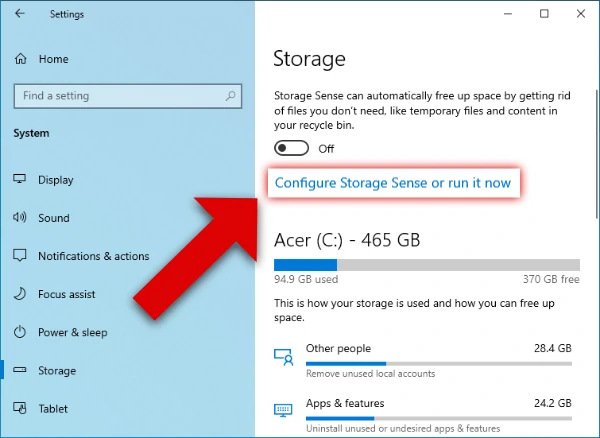
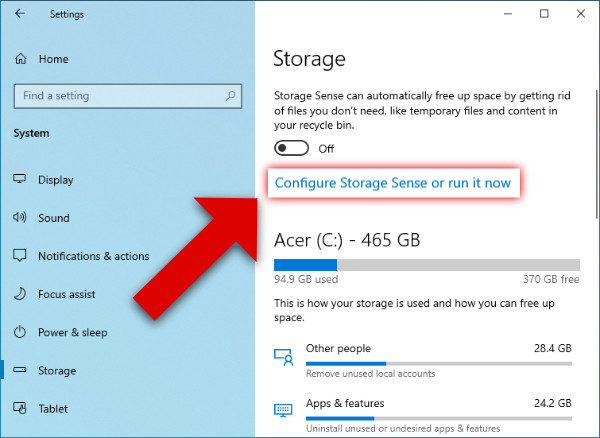
Storage Sense is a useful feature in Windows. It helps clean up files automatically. You can turn it on in system settings. Set rules for how often it runs. It deletes temporary files and empties the recycle bin. You can also choose to remove old files in your downloads folder. Storage Sense works quietly in the background. It keeps your storage tidy without any extra work from you.
Preventing Future Storage Issues
Preventing future storage issues helps keep your computer fast and efficient. Regular care avoids slowdowns and errors. It also saves time spent on fixing problems later. Simple habits make a big difference in managing space.
Regular Maintenance Habits
Clean up unnecessary files often. Delete old downloads and duplicates. Empty the recycle bin regularly. Update software to improve performance. Run disk cleanup tools every month. These steps reduce clutter and free up space.
Monitor Storage Usage
Check storage levels weekly. Use built-in tools to see what uses space. Watch large files like videos and backups. Set alerts for low disk space. Early warnings help prevent sudden crashes or slowdowns.
Credit: www.wideanglesoftware.com
Frequently Asked Questions
How Often Should I Clean My Computer Storage?
Cleaning your computer storage every 3 to 6 months helps maintain speed. Regular cleaning removes unnecessary files and improves performance. It also prevents storage from filling up and causing slowdowns.
What Tools Help Clean Computer Storage Efficiently?
Use built-in tools like Disk Cleanup on Windows or Storage Management on Mac. Third-party apps like CCleaner also help remove junk files safely and free up space.
Can Deleting Temporary Files Improve Storage Space?
Yes, deleting temporary files quickly frees up storage space. These files accumulate from browsing and app use. Removing them regularly prevents clutter and boosts system speed.
Is It Safe To Delete System Files To Clean Storage?
Avoid deleting system files unless you know their purpose. Removing essential files can cause system errors. Stick to junk, temporary, and personal files for safe cleaning.
Conclusion
Cleaning your computer storage keeps it fast and organized. Delete files you no longer need. Use tools to remove temporary and junk files. Regular cleaning prevents slowdowns and errors. Back up important data before starting. Small steps make a big difference over time.
Stay consistent to enjoy smooth computer performance. Clean storage means more space for what matters. Keep your device healthy and running well every day.
As an Amazon Associate, I earn from qualifying purchases.

