As an Amazon Associate, I earn from qualifying purchases.
If you’ve just got your Bose earbuds and want to enjoy crystal-clear sound on your laptop, you’re in the right place. Connecting your earbuds doesn’t have to be confusing or time-consuming.
Imagine instantly diving into your favorite music, movies, or calls with perfect audio quality—no wires, no hassle. In this guide, you’ll learn exactly how to connect your Bose earbuds to your laptop quickly and easily. By the end, you’ll be ready to experience sound the way it was meant to be heard.
Keep reading, and let’s get you set up!
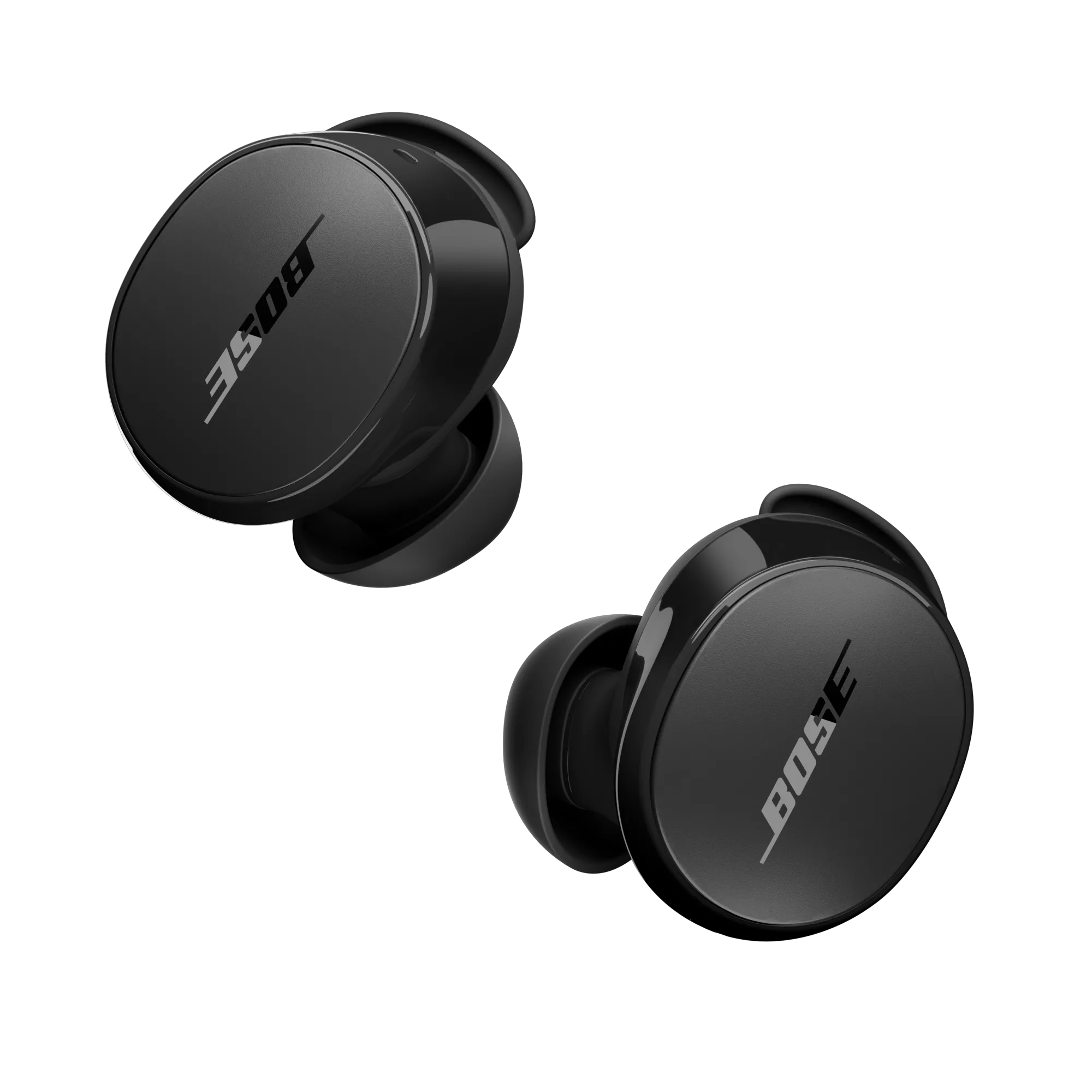
Credit: support.bose.com
Prepare Your Bose Earbuds
Preparing your Bose earbuds is the first step to connect them to your laptop. This ensures a smooth and quick connection. Proper preparation avoids connection problems and saves time.
Follow simple steps to get your earbuds ready. This helps the laptop find and connect to the earbuds easily.
Charge The Earbuds Fully
Make sure your Bose earbuds have enough power. Place them in the charging case and check the light indicator. A full charge helps avoid interruptions during use. Charging the earbuds fully improves Bluetooth performance. It also protects the battery life in the long run.
Activate Pairing Mode
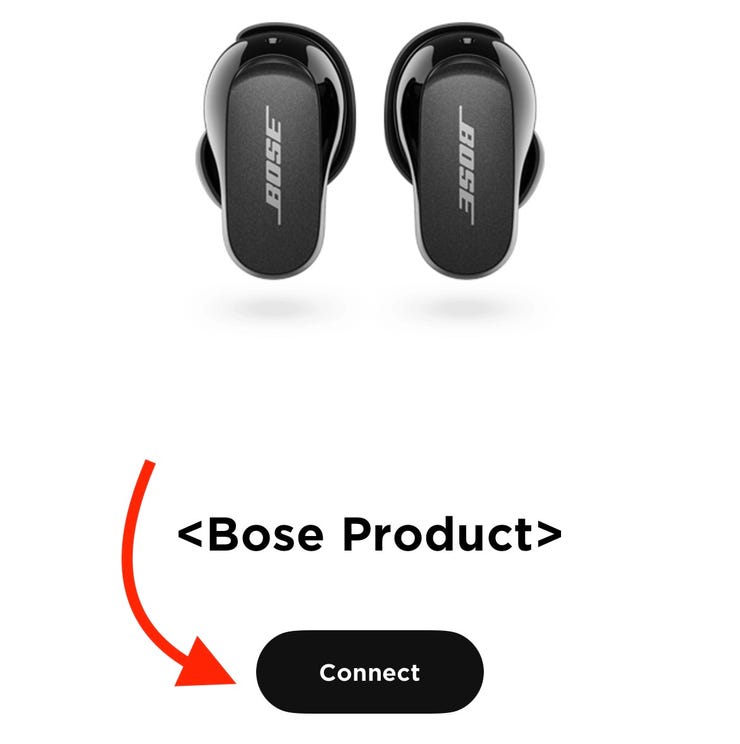
Turn on your earbuds and activate pairing mode. Usually, press and hold the power button until the light blinks. The blinking light means the earbuds are ready to pair. This step allows your laptop to detect the earbuds. Pairing mode stays active for a short time only. So, connect to your laptop quickly after activating it.
Credit: kl-elektro.cz
Enable Bluetooth On Laptop
Before connecting your Bose earbuds to your laptop, you must enable Bluetooth on your laptop. Bluetooth allows devices to communicate wirelessly. Without turning it on, your laptop cannot detect or pair with your earbuds.
Enabling Bluetooth is a quick process. You can do it directly from your laptop’s settings. This step is essential to start pairing your earbuds smoothly.
Access Bluetooth Settings
First, find the Bluetooth settings on your laptop. On Windows, click the Start menu and select Settings. Then choose Devices, and click on Bluetooth & other devices. On a Mac, open System Preferences and select Bluetooth. This screen shows if Bluetooth is available and ready to use.
Turn Bluetooth On
Look for a switch or button labeled Bluetooth. Click it to turn Bluetooth on. The status will change to “On” or show a blue icon. Your laptop is now ready to detect and connect to your Bose earbuds. Keep this window open to see your earbuds appear in the device list during pairing.
Pair Earbuds With Laptop
Pairing your Bose earbuds with a laptop allows you to enjoy wireless sound. The process is simple and quick. Follow these steps to connect your earbuds to your laptop.
Search For Devices
First, turn on Bluetooth on your laptop. Open the Bluetooth settings to start searching. Make sure your Bose earbuds are in pairing mode. Your laptop will scan for nearby devices automatically.
Select Bose Earbuds
After scanning, find your Bose earbuds on the list. The name usually shows as “Bose” followed by the model. Click on the earbuds name to select them. This starts the connection process.
Confirm Pairing
A prompt may appear asking to confirm the connection. Click “Pair” or “Connect” to allow pairing. Wait a few seconds for the laptop and earbuds to sync. Once connected, you will see a confirmation message.
Troubleshoot Connection Issues
Sometimes Bose earbuds may not connect to your laptop. Connection issues can happen for many reasons. Troubleshooting helps fix these problems fast. Follow simple steps to get your earbuds working again.
Restart Devices
Turn off your Bose earbuds first. Then turn off your laptop. Wait a few seconds. Turn the laptop back on. Turn the earbuds back on. This refreshes the connection and clears minor bugs.
Update Bluetooth Drivers
Old Bluetooth drivers cause connection problems. Check your laptop’s Bluetooth driver version. Go to device manager and find Bluetooth settings. Select your Bluetooth device and click update driver. Installing the latest driver helps improve pairing and sound quality.
Reset Bose Earbuds
Resetting your earbuds removes all saved connections. Press and hold the power button for about 10 seconds. The earbuds will flash or turn off. Turn them on again and try pairing with your laptop. This step solves many connection issues.
Optimize Audio Settings
Optimizing your audio settings improves sound quality on your Bose earbuds. It ensures clear audio and better listening experience. Adjusting these settings on your laptop helps avoid sound issues. Follow simple steps to get the best audio output from your earbuds.
Set Earbuds As Default Playback Device
Open the sound settings on your laptop. Find the playback devices list. Select your Bose earbuds from the list. Click “Set as Default” to make them the main audio device. This step directs all sound through your earbuds automatically.
Without setting your earbuds as default, sound may play through speakers. Confirm the earbuds show a green check mark. It means they are the active audio output device.
Adjust Volume Levels
Check the volume on both your laptop and earbuds. Keep volume at a comfortable level to avoid damage. Use the laptop’s volume control to increase or decrease sound.
Many Bose earbuds have touch controls or buttons for volume. Use these to fine-tune sound directly on the earbuds. Balanced volume prevents sudden loud sounds or weak audio.

Credit: www.youtube.com
Frequently Asked Questions
How Do I Pair Bose Earbuds With A Laptop?
Turn on Bluetooth on your laptop. Put Bose earbuds in pairing mode. Select the earbuds from the Bluetooth devices list. Confirm connection to pair successfully.
Why Won’t My Bose Earbuds Connect To My Laptop?
Ensure Bluetooth is enabled on your laptop. Check if earbuds are in pairing mode. Restart both devices and try again. Update Bluetooth drivers if issues persist.
Can I Use Bose Earbuds Wirelessly On Any Laptop?
Yes, most laptops with Bluetooth support wireless connection to Bose earbuds. Ensure Bluetooth is enabled and earbuds are in pairing mode before connecting.
How To Fix Bluetooth Connection Issues With Bose Earbuds?
Restart your laptop and earbuds. Remove the earbuds from Bluetooth list and pair again. Update Bluetooth drivers and firmware for better compatibility and performance.
Conclusion
Connecting Bose earbuds to your laptop is simple and quick. Just follow the steps carefully for a smooth pairing. Make sure your laptop’s Bluetooth is turned on and the earbuds are in pairing mode. Once connected, enjoy clear sound for work or fun.
If any issues arise, try restarting your devices or checking Bluetooth settings again. Now, you can listen to music or attend calls without wires. Enjoy the freedom and quality Bose earbuds bring to your laptop experience.
As an Amazon Associate, I earn from qualifying purchases.