
Are you struggling to connect your Bose headphones and enjoy your favorite music or podcasts without any hassle? You’re not alone.
Sometimes, even the best headphones can seem tricky when it comes to pairing with your devices. But don’t worry—this guide will walk you through simple, step-by-step instructions to get your Bose headphones connected quickly and effortlessly. By the end, you’ll be ready to experience crystal-clear sound and comfort like never before.
Keep reading to unlock the full potential of your Bose headphones!

Credit: theiideacompany.com
Prepare Your Bose Headphones
Before connecting your Bose headphones, some steps make the process smooth. Proper preparation ensures a quick and easy connection. Follow these simple tasks to get your headphones ready.
Preparing your headphones helps avoid connection issues. It also improves sound quality and battery life. Take a moment to complete these steps before pairing.
Charge Your Headphones
Make sure your Bose headphones have enough battery. Connect the charging cable to a power source and the headphones. Let them charge fully for the best experience.
Low battery can cause connection problems or poor sound. Charging keeps your headphones ready for long listening sessions. Check the battery indicator to confirm a full charge.
Turn On Bluetooth Mode
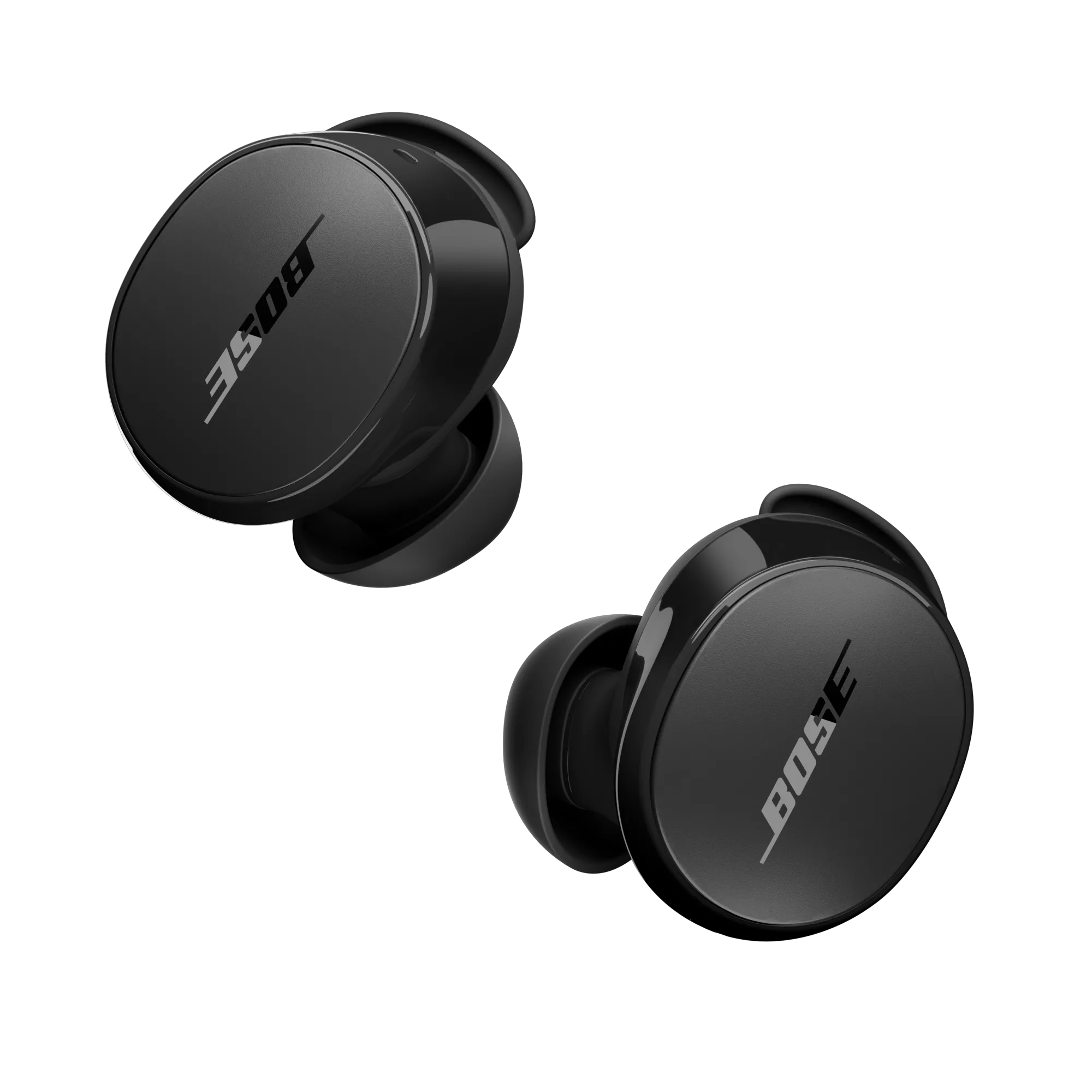
Power on your Bose headphones by pressing the power button. Hold the button until you hear a voice prompt or see a blinking light. This means Bluetooth mode is active and ready to pair.
Some models have a dedicated Bluetooth button. Press it to enter pairing mode. Bluetooth mode lets your headphones find devices to connect with.
Credit: support.bose.com
Enable Bluetooth On Your Device
Enabling Bluetooth on your device is the first step to connecting your Bose headphones. Bluetooth lets your device talk to your headphones without wires. You need to turn it on so both devices can find each other.
Follow simple steps to open Bluetooth settings and make your device visible. This helps your Bose headphones connect quickly and easily.
Access Bluetooth Settings
Open the settings app on your phone or tablet. Find the Bluetooth option and tap it. You will see a switch or toggle to turn Bluetooth on. Slide or tap it to enable Bluetooth. Your device will start searching for nearby devices automatically.
Make Device Discoverable
To connect, your device must be discoverable. This means other devices can see it. Usually, turning on Bluetooth makes your device visible for a short time. Check the Bluetooth screen for a message like “Now discoverable” or “Visible to nearby devices.” Keep this screen open until your Bose headphones appear on the list.
Pair Bose Headphones With Devices
Pairing Bose headphones with your devices is a quick way to enjoy high-quality sound. The process is simple and works with most smartphones, tablets, and computers. Follow these steps to connect your headphones easily.
Select Headphones From Bluetooth List
Turn on Bluetooth on your device. Next, power on your Bose headphones and activate pairing mode. Look for your Bose headphones name in the Bluetooth list on your device. Tap the name to select it. Your device will start connecting to the headphones.
Confirm Pairing Request
A confirmation message may appear on your device screen. Check if the code shown matches the one on your headphones. Press “Pair” or “OK” to complete the connection. Your Bose headphones are now ready to use.

Credit: www.vicentetorns.com
Troubleshoot Connection Issues
Connection problems with Bose headphones can be frustrating. Simple steps can fix most issues quickly. This section helps you solve common connection problems easily. Follow these tips to get your headphones working again.
Reset Your Headphones
Resetting your Bose headphones can clear glitches. Turn off the headphones first. Press and hold the power button for about 10 seconds. Release the button once you see the LED flash. This resets the device to factory settings. Try connecting again after the reset.
Update Firmware
Outdated firmware may cause connection troubles. Use the Bose Connect app or Bose website to check updates. Connect your headphones to a computer or phone. Download and install the latest firmware available. Updated software improves performance and fixes bugs.
Check Device Compatibility
Compatibility between headphones and your device matters. Make sure your phone or computer supports Bluetooth audio. Some older devices may not work well with newer headphones. Verify Bluetooth version and audio profiles match. Use compatible devices for a stable connection.
Connect Bose Headphones To Multiple Devices
Connecting Bose headphones to multiple devices makes switching easy and fast. This feature lets you use your headphones with a phone, laptop, or tablet without pairing each time. It saves time and keeps your audio experience smooth.
Switch Between Paired Devices
After pairing your Bose headphones with several devices, switching is simple. Pause audio on one device, then play on another. The headphones will connect automatically to the active device. No need to unpair or reset settings.
This method works well for phones and computers. It helps when answering calls or watching videos on different gadgets. Just make sure devices are nearby and Bluetooth is on.
Use Multi-point Connection
Multi-point connection lets Bose headphones connect to two devices at once. You can listen to music from a laptop and take calls on your phone. It keeps both devices ready without manual switching.
To use multi-point, enable Bluetooth on both devices. Pair the headphones with each one. The headphones manage connections and switch automatically during calls or audio playback. This is perfect for busy users with many devices.
Frequently Asked Questions
How Do I Pair Bose Headphones With Bluetooth?
Turn on your Bose headphones and enable Bluetooth on your device. Select your headphones from the device’s Bluetooth list to pair. Wait for confirmation tone or message before using.
Why Won’t My Bose Headphones Connect To My Phone?
Check if Bluetooth is enabled on your phone and headphones. Restart both devices and remove old pairings. Ensure headphones are in pairing mode for successful connection.
Can I Connect Bose Headphones To Multiple Devices?
Yes, Bose headphones support multipoint pairing with two devices. Connect both devices via Bluetooth and switch between them seamlessly during use.
How To Reset Bose Headphones For Connection Issues?
Press and hold the power button for 10 seconds until lights flash. This resets Bluetooth settings and helps resolve most connection problems.
Conclusion
Connecting Bose headphones is easy with clear steps. Just follow the guide and use simple settings. Make sure your device’s Bluetooth is on and in pairing mode. Remember to check the battery level for smooth connection. Troubleshoot quickly if connection fails by restarting devices.
Enjoy your music or calls without any hassle. Stay patient and try again if needed. Now, you can connect Bose headphones anytime you want. Simple and fast.
As an Amazon Associate, I earn from qualifying purchases.

