
Are you ready to boost your productivity and create a seamless workspace? Connecting dual monitors to your docking station can transform the way you work, giving you more screen space to multitask effortlessly.
But if you’re unsure where to start or worried about complicated setups, don’t worry—you’re in the right place. This guide will walk you through simple, clear steps to get your dual monitors up and running quickly. Keep reading, and you’ll discover how easy it can be to expand your view and take control of your workflow.
Choosing The Right Docking Station
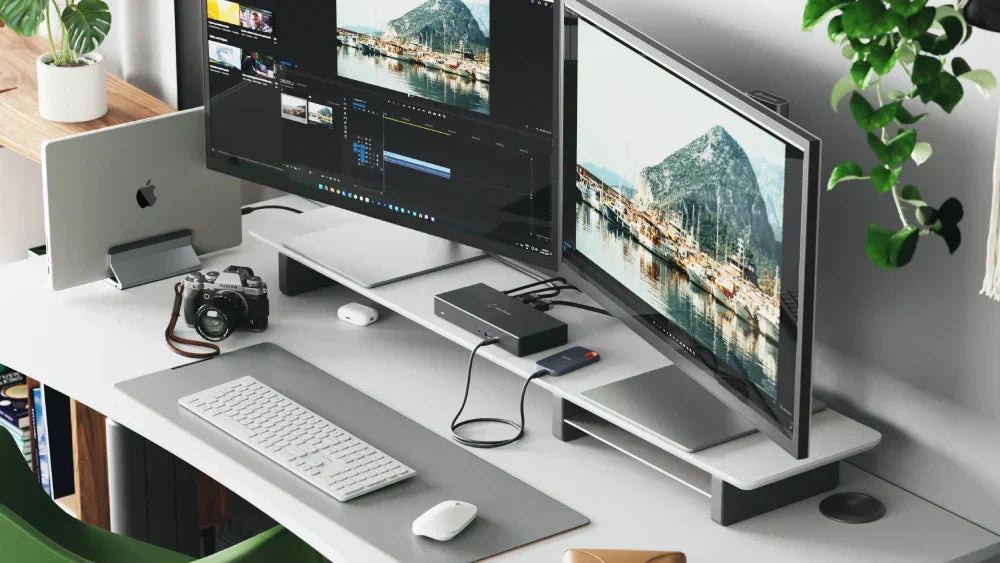
Choosing the right docking station is key to a smooth dual monitor setup. It can make your workspace more efficient and organized. Picking the right one saves time and avoids frustration.
Not all docking stations are the same. Some have many ports, while others focus on power delivery or compatibility. Knowing what to check helps you pick the best model for your needs.
Ports To Look For
Check the types and number of ports on the docking station. It should have at least two video outputs like HDMI, DisplayPort, or VGA. USB ports are useful for connecting keyboards, mice, or external drives. An Ethernet port can improve internet speed. Make sure the ports match your monitors and devices.
Compatibility With Your Laptop
Ensure the docking station works with your laptop model and operating system. Some docks work only with specific brands or require certain drivers. Look for USB-C or Thunderbolt docks if your laptop supports them. Confirm the dock supports dual monitor output for your laptop. Compatibility avoids connection issues and poor display quality.
Power Delivery Features
Power delivery means the dock can charge your laptop while connected. This keeps your workspace neat without extra chargers. Check the wattage the dock provides to match your laptop’s needs. Some docks offer fast charging. Power delivery saves desk space and keeps devices running without interruption.
Credit: alogic.co
Preparing Your Monitors
Preparing your monitors is the first step to connect dual monitors to a docking station. Proper setup helps avoid connection issues and ensures smooth performance. This process starts by understanding your monitor’s ports, adjusting settings, and choosing the right cables.
Checking Monitor Ports
Look at the back or sides of your monitors to find available ports. Common ports include HDMI, DisplayPort, VGA, and DVI. Knowing which ports your monitors have helps match them with the docking station. Some monitors have multiple ports, giving you more connection options. Make sure your docking station supports those ports for a seamless setup.
Adjusting Display Settings
Turn on your monitors and open your computer’s display settings. Set each monitor to the correct resolution for clear images. Choose whether to extend or duplicate your display. Extending increases workspace by using both screens as one. Duplicating shows the same content on both monitors. Adjust brightness and color to match both screens for a comfortable view.
Selecting Cables
Pick cables that fit both your monitors and docking station ports. Use HDMI or DisplayPort cables for better quality and faster speed. Avoid old or damaged cables as they cause flickering or no signal. Keep cable length in mind to avoid clutter and maintain neatness. Using the right cables guarantees stable and clear connections between devices.
Connecting Monitors To The Docking Station
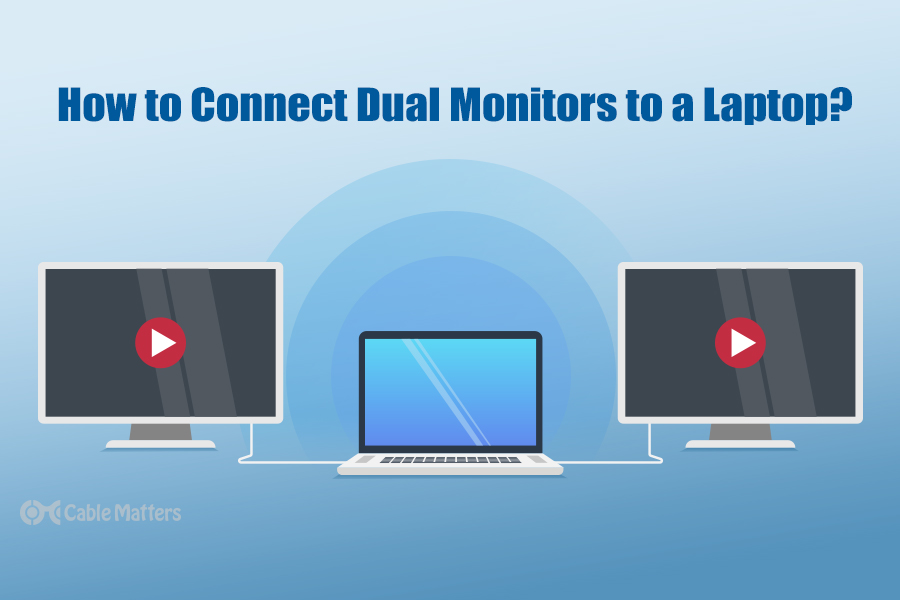
Connecting monitors to a docking station is an easy way to expand your workspace. It helps you use two screens for better multitasking and productivity. Understanding the types of connections and how to manage cables is key to a smooth setup.
Using Hdmi And Displayport Connections
Most docking stations have HDMI and DisplayPort ports. These are the common ways to connect monitors. HDMI works well for most screens and carries both video and audio signals. DisplayPort supports higher resolutions and refresh rates, ideal for sharper images.
Simply plug the monitor’s cable into the matching port on the docking station. Make sure the cable fits securely. Your computer should detect the monitor automatically. Adjust the display settings on your computer for the best layout.
Dealing With Usb-c And Thunderbolt
USB-C and Thunderbolt ports can carry video signals too. Many modern docking stations and monitors use these connections. USB-C is versatile and supports charging, data transfer, and video. Thunderbolt is faster and supports multiple monitors on one cable.
Connect your monitor using a USB-C or Thunderbolt cable if available. Check that your computer and docking station support these standards. This connection reduces cable clutter and offers high performance.
Cable Management Tips
Organize cables to keep your desk tidy and safe. Use cable ties or clips to bundle cables together. Label each cable to know which device it belongs to. Avoid tight bends or twists that can damage cables.
Place the docking station near your computer and monitors. This reduces the length of cables needed. Good cable management improves airflow and makes cleaning easier. It also prevents accidental unplugging during work.
Credit: www.cablematters.com
Configuring Dual Monitor Setup On Your Computer
Setting up dual monitors on your computer creates more space for work. It helps to see many windows at once. After connecting the monitors to the docking station, you need to configure the display settings. This process lets the computer recognize both screens and arrange them properly. Follow these simple steps to adjust your dual monitor setup.
Accessing Display Settings
Start by opening the display settings on your computer. On Windows, right-click on the desktop and select “Display settings.” On a Mac, go to “System Preferences” and click “Displays.” This menu shows all connected monitors. Here, you can manage how your screens work together.
Arranging Monitors
In the display settings, you will see a layout of your screens. Drag the monitor icons to match their physical position on your desk. This helps move the mouse smoothly between screens. For example, if one monitor is on the left, place its icon on the left side. This step improves your workflow and reduces confusion.
Setting Primary And Secondary Displays
Choose which monitor is your main display. The primary screen shows the taskbar and main windows. Click on the monitor icon you want as primary. Then, check the box labeled “Make this my main display.” The other monitor becomes secondary and shows extra space. This setup helps organize your work and focus on one screen.
Troubleshooting Common Issues
Troubleshooting common issues can save time and reduce frustration when connecting dual monitors to a docking station. Many problems arise from simple settings or hardware checks. Knowing how to identify and fix these issues helps keep your setup running smoothly.
Some issues cause one or both monitors to not show up. Others affect screen quality or cause flickering. Driver and firmware updates often resolve hidden problems. Follow these steps to troubleshoot your dual monitor setup.
Detecting Missing Monitors
Start by checking cable connections. Make sure all cables are securely plugged into the docking station and monitors. Next, open your computer’s display settings. Click “Detect” to search for connected screens.
If a monitor still does not appear, try swapping cables or ports. Restart your computer and docking station. Sometimes, a simple reboot fixes detection issues. Also, verify the monitors are powered on and set to the correct input source.
Resolving Resolution Problems
Incorrect screen resolution causes blurry or stretched displays. Open your display settings and select the monitor with the problem. Choose the recommended resolution for best results.
If the resolution options seem limited, check that the monitor supports the chosen resolution. Use native resolution for clear images. Adjust scaling settings to improve text and icon size. Avoid resolutions that do not match your monitor’s specifications.
Updating Drivers And Firmware
Outdated drivers cause many display issues. Visit your docking station manufacturer’s website. Download and install the latest drivers for your model. Also update your computer’s graphics card drivers.
Check for firmware updates for the docking station. Firmware updates improve compatibility and fix bugs. Follow the manufacturer’s instructions to apply these updates safely. Keep drivers and firmware current to maintain smooth dual monitor performance.
Optimizing Your Dual Monitor Experience
Optimizing your dual monitor experience can improve your work and entertainment. Proper settings help reduce eye strain and increase comfort. Organizing your screens boosts efficiency and makes tasks easier. Small changes make a big difference in how you use your setup.
Using Display Calibration Tools
Display calibration tools adjust colors and brightness on both monitors. This ensures screens show the same colors and tones. Use built-in software or free apps to calibrate your displays. Calibrated screens protect your eyes and provide better image quality. Check calibration regularly to keep colors accurate.
Customizing Taskbars And Wallpapers
Taskbars and wallpapers help personalize your dual monitor setup. You can choose to extend the taskbar across both screens. Or keep separate taskbars on each monitor for quick access. Set different wallpapers on each screen for easier screen identification. This customization makes your workspace more comfortable and unique.
Enhancing Productivity With Shortcuts
Keyboard shortcuts save time when working with dual monitors. Learn shortcuts to move windows between screens quickly. Use shortcuts to snap windows to screen edges for better organization. Custom shortcuts can speed up your workflow and reduce mouse use. Practice these shortcuts to work faster and with less effort.

Credit: alogic.co
Frequently Asked Questions
How Do I Connect Dual Monitors To A Docking Station?
First, ensure your docking station supports dual monitors. Connect each monitor to the docking station’s video ports. Power on both monitors and your computer. Finally, adjust display settings on your computer to extend or duplicate screens as needed.
What Types Of Cables Work For Dual Monitor Docking Stations?
Common cables include HDMI, DisplayPort, USB-C, and VGA. Choose cables compatible with both your monitors and docking station ports. Using the right cables ensures optimal resolution and refresh rates for both displays.
Can I Use Different Monitor Brands With One Docking Station?
Yes, you can mix different monitor brands. Ensure the docking station supports the resolution and connection type of each monitor. Adjust settings to match screen sizes and orientations for a seamless dual display experience.
Why Won’t My Second Monitor Display Through The Dock?
Check that the monitor is properly connected and powered on. Verify the docking station supports dual output. Update your graphics drivers and display settings to detect the second monitor. Restart your system if necessary.
Conclusion
Connecting dual monitors to a docking station is easier than it seems. Follow the steps carefully and check all cables. Make sure your docking station supports two monitors. Adjust your display settings to fit your needs. Dual monitors help you work faster and see more at once.
Take your time and try different setups. Soon, you will enjoy a bigger, clearer workspace. This small change can improve your daily computer use. Keep your drivers updated for the best performance. Simple, right? Give it a try today.
As an Amazon Associate, I earn from qualifying purchases.

