Want to take your gaming experience on your Android device to the next level? Connecting a gaming controller can make your gameplay smoother, more precise, and way more fun.
But if you’re unsure how to get started or worried it might be complicated, don’t worry—you’re in the right place. This guide will walk you through simple steps to connect your gaming controller to your Android device quickly and easily.
By the end, you’ll be ready to enjoy your favorite games like never before. Keep reading to unlock the full potential of your Android gaming!
:max_bytes(150000):strip_icc()/005-how-to-connect-xbox-one-controller-to-android-4773523-e704e7a2d32c4971b724466007585dd4.jpg)
Credit: kdfoundation.org
Choose The Right Controller
Choosing the right gaming controller is key for a smooth Android gaming experience. The controller you pick affects comfort, gameplay, and device compatibility. Knowing the differences between types and features helps you make a smart choice. Let’s explore important points to consider when selecting a controller for your Android device.
Wired Vs Wireless Controllers
Wired controllers connect directly with a cable. They offer stable and fast responses. No need to worry about battery life. But cables can limit movement and may clutter your space.
Wireless controllers use Bluetooth to connect. They give freedom to move without cables. Battery life matters here. Some controllers need frequent charging. Wireless signals can sometimes lag, but many modern ones work smoothly.
Compatibility With Android Devices
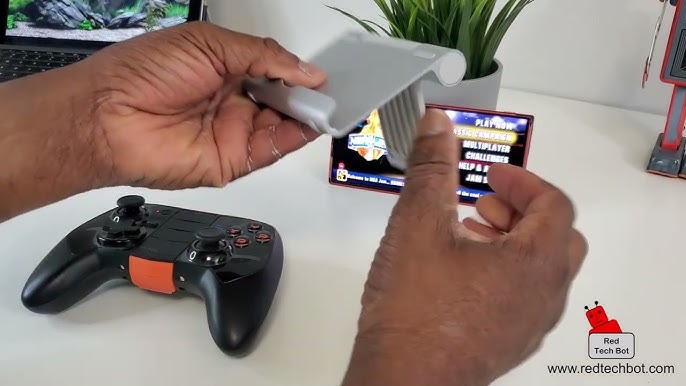
Not all controllers work with every Android device. Check if the controller supports Android or Bluetooth. Some popular controllers include Xbox, PlayStation, and third-party options. Read reviews and product info to confirm compatibility.
Newer Android versions support more controllers. Older devices may face connection issues. Ensure your phone or tablet has the right ports or Bluetooth version. This step avoids frustration during setup and gameplay.
Credit: www.youtube.com
Prepare Your Android Device
Preparing your Android device is the first step to connect a gaming controller. This ensures smooth and stable gameplay. Simple settings must be checked and activated before pairing your controller.
Enable Bluetooth Or Usb Otg
Most gaming controllers connect using Bluetooth. Turn on Bluetooth in your device settings. Go to Settings > Connections > Bluetooth, then switch it on. For wired controllers, enable USB OTG support. This allows your phone to recognize external devices. Check if your device supports USB OTG. Use an OTG adapter to plug in the controller if needed.
Check Software Updates
Updated software improves controller compatibility. Go to Settings > System > Software Update. Download and install any available updates. Updated Android versions fix bugs and add new features. Keeping your device updated helps avoid connection issues. It also enhances gaming performance and stability.
Connect Via Bluetooth
Connecting your gaming controller to an Android device via Bluetooth is simple and wireless. This method allows more freedom of movement while gaming. Most modern controllers support Bluetooth pairing. Your Android device must have Bluetooth enabled to start the process.
Pairing Your Controller
Turn on your gaming controller and make it discoverable. Usually, this involves holding a specific button until a light flashes. On your Android device, open Settings and go to Bluetooth. Find your controller’s name in the list of available devices. Tap it to pair. Wait for confirmation that the connection is successful. Your controller is now ready to use with games that support it.
Troubleshooting Bluetooth Issues
Sometimes the controller does not connect immediately. Restart Bluetooth on your Android device and try pairing again. Make sure the controller is fully charged. Remove old Bluetooth connections that may interfere. Keep your devices close to each other during pairing. If problems persist, restart your Android device and controller. Check for any software updates for your device or controller. These steps fix most connection problems quickly.
Connect Via Usb Cable
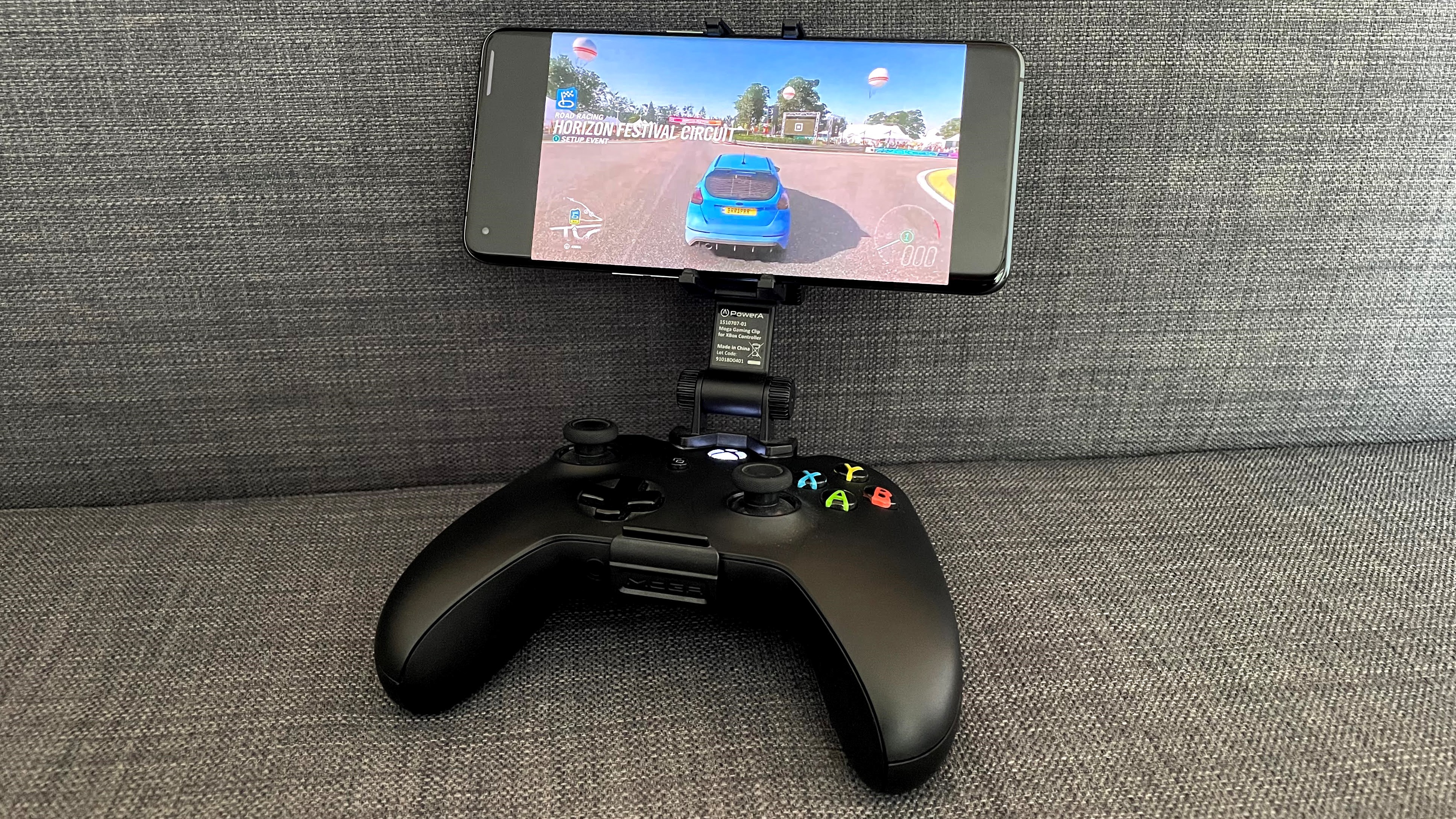
Connecting a gaming controller to an Android device using a USB cable offers a reliable and fast connection. This method is great for players who want zero lag and stable controls. The process is simple and works with many controllers, including Xbox and PlayStation models.
Using Usb Otg Adapter
Most Android phones do not have a full USB port. A USB OTG (On-The-Go) adapter allows your phone to connect to a USB device. Plug the OTG adapter into your phone’s charging port. Then, connect your controller’s USB cable to the adapter. The phone should recognize the controller instantly. No extra software is usually needed.
Configuring Controller Settings
After connecting, check the controller settings on your Android device. Open the game or app you want to use with the controller. Some games automatically detect the controller and map the buttons. Others require manual setup in the settings menu. Test the buttons to ensure they work. Adjust sensitivity and button layout if the game allows. This step ensures the best gaming experience.
Test Controller Functionality
Testing your gaming controller on Android ensures it works well. This step confirms all buttons respond and controls move smoothly. It helps avoid issues during gameplay and improves your experience.
Using Built-in Android Tools
Android has simple tools to check controller function. Open Settings, then go to Connected Devices. Look for your controller in the list. Some Android versions show a game controller test option.
You can press buttons to see if the system detects input. Move the joystick and watch for response on screen. This quick test shows if Android reads your controller signals correctly.
Testing With Popular Games
Try playing games that support controllers to test fully. Games like Call of Duty Mobile or Minecraft work well. Launch the game and connect your controller.
Check if buttons perform actions as expected. Move characters, aim, and jump to confirm controls. This real-game test reveals any lag or button issues. It also confirms compatibility with your favorite games.
Credit: www.tomsguide.com
Optimize Controller Experience
Optimizing your controller experience can make gaming more fun and comfortable. Small changes in settings help you play better and enjoy games more. Simple adjustments let you control actions faster and more smoothly. This section shows how to customize button mapping and adjust sensitivity settings for the best experience.
Customizing Button Mapping
Button mapping lets you change what each button does. You can set buttons to match your play style. Many Android games and apps allow easy button remapping. Choose buttons that feel natural for quick responses. This helps reduce mistakes and makes controls easier. Try different setups to find what works best for you. Custom layouts improve comfort during long gaming sessions.
Adjusting Sensitivity Settings
Sensitivity controls how fast your character or camera moves. High sensitivity means quicker movement but less precision. Low sensitivity offers better control but slower turns. Adjust sensitivity for aiming, steering, or camera control. Start with medium settings and change little by little. Find a balance that fits the game type and your skill. Proper sensitivity settings make gameplay smooth and enjoyable.
Troubleshoot Common Problems
Troubleshooting common problems helps keep your gaming controller working well with Android devices. Simple fixes often solve most issues quickly. Understanding typical problems saves time and frustration.
Connection Drops
Connection drops happen when the controller loses signal with your Android device. Check the battery level first. Low power can cause disconnections. Move closer to your device to avoid interference. Turn off other Bluetooth devices nearby. Restart Bluetooth on your phone and the controller. Re-pair the controller if drops continue.
Unresponsive Buttons
Unresponsive buttons stop you from playing smoothly. Clean the controller’s buttons gently with a dry cloth. Press each button several times to remove dirt. Restart the controller and your Android device. Update your device’s software for better compatibility. Try using the controller with another game or app to check.
Controller Not Recognized
Your Android device may fail to recognize the controller. Ensure the controller is fully charged. Switch the controller off, then back on. Confirm the controller is in pairing mode. Turn Bluetooth off and on in your device settings. Restart your Android device and try connecting again. Use a USB cable if Bluetooth fails.
Frequently Asked Questions
How Do I Connect A Bluetooth Controller To Android?
Turn on your controller’s Bluetooth mode. Open Android’s Bluetooth settings and scan for devices. Select your controller from the list. Once paired, your controller is ready to use with compatible games and apps.
Can I Use A Wired Controller With Android?
Yes, you can use wired controllers with Android. Connect the controller via a USB OTG cable to your phone. Android will detect it automatically, allowing immediate use in supported games.
Which Gaming Controllers Are Best For Android?
Popular options include Xbox Wireless Controller, PlayStation DualShock 4, and 8BitDo controllers. These offer wide compatibility, Bluetooth support, and excellent performance on Android devices.
What Games Support Controllers On Android?
Many games like Call of Duty Mobile, PUBG, and Minecraft support controllers. Check the game’s settings or description to confirm controller compatibility before playing.
Conclusion
Connecting a gaming controller to your Android device is simple and fast. Just follow the steps carefully and check your controller’s compatibility. Bluetooth or USB connections work well for most devices. Playing games feels better with a controller, giving you more control and comfort.
Try different controllers to find the one you like best. Enjoy your gaming experience on Android with ease and fun. Keep your device updated for smooth connections every time. Happy gaming!
As an Amazon Associate, I earn from qualifying purchases.