Are you struggling to connect your JLab earbuds to your computer? You’re not alone.
Many people find it tricky to get their earbuds working smoothly with their PC or laptop. But don’t worry—connecting your JLab earbuds is easier than you think. In this guide, you’ll discover simple, step-by-step instructions that anyone can follow. By the end, you’ll enjoy clear sound and hands-free convenience without any hassle.
Keep reading to make your earbuds work perfectly with your computer right now.

Credit: help.jlab.com
Prepare Your Jlab Earbuds
Before connecting your Jlab earbuds to your computer, you must get them ready. Proper preparation helps avoid connection problems.
Start by making sure your earbuds have enough power. Then, set them to pairing mode so your computer can find them. These steps are simple but important for a smooth setup.
Charge The Earbuds Fully
Place your earbuds in the charging case. Connect the case to a power source using the USB cable. Wait until the earbuds are fully charged. This usually takes about one to two hours.
Full charge ensures longer use and stable connection. Low battery can cause disconnection or poor sound. Check the charging lights; they show the charging status clearly.
Enable Pairing Mode
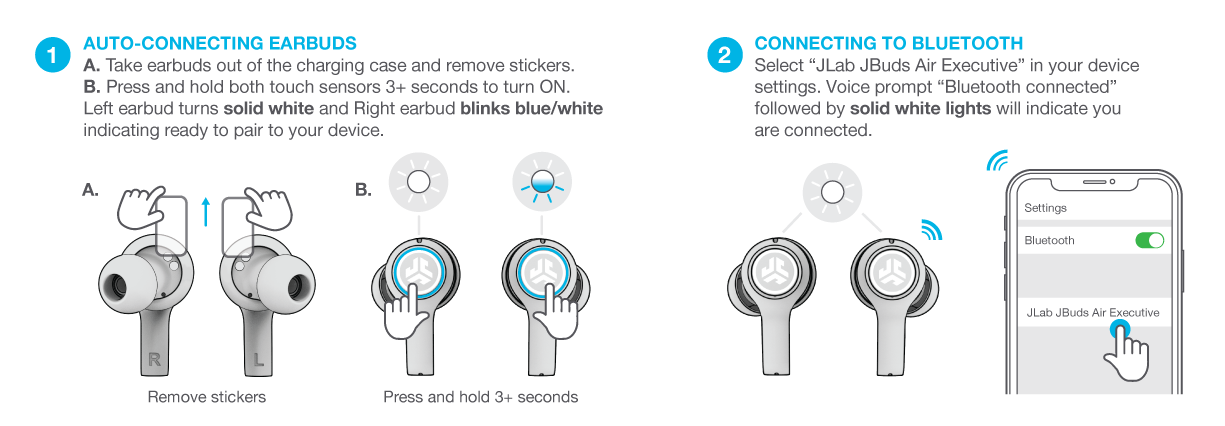
Take the earbuds out of the charging case. Press and hold the main button on both earbuds for a few seconds. The earbuds will flash a light to show they are in pairing mode.
Pairing mode makes the earbuds visible to your computer’s Bluetooth. Without this, your computer cannot detect the earbuds. Keep the earbuds close to your computer during this step.
Check Computer Bluetooth Settings
Before connecting your JLab earbuds, check your computer’s Bluetooth settings. This step ensures a smooth connection and better sound quality. Many connection problems start here. Making your computer ready to find devices is important. Follow these simple steps to prepare your computer for pairing.
Turn On Bluetooth
First, turn on Bluetooth on your computer. Without Bluetooth, your earbuds cannot connect. On Windows, open the Start menu and select Settings. Click on Devices, then Bluetooth & other devices. Switch Bluetooth to On.
On a Mac, click the Apple menu and choose System Preferences. Select Bluetooth and press Turn Bluetooth On. Your computer is now ready to find your earbuds.
Make Computer Discoverable
Next, make your computer discoverable. This allows your earbuds to detect your device. On Windows, Bluetooth usually stays discoverable when turned on. Still, check if your PC is visible in Bluetooth settings.
On Mac, open the Bluetooth preferences. Make sure the option “Allow Bluetooth devices to find this computer” is enabled. This step helps your earbuds spot your computer fast. Your computer is now ready to pair with your JLab earbuds.
Pair Earbuds With Computer
Pairing your JLab earbuds with a computer is simple. It lets you enjoy music and calls wirelessly. Follow these easy steps to connect your earbuds quickly.
Search For Devices
Turn on Bluetooth on your computer. Open the Bluetooth settings or devices menu. Click the option to add or search for new devices. Make sure your JLab earbuds are in pairing mode. This allows the computer to find them.
Select Jlab Earbuds
Look at the list of available devices on your screen. Find the name of your JLab earbuds. Click on the earbuds’ name to select them. This action tells your computer to connect to your earbuds.
Confirm Connection
A prompt may appear asking you to confirm the connection. Click “Pair” or “Connect” to approve it. Wait a few seconds for the connection to finish. Once connected, a notification will show the earbuds are ready to use.

Credit: www.youtube.com
Troubleshoot Connection Issues
Connecting JLab earbuds to a computer usually works smoothly. Sometimes, connection problems can happen. These issues can stop your earbuds from pairing or playing sound properly. Troubleshooting helps fix these problems quickly. Follow simple steps to get your earbuds working again.
Reset Earbuds
Resetting the earbuds can solve many connection problems. Turn off the earbuds first. Hold the button on both earbuds for about 10 seconds. Wait until the lights flash red and white. This means the earbuds reset. After reset, pair the earbuds with your computer again.
Update Bluetooth Drivers
Old or missing Bluetooth drivers can block connections. Check your computer’s device manager for Bluetooth updates. Download the latest drivers from the official website. Install the update and restart your computer. Updated drivers improve the connection speed and stability.
Reboot Devices
Restarting both earbuds and computer can clear errors. Turn off your computer and earbuds. Wait a few seconds. Turn them back on. This process refreshes the system. Try connecting the earbuds to the computer again after reboot.
Optimize Audio Settings
Optimizing your audio settings helps you enjoy the best sound from your Jlab earbuds. It makes sure the earbuds work well with your computer. Clear sound and balanced volume improve your listening experience. Follow simple steps to adjust your audio settings.
Set Jlab Earbuds As Default Playback Device
First, open the sound settings on your computer. Find the playback devices list. Look for your Jlab earbuds in the list. Click on your earbuds to select them. Choose “Set as Default” to make them the main audio device. This tells your computer to send sound to the earbuds. Check that the earbuds show a green check mark. This confirms they are active for audio output.
Adjust Volume Levels
Next, check the volume controls on your computer. Make sure the volume is not muted or too low. Slide the volume bar up to increase sound. Test the sound by playing audio or video. Adjust the volume until it feels comfortable. Avoid very high volumes to protect your hearing. You can also control volume directly on your earbuds if they have buttons. Keep the sound balanced for clear and pleasant audio.
Credit: www.esseg.eu
Frequently Asked Questions
How Do I Pair Jlab Earbuds With My Computer?
Turn on your Jlab earbuds and enable Bluetooth on your computer. Search for available devices, select your earbuds, and click “Connect. ” Your earbuds should pair within seconds and be ready to use.
Can Jlab Earbuds Connect To Windows And Mac?
Yes, Jlab earbuds are compatible with both Windows and Mac computers. Just enable Bluetooth on your device and follow the pairing process specific to your operating system.
Why Won’t My Jlab Earbuds Connect To My Pc?
Ensure your earbuds are in pairing mode and Bluetooth is enabled on your PC. Restart both devices if needed, then try pairing again to resolve common connection issues.
How Do I Reset Jlab Earbuds For Computer Pairing?
To reset, hold the power button on your earbuds for 10 seconds until the LED flashes. This clears previous connections and allows fresh pairing with your computer.
Conclusion
Connecting JLab earbuds to your computer is simple and quick. Start by turning on your earbuds and enabling Bluetooth on your computer. Then, select your earbuds from the list of available devices. Once connected, you can enjoy clear sound for work or fun.
Remember to keep your earbuds charged for the best experience. Now, you are ready to use your JLab earbuds anytime with your computer. Easy steps. Great sound. Simple connection.
As an Amazon Associate, I earn from qualifying purchases.