
As an Amazon Associate, I earn from qualifying purchases.
Are you ready to get the most out of your music or audio projects? Connecting your studio monitors to your computer the right way is the key to hearing every detail clearly.
But if you’re unsure where to start or worried about making mistakes, don’t worry — this guide will walk you through each step. By the end, you’ll know exactly how to set up your monitors for the best sound quality, so you can focus on creating without distractions.
Keep reading, and let’s make your audio experience truly come alive.
Choosing The Right Studio Monitors
Choosing the right studio monitors is key to getting clear sound from your computer. The right monitors help you hear every detail in your music or audio work. This section breaks down important points to consider before buying.
Active Vs Passive Monitors
Active monitors have built-in amplifiers. They connect directly to your computer or audio interface. They are easy to use and require less extra gear.
Passive monitors need an external amplifier. They give you more control over power and sound. But they require extra equipment and setup.
Active monitors suit beginners and small studios. Passive monitors fit larger, more complex setups.
Size And Placement Considerations
Monitor size affects sound quality and bass response. Small monitors work well in tight spaces. Larger monitors offer fuller sound but need more room.
Place monitors at ear level for best listening. Keep them equal distance from walls to avoid echoes. Position them in an equilateral triangle with your listening spot.
Frequency Response And Wattage
Frequency response shows the range of sounds a monitor can play. Look for monitors with a flat frequency response. This means they do not add or remove sound frequencies.
Wattage affects volume and clarity. Higher wattage handles louder sounds without distortion. Choose wattage based on your room size and listening needs.

Credit: music.stackexchange.com
Essential Equipment And Cables
Connecting studio monitors to a computer needs the right tools. Choosing the correct equipment and cables ensures clear sound and smooth setup. This section explains key gear and cable types used in this process.
Audio Interfaces
An audio interface acts as a bridge between your computer and monitors. It converts digital signals to analog sound. Most computers lack good audio outputs for studio monitors. Interfaces improve sound quality and reduce delay. They also offer multiple inputs and outputs. This makes recording and mixing easier.
Balanced Vs Unbalanced Cables
Balanced cables carry two signal wires plus a ground wire. This design reduces noise and interference. Balanced cables are best for long cable runs. Unbalanced cables have one signal and one ground wire. They are more prone to noise and work better for short distances. Choosing balanced cables helps keep audio clear.
Common Cable Types For Studio Monitors
XLR cables are common and balanced. They provide strong connections for professional gear. TRS cables look like headphone jacks but are balanced too. They are common in audio interfaces and monitors. RCA cables are unbalanced and usually found on consumer devices. Use them only if your gear supports RCA inputs.
Connecting Monitors To Your Computer
Studio monitors need a clear connection to your computer to deliver the best sound. The right setup helps you hear every detail in your music or project. Different connection methods work best depending on your gear and workspace.
Choosing the proper connection keeps your audio clean and reduces noise. Let’s explore three common ways to connect studio monitors to your computer.
Using Usb Audio Interfaces
USB audio interfaces connect directly to your computer’s USB port. They convert digital signals into analog sound for your monitors. This connection is simple and good for most users.
Many USB interfaces come with built-in preamps and controls. They offer better sound quality than your computer’s headphone jack. Plug your monitors into the interface’s outputs for clear audio.
Connecting Via Audio Interface Outputs
Audio interfaces have outputs made for studio monitors. Common types include TRS, XLR, and RCA connectors. These balanced connections reduce noise and interference.
Use cables that match your monitor inputs and interface outputs. Balanced cables help keep sound clean over long distances. This setup is popular in professional and home studios.
Direct Connection Options
Some monitors connect directly to your computer without an interface. Use the headphone jack or line output on your computer. This option is quick but may lower sound quality.
Adapters can help connect monitors using different plugs. USB monitors can also connect directly via USB ports. Choose this if you want a simple, space-saving setup.
Optimizing Monitor Placement
Optimizing the placement of your studio monitors is key to getting clear, accurate sound. Proper positioning helps you hear every detail in your music or audio projects. It reduces problems like echoes and poor bass response. Small changes in placement can make a big difference in sound quality.
Ideal Listening Position
Place your monitors so they form an equilateral triangle with your head. This means the distance between the monitors equals the distance from you to each monitor. Your ears should be at the same height as the tweeters. Sit directly in front of the monitors, not off to the side. This position gives the best stereo image and balance.
Avoiding Reflections And Interference
Keep monitors away from walls and corners to reduce sound reflections. Reflections cause echoes and muddy the sound. Use speaker stands or isolation pads to lift monitors off surfaces. Avoid placing objects between the monitors and your ears. Clear space helps prevent sound interference and keeps audio clean.
Using Acoustic Treatment
Use acoustic panels or foam to absorb unwanted sound waves. Place panels on walls near the monitors and behind your listening position. Bass traps in corners help control low frequencies. Acoustic treatment improves clarity and reduces room noise. It creates a better environment for mixing and listening.
Calibrating And Testing Your Setup
Calibrating and testing your studio monitor setup is a crucial step. It ensures sound accuracy and prevents damage to your speakers. Proper calibration helps you hear your audio clearly and balance the sound in your room. Testing the setup confirms that everything works as expected.
Adjusting Volume And Gain
Start by setting the volume on your computer to a moderate level. Next, adjust the gain control on your studio monitors. Keep the gain low at first to avoid distortion. Slowly increase the gain until the sound is clear and loud enough. Avoid setting the volume too high to protect your ears and speakers.
Using Calibration Software
Calibration software helps fine-tune your monitor sound. It measures room acoustics and speaker response. Follow the software instructions to place the microphone correctly. Let the software play test tones and adjust settings automatically. This process improves sound accuracy and balance in your room.
Troubleshooting Common Issues
Check all cables for secure connections if no sound plays. Swap cables to find faulty ones. If the sound is distorted, lower the gain or volume. Make sure your audio drivers are up to date. Reduce background noise by closing windows and doors. Test with different audio files to confirm the issue.

Credit: homedjstudio.com
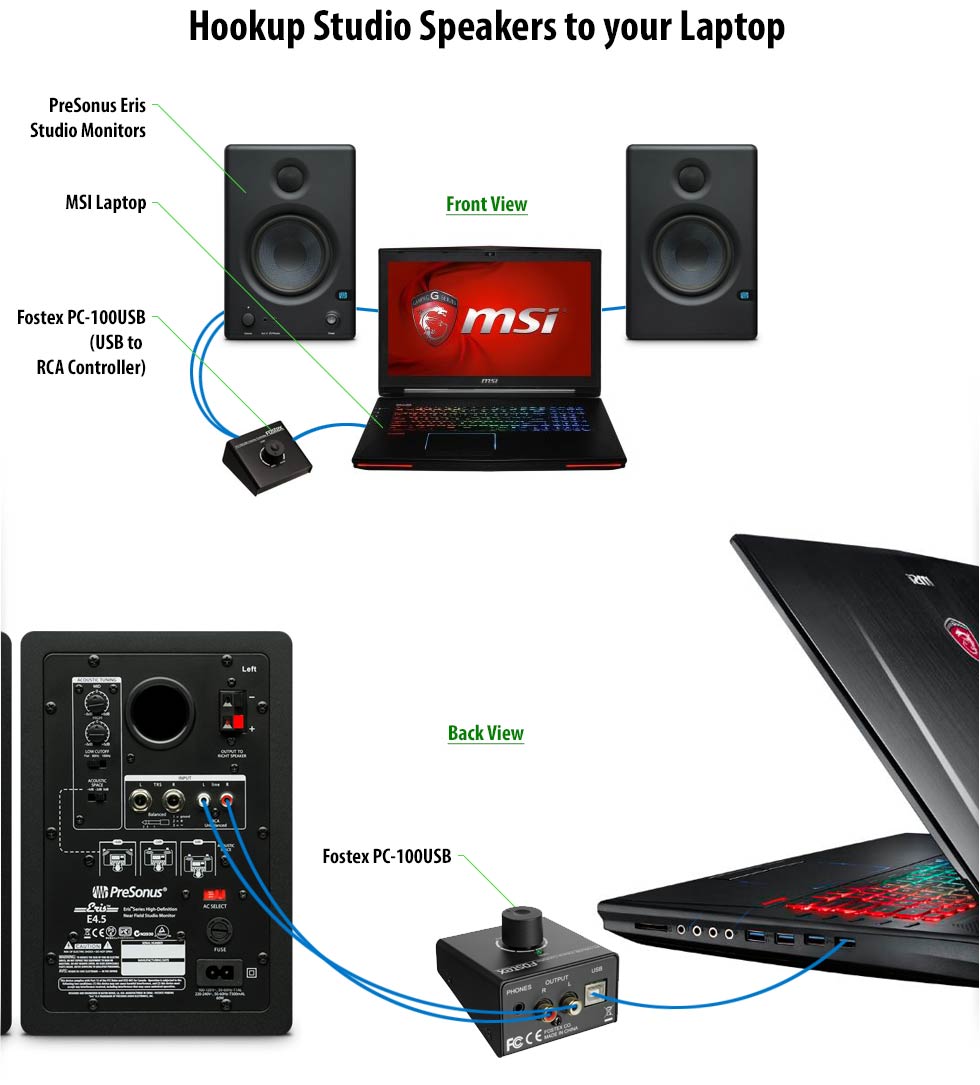
Credit: clevergizmos.com
Frequently Asked Questions
How Do I Connect Studio Monitors To A Computer?
Use an audio interface or mixer with balanced outputs. Connect the interface to your computer via USB or Thunderbolt. Then, link the studio monitors using XLR or TRS cables for clear, noise-free audio.
What Cables Are Best For Studio Monitor Connection?
Balanced XLR or TRS cables are best for studio monitors. They reduce interference and provide clear sound. Avoid unbalanced cables like RCA for professional setups.
Can I Connect Studio Monitors Directly To My Pc?
Yes, but it’s not ideal. Direct connection via headphone jack or USB may reduce audio quality. Using an audio interface improves sound clarity and control.
Do I Need An Audio Interface For Studio Monitors?
An audio interface is recommended for better sound quality and control. It converts digital signals to analog, reducing latency and noise. It also offers balanced outputs for monitors.
Conclusion
Connecting studio monitors to your computer is simple and clear. Choose the right cables and ports for best sound quality. Place your monitors correctly for balanced audio. Adjust volume levels carefully to avoid damage. Test your setup to make sure everything works well.
Enjoy better sound for music, videos, or work. Small steps make a big difference in sound. Now, your computer and monitors work together perfectly.
As an Amazon Associate, I earn from qualifying purchases.

