
As an Amazon Associate, I earn from qualifying purchases.
Are you ready to boost your productivity and make your workspace more efficient? Connecting two monitors to your laptop docking station can transform the way you work, giving you more screen space to manage tasks, organize windows, and stay focused.
But if you’ve never set this up before, it might feel confusing or overwhelming. Don’t worry—this guide will walk you through every step, making it simple and straightforward. By the end, you’ll have a seamless dual-monitor setup that helps you get more done with less hassle.
Keep reading to find out exactly how to connect two monitors to your laptop docking station.
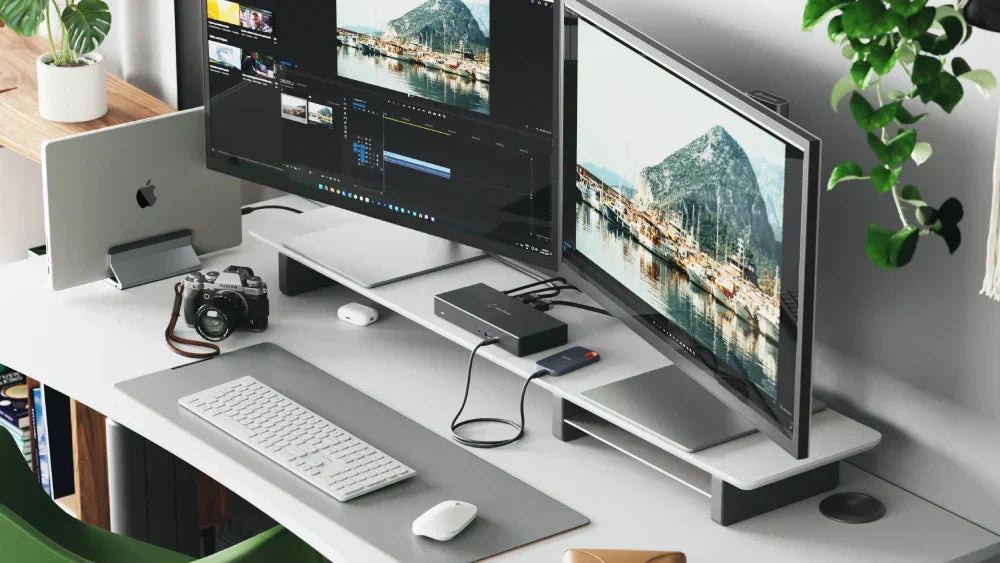
Credit: alogic.co
Choosing The Right Docking Station
Choosing the right docking station is key to connecting two monitors to your laptop. The right dock makes your setup easy and efficient. It ensures smooth display output and power supply. Understanding the options helps you pick the best fit for your needs.
Types Of Docking Stations
There are basic and advanced docking stations. Basic docks offer simple connections for monitors and USB devices. Advanced docks include extra ports like Ethernet and audio jacks. Some docks are universal, while others are brand-specific. Choose a type that matches your usage and budget.
Compatibility With Your Laptop
Check if the dock works with your laptop model. Some docks only fit certain brands or models. The connection type matters—USB-C, Thunderbolt, or proprietary ports. Confirm your laptop supports dual monitor output through the dock. Compatibility ensures stable and fast connections.
Port Selection And Availability
Look at the number and types of ports on the dock. It should have at least two video output ports for two monitors. Common ports include HDMI, DisplayPort, and VGA. More USB ports help connect other devices. Power delivery via the dock is a bonus for charging your laptop.

Credit: www.youtube.com
Preparing Your Laptop And Monitors
Preparing your laptop and monitors is a key step before connecting them to a docking station. It helps avoid problems and makes the setup smooth. Take time to check your devices and workspace.
Checking Monitor Inputs
Look at the back of your monitors to find their input ports. Common types are HDMI, DisplayPort, VGA, and DVI. Confirm which ports your monitors support. Match these ports with the cables and docking station outputs. This step ensures compatibility and prevents the need for extra adapters.
Updating Laptop Drivers
Keep your laptop’s drivers up to date for the best performance. Visit the laptop manufacturer’s website to download the latest graphics and docking station drivers. Updated drivers help the laptop recognize multiple monitors and improve display quality. Restart your laptop after installing updates to apply changes.
Clearing Workspace
Clear your desk or workspace before connecting the monitors. Remove clutter and free up space for cables and devices. A clean area helps organize cables neatly and avoids damage. It also makes the setup process easier and safer for your equipment.
Connecting Monitors To Docking Station
Connecting monitors to a docking station expands your workspace easily. It lets you see more and work better. The process depends on the ports available on your docking station and monitors. Understanding the types of connections helps you set up quickly.
Most docking stations support multiple video outputs. You can use HDMI, DisplayPort, USB-C, Thunderbolt, VGA, or DVI. Each has a simple way to connect. Let’s explore how to use these connections step-by-step.
Using Hdmi And Displayport
HDMI and DisplayPort are common for modern monitors. Both carry high-quality video and sound. Find the HDMI or DisplayPort output on your docking station. Then, connect the cable to your monitor’s matching port. The laptop will detect the monitor automatically.
These connections support high resolutions. Choose DisplayPort for better refresh rates if available. Use HDMI for compatibility with most screens. Secure the cable for a stable connection.
Utilizing Usb-c Or Thunderbolt
USB-C and Thunderbolt ports carry video, data, and power. Many new docking stations use these for one-cable convenience. Plug your USB-C or Thunderbolt monitor cable into the docking station. Your laptop will recognize the display quickly.
These connections allow fast data and video transfer. They support high resolutions and multiple displays. Make sure your laptop and docking station support video over USB-C or Thunderbolt. Otherwise, the monitors may not show the image.
Dealing With Vga Or Dvi Connections
Older monitors often use VGA or DVI ports. These ports only carry video signals. Locate the VGA or DVI output on your docking station. Connect the cable to your monitor’s matching port. VGA uses an analog signal; DVI is digital.
You may need adapters for VGA or DVI if your docking station lacks these ports. The quality may be lower compared to HDMI or DisplayPort. Still, they work well for basic setups. Tighten the screws on VGA or DVI cables to secure the connection.
Configuring Display Settings
Configuring display settings is the next step after connecting two monitors to a laptop docking station. This step helps you control how your screens work together. You can choose to show the same image on both screens or extend your workspace across them. Adjusting resolution and orientation also improves how things look on each screen. Sometimes, display problems happen. Troubleshooting helps solve these issues quickly.
Setting Up Extended Or Duplicate Displays
Open your laptop’s display settings from the control panel or system preferences. Select the option to extend or duplicate your display. Extended display means each monitor shows different content. Duplicate display shows the same content on both screens. Choose what fits your work style best. Click apply to save your settings.
Adjusting Resolution And Orientation
Each monitor may have a different resolution. Go to display settings and select each screen. Adjust the resolution for the clearest image. Set the orientation to landscape or portrait as needed. Proper settings reduce eye strain and make work easier. Save your changes to keep the setup consistent.
Troubleshooting Display Issues
Check all cables to ensure they are firmly connected. Restart your laptop and docking station to refresh connections. Update your graphics driver from the manufacturer’s website. Use the display settings to detect monitors if they do not show. If one monitor stays blank, swap cables to find the faulty one. These steps fix most common problems fast.
Optimizing Performance And Productivity
Optimizing performance and productivity is key when connecting two monitors to a laptop docking station. Proper setup helps you work faster and with less hassle. Small changes can make a big difference in how smoothly everything runs. Focus on power, software, and cable setup to get the best results.
Managing Power Settings
Adjust power settings to keep your monitors running efficiently. Set your laptop to stay awake while docked. Avoid screen dimming or sleep mode during work. This stops interruptions and saves time. Check your display settings for the best brightness and resolution. Proper power use extends laptop and monitor life.
Using Multi-monitor Software Tools
Multi-monitor tools help organize your screens. Use software to drag windows between monitors easily. Some tools let you split screens for better multitasking. Choose programs that match your needs and are easy to use. These tools help reduce clutter and improve focus.
Tips For Cable Management
Keep cables tidy to avoid confusion and damage. Use clips or ties to bundle cables neatly. Label each cable for quick identification. Place cables away from walkways to prevent tripping. Good cable management improves workspace safety and looks cleaner.
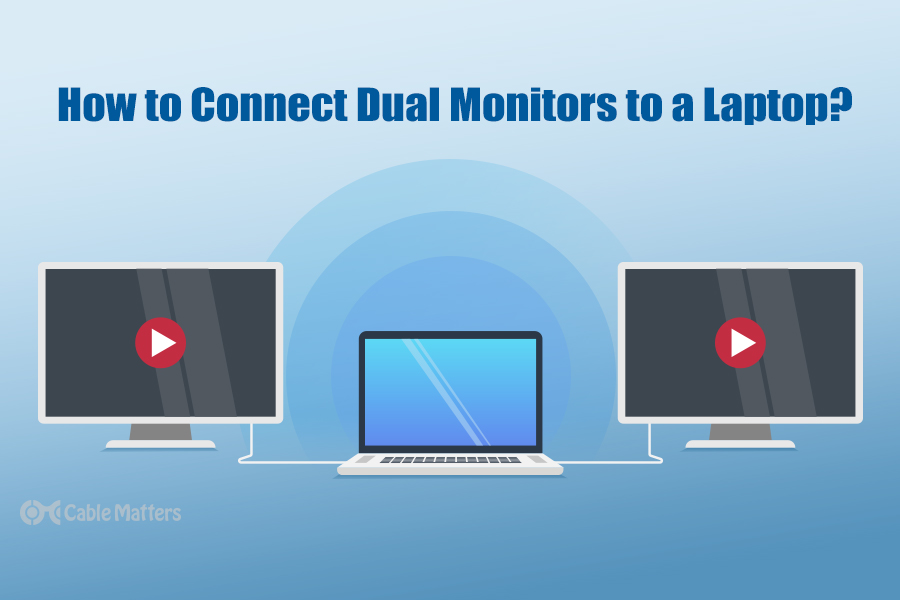
Credit: www.cablematters.com
Frequently Asked Questions
How Do I Connect Two Monitors To A Laptop Docking Station?
First, check your docking station’s video ports. Connect each monitor to the appropriate port using HDMI, DisplayPort, or VGA cables. Then, configure display settings on your laptop to extend or duplicate screens for dual monitor use.
Can All Docking Stations Support Two Monitors?
Not all docking stations support two monitors. Verify your dock’s specifications before buying. Look for multiple video output ports like HDMI or DisplayPort to ensure dual monitor support.
What Laptop Settings Enable Dual Monitor Display?
Go to your laptop’s display settings. Select “Extend these displays” to use both monitors independently. Adjust resolution and orientation for optimal viewing across screens.
Do I Need Special Cables For Dual Monitors?
Usually, standard HDMI, DisplayPort, or VGA cables work. Ensure cables match your docking station and monitor ports. Using quality cables avoids signal loss and display issues.
Conclusion
Connecting two monitors to a laptop docking station is easier than it seems. Start by checking your docking station’s ports. Use the right cables for each monitor. Make sure your laptop recognizes both screens. Adjust the display settings for the best view.
This setup can boost your work and entertainment experience. Try it out and enjoy more screen space. You’ll find multitasking much simpler with dual monitors. Keep these steps in mind for smooth installation. Simple, effective, and helpful for everyday use.
As an Amazon Associate, I earn from qualifying purchases.

