
As an Amazon Associate, I earn from qualifying purchases.
Are you finding your second monitor more distracting than helpful? Maybe you only need one screen for now, or you want to save power and simplify your workspace.
Whatever your reason, knowing how to disable your second monitor quickly can save you time and frustration. In this guide, you’ll learn simple, step-by-step methods to turn off that extra display and get your setup just right. Stick with me, and by the end, managing your monitors will feel easy and under your control.
Reasons To Disable A Second Monitor
Using two monitors can boost productivity. But there are times to disable the second screen. It might help improve your work environment. This section explains why you might want to turn off your second monitor.
Improve Focus
One screen means fewer distractions. Your eyes stay on one task. It helps you finish work faster. No need to switch attention between screens. This keeps your mind clear and sharp.
Save Power
Turning off the second monitor saves electricity. Your computer uses less power overall. This can lower your electric bill. It is good for the environment too. Small changes add up over time.
Simplify Workspace
Fewer screens mean a cleaner desk. Less clutter helps you feel calm. It frees space for other tools. A simple setup makes work easier. You can focus on what matters most.

Credit: www.reddit.com
Disabling A Monitor On Windows
Disabling a second monitor on Windows can help simplify your workspace. It also saves power and stops distractions. Windows provides several easy ways to turn off an extra screen. Choose the method that fits your needs best.
Using Display Settings
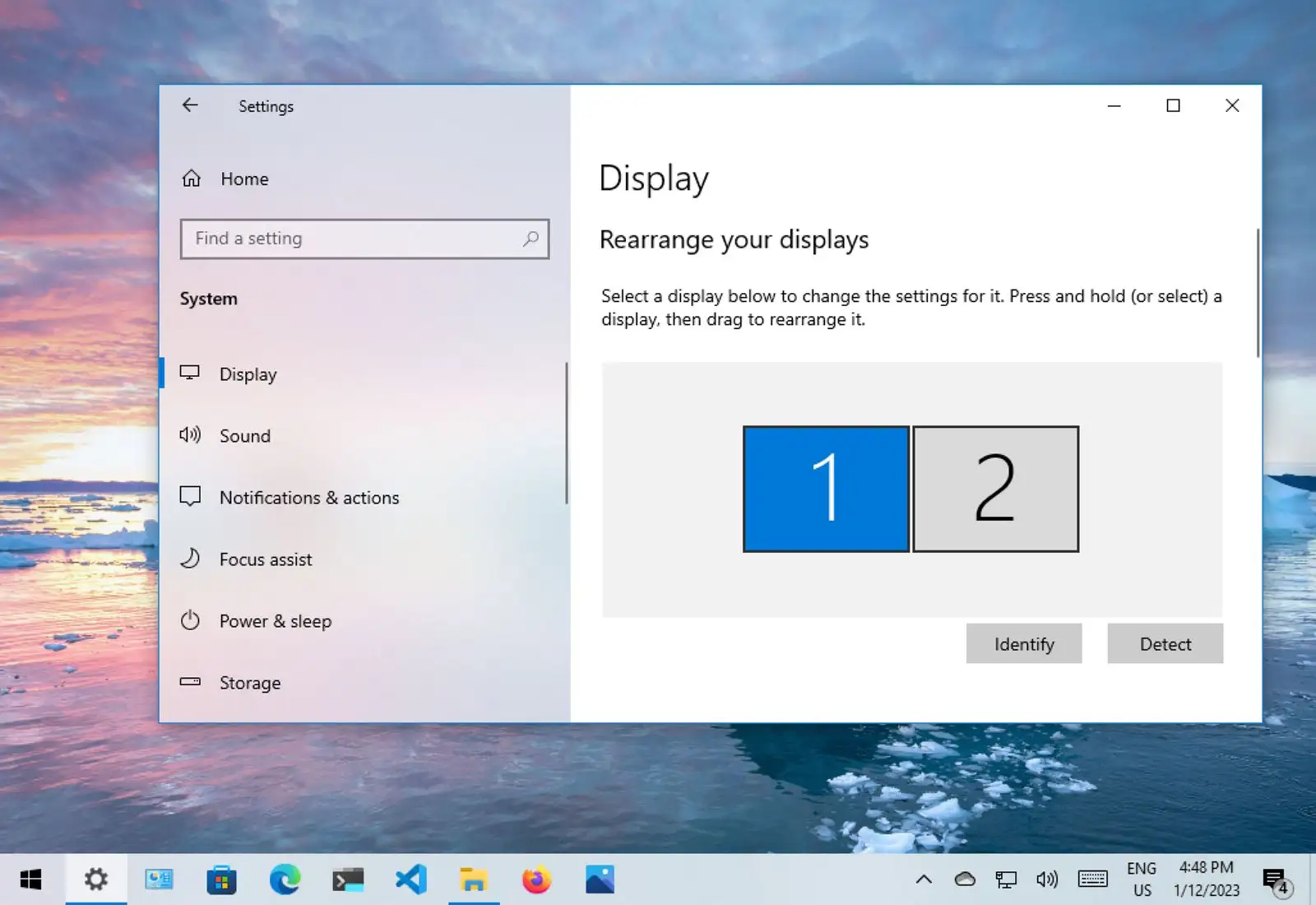
Right-click on the desktop and select “Display settings.” Scroll down to find the “Multiple displays” section. Click the drop-down menu and choose “Show only on 1” or “Show only on 2.” This turns off the other monitor. Click “Apply” to save changes.
Keyboard Shortcut Method
Press the Windows key + P together. A sidebar with display options appears. Select “PC screen only” to disable the second monitor. This is a quick way to switch screens without opening settings.
Device Manager Approach
Open Device Manager by typing it in the search box. Expand the “Monitors” section. Right-click the monitor you want to disable. Choose “Disable device” from the menu. Confirm the action to turn off that monitor.
Disabling A Monitor On Mac
Disabling a second monitor on a Mac is simple. It helps save power and reduce distractions. You can turn off the extra screen without unplugging it. MacOS offers easy options to manage your displays.
This guide shows two common ways to disable a monitor on a Mac. Follow these steps to control your screens quickly.
Using System Preferences
Open the Apple menu and select “System Preferences.” Click on “Displays” to open display settings. Here, you see all connected monitors. Select the monitor you want to disable. Uncheck the “Mirror Displays” box if it is checked. Then, drag the white menu bar from the second monitor to the main one. This action makes the primary display active. You can also lower the brightness of the second monitor to zero. This effectively turns off the screen without unplugging it.
Disconnecting From Display Arrangement
Go to “System Preferences” and click on “Displays.” Click the “Arrangement” tab. This shows how your monitors are set up. To disable the second monitor, drag all open windows to the primary screen. Then, uncheck “Mirror Displays” if needed. Finally, physically unplug the second monitor or turn it off. Mac will only use the main screen after this. This method helps if you want to stop using the second monitor completely.
Credit: discussions.apple.com
Disabling A Monitor On Linux
Disabling a second monitor on Linux can help you manage your workspace better. It saves power and reduces distractions. Linux offers simple ways to turn off extra screens. You can use the graphical interface or the command line. Both methods work well and suit different user preferences.
Using Display Settings
Most Linux desktop environments have a display settings panel. Open it from the system menu or settings app. Find the option that shows your connected monitors. Select the second monitor from the list. Look for a toggle or drop-down menu to disable the screen. Click apply or save to confirm changes. Your second monitor will turn off immediately.
This method is easy for beginners. It uses simple clicks and menus. No need to know commands or scripts. The changes can be reversed in the same way.
Command Line Method
The command line offers a quick and powerful way to disable a monitor. Open the terminal on your Linux system. Type xrandr and press enter. It shows all connected displays and their names. Find the name of the second monitor, such as HDMI-1 or DP-1.
Run this command to disable the monitor:
xrandr --output HDMI-1 --off Replace HDMI-1 with your monitor’s name. The second monitor will switch off right away. To enable it again, use:
xrandr --output HDMI-1 --auto This method is best for advanced users. It works well on all Linux setups. Commands can be added to scripts for automation.
Tips For Managing Multiple Displays
Managing multiple displays can improve your work and entertainment setup. It helps you organize windows and apps better. Knowing how to control your screens keeps your desktop neat and efficient.
Here are some simple tips for handling more than one monitor. These will help you adjust settings and choose the best display for your tasks.
Adjusting Screen Resolution
Set the right resolution for each monitor to get clear images. Open your display settings and select each screen. Choose resolutions that fit the size and quality of your monitors. This prevents blurry or stretched visuals. Proper resolution makes reading and working easier.
Setting Primary Display
Your primary display shows the main taskbar and apps. Pick the screen you want as the main workspace. In display settings, select the monitor and mark it as primary. This helps you focus on one screen for important work. It also controls where new windows open first.
Using Display Profiles
Display profiles save your preferred settings for each monitor setup. Create profiles for different tasks like work or gaming. Switch profiles quickly without changing each setting every time. This saves time and keeps your displays ready for different uses.
Credit: pureinfotech.com
Frequently Asked Questions
How Do I Disable My Second Monitor On Windows?
To disable your second monitor on Windows, open Display Settings. Select the second monitor, then choose “Disconnect this display” or “Show only on 1. ” This stops the second screen from displaying content without unplugging it physically.
Can I Disable A Second Monitor Without Unplugging?
Yes, you can disable a second monitor without unplugging by adjusting display settings. On Windows, go to Display Settings, select the second monitor, and choose to disconnect or disable it. This saves your setup for future use.
Why Would I Want To Disable My Second Monitor?
Disabling a second monitor helps when troubleshooting, saving battery, or focusing on one screen. It also prevents distractions and conserves system resources when the extra display isn’t needed.
How To Quickly Disable A Second Monitor Keyboard Shortcut?
Press Windows + P to open the projection menu. Use arrow keys to select “PC screen only” or “Disconnect” and press Enter. This quickly disables the second monitor without opening full display settings.
Conclusion
Disabling a second monitor is simple and quick. Just follow the steps shared above. This helps focus on one screen only. It saves power and reduces distractions. You can easily enable it again anytime. Understanding these steps makes managing screens easy.
Keep your workspace tidy and efficient. Try the method that suits your device best. Stay comfortable while working or gaming. Managing monitors does not have to be hard. Take control of your screen setup today.
As an Amazon Associate, I earn from qualifying purchases.

