
Have you ever pressed the Home button on your keyboard by accident, only to be taken away from what you were doing? It can be frustrating when a simple slip disrupts your flow or work.
If you want to stop this from happening, learning how to disable the Home button on your keyboard might be the perfect solution. You’ll discover easy and effective ways to regain control and prevent those unwanted interruptions. Keep reading to find out how you can make your keyboard work exactly the way you want.
Reasons To Disable Home Button
Disabling the Home button on your keyboard can improve your daily computer use. Many users find this key causes interruptions or errors. Adjusting its function can create a smoother experience. Here are key reasons to consider disabling the Home button.
Prevent Accidental Presses
The Home button is easy to press by mistake. Accidental taps can disrupt your work or browsing. Disabling it stops these unwanted actions. This helps avoid lost time and frustration. Especially helpful for users who type fast or use compact keyboards.
Enhance Productivity
The Home button can interrupt your workflow. Disabling it reduces distractions during work or gaming. It helps maintain focus on important tasks. Less accidental key presses means fewer pauses. Your work becomes smoother and more efficient.
Customize Keyboard Behavior
Everyone uses a keyboard differently. Disabling the Home button lets you tailor your setup. You can assign other keys or shortcuts instead. This customization matches your personal needs better. A keyboard that works your way improves comfort and ease.

Credit: forum.level1techs.com
Methods To Disable Home Button
Disabling the Home button on your keyboard can help avoid accidental presses. There are several ways to do this depending on your needs and skill level. Each method offers a different approach to control or block the Home key function.
Choose a method that fits your comfort with technology and the tools available on your computer. Here are some common ways to disable the Home button.
Using Keyboard Software
Many keyboards come with software that allows customization of key functions. This software can disable or remap the Home button. Open the keyboard’s software and look for key assignment or key remapping options. Select the Home key and set it to “disabled” or assign it to an unused function. Save your changes and test the key. This method is simple and safe for most users.
Modifying Registry Settings
Windows users can disable keys by editing the system registry. This method requires caution. Open the Registry Editor by typing “regedit” in the search bar. Navigate to HKEY_LOCAL_MACHINESYSTEMCurrentControlSetControlKeyboard Layout. Create a new binary value called “Scancode Map.” Enter the scancode for the Home key to disable it. Save and restart your computer. This method is powerful but needs careful steps to avoid errors.
Employing Third-party Tools
Several free tools let you disable specific keys easily. Programs like SharpKeys or KeyTweak provide user-friendly interfaces. Install the tool and select the Home key from the list. Choose to disable or remap it to another key. Apply the changes and reboot the system. These tools do not require deep technical knowledge and work well for most users.
Step-by-step Guide For Windows
Disabling the Home button on your keyboard can help avoid accidental presses. This step-by-step guide focuses on Windows systems. Follow each step carefully to make sure the button is disabled correctly.
Accessing Device Manager
Start by opening the Device Manager. Press the Windows key and type “Device Manager.”
Click on the Device Manager app from the search results. Look for the “Keyboards” section. Click the arrow to expand it. Find your keyboard device in the list. Right-click on it and select “Properties.”
Navigate to the “Driver” tab. This helps identify the driver for your keyboard. You will need this information for the next steps.
Disabling Key Via Registry Editor
Open the Registry Editor by pressing Windows + R keys. Type “regedit” and hit Enter.
Navigate to the path: HKEY_LOCAL_MACHINESYSTEMCurrentControlSetControlKeyboard Layout.
If “Scancode Map” does not exist, create a new binary value with that name. This value will disable the Home key.
Enter the following binary data to disable the Home key:
00 00 00 00 00 00 00 00 03 00 00 00 47 00 00 00 00 00 00 00This maps the Home key scan code to nothing. Save the changes and close the Registry Editor.
Restart your computer to apply the new settings.
Testing The Changes
After rebooting, test the Home button. Press the Home key to check if it works.
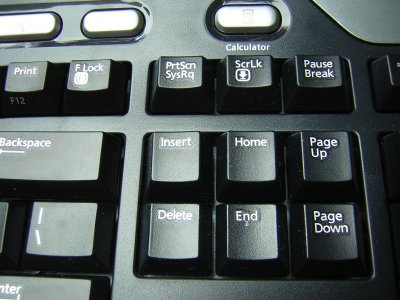
If the cursor does not move to the beginning of the line, the key is disabled. Test in various programs like Notepad or a web browser.
If the key still works, repeat the steps to ensure accuracy. Disabling keys via Registry Editor requires exact input.
Credit: xahlee.info
Step-by-step Guide For Mac
Disabling the Home button on a Mac keyboard can prevent accidental presses. This step-by-step guide shows how to do it simply. Follow the instructions to control key functions easily. Choose the best method that fits your needs.
Using System Preferences
Open System Preferences from the Apple menu. Click on “Keyboard” to access keyboard settings. Look for the “Modifier Keys” button at the bottom right. Select your keyboard from the drop-down menu. Change the Home key action to “No Action” or similar. Click “OK” to save your changes. This method uses built-in Mac settings without extra software.
Mapping Keys With Third-party Apps
Download a key remapping app like Karabiner-Elements. Install and open the app on your Mac. Find the Home key in the list of keys. Set the Home key to “Disable” or map it to a harmless function. Save the configuration and apply the changes. These apps offer more control over keyboard keys. They allow custom setups beyond default options.
Verifying Key Disablement
Test the Home button by pressing it after changes. Check if it performs its original function or does nothing. Use a text editor or any app to test the key. If the key still works, repeat the steps carefully. Confirm the settings saved correctly in your system or app. Ensuring disablement helps avoid unwanted key presses later.
Troubleshooting Common Issues
Disabling the Home button on your keyboard can sometimes cause small issues. These issues might stop your keyboard from working as expected. This section helps you fix common problems fast. Follow the steps below to solve troubles easily.
Re-enabling The Home Button
Sometimes, you may want to turn the Home button back on. To do this, open your keyboard settings or the software you used to disable the button. Look for the option to enable the Home key again. Save your changes and test if the button works. Restart your computer if needed.
Fixing Registry Errors
The Windows registry controls many keyboard functions. Errors here can stop the Home button from working. Use the Registry Editor carefully to check for wrong entries. Search for any key related to the Home button and delete or fix it. Always back up the registry before making changes to avoid bigger problems.
Dealing With Software Conflicts
Conflicts between programs can cause keyboard issues. Some apps may block the Home button or override its function. Close unnecessary programs one by one to see if the Home button starts working. Update your keyboard drivers and any software that manages keyboard keys. This can prevent conflicts and improve performance.
Credit: www.makeuseof.com
Tips For Custom Keyboard Shortcuts
Custom keyboard shortcuts make your computer work easier. You can change keys to fit your needs. This helps if you want to disable the Home button on your keyboard. Use these tips to create shortcuts that work well and avoid problems.
Choosing Alternative Keys
Pick keys that are easy to reach and use. Avoid keys already set for important tasks. Letters like F1 to F12 often work well. Or use combinations with Ctrl, Alt, or Shift. Test your choices to make sure they feel natural.
Managing Shortcut Conflicts
Check if new shortcuts clash with old ones. Conflicts can cause shortcuts to stop working. Use software tools to find conflicts quickly. Change or remove shortcuts that cause problems. Keep shortcuts simple and unique for best results.
Saving And Backing Up Settings
Save your custom shortcut settings often. This stops loss of your work after updates or crashes. Export your settings to a file for backup. Keep backups in a safe place. This makes it easy to restore settings anytime.
Frequently Asked Questions
How Can I Disable The Home Button On My Keyboard?
You can disable the Home button using software like SharpKeys or AutoHotkey. These tools remap or block specific keys effectively.
Is It Safe To Disable The Home Button On Windows?
Yes, it is safe if you use reliable key-remapping software. Always create a backup before making system changes.
Can I Disable The Home Button Without Software?
Disabling the Home button without software is difficult. Most users rely on third-party tools for precise control.
Will Disabling The Home Button Affect Other Keys?
No, disabling only the Home button won’t affect other keys. Proper remapping targets specific keys without interference.
Conclusion
Disabling the Home button on your keyboard can help avoid accidental presses. You have simple methods to do this quickly. Changing settings or using software makes it easy to control. Try these steps to improve your typing experience. Stay patient while adjusting and test to see what works best.
This guide helps you manage your keyboard better and stay focused.
As an Amazon Associate, I earn from qualifying purchases.

