
As an Amazon Associate, I earn from qualifying purchases.
Are you tired of constantly opening settings just to extend your screen to another monitor? What if you could do it instantly with just a quick shortcut key?
Imagine saving time and boosting your productivity by effortlessly managing your displays. You’ll discover the simple shortcut keys that let you extend your screen in seconds. Keep reading, and you’ll never have to fumble through menus again. Your dual-monitor setup is about to get a whole lot easier!
Credit: www.tenforums.com
Shortcut Keys To Extend Screen
Using shortcut keys to extend your screen saves time. It helps you work faster and switch displays easily. Instead of going through settings, a quick key press can move your screen to another monitor. This guide shows the common shortcut keys for different operating systems.
Windows Shortcut Keys
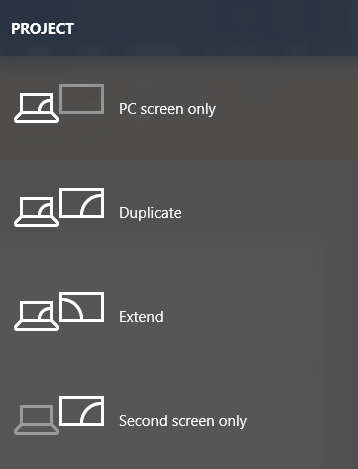
Press Windows key + P to open the display options. Choose “Extend” by pressing the arrow keys and then Enter. This lets you use multiple screens as one big desktop. It works on Windows 10 and 11.
Mac Shortcut Keys
Mac does not have a direct shortcut like Windows. Use Command + F1 to toggle display mirroring. To extend your screen, you must open System Preferences. Go to Displays and arrange your monitors manually.
Linux Shortcut Keys
Linux shortcut keys vary by distribution and desktop environment. In Ubuntu with GNOME, press Super + P to open display settings. Use arrow keys to select “Extend” mode. Other Linux systems may need custom shortcuts or settings changes.

Credit: www.youtube.com
Setting Up Multiple Monitors
Setting up multiple monitors can improve your productivity and make work easier. It lets you spread out your windows and apps. You get more space to organize your tasks. Using a shortcut key to extend your screen saves time. First, you need to connect the monitors and adjust settings correctly.
Connecting External Displays
Start by checking the ports on your computer and monitor. Common ports are HDMI, DisplayPort, VGA, or USB-C. Use the right cable to connect each monitor. Turn on the external monitor after connecting the cable. Your computer should detect the new screen automatically. If it does not, try unplugging and plugging the cable again.
Adjusting Display Settings
Open the display settings on your computer. You can find this in the control panel or system preferences. Select the option to identify monitors. This shows numbers on each screen to help you arrange them. Choose to extend the display, not duplicate it. Adjust the resolution for each monitor to match its size. Save changes and test the shortcut key to extend your screen.
Troubleshooting Shortcut Key Issues
Shortcut keys are a quick way to extend your screen to another monitor. Sometimes, these keys do not work as expected. Troubleshooting can help fix these problems fast. Knowing what to check saves time and reduces frustration.
Common Problems
Shortcut keys may not respond or act strangely. This can happen if the keyboard has issues or the shortcut is disabled. Sometimes, the monitor is not recognized by the system. Incorrect display settings can also stop the shortcut from working.
Driver Updates
Outdated or missing drivers cause shortcut key problems. Graphics drivers control how displays work. Updating drivers often solves the issue. Visit the official website of your graphics card. Download and install the latest driver version. Restart the computer to apply changes.
Display Detection
The system must detect the second monitor to use shortcuts. Sometimes, the monitor is off or unplugged. Check all cables and power connections. Press the Windows key and P to open display options. Choose the correct mode to extend the screen. Use the “Detect” button in display settings if needed.
Customizing Shortcut Keys
Customizing shortcut keys makes it easier to manage multiple screens. You can change default keys or create new ones. This helps you work faster and reduces errors. Custom shortcuts fit your needs and style.
Using Third-party Software
Third-party software allows you to set your own shortcut keys. These tools offer more options than the system defaults. You can assign keys that are easy to remember. Some apps also let you create shortcuts for other tasks.
Popular software includes AutoHotkey and DisplayFusion. They support scripting and advanced key customization. This helps you control your monitors more precisely. Many programs have simple interfaces for beginners.
Changing Default Shortcuts
Windows and macOS let you change some default shortcuts. Go to the system settings or control panel. Find the keyboard or shortcut section. Here, you can assign new keys for screen extension.
Choose combinations that do not conflict with other shortcuts. Test the new keys to ensure they work well. Changing defaults is quick and requires no extra software.
Tips For Efficient Multi-monitor Use
Using multiple monitors can boost productivity and comfort. Managing several screens needs smart habits. These tips help you work smoothly and avoid frustration. Follow simple steps to make your multi-monitor setup better and faster.
Organizing Windows
Keep your screen clutter-free. Place similar apps on one monitor. Use the shortcut key to move windows quickly. Arrange windows side by side for easy viewing. Close or minimize unused apps to save space. Group related tasks on the same screen for focus.
Optimizing Performance
Check your computer’s settings for multi-monitor support. Update graphics drivers regularly for smooth display. Lower screen resolution if your system runs slow. Turn off unused monitors to save power. Avoid running heavy programs on all screens. Restart your computer to clear memory if needed.

Credit: www.youtube.com
Frequently Asked Questions
What Is The Shortcut Key To Extend Screen To Another Monitor?
Press Windows + P keys to open the projection menu. Then select “Extend” to extend your screen to another monitor instantly.
How To Switch Between Duplicate And Extended Display Modes?
Use Windows + P shortcut and choose “Duplicate” or “Extend” mode. It quickly changes how your displays work.
Can I Customize The Screen Extension Shortcut Keys?
Windows does not allow direct customization of these shortcuts. Third-party apps may offer remapping, but default keys are Windows + P.
Why Isn’t The Extend Screen Shortcut Working On My Pc?
Check if your monitor is properly connected and detected. Update display drivers and verify projection settings to fix shortcut issues.
Conclusion
Extending your screen to another monitor saves time and boosts work comfort. Using shortcut keys makes this task quick and easy. Just press the right keys, and your display will expand instantly. This simple trick helps with multitasking and keeps your desktop organized.
Practice a few times, and it will feel natural. Keep this shortcut in mind for smoother computer use every day.
As an Amazon Associate, I earn from qualifying purchases.

