
Your laptop battery is one of the most important parts of your device. When it starts to lose power quickly, it can slow you down and cause frustration.
But what if you could make your battery last longer every day? Imagine working, browsing, or streaming without constantly hunting for a charger. You’ll discover simple and effective ways to extend the life of your laptop battery. Keep reading to unlock easy tips that will help you get the most out of your laptop, saving you time and money.
Battery Basics
Laptop batteries come in different types. The most common are lithium-ion (Li-ion) and lithium-polymer (Li-Po). Li-ion batteries are found in most laptops. They hold a lot of power and last long. Li-Po batteries are lighter and can be shaped differently.
Batteries age over time. They lose their ability to hold a full charge. This happens because of chemical changes inside the battery. Each charge and discharge cycle wears the battery out a bit.
Heat and heavy use can make batteries age faster. Leaving a battery fully charged or fully drained for long times also harms it. Keeping the battery between 20% and 80% charge helps it last longer.
Charging Habits
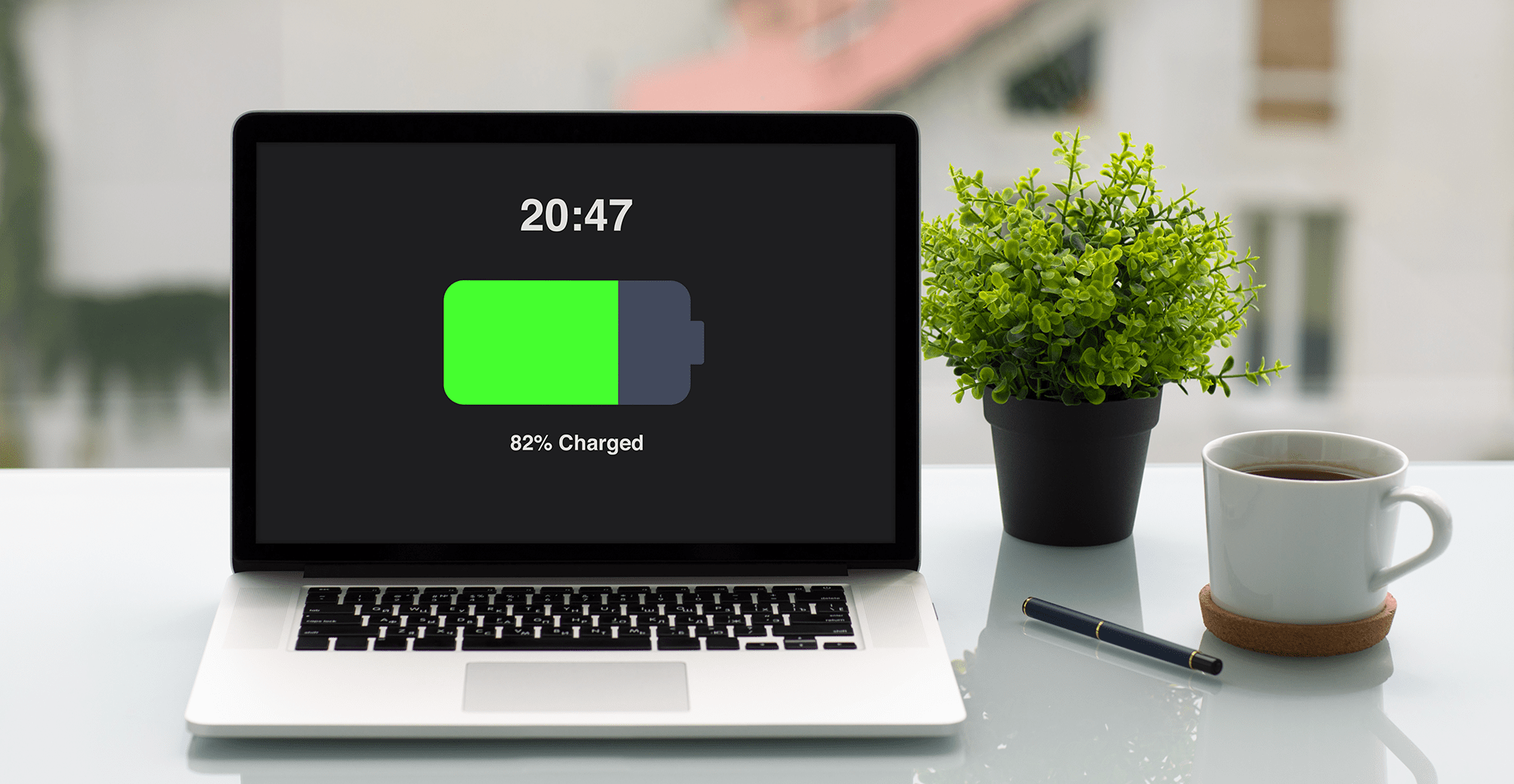
Keep laptop battery healthy by following optimal charging cycles. Charge the battery between 20% and 80%. Avoid letting it drop to zero or go to 100% too often. This practice helps extend battery life and maintain capacity.
Avoid overcharging. Unplug the charger once the battery reaches 100%. Leaving it plugged in can cause battery stress and reduce lifespan. Modern laptops often stop charging at full, but it is safer to unplug.
Sometimes, calibrating the battery is necessary. Calibration resets the battery meter for accurate readings. To calibrate, fully charge, then fully drain the battery once a month. This keeps the battery status reliable.
Power Settings
Lowering screen brightness saves a lot of battery power. Bright screens use more energy. Set brightness to a comfortable, dim level. This small step can extend battery life significantly.
Sleep mode helps save power when not using the laptop. Set your laptop to enter sleep mode quickly after inactivity. This stops battery drain without turning off the laptop.
Battery saver features reduce background activities and limit power use. Turn on battery saver when the charge is low. This helps the laptop run longer before needing a charge.

Credit: ifixscreens.com
Hardware Tips
Keep vents clean by gently removing dust. Dust blocks airflow and makes the laptop hot. Hot laptops drain battery faster. Use a soft brush or compressed air to clear vents. Do this regularly.
Avoid extreme temperatures. Very hot or very cold places harm battery life. Don’t leave your laptop in a car on a hot day. Keep it in a cool, dry place.
Remove peripherals like USB drives or external devices when not in use. These use power and reduce battery time. Disconnect them to save energy and extend battery life.
Software Management
Closing unnecessary apps saves power and speeds up your laptop. Many apps run in the background without use. This drains your battery fast. Keep only the apps you need open.
Updating drivers helps your laptop work better with new software. Old drivers can cause battery drain. Check for updates regularly to keep your laptop efficient.
Monitoring battery health shows if your battery is weak or damaged. Use built-in tools to check battery status. Replace the battery if it no longer holds a charge well.

Credit: www.wikihow.com
Long-term Storage
Store your laptop battery at about 40-60% charge for best results. Avoid leaving it fully charged or completely empty. This helps keep the battery healthy over time.
The ideal place for storage is cool and dry. Temperatures around 15°C to 25°C (59°F to 77°F) work well. Avoid places with high heat or humidity. These can damage the battery and reduce its life.
Check the battery charge every 3 to 6 months. Recharge it to the partial charge level if it drops too low. This simple care can help the battery last longer.
When To Replace The Battery
Signs of battery wear include quick power loss and frequent shutdowns. When the laptop runs out of charge fast, the battery is weak. Swelling or overheating of the battery also shows damage. If the laptop does not hold a charge after full charging, it is time to act.
Choosing a replacement battery requires checking the laptop model number. Use batteries from trusted brands only. Avoid cheap or unverified sellers. Make sure the new battery matches voltage and capacity needs. A good battery improves laptop life and safety.
Credit: www.technology-solved.com
Frequently Asked Questions
How Can I Maximize My Laptop Battery Lifespan?
To maximize your laptop battery lifespan, avoid full discharges and extreme temperatures. Charge regularly between 20%-80% and use power-saving settings. Keep software updated to optimize battery usage. Avoid leaving the laptop plugged in constantly to prevent overcharging and battery wear.
Does Closing Unused Apps Improve Battery Life?
Yes, closing unused apps reduces CPU workload and power consumption. This helps your laptop battery last longer between charges. It also minimizes background activity that drains battery power, contributing to better overall battery health.
Is It Better To Keep My Laptop Plugged In Always?
No, keeping your laptop plugged in constantly can degrade the battery over time. It’s best to unplug once charged and use battery power periodically. This practice helps maintain battery health and prolongs its effective lifespan.
How Does Screen Brightness Affect Battery Life?
Higher screen brightness consumes more battery power quickly. Lowering brightness to a comfortable level reduces energy use. Adjust brightness based on ambient light to optimize battery life without sacrificing visibility.
Conclusion
Taking care of your laptop battery helps it last longer. Keep your screen brightness low and close unused apps. Avoid letting the battery drain completely or stay fully charged all the time. Use power-saving modes when possible. Small habits make a big difference.
A healthy battery means your laptop works better each day. Try these tips and enjoy longer battery life without extra cost or effort. Simple steps lead to better laptop performance and less frustration.
As an Amazon Associate, I earn from qualifying purchases.

