
Are you struggling to find your printer’s IP address? Without it, connecting your printer to a network or troubleshooting issues can feel impossible.
But don’t worry—finding this key piece of information is easier than you think. You’ll discover simple, step-by-step methods to quickly locate your printer’s IP address. Once you have it, managing your printer will become smooth and hassle-free. Keep reading, and take control of your printing setup right now!
Check Printer Display
The easiest way to find your printer’s IP address is by checking its display screen. Many modern printers have small screens that show important information. This method does not need a computer or extra tools. You can get the IP address right from the printer itself.
Follow the menu on the printer display to find network details. The steps may vary depending on the printer model. Still, most have a clear menu with simple options to explore.
Navigate Printer Menu
Start by turning on the printer. Look for a button or icon labeled “Menu” or “Settings.” Use the arrow buttons to move through the options. Find the section related to network or wireless settings. It may also say “Setup” or “Preferences.”
Locate Network Settings
Within the menu, find the “Network” or “Wireless” option. Select it to see more details. Some printers show “Network Status” or “Wi-Fi Status.” This section contains all the network information. Look for terms like “TCP/IP,” “IP settings,” or “LAN.”
Find Ip Address Details
Inside the network settings, the IP address should appear. It looks like a series of numbers divided by dots. For example, 192.168.1.100. Write down this number. This is the address your printer uses on the network.
:max_bytes(150000):strip_icc()/003_find-printer-ip-address-4176356-f3cb86a611014263a01f3da6ea619800.jpg)
Credit: www.lifewire.com
Use Printer Configuration Page
The printer configuration page shows important details about your printer. This page includes the printer’s IP address. It helps you find the IP without needing a computer or network tool. You can print this page directly from the printer’s control panel. Each printer brand may have a slightly different method.
Printing this page is quick and easy. It gives you clear information about your printer’s network status. This method works well for home and office printers connected to a network.
Print Network Configuration
Most printers have a button or menu option to print the network configuration. This option is often found in the setup or network menu. Press the button or select the option to print. The printer will generate a page with network details.
This printed page shows the current network settings. It includes the IP address, subnet mask, and gateway. This data helps you check if the printer is correctly connected to the network.
Identify Ip On Report
After printing the network configuration page, look for the IP address. It usually appears under “IPv4 Address” or “IP Address.” The IP looks like four groups of numbers separated by dots. For example, 192.168.1.100.
Write down this IP address. Use it to connect your computer or phone to the printer. This step is essential for wireless or network printing. The configuration page is the easiest way to find the IP without extra tools.
Access Router Settings
Accessing your router settings helps find your printer’s IP address easily. The router keeps a list of all devices connected to your network. You can check this list to spot your printer’s IP. This method works well for both wired and wireless printers. Follow simple steps to open router settings and see connected devices.
Login To Router Interface
Start by opening a web browser on your computer or phone. Type your router’s IP address into the address bar. Common addresses include 192.168.1.1 or 192.168.0.1. Press Enter to load the login page. Enter your username and password. This information is often on the router label or in the manual. If unknown, try default logins like “admin” for both fields. Once logged in, you can access all router settings.
Find Connected Devices
Inside the router interface, look for a menu called “Connected Devices” or “Device List.” This section shows all gadgets using your network. It may also be named “DHCP Clients” or “Attached Devices.” The list displays device names, IP addresses, and MAC addresses. Scroll through to find your printer’s name or type. This step helps narrow down the IP address you need.
Locate Printer Ip
Identify your printer by its name or model in the device list. The IP address appears next to the device name. It usually looks like 192.168.x.x. Write down this number. This is your printer’s IP address for network connection. Use this IP to set up or troubleshoot your printer easily.
Credit: www.security.org
Use Command Prompt
Using Command Prompt is a quick way to find your printer’s IP address. It works on most Windows computers and does not need extra software. You just type a few simple commands. These commands can show the connection between your computer and the printer.
Command Prompt helps you check your printer on the network. It finds the IP address by talking to the printer and listing all devices connected. This method is useful if you do not have the printer’s manual or label with the IP address.
Ping Printer Name
Start by opening Command Prompt on your computer. Type ping followed by the printer’s network name. Press Enter. This sends a test message to the printer. The reply shows the printer’s IP address. Note the numbers after “Reply from.”
Use Arp Command
After pinging, use the arp -a command. It lists all IP addresses connected to your network. Look through the list for the IP that matches the printer. This command shows the physical and IP addresses linked to your device.
This helps confirm the printer’s IP if you have many devices on your network.
Find Ip Via Ipconfig
Type ipconfig in Command Prompt and press Enter. This shows your computer’s IP details. Find the “Default Gateway” address. Open a web browser and enter this address. It opens your router’s settings page.
Look for connected devices or DHCP client list. Your printer’s IP address often appears there. This method finds the printer’s IP even if it changes over time.
Utilize Printer Software
Utilizing printer software is a quick way to find your printer’s IP address. Most printers come with software that helps manage settings and network details. This software often shows the IP address without needing complex steps. Using it saves time and ensures accuracy.
Open Printer Utility
Start by opening the printer utility on your computer. This tool is part of the printer software package. Look for the printer name in your computer’s list of devices. Click on it to open the utility. The utility gives access to many printer settings and information.
Check Network Information
Inside the printer utility, find the network or connection section. This area displays network details like the IP address. The IP address is usually listed clearly. Write it down or copy it for future use. This method works for most printer brands and models.
Mobile Apps For Ip Discovery
Mobile apps make finding your printer’s IP address quick and easy. These tools scan your home or office network and show all connected devices. You can spot your printer’s IP without digging through menus or settings.
Most apps are free and simple to use. They work on both Android and iPhone. Just install the app, open it, and start scanning your network. The app lists devices by name, type, and IP address. This helps you find the printer fast.
Use Network Scanner Apps
Network scanner apps scan all devices on your Wi-Fi. They show IP addresses, device names, and manufacturers. Popular apps include Fing, IP Scanner, and Net Scan. These apps detect printers by brand or device type.
Open the app and run a scan of your network. Wait a few seconds for the results. Look for your printer’s name or model in the list. The app shows its IP address next to the device.
Network scanner apps update their device lists often. This keeps results accurate and reliable. They help spot any printer on your network, even new ones.
Identify Printer On Network
After scanning, identify your printer in the app’s list. Printer names often include the brand or model. Some apps show device types to help recognition.
If the name is unclear, check the printer’s display screen or manual. Match the model number with what the app shows. This confirms the correct IP address.
Once identified, note the IP address for future use. You can enter this IP in your browser or print settings. This helps manage the printer remotely or troubleshoot issues.

Credit: www.wikihow.com
Frequently Asked Questions
How Can I Find My Printer’s Ip Address On Windows?
Go to Control Panel > Devices and Printers. Right-click your printer, select “Properties,” then check the “Ports” tab for the IP address.
Where To Locate The Printer Ip On A Mac?
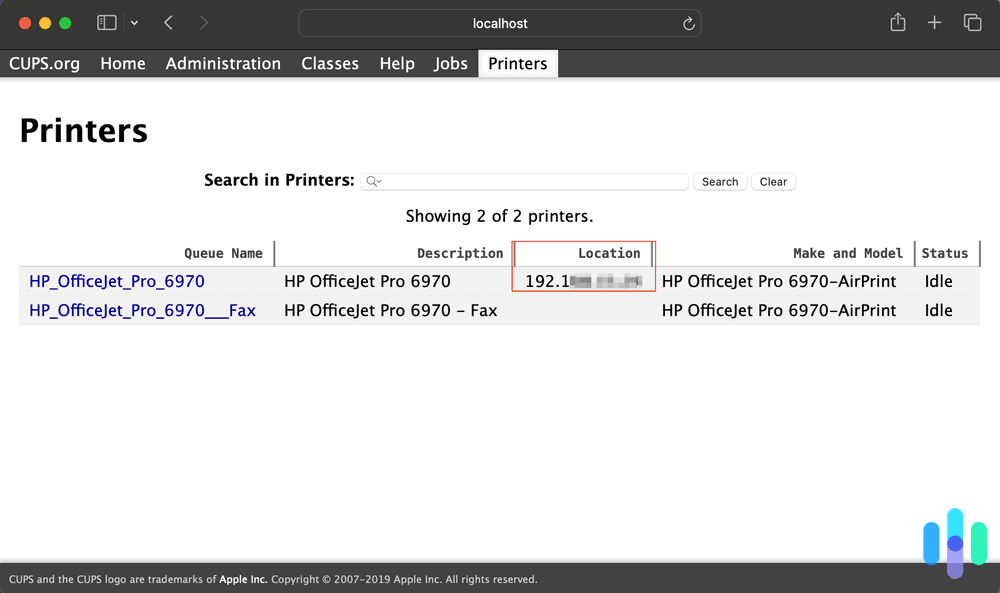
Open System Preferences > Printers & Scanners. Select your printer, click “Options & Supplies,” and view the IP address under “Location” or “General” tab.
Can I Find A Printer’s Ip Address Via Router Settings?
Yes, log into your router’s web interface. Check the connected devices or DHCP client list to find your printer’s IP address.
Is There A Way To Print A Network Configuration Page?
Yes, most printers have a button or menu option to print a network configuration page showing the IP address and network details.
Conclusion
Finding your printer’s IP address is easier than it seems. Check the printer’s menu or use your computer’s settings. You can also print a network report for details. Knowing the IP helps with setup and troubleshooting. Take your time and follow each step carefully.
Soon, your printer will connect smoothly to your network. No need to stress—just a few simple actions. This small detail makes printing hassle-free every day.
As an Amazon Associate, I earn from qualifying purchases.
