
Are you trying to find the exact size of your laptop screen but don’t know where to start? Knowing your laptop’s screen size is more important than you might think.
It helps you choose the right accessories, improve your work setup, and even pick a perfect new laptop. You’ll discover simple and quick ways to measure your laptop screen size without any confusion. By the end, you’ll feel confident about finding the right size every time.
Keep reading—your perfect screen fit is closer than you think!
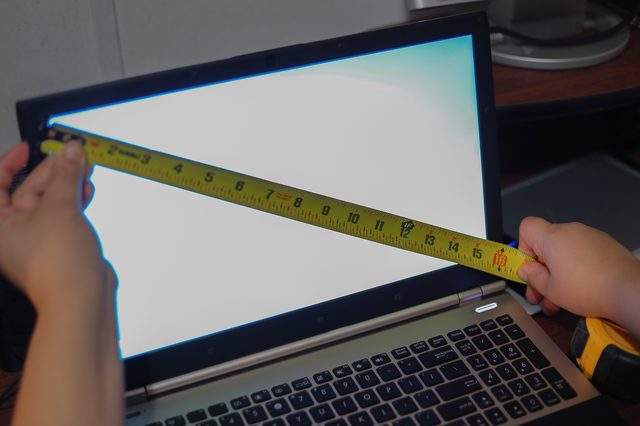
Credit: www.blisscomputers.net
Measure The Screen Diagonally
To measure your laptop screen size, you need a ruler or a measuring tape. Choose a tool that shows inches clearly. Make sure the tool is straight and not bent.
Start by closing the laptop gently. Measure only the visible screen area, not the frame or bezel around it. Place the ruler at the bottom-left corner of the screen.
Stretch the ruler diagonally to the top-right corner. Note the number where the ruler ends. This number is the screen size in inches. Usually, laptop screens are between 11 and 17 inches.
| Step | Action |
|---|---|
| 1 | Get a ruler or measuring tape with inches |
| 2 | Close the laptop gently |
| 3 | Measure from bottom-left to top-right corner diagonally |
| 4 | Read the length in inches; this is the screen size |

Credit: geekscallout.co.uk
Check Laptop Specifications
Check the laptop’s official website for detailed specifications. The model number helps find the exact screen size quickly. Manufacturer sites usually list screen size in inches under display features.
Look for labels on the laptop itself. Often, a sticker on the bottom or near the keyboard shows the screen size and model details. This method is simple and fast.
| Method | Details | Where to Check |
|---|---|---|
| Find Specs Online | Use model number to search screen size on the official site | Manufacturer’s website |
| Using Manufacturer Labels | Read stickers on laptop for screen size info | Bottom or near keyboard |
Use System Settings
To find your laptop screen size on Windows, right-click the desktop and choose Display settings. Scroll down to see the Display resolution. While it does not give size directly, the resolution helps estimate it.
For exact size, open Control Panel, go to Display, then Screen Resolution. Here, you can view details about your screen.
On a Mac, click the Apple menu and select About This Mac. Click Displays to see the screen size and resolution. This shows the exact size in inches.

Credit: www.youtube.com
Compare With Common Screen Sizes
Most laptops have screen sizes between 11 inches and 17 inches. Common sizes include 13.3″, 14″, 15.6″, and 17.3″. Smaller screens like 11″ or 12″ are lighter and easy to carry. Bigger screens, such as 15.6″ and 17.3″, give more space for work and fun. Choose a size that fits your daily use and comfort. If you move a lot, smaller screens are better. For watching movies or editing photos, bigger screens work well.
| Screen Size (inches) | Common Use | Pros | Cons |
|---|---|---|---|
| 11 – 12 | Travel, basic tasks | Light, easy to carry | Smaller display |
| 13.3 – 14 | Everyday use | Balanced size, portable | Limited screen space |
| 15.6 | Work, multimedia | Bigger screen, good for tasks | Heavier, less portable |
| 17.3 | Gaming, design | Large display, great visuals | Very heavy, less mobile |
Tips For Accurate Measurement
Measure the screen diagonally from one corner to the opposite corner. Use a ruler or tape measure for accuracy. Avoid measuring the entire laptop size; just the screen.
Do not include the screen frame or bezel in your measurement. The screen size is only the visible part. Hold the ruler straight and steady to avoid errors.
Without tools, use a piece of paper or string to mark the diagonal length. Then measure that length with a ruler. This method gives a close estimate but less exact.
Common mistakes include measuring width or height instead of diagonal. Also, do not include the laptop edges or keyboard area. Accuracy depends on careful placement of the measuring tool.
Frequently Asked Questions
How Do I Measure My Laptop Screen Size Accurately?
To measure your laptop screen size, use a ruler or tape measure. Measure diagonally from one corner to the opposite corner. Only measure the visible screen, excluding the bezel. This diagonal length in inches is your laptop screen size.
Where Can I Find My Laptop Screen Size In Settings?
You can find your laptop screen size in system settings or display properties. On Windows, go to Display Settings and check the resolution. On Mac, check About This Mac under the Apple menu. The resolution helps estimate screen size but measuring is more precise.
Why Is Knowing Laptop Screen Size Important?
Knowing your laptop screen size helps in choosing compatible accessories and applications. It affects portability, viewing comfort, and overall user experience. Screen size also determines resolution options and device suitability for tasks like gaming or graphic design.
Can Screen Size Affect Laptop Performance?
Screen size itself doesn’t affect performance, but larger screens may consume more battery. Higher resolutions on bigger screens require better graphics processing. Performance depends more on CPU, RAM, and GPU specs than just screen size.
Conclusion
Finding your laptop screen size is easier than it seems. Measure from one corner to the opposite corner. Check your laptop’s model number online for exact details. Knowing screen size helps pick the right laptop for your needs. It also guides you when buying accessories like screen protectors or cases.
Keep these simple steps in mind to find the size quickly. This way, you can shop with confidence and avoid mistakes. Understanding screen size makes using your laptop better and more comfortable.
As an Amazon Associate, I earn from qualifying purchases.

