
Are you staring at your laptop screen, frustrated by annoying lines that make everything hard to see? Those lines can disrupt your work, your entertainment, and your peace of mind.
But don’t worry—you don’t have to live with this problem or rush to buy a new laptop just yet. You’ll discover simple, practical steps to fix those screen lines yourself. By the end, your laptop screen will look clear and sharp again, saving you time and money.
Keep reading, because the solution might be easier than you think.
Common Causes Of Screen Lines
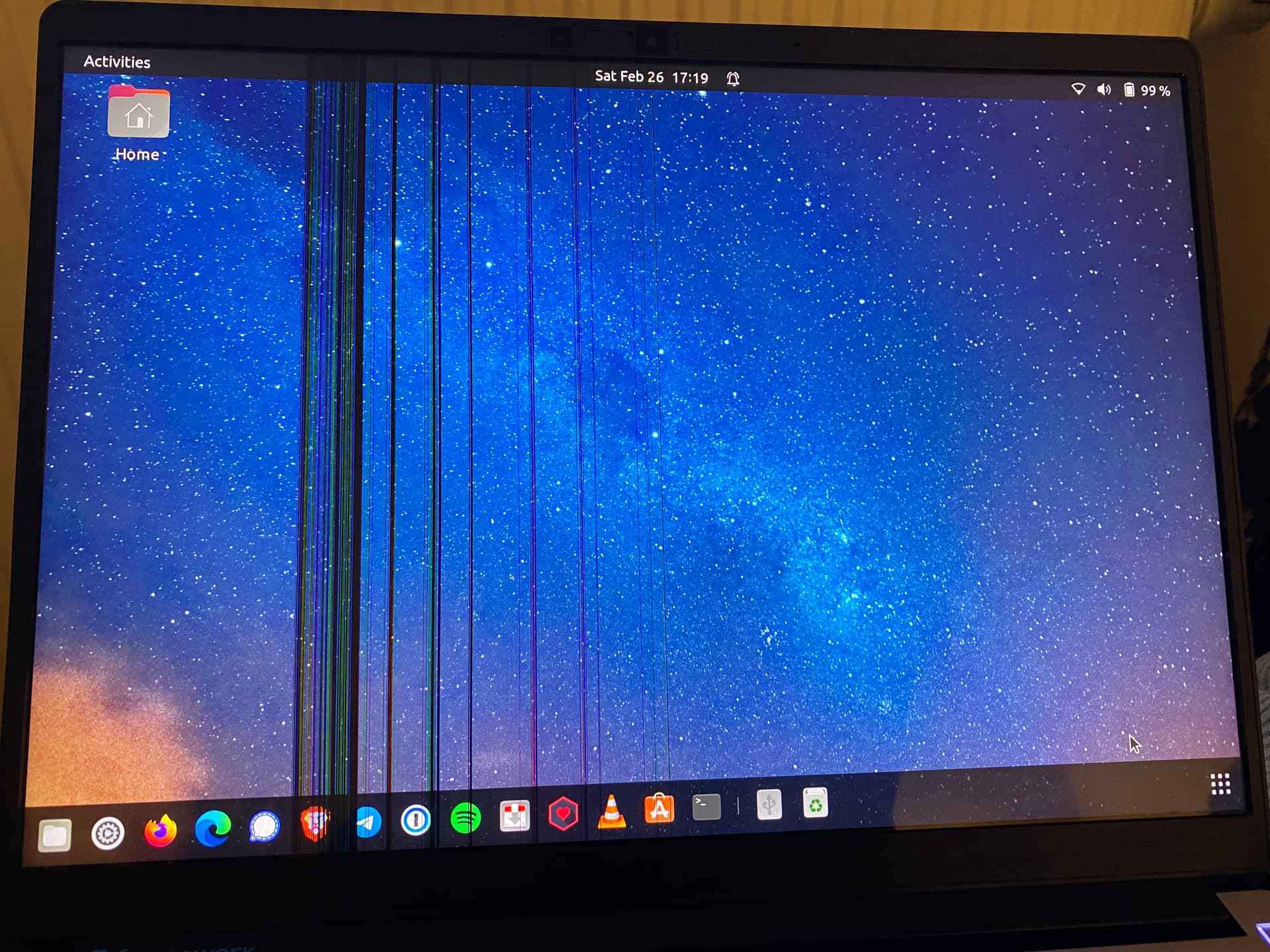
Physical damage like drops or hits can cause screen lines. Cracks inside the screen or pressure marks often show as lines. Such damage might need screen replacement.
Loose or damaged cables connecting the screen to the laptop’s main board can cause lines. Wiggling the screen or opening the laptop might make lines appear or disappear. Checking and reseating cables can fix this.
Driver issues happen when the screen’s software is outdated or corrupt. Updating or reinstalling the display driver often clears screen problems. This is an easy fix to try first.
Hardware malfunctions inside the laptop, like a failing graphics card or screen controller, may cause lines. These parts can wear out over time. Repair or replacement by a technician might be needed.
Credit: community.frame.work
Diagnosing The Problem
Start by running a display test on your laptop. Many laptops have built-in tools to check the screen for problems like lines or flickers. This helps find if the issue is with the screen or software.
Next, connect your laptop to an external monitor. If the lines do not show on the external screen, the problem is likely with your laptop screen or its cables. If the lines appear on both screens, the issue may be with the graphics card or driver.
Inspect the screen and cables carefully. Look for any visible damage or loose connections between the screen and the laptop body. Sometimes, simply reseating the cable can fix the problem. Check for dirt or dust that might block connections.
Basic Diy Fixes
Restarting the laptop can fix many screen problems. It refreshes the system and clears temporary glitches. Next, check for driver updates. Open Device Manager, find Display Adapters, and update the driver. Updated drivers help the screen work better and fix lines.
Try adjusting the screen resolution. Right-click the desktop, select Display Settings, and change resolution to the recommended size. Sometimes wrong resolution causes screen lines or flickers.
Reseating display cables inside the laptop can help too. Turn off the laptop and unplug it. Open the back cover carefully. Find the screen cable and unplug it gently. Wait a few seconds, then plug it back firmly. This can fix loose connections that cause lines.
Advanced Repair Techniques
Replacing the display cable can fix lines on the screen. The cable connects the screen to the motherboard. Over time, it may get loose or damaged. Carefully open the laptop case. Find and unplug the old cable. Replace it with a new one. Make sure it fits tightly to avoid future issues.
Fixing the screen connector is another key step. Dirt or damage can cause poor connection. Clean the connector gently with a soft brush. Check for bent pins and straighten them if needed. Secure the connector firmly to restore the display signal.
Replacing the laptop screen may be necessary if lines stay after cable fixes. Order the exact screen model for your laptop. Remove the old screen by unscrewing it carefully. Attach the new screen and connect the cable. Test the display before closing the laptop case.
Preventing Screen Issues
Handle laptops gently. Avoid dropping or hitting them. Carry laptops in padded bags to prevent damage. Keep liquids far from screens to stop spills and stains.
Keep software updated. Updates fix bugs that affect screen display. Regular updates help keep laptops running smoothly.
Use screen protectors to guard against scratches. They also reduce glare and fingerprints. Clean screens often with soft cloths to avoid marks.

Credit: www.youtube.com
When To Seek Professional Help
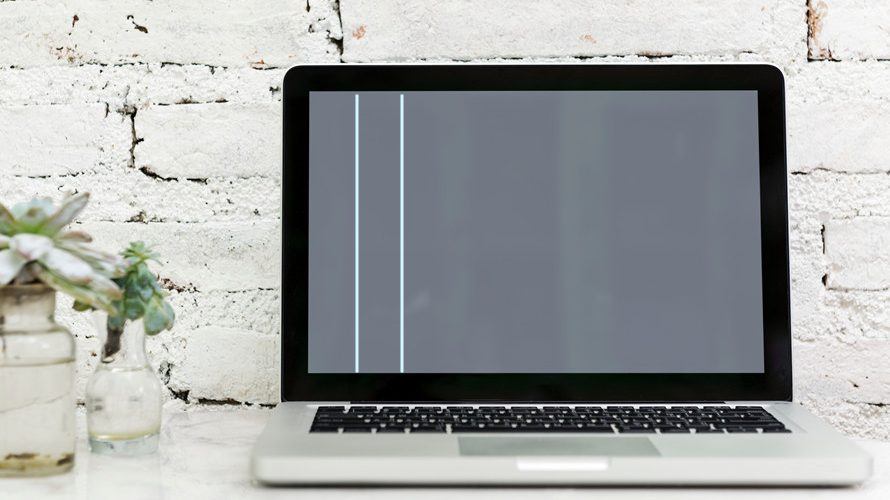
Complex hardware failures often cause persistent lines on a laptop screen. These issues include damaged screen cables, faulty graphics cards, or broken display panels. Repairing such problems needs special tools and skills. Trying to fix them without experience might cause more damage. Professional technicians have the right knowledge to diagnose and repair these faults safely.
Many laptops come with warranty and repair services. Check your warranty status before opening the device. Authorized repair centers can fix hardware issues free or at low cost if the warranty is active. Using these services ensures genuine parts and proper repair quality. This helps keep your laptop working well for a long time.
Credit: www.drivereasy.com
Frequently Asked Questions
What Causes Lines On A Laptop Screen?
Lines on a laptop screen usually result from damaged display cables, faulty graphics drivers, or a failing screen. Physical damage or loose connections can also cause this issue. Identifying the cause helps in choosing the right fix and preventing further damage.
How Can I Fix Laptop Screen Lines At Home?
You can try restarting your laptop, updating graphics drivers, or reseating the display cable. Sometimes, adjusting screen resolution helps. If lines persist, it might require professional repair or screen replacement for a permanent solution.
Is A Laptop Screen With Lines Repairable?
Yes, most laptop screens with lines are repairable. Repair methods depend on the cause, like fixing cable connections or replacing the screen. Early diagnosis can save costs and extend your laptop’s lifespan.
When Should I Replace My Laptop Screen?
Replace your laptop screen if lines persist after troubleshooting or if there is physical damage. Persistent display issues often mean the screen or internal hardware is failing and needs replacement to restore proper function.
Conclusion
Fixing laptop screen lines takes patience and care. Small steps can solve many common issues. Always start by checking cables and connections. Cleaning the screen gently might help too. If problems stay, consider replacing the screen or seeking help. Taking your time prevents more damage.
A clear, working screen improves your laptop use. Keep these tips handy for future screen troubles. Simple actions often bring big improvements. Your laptop can look and work like new again.
As an Amazon Associate, I earn from qualifying purchases.

