
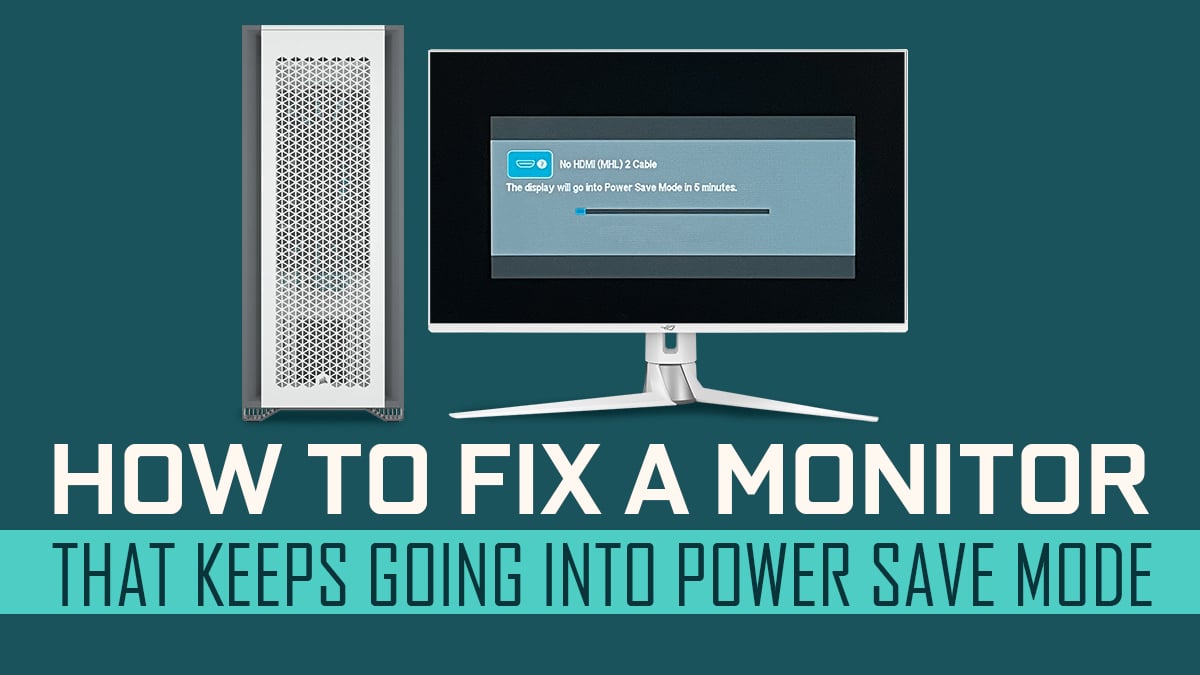
Is your monitor stuck in power saving mode, leaving you staring at a blank screen? It’s frustrating when your display won’t wake up just when you need it most.
But don’t worry—this issue is easier to fix than you might think. You’ll discover simple steps to get your monitor back to normal quickly. Keep reading, and you’ll be back to work or play in no time.
Credit: www.cgdirector.com
Common Causes Of Power Saving Mode
Power saving mode helps save energy by turning off the monitor screen after some time. Sometimes, the monitor stays in this mode and does not wake up. Understanding common causes of this issue can help fix it quickly.
Inactive Computer Signals
The monitor goes to power saving mode if it gets no signal from the computer. This happens when the computer is off, asleep, or disconnected. The screen waits for a signal to turn back on. Without a signal, it stays in power saving mode.
Incorrect Power Settings
Power settings control when the monitor sleeps or turns off. Wrong settings can cause the monitor to enter power saving mode too soon. Sometimes, the screen never wakes up because settings are set to keep it off. Checking and adjusting these settings can help.
Faulty Cables And Connections
Loose or broken cables stop the monitor from receiving signals. Bad HDMI, VGA, or DisplayPort cables cause the screen to go dark. Poor connections between the monitor and computer also trigger power saving mode. Ensuring cables are secure and working is essential.
Hardware And Firmware Issues
Sometimes, the problem lies in the monitor itself. Faulty hardware or outdated firmware can make the screen stay in power saving mode. A monitor might need a reset, update, or repair to fix this issue. Checking these parts helps solve the problem.

Credit: www.youtube.com
Basic Steps To Wake The Monitor
Monitors often enter power saving mode to save energy when not in use. This mode turns off the display while keeping the computer on. To start using the monitor again, you need to wake it up from this mode. Follow these simple steps to bring your monitor back to life quickly and easily.
Move The Mouse Or Press A Key
The easiest way to wake your monitor is to move your mouse. This action sends a signal to the computer and turns the display on. Pressing any key on the keyboard can also do the same. Try tapping the space bar or arrow keys to see if the screen lights up.
Check The Power Button
Look at your monitor’s power button. It might be off or in standby mode. Press the button once to turn the monitor on. If the light near the button is off, the monitor may not receive power. Ensure the power cable is plugged in securely.
Restart The Computer
Sometimes the monitor stays in power saving mode because the computer has a problem. Restart your computer by clicking the restart option or pressing the power button. This refreshes the system and often fixes display issues. Wait a moment for the monitor to reactivate after reboot.
Adjust Power Settings On Windows
Adjusting power settings on Windows helps control how your monitor behaves. These settings can put your screen into power saving mode. Changing them stops the monitor from going dark too soon. It keeps your display active and ready to use. Here is how to adjust these settings for better control.
Modify Sleep And Display Timers
Open the Start menu and select Settings. Choose System, then click on Power & Sleep. Find the options for Screen and Sleep. Set the screen timer to a longer time or to Never. Do the same for the sleep timer. This change stops the monitor from turning off quickly.
Disable Screen Saver
Right-click on the desktop and select Personalize. Click on Lock Screen on the left side. Scroll down and click Screen saver settings. In the new window, choose None from the drop-down menu. Click Apply and then OK. This prevents the screen saver from activating and causing the screen to dim.
Change Advanced Power Options
Go back to Power & Sleep settings and click Additional power settings. Select Change plan settings next to your active power plan. Click Change advanced power settings. In the new window, expand Display and then expand Turn off display after. Set the time to Never or a long duration. Click Apply and OK to save changes. This keeps your monitor awake longer.
Adjust Power Settings On Mac
Adjusting power settings on a Mac helps control when the screen sleeps or goes into power saving mode. Changing these settings can stop the monitor from turning off too soon. This keeps your screen active while you work or watch videos.
Follow these steps to change your Mac’s power settings. This will help you get the monitor out of power saving mode quickly.
Open Energy Saver Preferences
Click the Apple menu at the top left of your screen.
Select “System Preferences” from the list.
Find and click “Energy Saver.” This opens the energy settings panel.
Here, you can control how your Mac uses power.
Set Display Sleep Timer
In the Energy Saver window, look for the “Turn display off after” slider.
Move the slider to the right to increase the time before the display sleeps.
Setting it to a longer time stops the screen from sleeping too fast.
This keeps your monitor on longer without entering power saving mode.
Prevent Computer From Sleeping
Check the box that says “Prevent computer from sleeping automatically when the display is off.”
This setting keeps your Mac awake even if the screen goes off.
It helps keep your monitor active and avoids power saving mode.
Check And Replace Cables
Power saving mode can activate if your monitor does not detect a proper video signal. One common cause is a loose or faulty cable connection. Checking and replacing cables is a simple and effective step to fix this issue. It ensures your monitor receives the correct signal from the computer.
Start by looking closely at the cables connecting your monitor and PC. Small damages or loose plugs can stop the signal. Replacing old or broken cables can often restore the normal display.
Inspect Hdmi And Displayport Connections
Look at the HDMI or DisplayPort cables plugged into your monitor and computer. Make sure they fit tightly. Loose connections may cause the monitor to enter power saving mode. Check for bent pins or damaged connectors. Clean any dust or dirt from the ports. These issues can block the signal and cause problems.
Test With Different Cables
Try using another HDMI or DisplayPort cable. A new cable can rule out damage in the old one. Some cables wear out inside and stop sending signals properly. Testing with a fresh cable helps find the cause quickly. Use a cable you know works with other devices for best results.
Use Alternative Ports
Switch the cable to a different port on your monitor or computer. Sometimes, a specific port may fail or have poor contact. Using a different port can restore the connection. This step helps identify if the problem is with the port or the cable. It also ensures your monitor gets the correct video signal.
Update Drivers And Firmware
Updating drivers and firmware can fix monitor issues. It helps the monitor work with your computer better. Old or broken drivers may cause the monitor to stay in power saving mode. Updating them often solves this problem quickly. Follow simple steps to update both graphics drivers and monitor firmware.
Update Graphics Drivers
Graphics drivers control how your computer shows images. Old drivers can cause display problems. Check the manufacturer’s website for the latest driver version. Download and install it carefully. Restart your computer after updating. This can wake your monitor from power saving mode.
Update Monitor Firmware
Monitor firmware controls the screen’s internal settings. Sometimes it needs updates to fix bugs. Visit the monitor brand’s support page. Find the correct firmware for your model. Follow the instructions to update safely. Updated firmware can improve monitor performance and stop power saving issues.
Reset Monitor To Factory Settings
Resetting your monitor to factory settings can fix power saving mode issues. This process clears custom settings and restores original display options. It helps solve screen dimming or black screen problems.
Follow clear steps to reset without confusion. Most monitors have an On-Screen Display (OSD) menu for this. The reset option is easy to find and use.
Access On-screen Display Menu
Press the monitor’s menu button. It is usually on the front or side panel. A menu will appear on the screen. Use the arrow buttons to navigate through options.
Look for settings related to picture or system. Scroll until you find the reset or factory reset option. Select it to prepare for the next step.
Perform Factory Reset
Choose the factory reset option and press the enter button. A confirmation message may ask if you want to proceed. Confirm by selecting yes or OK.
The monitor will reset to original settings. It may restart or flicker briefly. After this, the power saving mode issue should be resolved.
Additional Troubleshooting Tips
Sometimes, a monitor stays in power saving mode despite basic fixes. Try these extra steps to find the problem. These tips help check if the issue is with the monitor or something else.
Test Monitor With Another Device
Connect your monitor to a different computer or laptop. This test shows if the monitor works fine with another device. If it turns on normally, the original computer may cause the problem. If it still stays in power saving mode, the monitor might be the issue.
Check For Overheating
Overheating can cause monitors to enter power saving mode. Feel the back of the monitor. If it is very hot, turn it off and let it cool down. Make sure the monitor is in a well-ventilated area. Remove any objects blocking the vents. Heat can affect performance and cause power saving mode.
Contact Manufacturer Support
If none of the steps work, contact the monitor’s manufacturer. They can offer advice or repair services. Have your model number and purchase details ready. Support teams can guide you through advanced fixes or warranty options. Sometimes, professional help is the best choice.
Credit: www.reddit.com
Frequently Asked Questions
How Do I Wake My Monitor From Power Saving Mode?
To wake your monitor, simply move the mouse, press a key, or click the keyboard. This action signals the monitor to exit power saving mode immediately.
Why Does My Monitor Stay In Power Saving Mode?
Monitors stay in power saving mode when no signal is detected from the computer. Check cables and ensure the PC is powered on to fix this issue.
Can Power Saving Mode Affect Monitor Display Quality?
Power saving mode doesn’t affect display quality. It only reduces power by turning off the screen when inactive, preserving your monitor’s lifespan and energy.
How To Prevent Monitor From Entering Power Saving Mode?
Adjust your computer’s power settings to increase or disable the sleep timer. This stops the monitor from automatically entering power saving mode.
Conclusion
Getting your monitor out of power saving mode is simple and quick. Check the cables and connections first. Press any key or move the mouse to wake it. Adjust your computer’s power settings for better control. Restart your device if the screen stays dark.
These steps help your screen work properly again. Stay patient and try each method calmly. Your monitor will be back to normal in no time. Keep this guide handy for future use.
As an Amazon Associate, I earn from qualifying purchases.

