
Are you running out of space on your computer and wondering how to get more storage? You’re not alone.
When your device starts slowing down or won’t save new files, it’s frustrating. But don’t worry—there are simple and effective ways to free up space and even add more storage without breaking the bank. You’ll discover easy steps to boost your computer’s storage, keep it running smoothly, and make room for all your important files.
Keep reading, and take control of your storage today!

Credit: www.reddit.com
Check Current Storage Usage
Knowing your current storage use is the first step to freeing up space. It helps you find what takes the most room on your computer. This way, you can decide what to keep or delete.
Checking storage also prevents your computer from slowing down. Too many files can reduce speed and performance. Regular checks keep your system healthy and fast.
Use Built-in Storage Tools
Most computers have tools to check storage easily. On Windows, use “Storage” in Settings. It shows used and free space clearly.
Mac users can open “About This Mac” and click “Storage.” This shows a color bar with space used by different file types. These tools help you see storage at a glance.
Identify Large Files And Folders
Large files use up space fast. Find them to clear room quickly. Use file explorer or finder to sort files by size.
Look for big videos, downloads, or old backups. Deleting or moving these files frees a lot of space. Focus on folders that grow large over time, like downloads and documents.

Credit: support.apple.com
Delete Unnecessary Files
Deleting unnecessary files frees up space on your computer quickly. It helps your system run smoother and faster. Removing these files is an easy way to gain more storage without extra cost.
Remove Temporary Files
Temporary files are created by programs for short-term use. They often stay on your computer after tasks finish. These files take up space and serve no purpose later. Use system tools to find and delete them safely. Clearing these files can free up gigabytes of storage.
Clear Downloads And Trash
The Downloads folder often holds forgotten files and installers. Check this folder regularly and delete what you no longer need. The Trash or Recycle Bin stores deleted files until emptied. Emptying it releases the space these files occupy. This simple step recovers storage without deleting important data.
Uninstall Unused Programs
Programs you no longer use take up valuable space. Uninstalling frees storage and may improve system speed. Review your installed applications and remove those you don’t need. This process is quick and can free up large amounts of space. Keep your computer tidy and efficient this way.
Move Files To External Drives
Moving files to external drives is a simple way to free up space on your computer. It helps keep your system fast and organized. You can store photos, videos, and documents outside your computer. This method is safe and easy to manage.
Choose The Right External Storage
Select an external drive based on your needs. USB flash drives are small and easy to carry. External hard drives offer more space but are bigger. Solid-state drives (SSDs) are faster but cost more. Check the storage size and speed before buying.
Backup Important Data
Always keep a backup of your important files. Copy your data to the external drive regularly. This protects you from data loss if your computer fails. Use clear folder names to find files easily. Store the external drive in a safe place.
Use Cloud Storage Services
Cloud storage services offer a smart way to get more space for your computer. They save files on the internet instead of your device. This means you can free up your computer’s hard drive and still access your files anytime. Cloud storage works well for photos, documents, videos, and backups.
Using cloud storage also helps keep your files safe. If your computer breaks, your files stay protected online. Many services give free storage with options to buy more. This makes cloud storage a flexible choice for storing data.
Popular Cloud Options
Several cloud storage services are easy to use and popular worldwide. Google Drive offers 15 GB of free space with a Google account. Dropbox provides 2 GB free, perfect for small file storage. Microsoft OneDrive integrates well with Windows and offers 5 GB free. Apple iCloud is great for Mac users, giving 5 GB free storage. These options support multiple devices and have apps for easy access.
Sync Files Automatically
Cloud services can sync files automatically between your devices. This means changes on one device update everywhere. It saves time and avoids manual file transfers. Automatic syncing keeps your data current and consistent. You can work on files on your phone, then see updates on your computer. This feature is great for teamwork and personal use.
Optimize Storage Settings
Optimizing storage settings is a key step to free up space on your computer. It helps manage files and system data smartly. You can reduce clutter without losing important information. Small changes in settings can save a lot of storage space.
Enable Storage Sense Or Similar Features
Storage Sense is a tool built into many Windows computers. It cleans up temporary files and empty recycle bins automatically. Turning it on saves you time and space. You can set it to run daily, weekly, or monthly. This keeps your storage tidy without manual effort. Other systems may have similar features that work the same way.
Adjust System Restore Space
System Restore saves points to fix your computer if problems occur. These restore points take up disk space. You can reduce the space used by System Restore. Open system settings and find the restore options. Lower the amount of storage reserved for restore points. This frees up more room for your files. Be careful not to set it too low, or you may lose restore options.
Upgrade Internal Storage
Upgrading your computer’s internal storage is a smart way to get more space. It helps your computer run faster and store more files. Internal storage means the hard drive or solid-state drive inside your PC. Changing or adding drives gives you extra room for documents, photos, and programs.
Consider Ssd Or Hdd Options
Choose between SSD and HDD for your storage upgrade. SSDs use flash memory and are much faster than HDDs. They start programs quickly and load files in seconds. HDDs are cheaper and offer more space for the price. They use spinning disks to save data. Think about speed needs and budget before picking one.
Install Additional Drives
Your computer may have space for more than one drive. Installing an extra drive gives you extra storage without removing the old one. Many desktops have slots for additional drives. Some laptops support a second drive or an upgrade to a larger one. Make sure your computer supports the new drive size and type. Installing drives improves storage and can boost performance.
Compress Files And Folders
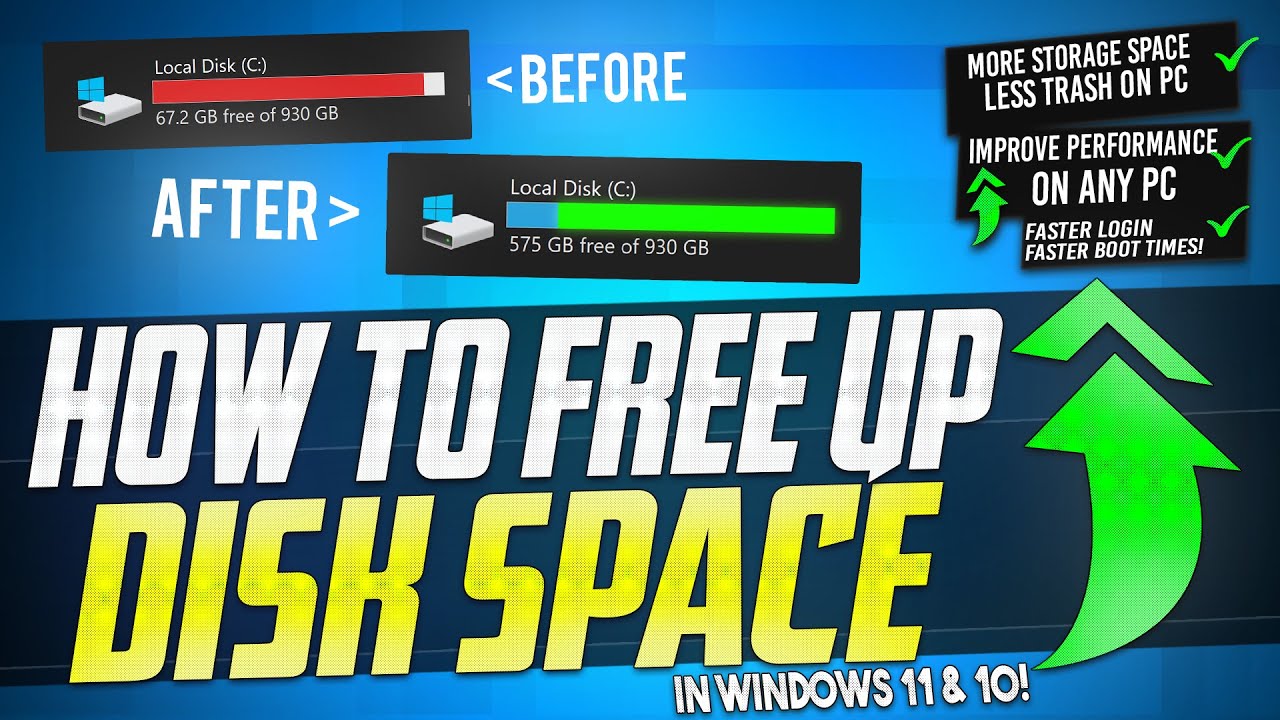
Compressing files and folders helps you save space on your computer. It reduces file sizes without deleting any data. This method works well for large documents, pictures, and videos. You can compress files easily using built-in tools or third-party software. Both options make your storage more efficient.
Built-in Compression Tools
Most operating systems include tools to compress files. Windows has a feature called “Compressed Folders” or ZIP folders. Right-click any file or folder, then select “Send to” and “Compressed (zipped) folder.” Mac users can right-click files and choose “Compress.” These tools create smaller versions of your data. No extra software is needed, and the process is quick. It is a simple way to save space without learning new programs.
Third-party Software Choices
Third-party compression software offers more options and control. Programs like 7-Zip, WinRAR, and PeaZip support different file formats. They often compress files better than built-in tools. You can also set passwords for security. Some software allows batch compression of many files at once. These tools work on Windows, Mac, and Linux. They help users with large files or many folders. Many third-party tools are free or offer free versions for basic use.
Credit: www.youtube.com
Manage Media Files Efficiently
Managing media files well helps save a lot of computer storage space. Media files like photos, videos, and music take up large amounts of space quickly. Organizing and handling these files smartly keeps your storage free for important tasks. It also makes finding files easier and faster.
Use Media Streaming
Media streaming lets you play videos or music without storing them on your device. Services like Spotify, Netflix, and YouTube stream content online. This means you do not need to download large files. Streaming reduces the need for extra storage on your computer. It also keeps your media library always updated without taking space.
Convert Files To Smaller Formats
Converting media files to smaller formats saves space. For example, change videos from AVI to MP4. MP4 files are usually smaller but keep good quality. For images, use JPEG instead of BMP. Smaller files load faster and use less storage. Many free tools can help convert files easily. This method frees up space without deleting your media.
Frequently Asked Questions
What Are The Best Ways To Increase Computer Storage?
You can increase storage by adding external drives, upgrading internal SSDs, or using cloud storage. Regularly deleting unnecessary files also helps free space.
How Can I Free Up Space Without Buying Hardware?
Delete temporary files, uninstall unused programs, clear caches, and move large files to cloud storage. Disk cleanup tools can automate this process efficiently.
Is Upgrading To An Ssd Worth It For Storage?
Yes, SSDs offer faster speeds and more reliability than HDDs. They improve performance and provide ample space for most users.
Can Cloud Storage Replace Local Computer Storage?
Cloud storage complements local storage by providing off-site backup and extra space. It’s ideal for accessing files anywhere but depends on internet speed.
Conclusion
Getting more computer storage is easier than you think. Start by deleting files you no longer need. Use external drives for extra space. Cloud storage offers a flexible option too. Upgrading your internal drive can help if you need permanent storage.
Remember to back up important data regularly. Small steps can free up a lot of space. Choose the method that fits your needs best. Keep your computer running smoothly with enough storage. Storage problems don’t have to slow you down.
Take action today and enjoy a faster computer.
As an Amazon Associate, I earn from qualifying purchases.

