
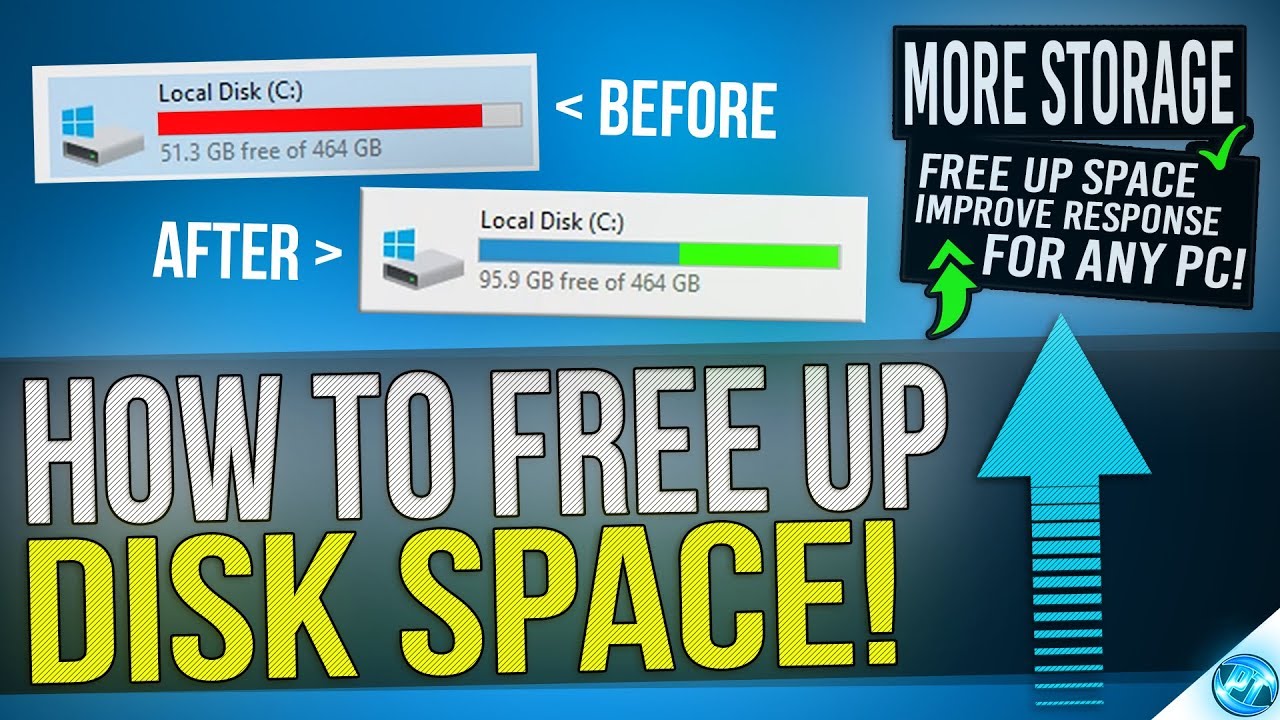
Is your computer running out of space just when you need it most? You’re not alone.
When your storage fills up, everything slows down, and finding room for new files feels impossible. But what if you could quickly free up space or add more storage without hassle? You’ll discover simple and effective ways to get more storage on your computer—so you can keep working, saving, and enjoying your digital life without limits.
Keep reading to unlock the secrets to a clutter-free, faster computer.
Credit: www.youtube.com
Check Current Storage Usage
Checking your computer’s current storage usage is the first step to free up space. It helps you understand what takes up room on your hard drive. This knowledge guides you in deciding what to delete or move.
Start by looking at how much space you have left. Next, find out which files or folders use the most storage. This process makes cleaning up easier and faster.
Analyze Disk Space
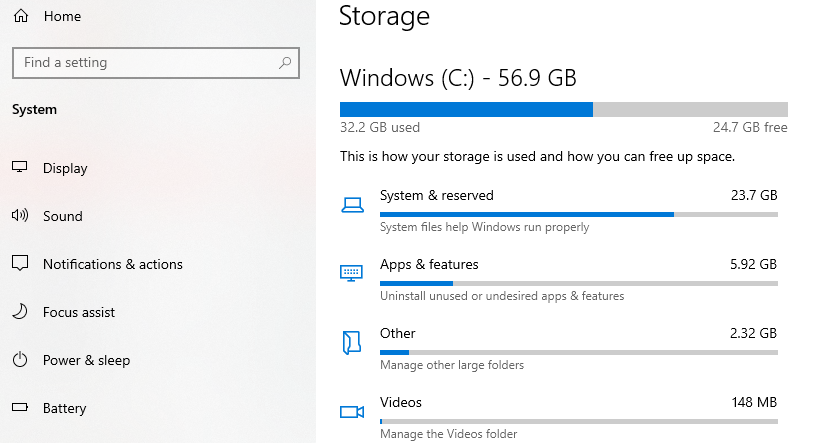
Use built-in tools to see your disk space details. On Windows, open “Settings” and select “Storage.” On Mac, click the Apple icon, then choose “About This Mac” and “Storage.”
These tools show a breakdown of storage by categories like apps, documents, and system files. This overview helps spot large storage users quickly.
Identify Large Files And Folders
Look for files and folders that take up the most space. Use file explorer or finder to sort items by size.
Delete or move unnecessary large files. Back up important files to an external drive or cloud storage. This step clears space and keeps your data safe.
Credit: www.ccleaner.com
Clean Up Unnecessary Files
Cleaning up unnecessary files is a simple way to free up space on your computer. Over time, many files build up without you noticing. These files take up storage and slow down your system.
Removing these files helps your computer run smoother. It also gives you more room for important documents, photos, or programs. Start with these easy steps to clean your storage.
Delete Temporary Files
Temporary files are created by programs to store data while running. These files often stay on your computer after you close the programs. They can use a lot of space over time.
Use the built-in disk cleanup tool on your computer. It finds and deletes temporary files safely. This process frees up space without harming your files.
Uninstall Unused Programs
Many people keep programs they no longer use. These programs take up valuable storage. Removing them clears space and can improve your computer’s speed.
Check your list of installed programs. Uninstall any that you never open or need. This step is quick and makes a big difference.
Clear Browser Cache
Web browsers save cache files to load pages faster. These files grow over time and use storage space. Clearing the cache can recover space and fix browsing issues.
Go to your browser’s settings and find the option to clear browsing data. Select only the cache files to delete. This action helps your computer stay clean and fast.
Use External Storage Devices
Using external storage devices is a simple way to increase your computer’s storage space. These devices let you save files outside your computer’s main drive. This helps free up space and keeps your system running smoothly.
External storage is easy to use. It works with most computers and does not require technical skills. You can move files to these devices and access them anytime. This method is useful for storing photos, videos, and documents.
Choose Between Usb Drives And External Hard Drives
USB drives are small and easy to carry. They use flash memory and have no moving parts. USB drives are good for storing smaller files and quick transfers.
External hard drives offer more space than USB drives. They use a spinning disk inside and are better for large files. These drives are best for backing up big folders or many files.
Choose a device based on your storage needs and budget. USB drives are cheaper but hold less data. External hard drives cost more but offer more room.
Set Up And Use External Storage
Plug the external device into your computer’s USB port. Wait for the computer to recognize it automatically. Most systems will show a notification or open a file window.
Drag and drop files from your computer to the external device. You can create folders to keep things organized. Safely eject the device before unplugging to avoid data loss.
Use external storage regularly to keep your computer’s drive free. This keeps your device fast and prevents running out of space.
Credit: www.wideanglesoftware.com
Upgrade Internal Storage
Upgrading your computer’s internal storage can boost space and speed. This helps run programs faster and store more files. It is a smart way to improve your computer’s performance without buying a new one.
Select The Right Ssd Or Hdd
Choose between SSD and HDD based on your needs. SSDs are faster and use less power. HDDs offer more space at a lower cost. Check your computer’s compatibility before buying. Look for the right size and connection type. A good balance of speed and storage is key.
Installation Tips And Precautions
Turn off your computer and unplug it before starting. Open the case carefully to avoid damage. Use an anti-static wristband or touch metal to avoid static shocks. Handle the drive gently and avoid touching the circuit board. Secure the drive firmly inside the slot. Connect cables properly to ensure good contact. Close the case and power on to check the new drive. Format the drive if needed for use.
Utilize Cloud Storage Solutions
Cloud storage is a smart way to get more space on your computer. It stores files on the internet, not on your hard drive. This saves room for important programs and files. You can access your data from any device with internet access. It also keeps your files safe if your computer breaks or gets lost.
Popular Cloud Storage Services
Many cloud services offer free and paid options. Google Drive gives 15 GB free and works well with other Google apps. Dropbox offers easy file sharing and syncing. Microsoft OneDrive fits perfectly with Windows and Office users. Apple iCloud is best for those with Apple devices. Choose a service that fits your needs and budget.
Sync And Backup Files To Cloud
Syncing means your files update automatically between your computer and cloud. It keeps the latest version of your files everywhere. Backing up means copying files to the cloud for safety. Set your cloud service to sync important folders. This saves space and protects your data from loss. You can free up computer storage by moving large files to the cloud.
Optimize Storage Settings
Optimizing storage settings helps free up space on your computer. It removes unnecessary files and manages storage more efficiently. This keeps your device running smoothly and avoids storage shortages. Both Windows and macOS offer built-in tools to manage storage easily.
Enable Storage Sense On Windows
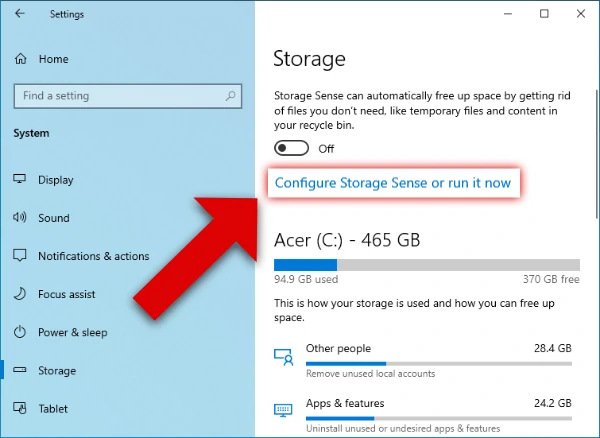
Storage Sense automatically cleans up temporary files and recycles bin items. Turn it on by going to Settings > System > Storage. Toggle the Storage Sense switch to activate it. You can customize how often it runs, such as daily or weekly. It can also delete files in the recycle bin older than 30 days. This helps keep your storage from filling up fast.
Manage Storage On Macos
macOS provides a simple way to manage storage through the About This Mac menu. Click the Apple icon, then select About This Mac > Storage > Manage. Here, you can review recommendations to optimize storage. Options include storing files in iCloud, emptying trash automatically, and removing large files. This tool helps identify space-hogging apps and files. Managing storage on macOS keeps your system tidy and efficient.
Compress Files To Save Space
Compressing files is a smart way to save space on your computer. It reduces the size of files without losing important data. This means you can store more files in less space. Compression works well for documents, images, and even videos. It helps keep your computer running smoothly by freeing up storage.
There are easy tools to compress files. Some come built into your computer system. Others can be downloaded as extra software. Both types help you control your storage better.
Use Built-in Compression Tools
Most computers have built-in tools for file compression. On Windows, you can right-click a file or folder and select “Send to” then “Compressed (zipped) folder.” This creates a smaller file with a .zip extension. On Mac, right-click a file and choose “Compress.” This also creates a zip file. These tools are simple and need no extra software. They work well for everyday file compression.
Third-party Compression Software
Third-party software offers more options for file compression. Programs like 7-Zip, WinRAR, and PeaZip provide stronger compression and support many formats. They allow you to set passwords or split large files into parts. Some software also helps with batch compression to save time. These tools are useful if you need more control over file size and features.
Move Files To Network Storage
Moving files to network storage helps save space on your computer. It keeps important data safe and accessible from many devices. Using network storage also makes file sharing easy in homes or offices.
Set Up Network Attached Storage (nas)
Network Attached Storage, or NAS, is a special device for storing files. Connect the NAS to your home or office router. Power it on and follow the setup guide from the manufacturer. You usually access it through a web browser. Create user accounts and set permissions to control access. NAS lets you store large amounts of data outside your computer.
Access And Manage Network Files
Access files on NAS from any computer on your network. Use file explorer or finder to connect to the NAS device. Drag and drop files to move them from your computer to NAS. Organize files in folders just like on your computer. You can edit files directly or download them to work offline. Regularly check your NAS to keep files updated and backed up.
Frequently Asked Questions
How Can I Free Up Space On My Computer Quickly?
Delete unnecessary files, uninstall unused programs, and clear temporary files. Use built-in tools like Disk Cleanup on Windows or Storage Management on macOS to easily free up space.
What External Storage Options Increase Computer Storage?
External hard drives, SSDs, and USB flash drives are common options. They offer portable, affordable, and easy ways to expand your computer’s storage without internal upgrades.
How Does Cloud Storage Help Increase Computer Space?
Cloud storage saves files online, reducing local storage use. Services like Google Drive or Dropbox provide extra space accessible from any device with internet.
Can Upgrading My Hard Drive Increase Storage Capacity?
Yes, replacing your current drive with a larger HDD or SSD boosts storage. SSDs also improve speed and overall computer performance.
Conclusion
Freeing up space and adding storage helps your computer run better. Delete files you no longer need to save room. Use external drives or cloud storage to keep important data safe. Regularly check your storage to avoid slowdowns. Small steps make a big difference over time.
Keep your computer clean and organized for smooth use. More space means faster work and less frustration. Start today, and enjoy a better computer experience tomorrow.
As an Amazon Associate, I earn from qualifying purchases.

