
Is your monitor stuck in power save mode, leaving you staring at a blank screen? It’s frustrating when your computer won’t wake up, especially if you’re in the middle of something important.
But don’t worry—you can fix this quickly. You’ll learn simple, step-by-step ways to get your monitor back to normal. Keep reading, and you’ll have your screen working again in no time.
Credit: nowpowertexas.com
Causes Of Power Save Mode
Power save mode activates to save energy and protect your monitor. It happens when the screen detects no activity. Understanding why your monitor enters this mode helps fix the issue quickly. Several common causes trigger power save mode.
Inactive Input Signals
The monitor needs a signal from your computer or device to stay awake. If no signal arrives, the screen goes dark. This often happens if your PC is off or asleep. Loose or unplugged cables also stop the signal. Without input, the monitor assumes it should save power.
Power Settings On Pc
Your computer’s power settings control when the monitor sleeps. These settings can turn off the display after short idle times. Some PCs enter power save mode quickly to save energy. Incorrect or aggressive power settings often cause the screen to go black.
Faulty Cables Or Connections
Damaged or loose cables disrupt the video signal to the monitor. This loss causes the monitor to enter power save mode. Check HDMI, DisplayPort, or VGA cables for damage. Secure connections prevent signal interruptions and keep the screen active.
Monitor Hardware Issues
Internal problems with the monitor can trigger power save mode. Faulty circuits or power supply issues cause the screen to shut down. Overheating or aging parts also affect performance. Hardware problems may require professional repair or replacement.
Basic Troubleshooting Steps
Basic troubleshooting steps can help fix your monitor stuck in power save mode. These simple checks often solve common issues fast. Follow these steps carefully to bring your screen back to life.
Check Monitor Connections
Make sure the monitor cable is plugged in tightly. Look at both ends of the cable. One end goes to the monitor, the other to the computer. Loose or damaged connections can cause power save mode. Also, check the power cable. It should be firmly connected to the monitor and the power source.
Restart Your Devices
Turn off your computer and monitor completely. Wait about 30 seconds. Then, turn them back on. Restarting can clear temporary glitches. This simple step often resets the monitor from power save mode.
Try A Different Cable Or Port
Test your monitor with a different cable. Sometimes cables get damaged inside without visible signs. Also, try plugging the cable into a different port on your computer. This helps rule out port problems. A new cable or port might fix the issue quickly.
Adjusting Power Settings On Windows
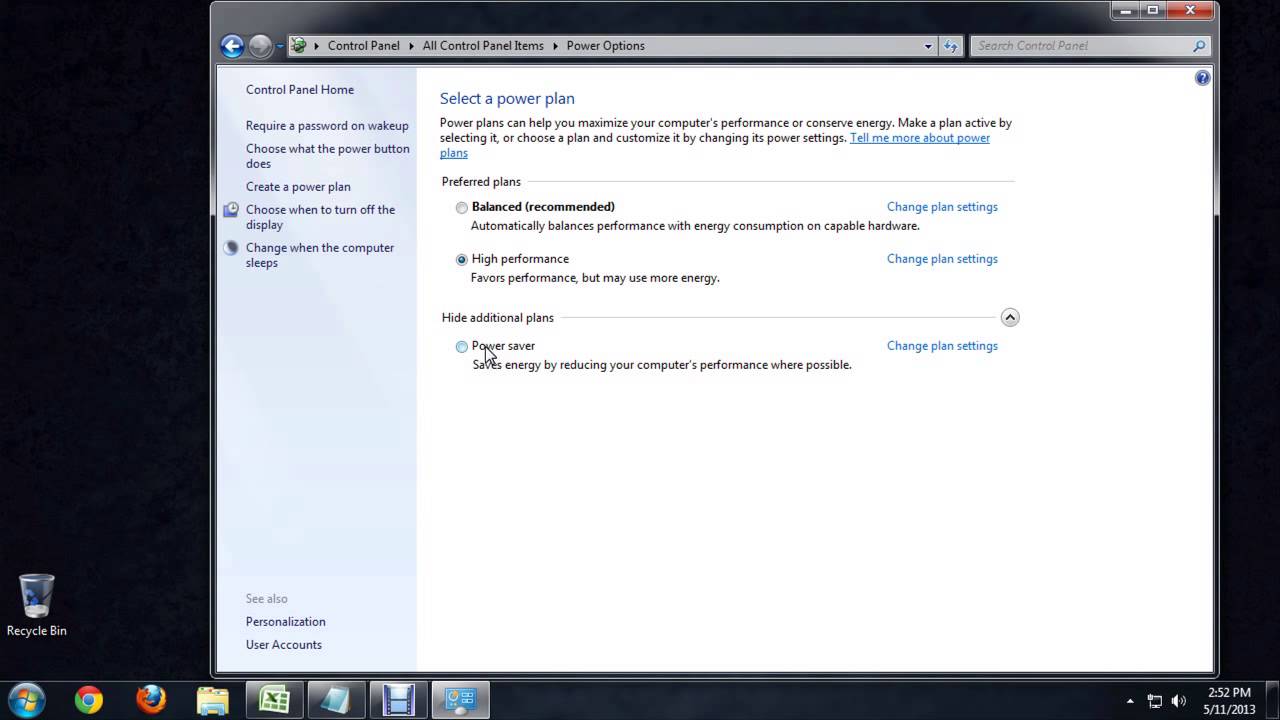
Adjusting power settings on Windows helps fix monitor issues like staying in power save mode. You can change how your PC manages sleep and display timers. This keeps your screen active when you need it. It also stops the monitor from turning off too soon. Follow simple steps to adjust these settings. This makes your monitor work normally again.
Modify Sleep And Display Timers
Open the Start menu and select Settings. Go to System and then Power & Sleep. Find the Display section. Change the time for “Turn off after” to a longer period or set it to Never. Next, check the Sleep section. Adjust the timer for “PC goes to sleep” to a longer time or Never. These changes stop your monitor from going to power save mode quickly.
Disable Hybrid Sleep Mode
Hybrid sleep can cause monitor issues. Open Control Panel and go to Power Options. Click on “Change plan settings” next to your current plan. Select “Change advanced power settings.” Find Sleep and expand it. Click on “Allow hybrid sleep” and set it to Off. Save the changes. This stops Windows from mixing sleep modes that can confuse your monitor.
Update Graphics Drivers
Outdated graphics drivers may cause power save problems. Press Windows key + X and select Device Manager. Expand Display adapters and right-click your graphics card. Choose Update driver and select “Search automatically for drivers.” Windows will find and install the latest driver. Restart your PC. Updated drivers improve display performance and fix monitor issues.
Credit: www.youtube.com
Adjusting Power Settings On Mac
Adjusting power settings on your Mac can help fix the monitor stuck in power save mode. Macs use energy-saving features to save battery and reduce power use. Sometimes, these settings cause the screen to go into sleep or power save mode unexpectedly. Changing these settings can make your monitor work correctly again.
Change Energy Saver Preferences
Open System Preferences from the Apple menu. Click on Energy Saver. Adjust the slider for “Turn display off after” to a longer time or set it to “Never.” Uncheck options like “Put hard disks to sleep when possible.” This stops your Mac from turning off the display too soon.
Reset Nvram/pram
NVRAM and PRAM store display and power settings. Resetting them can fix screen issues. Shut down your Mac. Turn it on and immediately press Option + Command + P + R keys. Hold for about 20 seconds. The Mac will restart with default settings, often fixing power save mode problems.
Check Display Sleep Settings
Go back to Energy Saver in System Preferences. Check the display sleep settings carefully. Make sure the display sleep time is not too short. Also, check if “Prevent computer from sleeping automatically” is selected. Adjust these settings to keep your screen awake longer.
Monitor-specific Fixes
Monitors sometimes enter power save mode due to specific issues. These problems often come from the monitor itself rather than the computer. Fixes that focus on the monitor can help bring it back to normal quickly. Here are some easy steps you can try that focus on the monitor.
Reset Monitor To Factory Settings
Resetting your monitor restores original settings. This step removes any changes that might cause power save issues. To reset, use the monitor’s menu buttons. Find the option called “Factory Reset” or “Reset All Settings.” Confirm the reset and wait for the monitor to restart. This simple step often fixes display and power mode problems.
Update Monitor Firmware
Monitor firmware controls how the screen works. Old firmware can cause unexpected power save modes. Visit the monitor manufacturer’s website for updates. Download the latest firmware for your model. Follow the instructions to install it carefully. Updating firmware can improve performance and fix bugs causing power save mode.
Check For Physical Damage
Physical damage can stop your monitor from working right. Look for cracks, loose cables, or bent pins on the connectors. Damage to cables or ports can cause the monitor to enter power save mode. Replace any damaged cables or try a different port. Fixing physical issues often solves power save problems quickly.
When To Seek Professional Help
Sometimes, a monitor stays in power save mode despite your efforts. It may be time to ask for help. Professionals can find hidden problems quickly. They have tools and knowledge that most users do not.
Trying to fix complex issues alone can cause more damage. Knowing when to stop and get help saves time and money. Watch for signs that your monitor needs expert care.
Persistent Power Save Mode Issues
If your screen stays dark after many attempts, this is a clear sign. Check cables and settings again. No change? The problem may be inside the monitor or the computer.
Professionals can test the power supply and internal circuits safely. They can spot faults that are not visible. Persistent issues often mean deeper electrical or hardware problems.
Hardware Replacement Options
Sometimes, parts inside the monitor fail. Replacing these parts can fix power save problems. Experts know which parts to replace and where to find them.
They can also advise if buying a new monitor is better than repairing. This decision depends on cost and the monitor’s age. Professional advice helps avoid unnecessary spending.

Credit: www.youtube.com
Frequently Asked Questions
Why Is My Monitor Stuck In Power Save Mode?
Your monitor may be stuck due to loose cables, incorrect input settings, or power issues. Check all connections and ensure the monitor is powered on. Adjust your computer’s display settings to wake the monitor from power save mode.
How Do I Disable Power Save Mode On My Monitor?
Access your monitor’s on-screen display menu using its buttons. Navigate to the power settings section and disable or adjust the power save or sleep mode options. Save changes and exit to prevent the monitor from entering power save mode automatically.
What Causes A Monitor To Enter Power Save Mode Suddenly?
Monitors enter power save mode when they detect no video signal or inactivity. This can be caused by a disconnected cable, a powered-off PC, or incorrect display settings. Ensuring proper connections and active input signals prevents sudden power save activation.
Can A Faulty Cable Cause Power Save Mode Issues?
Yes, a damaged or loose video cable can disrupt the signal, causing the monitor to enter power save mode. Inspect and replace any faulty cables to restore a stable connection and prevent the monitor from going into power save mode unexpectedly.
Conclusion
Getting your monitor out of power save mode can be quick and simple. Check the cables and connections first. Adjust your computer’s power settings next. Sometimes, just moving the mouse or pressing a key helps. Restarting your device can solve many issues too.
Keep these steps handy for future use. Your screen will be active and ready in no time. Stay patient and follow the tips carefully. This way, you avoid frustration and save time. Now, your monitor will work smoothly again.
As an Amazon Associate, I earn from qualifying purchases.

