Have you ever wished you could use two mice on one computer at the same time? Maybe you want to share your screen with a friend, or control different tasks more efficiently.
It sounds tricky, but it’s easier than you think. You’ll discover simple steps to set up two mice on your computer and make the most out of this handy trick. Ready to boost your productivity and have some fun? Keep reading—you’re about to unlock a cool feature you didn’t know your computer had.
Credit: www.gardenstew.com
Benefits Of Using Two Mice
Using two mice on one computer offers several practical benefits. It can change how you work, play, and share tasks. This setup supports different needs at the same time. It makes certain activities easier and faster.
Here are some key benefits of using two mice on one computer.
Improved Productivity
Two mice help you do more tasks at once. You can switch between programs without delays. This setup reduces the time spent moving a single mouse. Tasks like editing and design become smoother. It also helps when using multiple screens. Overall, you get more done in less time.
Enhanced Collaboration
Two people can control the computer without passing the mouse. This is great for teamwork and sharing ideas. Teachers and students can work together easily. It makes meetings more interactive and hands-on. Both users stay involved without waiting their turn.
Gaming Advantages
Some games allow using two mice for better control. One player can handle movement while the other manages actions. This setup can improve coordination and reaction times. It also adds fun by sharing control. Gaming becomes more social and engaging with two mice.
Hardware Requirements
To use two mice on one computer, your hardware must support it. Not all mice work well together. The computer needs enough ports to connect both devices. Understanding these hardware needs helps avoid connection problems.
Compatible Mouse Types
Most USB mice work fine with two devices connected. Wired mice connect directly through USB cables. Wireless mice use USB receivers or Bluetooth. Both types can work together on one computer.
Bluetooth mice do not need USB ports, freeing space. Some older mice might not support multiple devices well. Choose mice from reliable brands for better compatibility. Check your operating system supports multiple mice input.
Usb Ports And Hubs
Each mouse needs its own USB port. Desktops usually have enough ports for multiple mice. Laptops may have fewer ports, so a USB hub helps. A powered USB hub can supply enough power to all mice.
Make sure the USB hub supports the number of devices you need. Avoid cheap hubs that may cause connection issues. Plug each mouse into different ports to reduce conflicts. Using separate ports ensures both mice work smoothly.
Software Solutions For Dual Mice
Using two mice on one computer can boost productivity and teamwork. Software plays a key role in making this possible. It lets both mice work independently or together, depending on your needs. Understanding software options helps you choose the best way to set up dual mice.
Built-in Operating System Support
Some operating systems allow multiple mice without extra software. Windows, for example, supports two or more mice by default. Both cursors move as one pointer on the screen. This setup works for simple tasks and basic control.
MacOS and Linux have similar features but may need extra settings. Linux users can use built-in tools like “Multi-Pointer X” for separate pointers. MacOS users might need special scripts or apps for independent control. These built-in options are free and easy to start with.
Third-party Applications
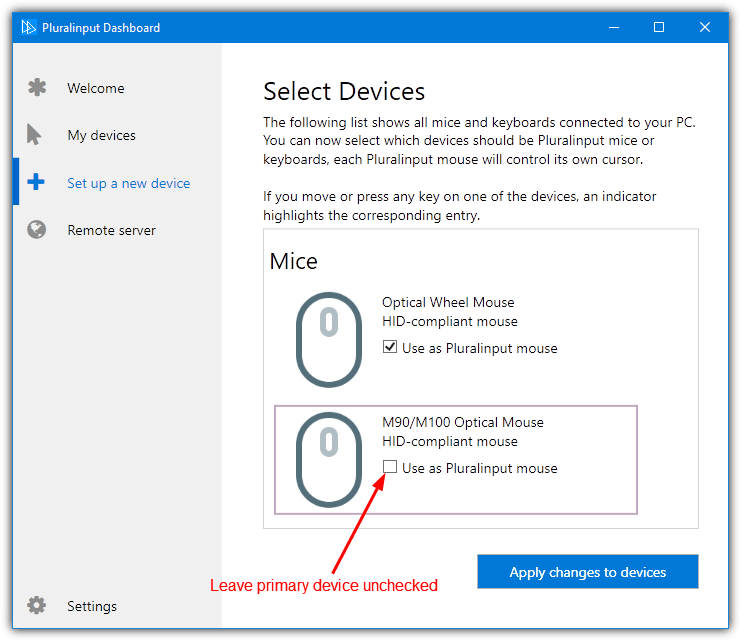
Third-party apps offer more control over multiple mice. They can create separate cursors for each user. Programs like “TeamPlayer” and “Pluralinput” allow independent mouse control. These tools help in presentations, gaming, or shared workspaces.
Many apps support customization for each mouse. You can assign different actions or controls. Some apps work on Windows only, while others support multiple systems. Check compatibility before choosing software for your computer.

Credit: www.youtube.com
Step-by-step Dual Mouse Setup
Setting up two mice on one computer allows two users to control the cursor. This setup is useful for presentations, teamwork, or fun computer use. The process involves connecting both devices, adjusting settings, and testing them for smooth operation.
Connecting Both Mice
Start by plugging the first mouse into a USB port. Then connect the second mouse to another USB port. Wireless mice need their receivers connected to USB ports. Wait for the computer to recognize both devices automatically. No special drivers are usually needed for basic mouse functions.
Configuring Settings
Open the computer’s settings or control panel. Look for the mouse or devices section. Here, adjust pointer speed and button preferences for each mouse if supported. Some software allows customization for each device separately. Set the sensitivity to match your comfort for each mouse.
Testing The Setup
Move each mouse to see if the cursor responds. Usually, both mice control the same cursor. Try clicking and scrolling with each mouse to ensure proper function. Test in different programs to check compatibility. Make adjustments if one mouse lags or does not respond correctly.
Troubleshooting Common Issues
Using two mice on one computer can be useful but may cause some problems. Troubleshooting these common issues helps keep both mice working smoothly. Check each problem carefully to fix it fast.
Mouse Conflicts
Two mice might fight over control. Both try to move the cursor at once. This causes confusion on the screen. To avoid conflicts, use software designed for multiple mice. It helps manage input from both devices separately. Also, unplug and replug mice to reset connections.
Lag And Responsiveness
Lag makes the mouse slow or jumpy. This happens with wireless mice or poor USB ports. Try using wired mice for better speed. Close programs that use a lot of CPU. This frees resources for mouse actions. Clean the mouse sensor and surface for smoother movement.
Driver Problems
Outdated or missing drivers cause mice to stop working. Update drivers through the device manager or the mouse maker’s website. Avoid installing generic drivers that might not support two mice. Restart the computer after updating drivers to apply changes. Check for Windows updates to improve hardware support.
Use Cases For Dual Mouse Setup
Using two mice on one computer has practical uses. It helps people work together on the same screen. It also makes some tasks easier for certain users. Below are common situations where two mice can be useful.
Multi-user Workstations
Two people can use one computer at the same time. This setup saves space and costs less than two computers. It works well in schools and offices. Each user controls their own mouse cursor. They can work on different parts of the screen. This helps teamwork and speeds up tasks.
Creative Projects
Artists and designers can benefit from two mice. One mouse can do drawing while the other adjusts settings. It allows quick switching between tools without stopping work. This setup makes creative work smooth and fast. Teams can also collaborate on digital art in real time.
Accessibility Needs
Some users need special devices to control a computer. Having two mice helps people with limited hand movement. Caregivers or assistants can use the second mouse to help. It makes computer use easier and more comfortable. This setup supports users with different abilities.
Credit: whatsoftware.com
Frequently Asked Questions
Can I Use Two Mice On One Computer Simultaneously?
Yes, you can connect two mice to one computer using USB ports. Both devices will work independently, allowing simultaneous use.
Does Windows Support Multiple Mice Input By Default?
Windows supports multiple mice by default. It merges input from all connected mice into one cursor on the screen.
How To Prevent Cursor Conflicts With Two Mice?
You can use third-party software to assign each mouse a separate cursor. This prevents conflicts and enables independent control.
Are There Benefits To Having Two Mice On One Pc?
Two mice allow multiple users to control the computer or enhance productivity during collaborative tasks and presentations.
Conclusion
Having two mice on one computer is simple and helpful. You just need the right setup and software. This can improve teamwork or make your tasks easier. Try it out with your devices today. Enjoy more control and flexibility while working or playing.
It’s a small change that can bring big benefits. Remember, patience helps when setting up new tools. Keep experimenting until it feels just right for you.
As an Amazon Associate, I earn from qualifying purchases.