
Is your computer running out of space? You’re not alone.
When your storage fills up, it slows down your work, blocks new files, and creates endless frustration. But here’s the good news: you don’t have to toss your device or suffer through constant alerts. There are simple, effective ways to increase your computer storage and get back to smooth, hassle-free use.
Keep reading, and you’ll discover easy steps to free up space and boost your computer’s capacity—without needing to be a tech expert. Your computer will thank you!
Check Current Storage Usage
Before increasing your computer storage, you need to check how much space you have. This helps you decide what to delete or move. Knowing your current storage use prevents unnecessary purchases. It also helps keep your system fast and efficient.
Analyze Disk Space
Start by opening your computer’s storage settings. Here, you see a breakdown of used and free space. Most systems show categories like apps, documents, and pictures. This view helps spot which type of data takes the most room. Use tools like Disk Cleanup on Windows or Storage Management on Mac. These tools highlight files you can safely remove. Regularly checking disk space keeps your computer running smoothly.
Identify Large Files And Folders
Look for files and folders that use a lot of space. These could be videos, backups, or old installers. Use file explorer or finder to sort items by size. Deleting or moving these large files frees up space quickly. You might find forgotten downloads or duplicates. Cleaning these files reduces clutter and improves storage management.
Credit: www.youtube.com
Delete Unnecessary Files
Deleting unnecessary files frees up space on your computer quickly. It helps your system run smoother and faster. Removing clutter from your storage makes room for important files and apps. Start with simple steps to clear out unwanted data.
Remove Temporary Files
Temporary files build up from daily computer use. These include cache, logs, and leftover setup files. They take up space without serving any purpose. Use built-in tools like Disk Cleanup on Windows or Storage Management on Mac. These tools find and delete temporary files safely. Clearing them regularly keeps your storage healthy.
Clear Recycle Bin And Downloads
Files in the Recycle Bin still use storage space. Empty the Recycle Bin often to remove deleted files permanently. The Downloads folder also fills up quickly with old files. Review this folder and delete items you no longer need. This simple step recovers a surprising amount of space.
Uninstall Unused Programs
Unused programs take up valuable storage. Some apps run in the background and slow your computer. Go through your installed programs list and identify apps you never use. Uninstall these programs to free up space. This also improves your computer’s speed and performance.
Use Disk Cleanup Tools
Disk cleanup tools help free up space by deleting unwanted files. These tools clear temporary files, system caches, and other junk. Using them regularly keeps your computer running smoothly. It also makes more room for important files and programs.
Built-in System Utilities
Most operating systems include disk cleanup utilities. Windows has a tool called Disk Cleanup. It removes temporary files, Recycle Bin contents, and system logs. Mac users can use the Storage Management feature. It helps delete old files and unused apps. These tools are easy to use and safe. They do not remove personal files unless asked.
Third-party Cleanup Software
Third-party programs offer extra features for disk cleaning. Some clean browser caches and uninstall software leftovers. Others find duplicate files to delete. Popular options include CCleaner and BleachBit. These tools often provide more control over cleanup tasks. Always download from trusted websites. Scan for malware before running new software.
Move Files To External Storage
Moving files to external storage is a simple way to increase your computer’s available space. It helps keep your important data safe while freeing up internal storage. This method lets you organize files and access them anytime without slowing down your computer.
External Hard Drives
External hard drives offer large storage capacity at a low cost. They connect via USB or Thunderbolt ports and work like internal drives. Use them to store photos, videos, and backups. They are portable and easy to carry around.
Usb Flash Drives
USB flash drives are small and convenient for quick file transfers. They plug into any USB port and need no power source. Ideal for moving documents and small files. Their compact size makes them perfect for travel and daily use.
Network Attached Storage
Network attached storage (NAS) devices connect to your home or office network. Multiple users can access files from different devices. NAS offers large storage and file sharing options. It is great for backup and media streaming.
Leverage Cloud Storage
Leverage cloud storage to increase your computer’s storage without buying new hardware. Cloud storage lets you save files on the internet. This frees up space on your computer’s hard drive. Access your files anytime from any device with internet access. It also protects your data from loss due to hardware failure.
Popular Cloud Services
Many cloud services offer free and paid storage options. Google Drive provides 15 GB free and integrates well with other Google apps. Dropbox offers easy sharing and sync features with 2 GB free. Microsoft OneDrive gives 5 GB free and works well with Windows and Office programs. Choose a service that fits your storage needs and device compatibility.
Sync And Backup Options
Cloud storage services allow automatic syncing of files. Your files update on all devices when you save changes. This keeps data consistent and accessible everywhere. Use backup features to protect important files from accidental deletion. Set up scheduled backups to avoid losing valuable information. Sync and backup features keep your data safe and organized.
Credit: hyperpc.ae
Upgrade Internal Storage
Upgrading your computer’s internal storage is a smart way to increase space. It helps your system run smoother and store more files. You can either replace old drives or add new ones inside your computer. Both options improve storage without needing external devices.
Replace Or Add Hard Drives
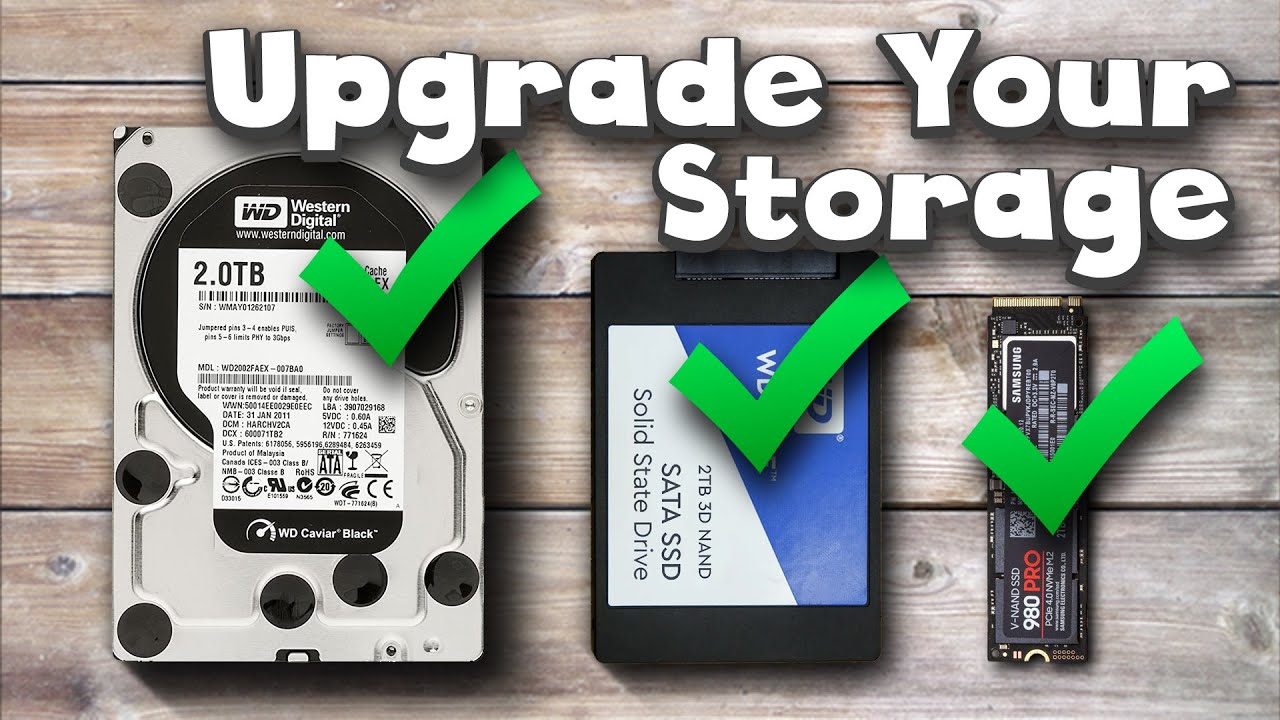
Older computers often use hard disk drives (HDDs). These drives have spinning disks that store data. Replacing a smaller or slow HDD with a larger one frees up more space. Adding a second hard drive is also possible in many desktops and laptops. This option increases total storage without removing the original drive. Installing extra drives requires checking your computer’s slots and connectors first.
Switch To Solid State Drives
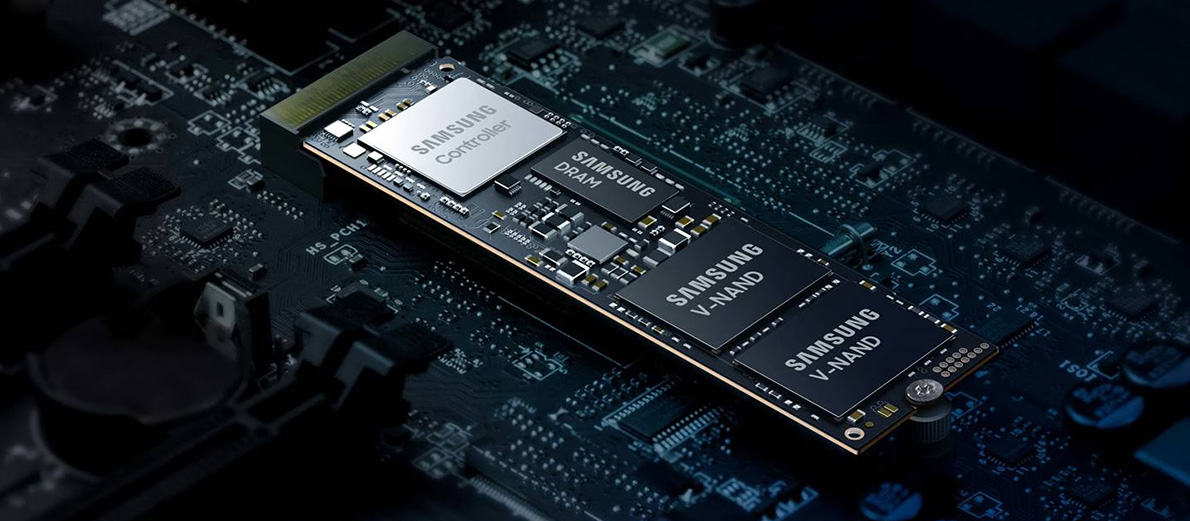
Solid state drives (SSDs) use flash memory to store data. They work faster than traditional hard drives. Switching to an SSD improves both speed and storage. SSDs have no moving parts, making them more reliable. Many users replace HDDs with SSDs for better performance. SSD prices have dropped, making upgrades affordable. Choose an SSD with enough capacity for your needs.
Optimize Storage Settings
Optimizing storage settings helps free up space on your computer. It keeps your system clean and fast. Small changes in settings can save a lot of storage. Focus on built-in tools that manage space automatically. These tools work quietly in the background.
Enable Storage Sense
Storage Sense removes temporary files and unused data. It runs automatically to clear space. Turn it on through the Settings app. Set how often Storage Sense runs. Choose to delete files in the Recycle Bin. Also, clear files in the Downloads folder after a set time. This keeps your storage neat without your help.
Adjust System Restore Settings
System Restore uses disk space to save system files. It can take up a lot of storage if not managed. Adjust the amount of space for restore points. Limit the maximum storage used for System Restore. This frees up more space for your files. You can also delete older restore points safely. It keeps enough space without losing protection.
Credit: www.kingston.com
Compress Files And Folders
Compressing files and folders reduces their size to save computer storage. It helps free up space without deleting important data. Compression makes files smaller, so you can store more. This method works well for documents, images, and other files that take up space.
There are simple ways to compress files using tools already on your computer. Also, special programs can offer more options for compression. Both methods help increase your storage efficiently.
Use Built-in Compression
Most computers have built-in tools to compress files. On Windows, right-click a file or folder and select “Send to” then “Compressed (zipped) folder.” This creates a smaller zipped file.
Mac users can right-click a file or folder and choose “Compress.” The system makes a zip file that takes less space. This method is easy and needs no extra software.
Built-in compression is quick and good for everyday use. It works best for files that do not change often.
Third-party Compression Tools
Third-party tools offer more options and better compression rates. Programs like 7-Zip, WinRAR, and PeaZip are popular choices. They support many file types and compression formats.
These tools can create smaller files than built-in options. They also let you split large files into smaller parts. This helps when you want to move or share big files.
Using third-party tools is simple. Download and install the software, then follow the steps to compress files. Some tools have free versions with basic features.
Frequently Asked Questions
How Can I Increase My Computer’s Storage Capacity?
You can increase storage by adding an external hard drive or upgrading to a larger internal SSD. Cloud storage is also a flexible option for extra space. Regularly deleting unnecessary files helps maintain available storage.
What Are The Best Storage Types For Computers?
The best types are SSDs for speed and HDDs for cost-effective large storage. External drives and USB flash drives offer portable storage options. Choose based on your speed needs and budget.
Can I Use Cloud Storage To Expand Computer Space?
Yes, cloud storage offers additional space without hardware upgrades. Services like Google Drive and Dropbox provide easy access and file sharing. It requires an internet connection and may have storage limits.
Is Upgrading To An Ssd Worth Increasing Storage?
Upgrading to an SSD improves speed and storage reliability. SSDs are faster than traditional HDDs and consume less power. They offer a good balance of performance and storage capacity.
Conclusion
Increasing computer storage is easier than it seems. Clean up old files to free space fast. Use external drives for extra storage needs. Cloud storage offers safe, easy access anywhere. Upgrading your hard drive can boost capacity too. Small steps make a big difference over time.
Keep your computer organized to avoid clutter. Storage management helps your device run smoothly. Try these tips and enjoy more space today.
As an Amazon Associate, I earn from qualifying purchases.

