
If you own a gaming laptop with a 144Hz display, you know the difference it makes in smooth gameplay. But are you truly getting the most out of that high refresh rate?
Many gamers miss simple tweaks that can unlock the full power of their screens. In this guide, you’ll discover easy and effective ways to optimize your gaming laptop so every frame counts. Whether you’re battling in fast-paced shooters or exploring vast open worlds, these tips will help you enjoy sharper, faster visuals and a more immersive experience.
Ready to take your gaming to the next level? Let’s dive in.
Credit: www.gmapswidget.com
Choose The Right Laptop
Choosing the right gaming laptop is the first step to enjoy smooth 144Hz gameplay. A laptop must support the high refresh rate to display fast movements clearly. Not all laptops handle 144Hz well. Picking the right one makes a big difference in your gaming experience.
Key Specs For 144hz Gaming
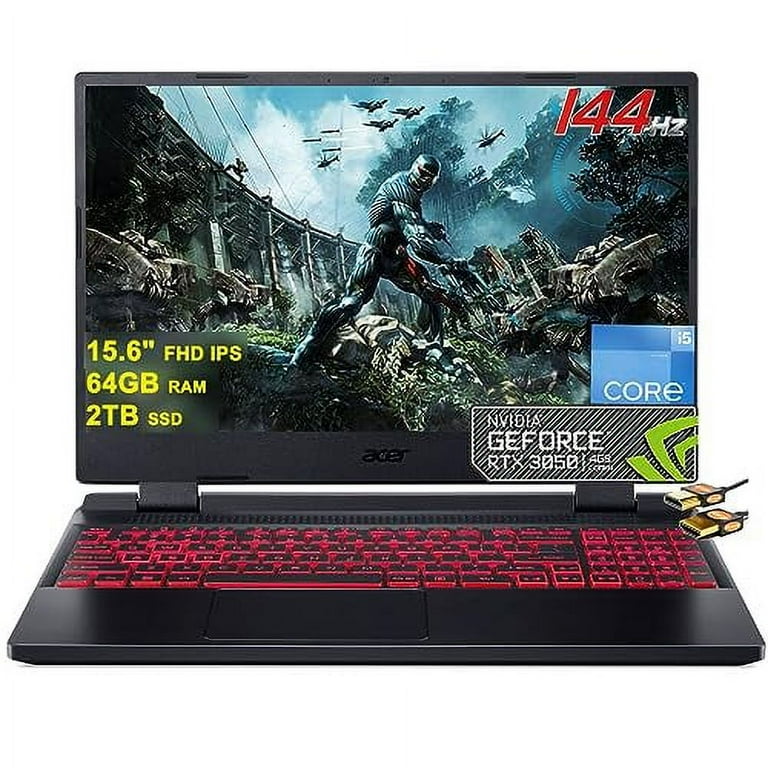
Look for a laptop with a powerful graphics card like NVIDIA GTX or RTX series. The processor should be at least an Intel i5 or AMD Ryzen 5. A minimum of 8GB RAM helps run games smoothly. Storage with SSD speeds up loading times. These specs ensure the laptop can keep up with 144 frames per second.
Display Technologies To Consider
Choose a laptop screen that supports 144Hz refresh rate natively. IPS panels offer better colors and viewing angles. Some laptops have TN panels, which are faster but less vibrant. Look for features like G-Sync or FreeSync to reduce screen tearing. These technologies improve the visual experience during fast gameplay.
Update Graphics Drivers
Updating your graphics drivers is key to getting the best performance from your gaming laptop. New drivers often fix bugs and improve speed. This helps your laptop handle games at 144Hz smoothly. Outdated drivers can cause lag, stuttering, or low frame rates. Keeping drivers fresh ensures better visuals and a faster gaming experience.
Finding Latest Drivers
Visit the official website of your graphics card maker. For NVIDIA, go to the NVIDIA Driver Download page. For AMD, check the AMD Drivers and Support page. Intel users can find drivers on the Intel Download Center. Enter your graphics card model or let the website detect it automatically. Download the newest driver version available. Avoid third-party sites to keep your laptop safe.
Installing And Configuring
Run the downloaded driver file to start installation. Follow the on-screen steps carefully. Choose a clean installation if the option appears. This removes old driver files that may cause issues. After installation, restart your laptop. Open your graphics control panel to adjust settings. Set your display refresh rate to 144Hz here. This step activates the high refresh rate for gaming.
Adjust In-game Settings
Adjusting in-game settings is key to making the most of a 144Hz gaming laptop. These settings control how your game looks and runs. Proper tweaks help you get smooth gameplay without losing good graphics. Let’s explore how to balance visuals and speed for the best experience.
Balancing Graphics And Frame Rate
High graphics settings can lower your frame rate. This means the game may not reach 144 frames per second. Lower some settings like shadows, textures, and effects. Keep important details clear but reduce extras that use much power. This balance helps the game run smoothly and look nice.
Disabling V-sync And Frame Limits
V-Sync can stop screen tearing but may limit your frame rate. Turning it off lets your laptop push frames faster. Also, check if the game has frame limits. Remove these limits to allow frames above 60 or 120. This helps your laptop fully use the 144Hz screen refresh rate.
Credit: www.walmart.com
Optimize Windows Settings
Optimizing your Windows settings can help your gaming laptop run smoother at 144Hz. Small changes in the system settings can improve frame rates and reduce lag. These tweaks let your laptop focus more on the game and less on other tasks.
Start by adjusting the power plan to keep your laptop running at full speed. Also, stop background apps that use resources without your knowledge. Both steps help maintain a steady and fast refresh rate for better gameplay.
Power Plan Adjustments
Open the Control Panel and go to Power Options. Select the High Performance plan or create a custom plan that does not limit CPU speed. This setting makes sure your laptop uses its full power while gaming. Avoid Balanced or Power Saver plans as they reduce performance to save energy. Keep your laptop plugged in for the best results.
Disabling Background Apps
Press Ctrl + Shift + Esc to open Task Manager. Check the Processes tab for apps using CPU or memory. Right-click and end tasks that are not needed during gaming. Next, open Settings and go to Privacy > Background apps. Turn off apps that run in the background automatically. This frees up system resources and improves game performance.
Manage Gpu And Cpu Performance
Managing your gaming laptop’s GPU and CPU performance is key to enjoying smooth gameplay at 144Hz. Proper management helps the laptop run faster without overheating or crashing. It ensures games look great and respond quickly.
Focus on boosting the power of your graphics card and processor. Keep them cool and stable. This balance improves frame rates and overall gaming experience.
Using Overclocking Tools
Overclocking increases the speed of your GPU and CPU beyond factory settings. This can improve game frame rates and smoothness. Use trusted tools like MSI Afterburner or Intel Extreme Tuning Utility.
Make small changes and test performance after each step. Avoid pushing the hardware too hard. Overclocking can cause overheating or crashes if done incorrectly.
Watch the temperature and clock speed. Stop overclocking if your laptop gets too hot or unstable. Always keep your drivers updated for best results.
Thermal Management Tips
Heat slows down your laptop’s performance. Good cooling keeps your GPU and CPU running fast. Use a cooling pad to improve airflow around your laptop.
Clean dust from vents and fans regularly. Dust blocks airflow and raises temperatures. Place your laptop on a hard, flat surface to avoid heat buildup.
Adjust in-game settings to reduce heat. Lower graphics quality or limit frame rates if needed. Keep your laptop software updated to improve power and temperature control.
Enable 144hz Refresh Rate
Enabling the 144Hz refresh rate on your gaming laptop improves the smoothness of gameplay. It reduces blur and makes fast movements clear. This setting helps games feel more responsive and enjoyable.
Most gaming laptops support 144Hz, but the setting might not be active by default. Changing it is simple and takes only a few steps. Follow the guide below to activate the higher refresh rate for the best experience.
Changing Display Settings
Right-click on your desktop and select “Display settings.” Scroll down to “Advanced display settings.” Choose your gaming monitor from the list if you have multiple screens. Find the “Refresh rate” drop-down menu. Select 144Hz from the options available. Click “Apply” to save changes. Your screen may flicker briefly while adjusting. Confirm the change if prompted to keep the new setting.
Troubleshooting Common Issues
The 144Hz option might not appear sometimes. Check if your laptop’s display supports 144Hz. Make sure your graphics drivers are updated to the latest version. Use the official website to download drivers. Restart your laptop after updating drivers. Verify that the game or application supports 144Hz refresh rate. Some games need settings to be changed separately. Try using a different cable or port if you use an external monitor. Certain HDMI or VGA cables do not support 144Hz. Use DisplayPort or a high-speed HDMI cable instead.
Use Gaming Optimization Software
Using gaming optimization software helps improve your laptop’s performance for 144Hz gaming. These tools adjust settings to reduce lag and increase frame rates. They manage background tasks and boost GPU and CPU power. This leads to smoother gameplay and better visuals.
Optimization software is easy to use. It saves time by automating many tweaks. You do not need deep technical knowledge to benefit from these tools. Just install the right program and configure it for your games.
Popular Tools And Their Benefits
Razer Cortex is a popular tool that frees up memory and stops unnecessary apps. It helps increase FPS and improve game stability. MSI Dragon Center offers system monitoring and performance tuning tailored for gaming laptops. It adjusts fan speeds and power settings automatically.
GeForce Experience by NVIDIA optimizes game settings based on your laptop’s hardware. It also keeps your graphics drivers up to date. AMD Radeon Software has similar features for AMD GPUs, enhancing game performance and visuals. Each tool has simple interfaces, making optimization straightforward.
Configuring Profiles For Games
Create custom profiles for each game using optimization software. These profiles save your preferred settings like resolution, graphics quality, and refresh rate. They allow quick switching between games without manual changes.
Adjust CPU and GPU priorities within profiles to maximize performance. Set your laptop to favor high frame rates over battery life during gaming. Profiles also help manage background processes, keeping resources focused on your game.
Use profile scheduling to apply settings only when gaming. This keeps your laptop running normally at other times. Profiles ensure every game runs smoothly at 144Hz without constant tweaking.
Credit: mastrainerapp.com
Upgrade Hardware Components
Upgrading hardware components can improve your gaming laptop’s performance. It helps the system run smoothly at 144Hz. Better hardware means faster data processing and less lag. Two key upgrades are adding more RAM and switching to SSD storage.
Adding More Ram
RAM affects how many tasks your laptop can handle at once. More RAM lets your laptop run games and background apps smoothly. It reduces stuttering and frame drops. For 144Hz gaming, 16GB of RAM is a good starting point. Check your laptop’s specifications before buying RAM sticks. Installing RAM is usually simple and cost-effective.
Switching To Ssd Storage
SSD storage is faster than traditional hard drives. It loads games and files quickly. This speed helps reduce game loading times and improves overall system responsiveness. SSDs also use less power, which benefits laptop battery life. Upgrading to an SSD can make your laptop feel faster and more responsive during gaming sessions.
Frequently Asked Questions
How To Enable 144hz Refresh Rate On My Laptop?
Go to Display Settings, then Advanced Display Settings. Select your gaming laptop’s monitor and set the refresh rate to 144Hz. Ensure your graphics drivers are updated for smooth performance.
Does Updating Gpu Drivers Improve 144hz Gaming?
Yes, updating GPU drivers optimizes hardware compatibility and boosts performance. It ensures smooth gameplay and fully supports 144Hz refresh rates for better visuals.
What Settings Maximize 144hz Gaming Performance?
Lower in-game graphics settings like shadows and textures. Enable V-Sync or G-Sync to reduce screen tearing. Close background apps to free system resources.
Can External Monitors Support 144hz On Gaming Laptops?
Yes, many gaming laptops support 144Hz on external monitors via HDMI 2. 0 or DisplayPort connections. Check your laptop’s ports and settings to enable this feature.
Conclusion
Optimizing your gaming laptop for 144Hz boosts your gameplay experience. Adjust settings carefully to get smooth, fast visuals. Keep your drivers updated for best performance. Close unnecessary apps to free up power. Lower graphic settings if needed to maintain frame rates.
Regular maintenance helps your laptop run cool and fast. Small changes make a big difference in gaming quality. Enjoy fluid motion and sharper images while playing. Stay patient and tweak settings step by step. Your efforts will improve how your games look and feel.
As an Amazon Associate, I earn from qualifying purchases.

