
Struggling to connect your Beats headphones to your device? You’re not alone.
Pairing your Beats headphones should be quick and hassle-free, but sometimes it can feel confusing. Imagine enjoying your favorite music, podcasts, or calls without any interruptions or delays. This guide will walk you through simple steps to pair your Beats headphones easily, so you can get back to what matters—great sound and freedom from wires.
Keep reading, and you’ll be connected in no time.
Preparing Your Beats Headphones
Preparing your Beats headphones is the first step to enjoy clear sound. Before pairing, ensure the device is ready. This includes charging the headphones and turning on Bluetooth. Proper preparation prevents connection issues and saves time.
Charging The Device
Check the battery level of your Beats headphones. Use the charging cable that came with your device. Plug one end into the headphones and the other into a power source. Charge until the indicator light shows full battery. A fully charged device works better and lasts longer.
Turning On Bluetooth
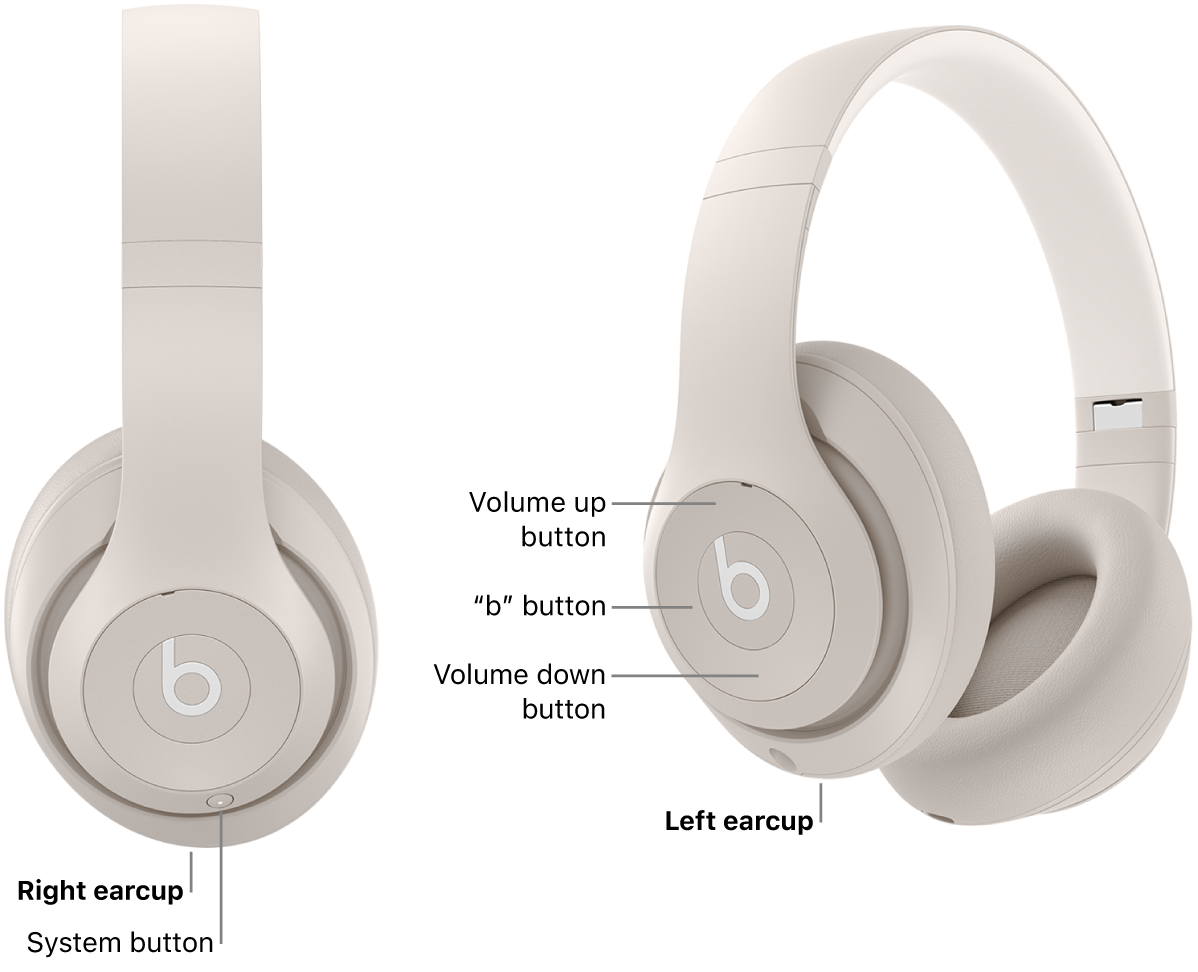
Turn on Bluetooth on the device you want to connect. Open the settings menu and find the Bluetooth option. Switch Bluetooth on to make your device discoverable. On your Beats headphones, press and hold the power button. Wait for the light to blink, showing Bluetooth is active.
Credit: support.apple.com
Activating Pairing Mode
Activating pairing mode on your Beats headphones is the first step to connect them to any device. This mode allows your headphones to find and link with your phone, tablet, or computer. The process is quick and simple. Follow these steps carefully to activate pairing mode and get your headphones ready to use.
Locating The Power Button
The power button is the key to turning on your Beats headphones. It is usually found on the side or bottom of the right ear cup. Look for a small, round button. Some models have a multi-function button that handles power and pairing. Check your headphones for any button with a power symbol or a small light nearby.
Initiating Pairing
Press and hold the power button for a few seconds. Keep holding until the LED light starts flashing. Flashing lights mean the headphones are in pairing mode. This makes them visible to nearby devices. On some models, you might hear a sound cue confirming pairing mode is active. Now, your headphones are ready to connect with your device.
Connecting To Your Device
Connecting your Beats headphones to a device is simple and fast. This step is crucial for enjoying wireless sound without interruption. Follow clear instructions to pair your headphones with any device easily.
Opening Bluetooth Settings
Start by unlocking your device. Find the Settings app and tap to open it. Look for the Bluetooth option and select it. Make sure Bluetooth is turned on. Your device will begin searching for nearby devices.
Selecting Beats Headphones
Turn on your Beats headphones and put them in pairing mode. Watch your device’s Bluetooth list for the name of your Beats headphones. Tap the name to connect. Wait a few seconds for confirmation. Your headphones are now ready to use.

Credit: treblab.com
Troubleshooting Connection Issues
Sometimes Beats headphones may not connect properly to your device. Connection issues can be frustrating but are often easy to fix. This section explains simple steps to troubleshoot common problems.
Resetting Your Headphones
Resetting Beats headphones clears temporary glitches. Press and hold the power button for 10 seconds. Lights will flash, signaling a reset. Turn them on and try pairing again.
Resetting often solves pairing errors or sound problems. It returns headphones to their default state. A quick reset can save time and effort.
Updating Firmware
Firmware updates improve headphone performance and fix bugs. Connect your Beats to the device with the Beats app or the device’s Bluetooth settings. Check for available updates.
Follow prompts to download and install updates. Updated firmware helps ensure smooth connection and better sound quality.
Checking Device Compatibility
Not all devices support Beats headphones fully. Check your device’s Bluetooth version and system requirements. Older devices may struggle to pair or maintain connection.
Use devices with Bluetooth 4.0 or higher for best results. Compatibility matters for stable and clear sound.
Optimizing Sound Quality
Optimizing sound quality is key to enjoying your Beats headphones fully. Good sound makes music clear and rich. Adjust settings and fit to get the best audio experience.
Adjusting Equalizer Settings
Equalizer settings control bass, mid, and treble levels. Change these to match your music style. Use the Beats app or your device’s audio settings. Start with a flat setting, then adjust slowly. Boost bass for hip-hop or lower it for vocals. Test different settings to find what sounds best.
Ensuring Proper Fit
A good fit blocks outside noise and keeps sound inside. Adjust the headband to sit comfortably on your head. Use ear tips that fit snugly in your ears. Try different sizes if your headphones have them. A tight fit improves bass and overall sound. Check for gaps or discomfort and fix them.

Credit: www.youtube.com
Frequently Asked Questions
How Do I Connect Beats Headphones To Bluetooth?
Turn on your Beats headphones by pressing the power button. Enable Bluetooth on your device. Select your Beats model from the Bluetooth list. Once connected, you’ll hear a confirmation sound. This process works for most smartphones, tablets, and computers.
Why Won’t My Beats Headphones Pair With My Phone?
Ensure your headphones are charged and in pairing mode. Restart Bluetooth on your phone and forget previous connections. Keep devices close together. If problems persist, reset your Beats headphones to factory settings and try again.
Can I Pair Beats Headphones With Multiple Devices?
Yes, Beats headphones can connect to multiple devices but only one at a time. Switch between devices by disconnecting one and connecting the other. Some models support automatic switching for added convenience.
How To Reset Beats Headphones For Pairing?
Hold the power button and volume down button for 10 seconds until the LED flashes. This resets the headphones and clears previous pairings. After resetting, repeat the pairing process with your device.
Conclusion
Pairing Beats headphones is simple and quick. Just follow the steps carefully. Ensure your device’s Bluetooth is turned on. Keep the headphones close to your device. Press the power button until the light blinks. Select your Beats from the device list.
Once connected, enjoy clear and wireless sound. Remember, troubleshooting helps if connection fails. Practice makes it easier each time. Now, enjoy music or calls without wires.
As an Amazon Associate, I earn from qualifying purchases.

