
Are you tired of tangled wires and limited movement while enjoying your music? Pairing your Bluetooth headphones might seem tricky, but once you know the simple steps, it becomes quick and hassle-free.
Imagine putting on your headphones and instantly connecting to your device without any fuss. You’ll discover exactly how to pair your Bluetooth headphones easily and confidently. Keep reading, and you’ll never struggle with connection issues again.
Prepare Your Headphones
Preparing your Bluetooth headphones is the first step to enjoy wireless sound. It ensures a smooth and fast connection to your device. Taking simple actions helps avoid pairing problems later.
Follow these steps to get your headphones ready.
Charge The Battery
Check the battery level before pairing. Low battery can cause connection issues. Plug your headphones into a charger using the original cable. Charge until the indicator shows full power. This step keeps the headphones working during pairing.
Turn On Pairing Mode
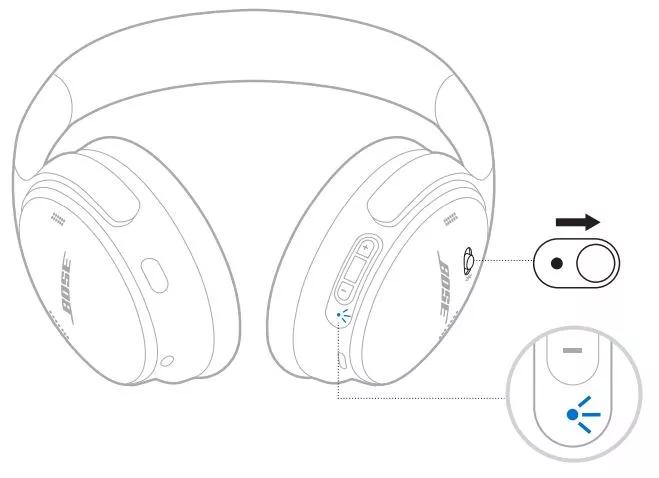
Activate pairing mode to make your headphones visible. Usually, hold the power button for a few seconds. Watch for a blinking light or sound signal. This means the headphones are ready to connect. Keep them close to your device for easy detection.
Activate Bluetooth On Your Device
Activating Bluetooth on your device is the first step to connect your headphones. This process allows your device to find and link with your Bluetooth headphones. It is simple and quick, helping you enjoy wireless sound in no time.
Open Bluetooth Settings
Start by opening the settings menu on your device. Look for the Bluetooth option. This is where you control all wireless connections. Tap on Bluetooth to open its settings page.
Enable Bluetooth
Switch on Bluetooth by tapping the toggle button. It usually changes color or moves to show it is active. Once on, your device will start searching for nearby Bluetooth devices automatically.
Find Your Headphones On The Device
Finding your Bluetooth headphones on your device is the next step in pairing. This step helps your device recognize the headphones. Once recognized, you can connect and start using them. The process is simple and quick. It only takes a few taps or clicks. Follow these steps to find your headphones easily.
Scan For Available Devices
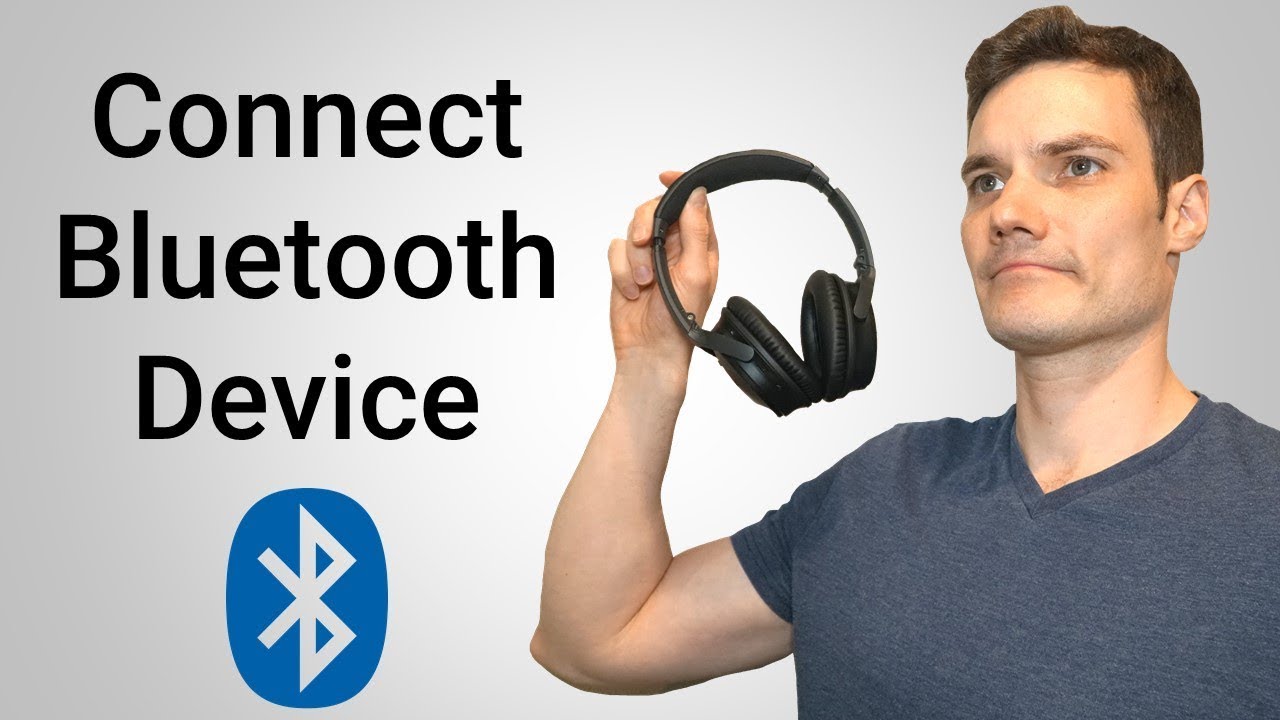
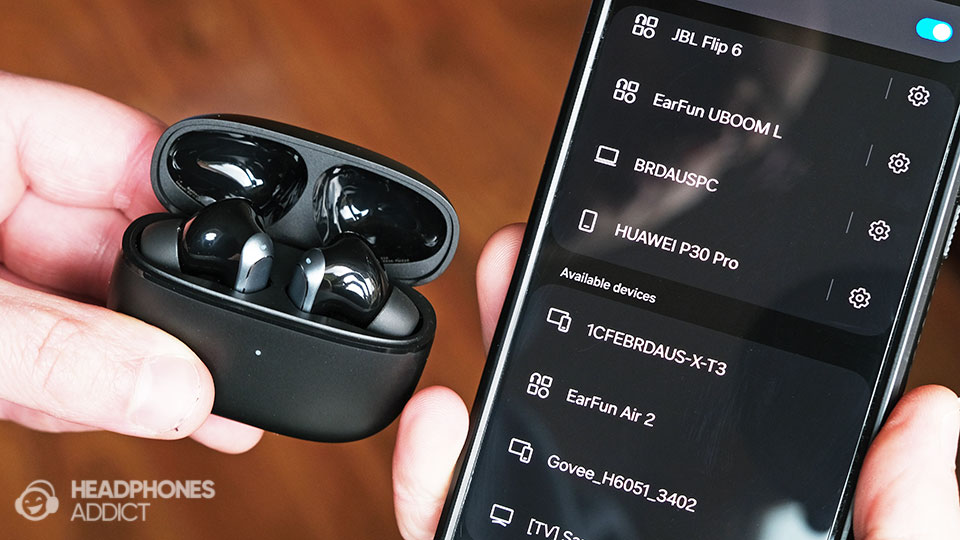
Turn on Bluetooth on your device. Open the Bluetooth settings menu. Tap on the option to scan for devices. Your device will search for nearby Bluetooth gadgets. Make sure your headphones are in pairing mode. They will appear in the list of available devices. Wait a few seconds for the scan to complete. Look for the name of your headphones in the list.
Select Your Headphones
Once you see your headphones, tap on their name. This tells your device to connect with them. Sometimes, a code may appear. Enter the code if needed to confirm pairing. After selection, wait for the connection to establish. Your device will notify you when it is ready. Now, your headphones are paired and ready to use.
Credit: www.youtube.com
Complete The Pairing Process
Completing the pairing process is the final step to connect your Bluetooth headphones. This step ensures your device and headphones talk to each other. Follow these simple instructions to finish the pairing smoothly.
Confirm Connection
After selecting your headphones on the device, wait for a confirmation. Your device should show a message like “Connected” or “Paired.” Sometimes, headphones beep or flash lights to signal connection. Check both your device and headphones to be sure.
If no confirmation appears, try turning Bluetooth off and on again. Then select the headphones once more. Patience helps here.
Enter Passcode If Needed
Some headphones ask for a passcode before connecting. The common code is usually “0000” or “1234.” Enter the code on your device if prompted.
If you don’t know the code, check your headphone’s manual or look online. Without the correct passcode, the connection will not complete. Stay calm and try again if the first code fails.
Test Audio And Adjust Settings
Testing audio and adjusting settings is the final step after pairing Bluetooth headphones. It ensures the sound plays clearly and fits your preferences. This step helps avoid problems during listening. Taking time here makes your experience better.
Play Audio To Check Connection
Start by playing a song or any sound on your device. Listen carefully to check if the audio comes through the headphones. No sound or poor quality means the connection may not be stable. Try pausing and playing again to confirm. If the sound is clear, the connection works fine.
Adjust Volume And Preferences
Set the volume to a comfortable level. Avoid very high volume to protect your ears. Use your device or headphone buttons to change volume. Some headphones have equalizer settings to change bass or treble. Experiment with these settings to find your best sound. Small changes can make a big difference.
Credit: headphonesaddict.com
Troubleshoot Common Issues
Troubleshooting Bluetooth headphones can save time and frustration. Many users face common issues that stop their devices from working well. This section covers simple fixes to these problems. Follow these tips to get your headphones working smoothly again.
Headphones Not Showing Up
Check if your headphones are in pairing mode. Turn them off and on again to reset. Make sure Bluetooth is active on your device. Move closer to your device to avoid distance problems. Clear old Bluetooth connections from your device. Restart your phone or computer. These steps often make your headphones appear.
Connection Drops
Keep your headphones and device close together. Avoid walls or objects that block signals. Turn off other Bluetooth devices nearby to reduce interference. Update your device’s Bluetooth software. Low battery in headphones can cause drops. Charge your headphones fully before use. Restart both devices to refresh the connection.
Audio Sync Problems
Audio delay can happen with Bluetooth headphones. Restart your headphones and device to fix this. Turn off and on Bluetooth on your device. Check for software updates for your headphones. Try using another app to see if the problem stays. Disconnect and reconnect the headphones. These tips usually fix audio lag issues.
Pairing Tips For Different Devices
Pairing Bluetooth headphones with different devices can vary slightly. Each device type has its own steps and settings. Understanding these helps create a smooth connection. This guide offers simple tips for various devices.
Pairing With Smartphones
Turn on your headphones and activate pairing mode. Open the Bluetooth settings on your smartphone. Look for your headphone name in the list. Tap it to connect. Wait for a confirmation sound or message. Keep the phone and headphones close for better connection.
Pairing With Laptops And Pcs
Enable Bluetooth on your laptop or PC first. Open the Bluetooth menu in system settings. Put your headphones in pairing mode. Click “Add a device” or similar option. Select your headphones from the list. Follow on-screen instructions to finish pairing. Restart the device if connection fails.
Pairing With Tablets And Other Devices
Tablets follow steps similar to smartphones. Open Bluetooth settings and find your headphones. Select the device to connect. For other gadgets like smart TVs, check the user manual. Usually, pairing mode and Bluetooth menu are the keys. Keep devices close and avoid interference from other electronics.
Credit: www.bose.co.uk
Frequently Asked Questions
How Do I Pair Bluetooth Headphones With My Phone?
Turn on your headphones and enable pairing mode. Open your phone’s Bluetooth settings, select your headphones from the list, and confirm the connection. Your phone will notify you once paired successfully.
Why Won’t My Bluetooth Headphones Connect?
Ensure your headphones are in pairing mode and close to your device. Restart both devices and clear old Bluetooth connections. Check for software updates and try pairing again.
Can I Pair Bluetooth Headphones With Multiple Devices?
Most Bluetooth headphones support pairing with multiple devices but connect to one at a time. Switch between devices by disconnecting from one and connecting to another in Bluetooth settings.
How Do I Reset My Bluetooth Headphones For Pairing?
Hold the power button and the volume down button together for 5-10 seconds. The headphones will reset, clearing previous pairings. This helps fix connection issues during pairing.
Conclusion
Pairing Bluetooth headphones is simple with the right steps. Turn on your headphones and your device’s Bluetooth. Find the headphones in the list and tap to connect. Wait a few seconds for the devices to link. Sound should play through the headphones once connected.
If it does not, try restarting both devices. Practice a few times to get comfortable with the process. Enjoy wireless sound without tangled cords. Following these easy tips helps you stay connected anywhere. Keep your headphones charged and ready to use anytime.
As an Amazon Associate, I earn from qualifying purchases.

