You just got your new Bose earbuds, and now it’s time to enjoy crystal-clear sound with your iPhone. But how do you connect them quickly and easily?
You might feel stuck or frustrated if the pairing process isn’t straightforward. Don’t worry—this guide will walk you through every step to get your earbuds paired in no time. By the end, you’ll be ready to dive into your favorite music, podcasts, or calls without any hassle.
Keep reading to unlock the simple secrets to pairing your Bose earbuds with your iPhone effortlessly.

Credit: www.youtube.com
Prepare Your Devices
Preparing your devices is the first step to pair Bose earbuds with your iPhone. This step ensures both devices are ready to connect smoothly. Without proper preparation, pairing may fail or take longer than expected.
Follow simple steps to get your earbuds and iPhone ready. This will save time and avoid frustration during the pairing process.
Charge Bose Earbuds
Make sure your Bose earbuds have enough battery. Low power can stop them from turning on or pairing. Place the earbuds in their charging case. Connect the case to a power source using the charging cable. Wait until the earbuds are fully charged. This usually takes about 1-2 hours. A full battery helps keep the connection strong and stable.
Turn On Bluetooth On Iphone
Bluetooth lets your iPhone connect to wireless devices like earbuds. Open the Settings app on your iPhone. Find and tap the Bluetooth option. Switch Bluetooth to the “On” position. Your iPhone will start searching for nearby devices. Keep this screen open to see your Bose earbuds appear. Do not close the Settings app until pairing is complete.
Enable Pairing Mode On Bose Earbuds
Enabling pairing mode on your Bose earbuds is the first step to connect them with your iPhone. This mode lets your earbuds find nearby devices. It prepares them to link with your iPhone quickly. Follow simple steps to activate this mode and enjoy wireless sound.
Power On Earbuds
Take your Bose earbuds out of the case. Press and hold the power button for a few seconds. You will hear a sound or see a light. This shows the earbuds are on. Make sure both earbuds are powered on for best results.
Activate Pairing Mode
Keep holding the power button after earbuds turn on. Watch for a blinking blue light or hear a voice prompt. This signals the earbuds are in pairing mode. Now, they are ready to connect to your iPhone.
Connect Bose Earbuds To Iphone
Connecting Bose earbuds to your iPhone is simple. You can enjoy clear sound quickly by pairing the devices. This process only takes a few steps. Follow the instructions below to get started.
Open Bluetooth Settings
First, unlock your iPhone and open the Settings app. Scroll down and find the Bluetooth option. Tap on Bluetooth to open the menu. Make sure Bluetooth is switched on. This allows your iPhone to search for nearby devices.
Select Bose Earbuds From List
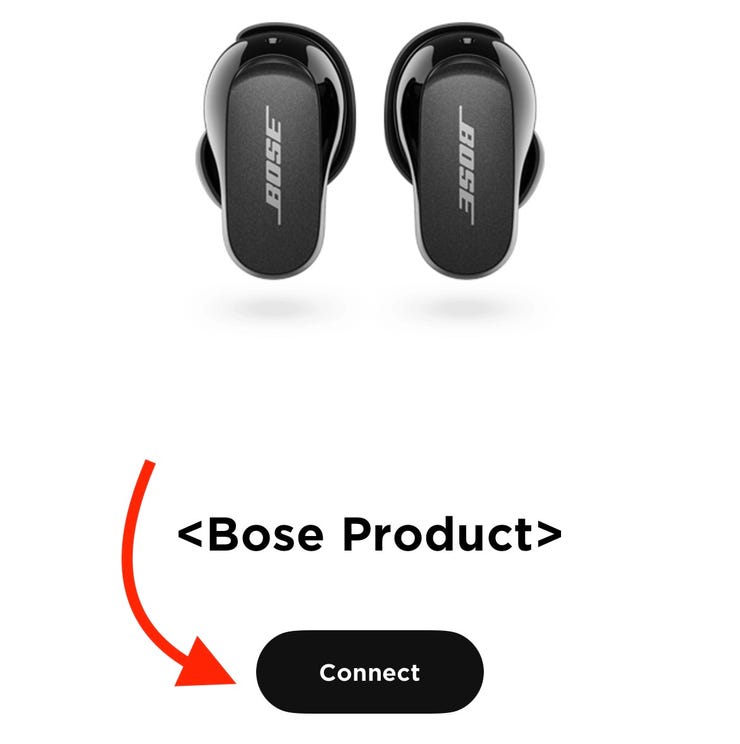
Put your Bose earbuds in pairing mode. They will appear in the list of available devices. Look for the name of your Bose earbuds on the screen. Tap the earbuds’ name to connect. Wait a moment while your iPhone pairs with the earbuds.
Credit: www.flumidieselbosch.com.br
Troubleshoot Connection Issues
Sometimes Bose earbuds may not connect well to your iPhone. Connection issues can stop music or calls. This section shows easy steps to fix common problems. Follow these tips to get your earbuds working smoothly again.
Reset Bluetooth On Iphone
Turn off Bluetooth on your iPhone first. Wait a few seconds. Turn Bluetooth back on. This simple step refreshes the connection system. It often solves minor glitches quickly. Check if your earbuds connect after this reset.
Restart Bose Earbuds
Turn off your Bose earbuds completely. Wait about 10 seconds. Turn them back on to restart. Restarting clears temporary errors inside the earbuds. It helps the earbuds connect fresh to your iPhone. Try pairing again after the restart.
Forget And Reconnect Devices
Open Bluetooth settings on your iPhone. Find your Bose earbuds in the list. Tap “Forget This Device” to remove them. Now, put earbuds in pairing mode. Search for earbuds again on your iPhone. Select them to reconnect. This resets the link between devices and fixes many issues.
Optimize Earbud Settings
Optimizing your Bose earbuds settings enhances your listening experience. It helps you enjoy clear sound and easy control. Adjusting volume and customizing controls on your iPhone makes using earbuds simple and fun. This section guides you through these quick steps to get the best from your earbuds.
Adjust Volume And Sound
Start by setting the volume to a comfortable level. Use the buttons on your Bose earbuds or your iPhone’s volume controls. Avoid loud sounds to protect your hearing. You can also open the iPhone’s Control Center to adjust volume smoothly.
For better sound quality, check the iPhone’s equalizer settings. Go to Settings, then Music, and tap Equalizer. Choose a preset like Bass Booster or Vocal Booster. This changes how your music sounds through the earbuds.
Customize Controls On Iphone
Your iPhone lets you change how the earbuds respond to taps and presses. Go to Settings, then Bluetooth. Find your Bose earbuds on the list and tap the info icon next to them. Here, you can assign functions to single, double, or long press commands.
Set controls for play, pause, skip tracks, or activate Siri. This saves time and keeps your phone in your pocket. Customizing controls makes your earbuds work the way you want.
Credit: support.bose.com
Frequently Asked Questions
How Do I Connect Bose Earbuds To Iphone?
Turn on your Bose earbuds and enable Bluetooth on your iPhone. Select your earbuds from the device list. Follow on-screen prompts if needed. Your earbuds will pair and connect automatically.
Why Won’t My Bose Earbuds Pair With Iphone?
Ensure your earbuds are in pairing mode and Bluetooth is on. Restart both devices and try again. Update your iPhone’s iOS and reset your earbuds if problems persist.
Can I Use Bose Earbuds With Multiple Iphones?
Yes, Bose earbuds can pair with multiple iPhones but connect to one at a time. Disconnect from one iPhone before connecting to another for seamless switching.
How To Reset Bose Earbuds For Iphone Pairing?
Power off your earbuds, then press and hold the power button for 10 seconds. Release when the LED indicator flashes. Your earbuds are reset and ready for new pairing.
Conclusion
Pairing Bose earbuds with an iPhone is quick and simple. Just follow the steps carefully. Keep your earbuds close to your phone during the process. Make sure Bluetooth is turned on in your iPhone settings. Once connected, enjoy clear sound and wireless freedom.
Troubleshoot by restarting devices if pairing fails. Now, you can listen to music or take calls easily. This setup works well for everyday use. Try it today and experience hassle-free audio connection.
As an Amazon Associate, I earn from qualifying purchases.