
Are you ready to enjoy crystal-clear sound with your Bose headphones and iPhone? Pairing these two devices might seem tricky at first, but it’s actually quick and simple.
Once connected, you’ll experience amazing audio whether you’re on a call, listening to music, or watching videos. In this guide, you’ll learn exactly how to pair your Bose headphones to your iPhone step-by-step. Keep reading, and you’ll be set up in no time—no frustration, just great sound.
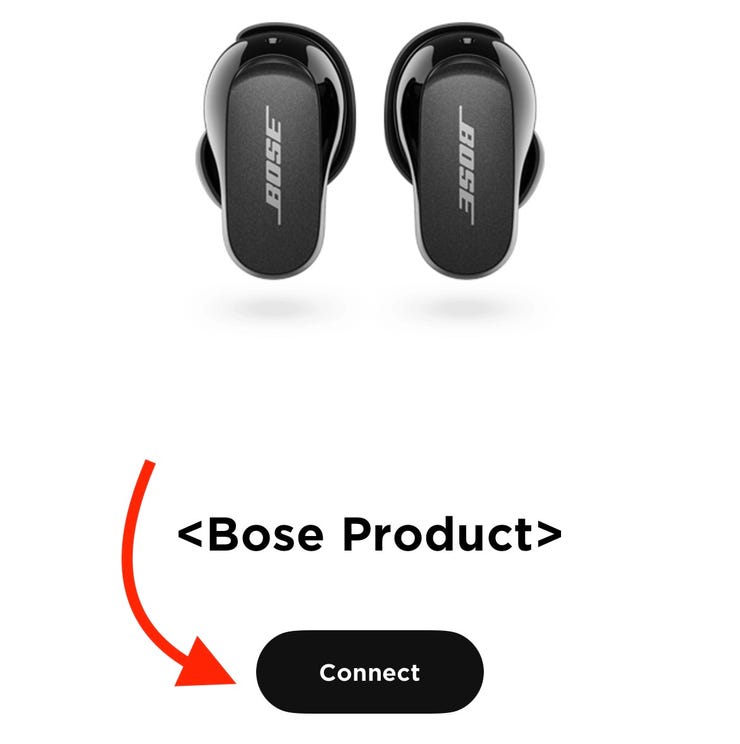
Credit: theiideacompany.com
Prepare Your Bose Headphones
Preparing your Bose headphones is the first step to pairing them with your iPhone. It ensures the headphones are ready to connect without issues. Proper preparation saves time and avoids frustration.
Charge The Headphones
Make sure your Bose headphones have enough battery. A low battery can stop the pairing process. Use the original charger or a compatible one. Charge the headphones fully or at least 50% for a stable connection. A good charge helps the headphones work smoothly during pairing.
Turn On Bluetooth Pairing Mode
Power on your Bose headphones. Find the Bluetooth button or switch. Press and hold it until the LED light flashes blue or white. This flashing means the headphones are in pairing mode. The headphones now wait to connect to your iPhone. Avoid pressing other buttons during this step.
:max_bytes(150000):strip_icc()/001-how-to-connect-bose-headphones-to-iphone-4767807-01d0cf9dea7b4e2a9c9cef4a8619a322.jpg)
Credit: www.lifewire.com
Enable Bluetooth On Your Iphone
Before pairing your Bose headphones with an iPhone, the first step is to enable Bluetooth. Bluetooth lets your iPhone connect wirelessly to devices like headphones. Without turning on Bluetooth, your iPhone cannot find or link to your Bose headphones. This process is quick and simple.
Follow these steps to enable Bluetooth on your iPhone so you can start pairing your headphones.
Access Bluetooth Settings
Open the Settings app on your iPhone. This app has a gray icon with gears. Scroll down and tap on “Bluetooth.” This opens the Bluetooth menu where you can control your wireless connections. Here, you see a list of devices already connected or available.
Turn On Bluetooth
In the Bluetooth menu, find the toggle switch next to the word “Bluetooth.” Tap the switch to turn it on. The switch will turn green, showing Bluetooth is active. Your iPhone will start searching for nearby devices, including your Bose headphones. Keep this screen open for easy pairing.
Connect Bose Headphones To Iphone
Connecting Bose headphones to your iPhone is simple and quick. It lets you enjoy clear sound without wires. Follow easy steps to pair your devices and start listening.
Find Bose Headphones In Device List
Turn on your Bose headphones and enable Bluetooth pairing mode. Open the Settings app on your iPhone. Tap on Bluetooth and make sure it is turned on. Look for your Bose headphones name under “Other Devices.” It may take a few seconds to appear.
Complete The Pairing Process
Tap the Bose headphones name from the device list. Wait for the iPhone to connect and pair. You might hear a confirmation sound from the headphones. Once connected, the headphones move to “My Devices” list. Now, you can play music or make calls wirelessly.
Troubleshoot Connection Issues
Connection problems can stop your Bose headphones from working with your iPhone. These issues might cause sound to cut out or no sound at all. Simple steps can fix most problems quickly. Try these easy ways to get your headphones working again.
Restart Devices
Turn off your iPhone and Bose headphones. Wait about 30 seconds. Turn them back on. Restarting clears temporary glitches. This step often restores a good connection fast.
Forget And Re-pair Headphones
Open Bluetooth settings on your iPhone. Find your Bose headphones in the list. Tap “Forget This Device.” After that, put your headphones in pairing mode. Search and connect them to your iPhone again. This refreshes the link between devices.
Update Firmware And Ios
Check for updates on your Bose headphones using the Bose app. Also, go to iPhone Settings and tap General > Software Update. Installing the latest firmware and iOS fixes bugs. It improves performance and connection stability.
Optimize Your Listening Experience
Optimizing your listening experience makes your music clearer and more enjoyable. Small changes can improve sound quality a lot. You can customize settings to fit your style and environment. This helps you get the best sound from your Bose headphones and iPhone.
Adjust Volume And Sound Settings
Start by setting the volume to a comfortable level. Too loud can hurt your ears, too low may miss details. Use the iPhone’s volume buttons for quick changes. Check the sound settings in your iPhone’s Control Center. Adjust the equalizer to boost bass or treble if needed. This lets you match the sound to your music type. Try different settings to find what sounds best to you.
Use Bose Connect App
Download the Bose Connect app from the App Store. The app helps you control headphone features easily. You can update firmware, which improves performance and fixes bugs. It also lets you customize sound modes like noise cancellation. Use the app to check battery life and manage device connections. The app adds extra control beyond your iPhone’s settings.
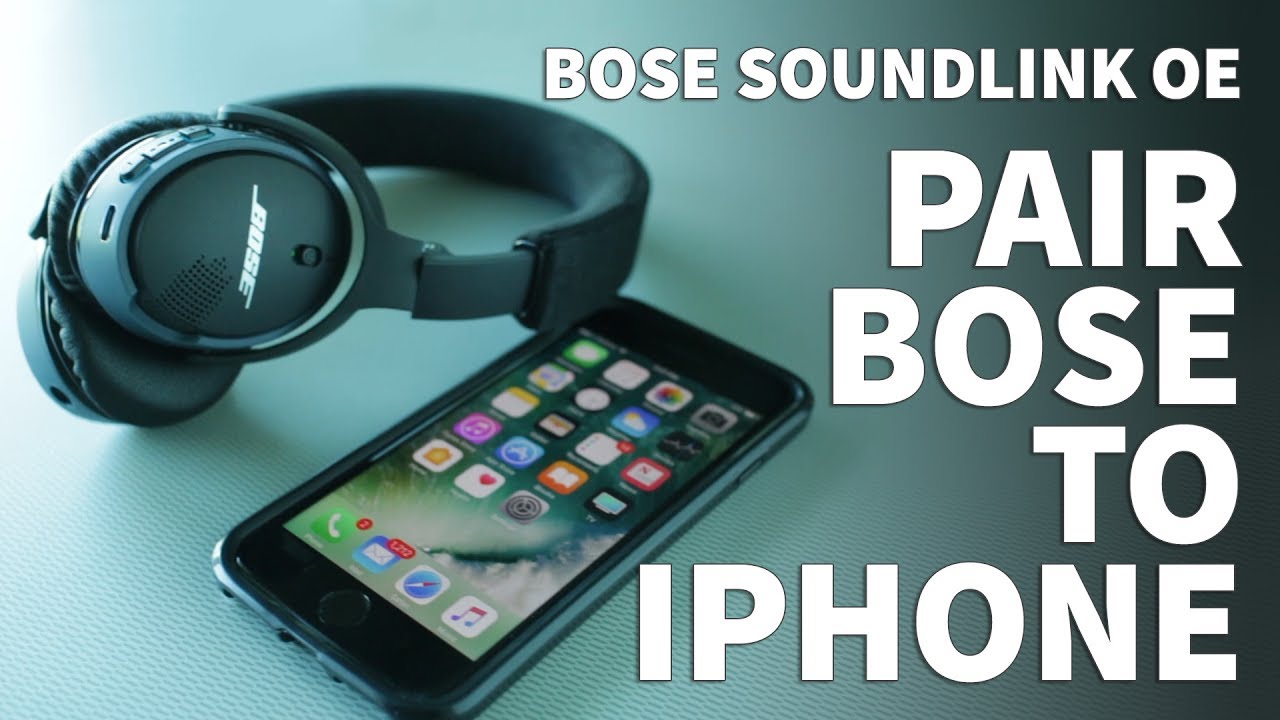
Credit: www.youtube.com
Frequently Asked Questions
How Do I Connect Bose Headphones To Iphone?
Turn on Bluetooth on your iPhone. Press and hold the Bose headphones’ power button until the Bluetooth light blinks. Select your Bose headphones from the iPhone’s Bluetooth device list to pair and connect.
Why Won’t My Bose Headphones Pair With Iphone?
Ensure your headphones are in pairing mode and Bluetooth is enabled on your iPhone. Restart both devices if needed. Also, forget the device in Bluetooth settings and try pairing again.
Can I Use Bose Headphones With Multiple Iphones?
Yes, Bose headphones can pair with multiple iPhones but connect to only one device at a time. Switch devices by disconnecting from one iPhone and pairing with the other.
How To Fix Bluetooth Connection Issues With Bose Headphones?
Reset your Bose headphones by turning them off and on. Restart your iPhone. Update both devices’ software. Remove old Bluetooth connections and try pairing again.
Conclusion
Pairing Bose headphones with an iPhone is simple and quick. Just follow the steps carefully for a smooth connection. Once paired, enjoy clear sound and wireless freedom. Remember to keep your devices close during the process. If any issues arise, restarting both devices often helps.
This easy setup lets you enjoy music, calls, and more without hassle. Stay connected and enjoy your Bose headphones with your iPhone anytime.
As an Amazon Associate, I earn from qualifying purchases.

