
Are you ready to unlock the full potential of your Bose QC Ultra headphones? Pairing them correctly is the first step to experiencing crystal-clear sound and unbeatable comfort.
But if you’ve ever felt frustrated trying to connect your headphones, you’re not alone. This guide will walk you through simple, step-by-step instructions that anyone can follow. By the end, you’ll be enjoying your favorite music, calls, or podcasts without any hassle.
Keep reading—you’re just moments away from seamless sound.
Credit: support.bose.com
Prepare Your Bose Qc Ultra
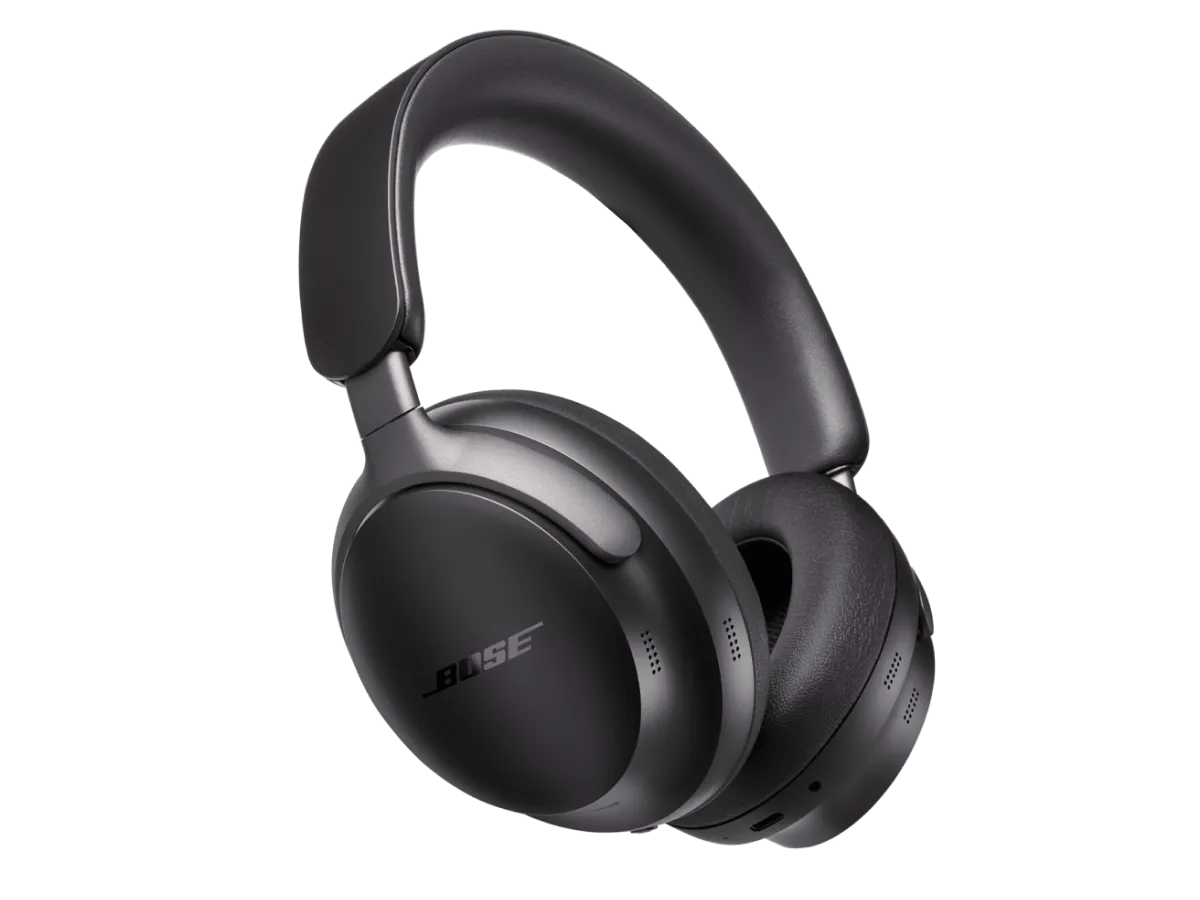
Preparing your Bose QC Ultra headphones is the first step to enjoy clear and powerful sound. This section guides you through simple steps to get your headphones ready for pairing. Follow these easy instructions to make the process smooth and fast.
Start by checking the battery level. A charged battery ensures no interruptions during pairing. Then, power on the headphones and set them to pairing mode. This makes them discoverable by your device.
Charge The Headphones
Connect the charging cable to the headphones. Use the original charger for best results. Plug the other end into a power source. Let the headphones charge fully before pairing. A full battery gives better performance and longer use.
The charging light will turn off or change color when done. Avoid disconnecting early to keep the battery healthy.
Power On And Enter Pairing Mode
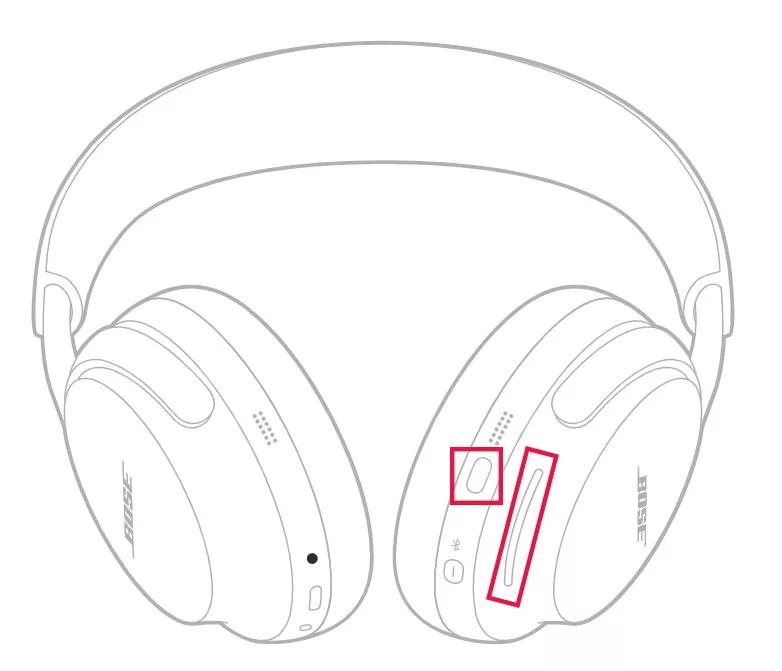
Press and hold the power button for a few seconds. Listen for a voice prompt or beep. This confirms the headphones are on.
Keep holding the power button until the Bluetooth light flashes. Flashing means the headphones are in pairing mode. Now, they are ready to connect with your device.
Pair With A Smartphone
Pairing your Bose QC Ultra headphones with a smartphone is simple. It lets you enjoy music and calls without wires. Follow clear steps to connect quickly and easily.
Start by preparing your phone and headphones for connection. The process takes only a few moments.
Enable Bluetooth On Your Device
Open your smartphone’s settings menu. Find the Bluetooth option and tap it. Turn Bluetooth on by sliding the switch to the right. Your phone will start searching for nearby devices.
Select Bose Qc Ultra From Bluetooth List
Look at the list of available devices on your screen. Find and tap “Bose QC Ultra” to connect. Wait a few seconds for pairing to complete. A confirmation message or sound will tell you the headphones are ready.
Connect To Other Devices
Connecting your Bose QC Ultra headphones to various devices makes your audio experience flexible and enjoyable. These headphones work well with many gadgets beyond your phone. This section explains how to pair them with laptops, PCs, tablets, and smart TVs.
Pair With A Laptop Or Pc
Turn on your Bose QC Ultra headphones and enter pairing mode by holding the power button. Open Bluetooth settings on your laptop or PC. Find the headphones in the list of available devices. Click to connect. Wait a moment for the connection to complete. Your headphones are ready to use for calls, music, or videos.
Use With Tablets And Smart Tvs
Make sure your tablet or smart TV supports Bluetooth. Turn on your headphones and activate pairing mode. Open Bluetooth settings on the tablet or TV. Select Bose QC Ultra from the list of devices. Confirm the connection. Enjoy clear sound for shows, games, and apps without wires.
Troubleshoot Connection Issues
Connection issues can stop your Bose QC Ultra headphones from working right. Troubleshooting helps fix these problems fast. Follow simple steps to get your headphones paired and working again. This saves time and avoids frustration.
Reset Bose Qc Ultra
Resetting your Bose QC Ultra can clear many connection problems. Turn off the headphones first. Then press and hold the power button for 10 seconds. Release the button when you see the light flash. This resets the device and clears old settings. Try pairing again after the reset.
Fix Bluetooth Detection Problems
Bluetooth detection may fail due to device settings. Turn off Bluetooth on your phone or computer. Wait a few seconds, then turn it back on. Make sure your headphones are in pairing mode. Keep the headphones close to your device. Remove old Bose QC Ultra from the device’s Bluetooth list. This lets your device find the headphones fresh. Try to connect again after these steps.
Tips For Better Connectivity
Good connectivity makes your Bose QC Ultra headphones work better. It helps keep the sound clear and stops the music from cutting out. Follow these tips to improve your connection and enjoy your headphones more.
Keep Firmware Updated
Check for firmware updates often. Updates fix bugs and improve connection quality. Use the Bose app to see if an update is available. Installing updates keeps your headphones running smoothly.
Avoid Interference And Distance Limits
Stay close to your device for the best signal. Bluetooth works best within 30 feet. Walls, other devices, and Wi-Fi can cause interference. Move away from these obstacles to keep the sound steady.
Credit: www.bose.com.au

Credit: www.youtube.com
Frequently Asked Questions
How Do I Turn On Bose Qc Ultra Headphones?
Press and hold the power button for 2 seconds. The headphones will power on with a voice prompt. Make sure they are charged before pairing.
How To Enable Bluetooth Pairing Mode On Bose Qc Ultra?
Press and hold the Bluetooth button until the LED blinks blue. This indicates the headphones are in pairing mode and ready to connect.
Can I Pair Bose Qc Ultra With Multiple Devices?
Yes, the Bose QC Ultra supports multipoint pairing. You can connect two devices simultaneously for seamless switching.
How To Connect Bose Qc Ultra To An Iphone?
Enable Bluetooth on your iPhone and select “Bose QC Ultra” from available devices. Confirm the connection to start using the headphones.
Conclusion
Pairing Bose QC Ultra headphones is quick and simple. Just follow the steps carefully. Your device will connect smoothly and sound quality will be clear. Enjoy wireless freedom with your favorite music or calls. Keep your headphones charged for best performance.
Troubleshoot only if needed, using the guide provided. Now, you can experience comfort and great sound anytime. Happy listening!
As an Amazon Associate, I earn from qualifying purchases.

