
Are you tired of seeing the taskbar clutter your second monitor? It can be distracting and take up valuable screen space when you don’t want it there.
If you’ve been searching for a simple way to remove the taskbar from your second monitor, you’re in the right place. You’ll discover easy steps that anyone can follow to fix this annoyance quickly. Keep reading, and you’ll regain control over your screen setup in no time.

Credit: softwareg.com.au
Why Remove Taskbar From Second Monitor
Removing the taskbar from the second monitor can improve your workspace. It reduces clutter and helps you focus on the main screen. Many users find the taskbar on both monitors distracting.
Keeping the taskbar only on the primary monitor creates a cleaner look. It also prevents accidental clicks on the second screen. This simple change can make your dual-monitor setup feel more organized.
Improved Focus On Primary Tasks
The taskbar on the second monitor can draw attention away from important work. Removing it helps keep your eyes on the main screen. This reduces distractions and improves concentration.
Less Screen Clutter
Two taskbars can make the screen look crowded. A single taskbar clears up space on the second monitor. This creates a simpler and tidier desktop view.
Prevents Accidental Clicks
The second taskbar can cause unintentional clicks. This interrupts your workflow and slows you down. Removing it helps avoid these mistakes and keeps you productive.
Better Use Of Screen Space
Without the second taskbar, more space is available for apps. This is helpful for large projects or detailed work. It allows you to use your screen more efficiently.
Check Your Windows Version
Knowing your Windows version helps to find the right steps for removing the taskbar from a second monitor. Different versions may have different settings or options. Check it first to make the process easier and faster.
How To Find Your Windows Version
Before removing the taskbar from your second monitor, check your Windows version. Different versions have different settings. This step helps you follow the right instructions.
To find your Windows version, press the Windows key and R at the same time. Type winver in the box and press Enter. A window will appear showing your version number and edition.
Why Windows Version Matters
Taskbar behavior changes between Windows versions. Windows 10 and Windows 11 handle multiple monitors differently. Knowing your version saves time and avoids confusion.
For example, Windows 10 lets you hide the taskbar on all monitors except the main one. Windows 11 has more limited options. Some features may not work on older versions.
Check For Windows Updates
Keeping Windows updated can improve multi-monitor support. Updates sometimes add new features or fix bugs. Open Settings, go to Update & Security, and click Check for updates.
Installing updates may help you control the taskbar better. After updating, revisit your taskbar settings. The options available might have changed with the new update.
Access Taskbar Settings
Access Taskbar Settings by right-clicking the taskbar and selecting “Taskbar settings. ” Find the option to show the taskbar on multiple displays and turn it off to remove it from the second monitor. This keeps your main screen taskbar clear and simple.
Open The Settings Menu
Start by clicking the Start button at the screen’s bottom-left corner.
Then, select the gear icon to open the Settings menu.
This menu holds many options to customize your Windows experience.
Navigate To Personalization
Inside Settings, find and click on the “Personalization” option.
This section lets you change your desktop, colors, and taskbar settings.
Find Taskbar Settings
Look for “Taskbar” in the left sidebar of Personalization.
Click on it to open detailed taskbar options.
Here, you can adjust taskbar visibility on multiple monitors.
Disable Taskbar On Second Monitor
Disabling the taskbar on a second monitor helps create a cleaner desktop. It also reduces distractions while working or watching videos. The process is simple and does not require extra software.
This section explains how to turn off the taskbar on your second screen. Follow the steps carefully to make your setup neat and focused.
Open Taskbar Settings
Right-click on the main taskbar. Select “Taskbar settings” from the menu. This opens the taskbar customization window.
Locate Multiple Displays Section
Scroll down to find the “Multiple displays” area. This section controls taskbar behavior on extra monitors.
Turn Off Taskbar On Second Monitor
Find the option labeled “Show taskbar on all displays.” Toggle it off. This will remove the taskbar from the second monitor immediately.
Check The Result
Look at your second monitor. The taskbar should no longer appear there. Your main screen keeps the taskbar visible.
Customize Taskbar Behavior
Customizing the taskbar behavior helps you control how it looks and works on multiple screens. You can change its style and decide where it appears. This makes your desktop cleaner and easier to use.
Adjust Taskbar Appearance
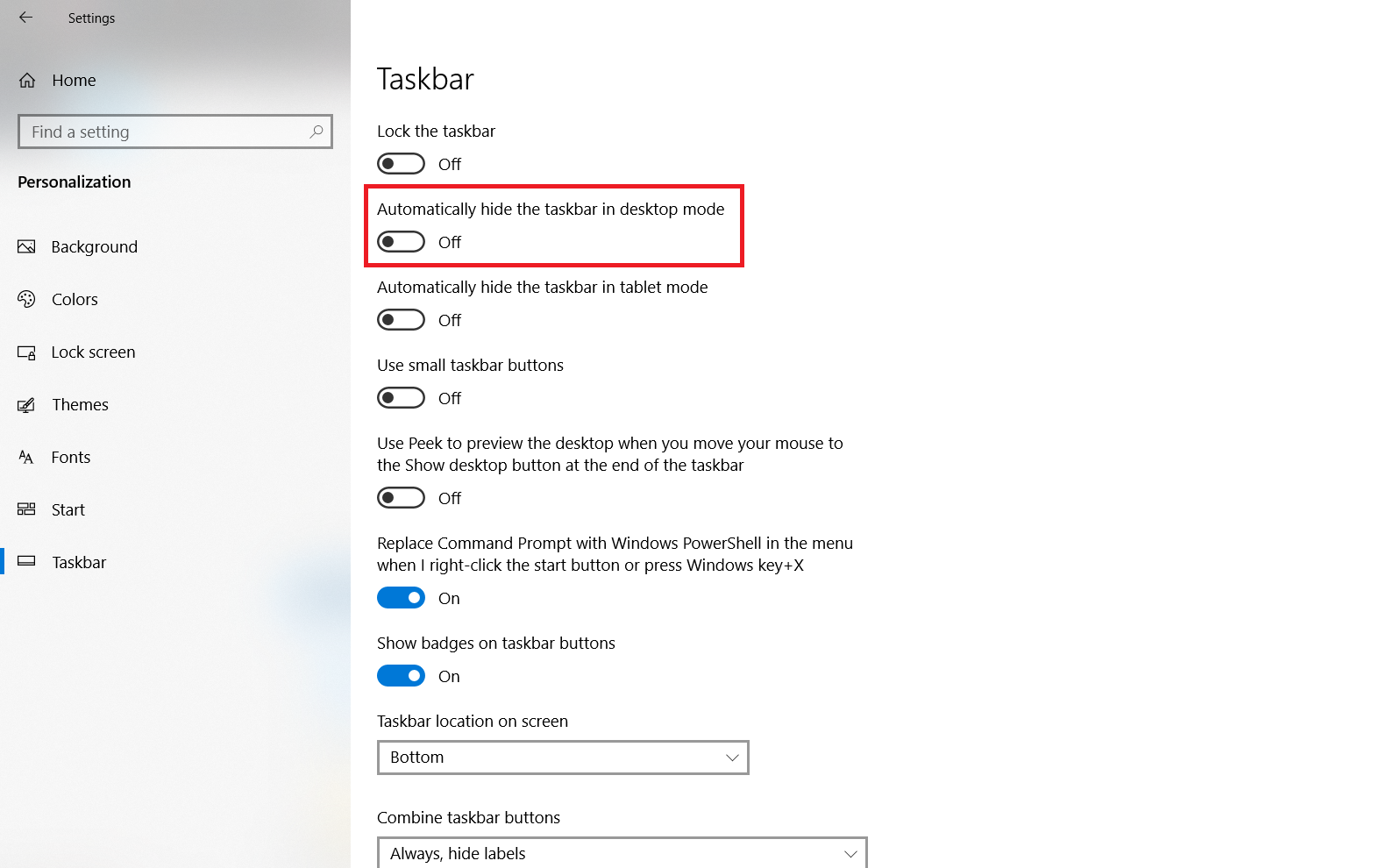
Start by right-clicking the taskbar and selecting “Taskbar settings.” Here, you can change colors and size. Choose if the taskbar stays small or large. You can also hide the taskbar when not in use. This keeps your screen tidy.
Turning off taskbar buttons on the second monitor removes clutter. You may also decide whether to show labels or just icons. These options help the taskbar fit your style.
Manage Multiple Displays
Windows lets you control taskbars on multiple screens separately. In “Taskbar settings,” find the option “Multiple displays.” Toggle it on or off to show or hide the taskbar on your second monitor.
Choose where taskbar buttons appear: on all taskbars, main taskbar only, or the taskbar where the window is open. This makes switching between screens smooth.
Adjusting these settings gives you full control over your workspace. Your second monitor’s taskbar can be removed or customized easily.
Credit: www.alphr.com
Use Third-party Tools
Using third-party tools is a practical way to remove the taskbar from a second monitor. These tools give more control over multi-monitor setups. They help customize how the taskbar appears on each screen.
Such software can hide or disable the taskbar on the secondary display. Some also offer extra features like taskbar management and window organization. They are easy to use and do not require deep technical skills.
Popular Software Options
DisplayFusion is a well-known tool for managing multiple monitors. It lets users control taskbars separately on each screen. Another option is UltraMon, which offers taskbar settings and screen management.
MultiMonitorTool is a lightweight program that provides basic taskbar control. It is free and simple to use. Actual Multiple Monitors is also popular for advanced taskbar customization and more.
Installation And Setup
Download the chosen software from its official website. Run the installer and follow the instructions on screen. Most tools have a straightforward setup process.
After installation, open the program and access the taskbar settings. Look for options to disable or hide the taskbar on the second monitor. Apply the changes and check your screens.
Adjust settings until the taskbar appears only on your main monitor. Restarting the system may help apply some changes fully. These tools make managing multiple displays much simpler.
Troubleshooting Common Issues
Troubleshooting common issues helps fix problems fast. Removing the taskbar from a second monitor can face some hurdles. These issues can stop changes from working properly. Understanding common problems saves time and keeps your setup neat.
Below are common problems users face and ways to resolve them. Follow these steps to get a clean taskbar only on your main screen.
Taskbar Still Showing
Sometimes, the taskbar stays on the second monitor even after trying to remove it. This happens when taskbar settings do not update correctly. Open Taskbar settings and check if “Show taskbar on all displays” is off. If it is on, switch it off and restart your PC. This step usually hides the taskbar from extra screens.
If the taskbar still shows, try restarting Windows Explorer. Press Ctrl + Shift + Esc, find “Windows Explorer,” right-click, and select “Restart.” This refreshes the taskbar and often solves the problem.
Display Settings Conflicts
Conflicts in display settings can cause the taskbar to appear on the wrong monitor. Check the Display settings by right-clicking the desktop and selecting “Display settings.” Make sure the main display is set correctly. The main display controls where the taskbar appears.
If monitors are not arranged properly, drag the screen icons to match your physical setup. Incorrect arrangement can confuse Windows and keep the taskbar on the second monitor. Apply changes and test again.
Check for duplicate display modes like “Duplicate” instead of “Extend.” Duplicated screens show the same taskbar on both monitors. Change the mode to “Extend” to fix this issue.
Tips For Multi-monitor Setup
Setting up multiple monitors can boost your productivity and improve your workspace. It allows you to see more at once and work faster. But managing multiple screens needs some care. Small changes can make a big difference in how smooth your setup feels.
These tips help you keep your multi-monitor setup clear and easy to use. They focus on making your taskbar and screen space work better for you.
Adjust Taskbar Settings For Each Monitor
Windows lets you choose if the taskbar shows on all screens or just one. You can turn off the taskbar on the second monitor to reduce clutter. Open the taskbar settings and find the option for multiple displays. Uncheck “Show taskbar on all displays” to keep it only on the main screen.
Use Display Settings To Arrange Screens
Align your monitors in the display settings to match their physical layout. This makes moving your mouse between screens smooth and natural. Drag and drop the screen icons until they match your desk setup. This small step helps prevent confusion and wasted time.
Choose A Primary Monitor
Set one monitor as your main screen. This decides where the Start menu and taskbar appear. Pick the monitor you use most or the one in the center of your view. The primary monitor will hold key apps and notifications.
Customize Taskbar Behavior For Productivity
Change how icons and apps show on the taskbar for each screen. You can make the taskbar show only open windows on that screen. This keeps your taskbar simple and focused. It stops the taskbar from getting crowded or confusing.

Credit: www.youtube.com
Frequently Asked Questions
How Can I Remove The Taskbar From My Second Monitor?
To remove the taskbar from your second monitor, go to Settings > Personalization > Taskbar. Then, disable “Show taskbar on all displays. ” This hides the taskbar only on the primary monitor, keeping your workspace clutter-free.
Why Does The Taskbar Appear On Both Monitors?
The taskbar appears on both monitors by default to improve multi-monitor navigation. Windows duplicates the taskbar for easy access. You can disable this in Taskbar settings to keep it on just one screen.
Can I Customize Taskbar Settings For Multiple Monitors?
Yes, Windows allows taskbar customization for multiple monitors. You can choose to show or hide the taskbar on each display. Adjust these options under Taskbar settings for a personalized multi-monitor setup.
Does Removing The Second Monitor’s Taskbar Affect Primary Monitor?
No, removing the taskbar from the second monitor does not affect the primary one. Your main taskbar remains functional and visible, ensuring smooth workflow on your main screen.
Conclusion
Removing the taskbar from your second monitor is simple and quick. You just need to change a few settings in Windows. This lets you keep your workspace tidy and focus better. Try these steps today to see how much easier your screen feels.
A clean desktop makes work and play more enjoyable. Keep your monitors organized for a smoother experience every day.
As an Amazon Associate, I earn from qualifying purchases.

