
Are your Bose headphones not working the way they used to? Maybe the sound is glitchy, or they won’t connect to your device.
Don’t worry—you can fix many common issues by simply resetting your headphones. In this guide, you’ll learn exactly how to reset your Bose headphones step-by-step. By the end, you’ll have them working like new again. Keep reading, and take control of your listening experience right now.
Reset Methods For Bose Headphones
Resetting Bose headphones can solve many common issues. Problems like sound glitches, connection errors, or freezing often fix with a reset. Different reset methods suit different problems. Some resets keep your settings, while others erase all customizations. This section explains the main reset methods for Bose headphones.
Soft Reset Steps
A soft reset fixes minor glitches without deleting settings. First, power off your headphones. Wait for about 30 seconds. Press the power button again to turn them on. This simple step refreshes the system. It often resolves small bugs and sound issues. Try this before other reset methods.
Factory Reset Process
A factory reset clears all data and settings. Use this when problems persist after a soft reset. Press and hold the power button for 10 seconds. Wait until the LED indicator flashes or changes color. Release the button once the light signals reset. Your headphones will restart with factory settings. Remember, this deletes saved connections and preferences.
Resetting Specific Models
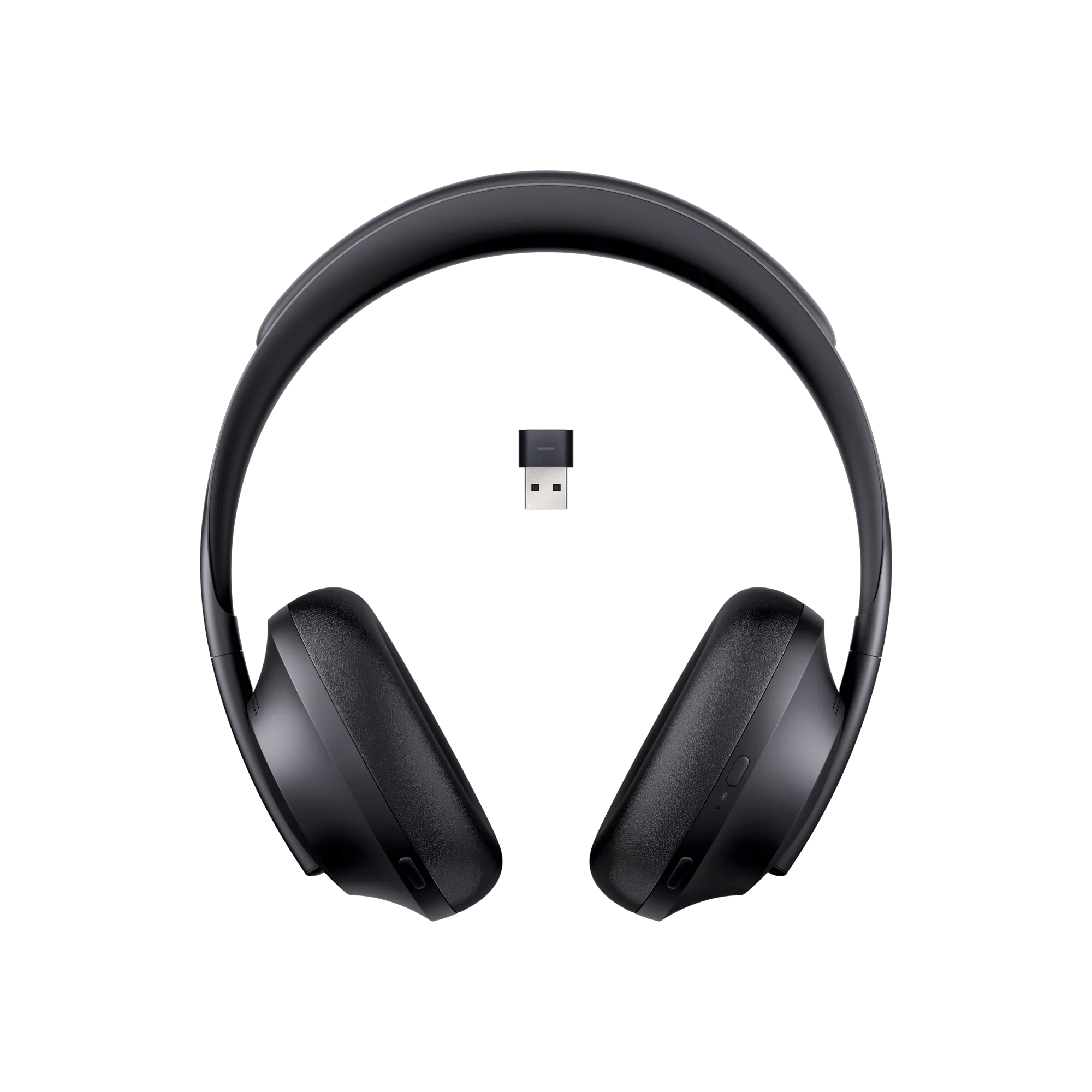
Bose headphones have model-specific reset steps. For example, the Bose QuietComfort 35 requires holding the power button and Bluetooth button together for 10 seconds. For Bose 700, press and hold the power button for 20 seconds. Check your headphone manual for exact steps. Following model-specific instructions ensures a proper reset.
When To Reset Your Headphones
Knowing when to reset your Bose headphones can save time and frustration. Resetting often fixes small problems without needing repairs. It clears temporary settings and restores the device to its original state. This process can improve performance and fix common issues quickly.
Common Sound Issues
Sound problems are a major reason to reset headphones. Distorted audio, low volume, or no sound can happen suddenly. Resetting can fix these issues by refreshing the audio system inside the headphones. It helps restore clear and balanced sound quality.
Connectivity Problems
Bluetooth connection troubles often require a reset. Headphones may fail to pair or keep disconnecting. Resetting clears old device pairings and resets the connection. This makes it easier to connect and stay connected to your device.
Battery And Power Concerns
Battery glitches and power issues also call for a reset. Headphones may not charge properly or turn off unexpectedly. Resetting can fix charging errors and reset power settings. It often restores normal battery function and charging behavior.
Preparation Before Resetting
Before resetting your Bose headphones, some steps can make the process smooth. Preparing well helps avoid losing important settings. It also ensures your headphones work correctly after the reset.
Take time to follow these steps carefully. They help keep your headphone experience safe and easy. Preparation is key to a successful reset.
Backup Settings
Save your current headphone settings first. Some models let you save sound preferences or paired devices. Check the Bose app or user manual for backup options. Keeping a backup avoids losing your favorite settings.
Charge Your Headphones Fully
Make sure your headphones have a full battery. A reset may take some time and power. Low battery can stop the reset or cause errors. Charge your headphones fully before starting the reset.
Check For Firmware Updates
Look for any available firmware updates. Updated software can fix bugs and improve performance. Use the Bose app or website to check updates. Installing the latest firmware might solve problems without resetting.
Credit: support.bose.com
Post-reset Tips
After resetting your Bose headphones, some steps ensure smooth use and great sound. These post-reset tips help you get back to enjoying music or calls quickly. Follow simple actions to reconnect and customize your device.
Re-pairing Your Device
Resetting clears all saved connections. Turn on your headphones and set them to pairing mode. Open Bluetooth settings on your phone or computer. Find your Bose headphones in the list and select them. Wait for the device to confirm the connection. This step restores the link between your headphones and device.
Adjusting Sound Settings
Sound settings may reset to default. Open the Bose app or sound settings on your device. Adjust the equalizer to match your listening style. Increase or decrease bass, treble, or mids as needed. Save your preferences for consistent sound. Custom settings improve your listening experience.
Testing Audio Quality
Play a familiar song or podcast to check sound quality. Listen for clear highs, rich bass, and balanced mids. Test both headphones to ensure stereo sound works. Walk around to check connection stability. Fix any issues by repeating pairing or adjusting settings. Confirm sound quality before using headphones regularly.
Troubleshooting Beyond Reset
Sometimes resetting Bose headphones does not fix the problem. Other steps can help you get your headphones working again. These troubleshooting tips go beyond a simple reset.
Cleaning Headphones
Dirt and earwax can block sound or sensors. Use a soft, dry cloth to clean ear cushions and speaker grills. Avoid water or liquid cleaners. Check small holes and remove any debris gently. Clean regularly to keep sound clear and sensors responsive.
Contacting Support
Bose offers expert help for technical issues. Contact their support team if cleaning and resetting do not help. You can reach them by phone, email, or live chat. Provide your headphone model and a clear problem description. Support agents give specific advice and solutions.
Warranty And Repairs
Check if your headphones are still under warranty. Repairs or replacements may be free or low cost. Visit the official Bose website for warranty details. Use authorized service centers for repairs. Avoid third-party fixes to protect your warranty and headphone quality.
Credit: support.bose.com

Credit: www.youtube.com
Frequently Asked Questions
How Do I Reset My Bose Headphones?
To reset Bose headphones, press and hold the power button for 10 seconds. Release when the Bluetooth light blinks. This restores factory settings and fixes minor issues.
Why Should I Reset My Bose Headphones?
Resetting clears connection problems, fixes software glitches, and improves performance. It’s a quick way to troubleshoot audio or pairing issues.
Will Resetting Erase My Bose Headphone Settings?
Yes, resetting deletes saved Bluetooth connections and custom settings. You’ll need to reconnect devices and adjust preferences again after reset.
How Often Should I Reset Bose Headphones?
Reset only when facing issues like no sound or connection failures. Regular resets are unnecessary and won’t improve normal performance.
Conclusion
Resetting Bose headphones can fix many common issues fast. Just follow the steps carefully for best results. This process helps restore sound quality and connection. Keep your headphones working well with simple resets when needed. Enjoy clear music and calls without extra hassle.
Remember, a quick reset often solves small problems easily. Try it next time your headphones act up. Simple, effective, and quick—just what you need.
As an Amazon Associate, I earn from qualifying purchases.

