
Is your Vicohome camera acting up or not connecting like it used to? Knowing how to reset your Vicohome camera can save you time and frustration.
Whether you’re dealing with frozen video, lost settings, or connection issues, a simple reset might be all you need to get things back on track. In this guide, you’ll learn easy, step-by-step methods to reset your camera quickly and safely.
Keep reading—regaining control of your security system is easier than you think.
Reasons To Reset Vicohome Camera
Resetting your Vicohome camera can solve many common problems. It brings the device back to its original settings. This can fix glitches and make the camera work better. Knowing why to reset helps you decide the right time to do it.
Here are some common reasons to reset your Vicohome camera.
Resolving Connection Issues
Sometimes the camera loses connection to Wi-Fi. This stops live video streaming or alerts. Resetting helps the camera find your network again. It refreshes the connection and fixes network errors.
Fixing Performance Problems
The camera may freeze or respond slowly. Resetting clears temporary bugs and memory overload. This makes the camera faster and more reliable. It restores smooth operation without complex troubleshooting.
Changing Account Or Network Settings
Changing your Wi-Fi or account requires a reset. This clears old data and lets you set up new info. Resetting ensures your camera connects with the right network and user account.
Preparing The Camera For New Users
Resetting removes personal settings and data. This makes the camera ready for a new owner. It protects your privacy and lets others start fresh with their setup.
Credit: cameratechy.com
Types Of Reset Methods
Resetting your Vicohome camera can solve many common issues. Different reset methods serve different needs. Choose the right method based on your problem.
Soft Reset
A soft reset restarts the camera without deleting any settings. It clears minor glitches and improves performance. To soft reset, press the reset button briefly or use the app’s restart option. This method keeps your recordings and Wi-Fi details safe.
Hard Reset
A hard reset restores the camera to default settings but keeps some data. It solves persistent issues that a soft reset cannot fix. Hold the reset button for about 10 seconds. The camera will reboot and erase most custom settings.
Factory Reset
A factory reset wipes all data and settings from the camera. It returns the device to the state it was in out of the box. Use this method if you want to start fresh or sell the camera. Hold the reset button for 20 seconds until the camera restarts.
Preparing For The Reset
Preparing your Vicohome camera for a reset is important to avoid losing data and to ensure a smooth process. Taking a few simple steps before the reset can save time and prevent problems.
These steps help protect your camera’s settings and make sure it powers up correctly after the reset. Follow the guide below for a safe reset experience.
Check Power Supply
Make sure your camera is fully powered before starting the reset. A stable power source prevents interruptions during the reset process. Use the original power adapter and cable. Avoid using low-quality or damaged cables. Confirm the camera’s LED light is on and steady. If the camera loses power, it might not reset properly.
Backup Important Settings
Save your camera settings before resetting. This includes Wi-Fi details, recording preferences, and notification settings. Use the Vicohome app to export or write down important information. Backups help you restore settings quickly after the reset. Skipping this step means you may lose custom configurations. Take time to note all key settings for easy recovery.
Step-by-step Reset Instructions
Resetting your Vicohome camera can solve many common issues. It helps restore the device to its original settings. Follow these simple steps to reset your camera safely. Choose the method that fits your situation best.
Reset Using The Reset Button
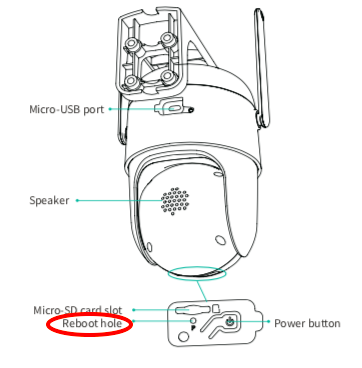
Locate the small reset button on the camera body. Use a pin or paperclip to press and hold it. Hold the button for about 10 to 15 seconds. Release the button once the camera restarts. Wait for the camera to fully reboot. The device returns to factory settings now.
Reset Through The Vicohome App
Open the Vicohome app on your smartphone. Go to the device settings for your camera. Find the option labeled “Factory Reset” or “Reset Device.” Tap on it and confirm the reset action. The camera will restart automatically. The app will show when the reset is complete.
Reset Via Web Interface
Access the camera’s IP address using a web browser. Log in with your username and password. Navigate to the system or settings tab. Look for the reset or factory reset option. Click on it and confirm the choice. Wait for the camera to reboot and reset.
Troubleshooting Reset Issues
Resetting your Vicohome camera can fix many issues. Sometimes, the reset process does not work smoothly. Troubleshooting these problems helps restore your camera quickly. This section covers common reset troubles and easy fixes.
Camera Not Responding
Sometimes, the camera does not react to reset commands. Check the power supply first. Make sure the camera is plugged in and on. Try restarting the power source. Remove the plug and wait 10 seconds. Plug it back in and see if the camera starts.
Reset might fail if the camera firmware is stuck. Wait a few minutes before trying again. If the camera remains silent, contact support for help.
Reset Button Not Working
The reset button may not work if pressed incorrectly. Use a small pin or paperclip to press it. Hold the button for 10 to 15 seconds. Release it only after the camera light blinks or changes color.
Check the button for dirt or damage. Clean gently with a dry cloth. If the button is broken, the camera needs repair or replacement.
Reconnecting After Reset
After reset, the camera loses its settings. You must reconnect it to Wi-Fi and your app. Open the Vicohome app and follow the setup steps again. Ensure your phone is near the camera during setup.
Use the correct Wi-Fi password and network. Avoid using a 5GHz network if the camera supports only 2.4GHz. If connection fails, restart your router and try again.

Credit: www.youtube.com
Tips For Maintaining Vicohome Camera
Maintaining your Vicohome camera is key to keeping it working well. Simple habits can help avoid many problems. Regular care ensures clear video and smooth performance. It also protects your privacy and device security.
Follow these tips to keep your camera in good shape and secure.
Regular Firmware Updates
Check for firmware updates often. These updates fix bugs and improve features. They help your camera run faster and safer. Install updates as soon as they are available. Do not skip this step to avoid security risks.
Secure Network Settings
Use strong passwords for your Wi-Fi and camera account. Avoid using simple or common passwords. Change default passwords right after setup. Enable encryption on your router to protect your data. Keep your network safe to stop hackers from accessing your camera.
Credit: support.vicoo.tech
Frequently Asked Questions
How Do I Reset My Vicohome Camera Quickly?
To reset your Vicohome camera, press and hold the reset button for 10 seconds. The camera will reboot and restore factory settings.
Why Should I Reset My Vicohome Camera?
Resetting fixes connectivity issues and restores default settings. It helps resolve software glitches and improves camera performance.
Can I Reset Vicohome Camera Without Losing Data?
No, resetting erases all settings and data. Backup important footage before performing a reset to avoid data loss.
How To Reset Vicohome Camera If The App Is Not Responding?
Use the physical reset button on the camera. Hold it for 10 seconds until the camera restarts.
Conclusion
Resetting your Vicohome camera is simple and quick. Just follow the clear steps shared above. This process helps fix many common issues easily. Keep your camera working smoothly by resetting it when needed. Regular resets can improve performance and security.
Always check the camera after resetting to ensure it works well. Stay confident using your Vicohome camera with these easy tips. Remember, a reset can solve many small problems fast.
As an Amazon Associate, I earn from qualifying purchases.
