
Is your Toshiba laptop running slow or acting up? Sometimes, the best way to fix persistent problems is to reset your device to its factory settings.
This simple step can clear out clutter, remove unwanted files, and give your laptop a fresh start—just like when you first bought it. In this guide, you’ll learn exactly how to reset your Toshiba laptop quickly and safely. Keep reading, and you’ll have your laptop running smoothly again in no time.
:max_bytes(150000):strip_icc()/A2-FactoryResetaToshibaLaptop-annotated-8238d4bf28114b2d8f2a5d7bff482be8.jpg)
Credit: www.lifewire.com
Prepare For Reset
Backup important files before starting the reset. Save photos, documents, and videos to an external drive or cloud storage. This keeps your data safe and easy to recover.
Charge your laptop fully. A reset needs power. If the battery dies, it may stop the process and cause problems.
Disconnect all external devices like USB drives, printers, or headphones. This avoids issues during the reset and keeps the process smooth.
Credit: www.youtube.com
Access Recovery Options
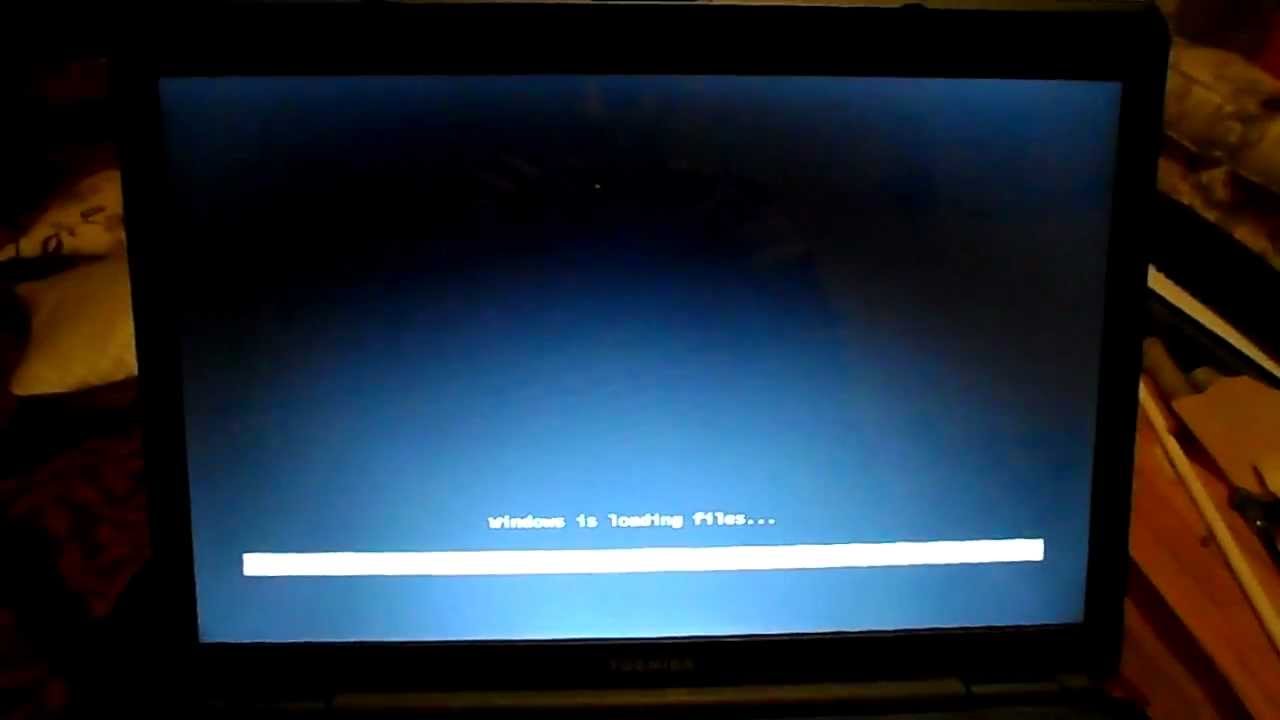
The Toshiba Recovery Partition stores all files needed to reset your laptop. To use it, restart your laptop and press the F8 key repeatedly before Windows starts. Select Repair Your Computer from the menu. Then choose Toshiba Recovery Wizard and follow the steps to reset your device.
Booting from Recovery Media is another way. You need a USB or DVD with recovery files. Insert the media, restart the laptop, and press the F12 key to open the boot menu. Choose your USB or DVD drive. Follow on-screen instructions to restore your laptop.
Perform Factory Reset
First, restart your Toshiba laptop and press the F8 key repeatedly. This opens the Recovery Menu. Use the arrow keys to select “Repair Your Computer” and press Enter. Choose your keyboard layout and click Next. Log in with an administrator account to access the recovery tools.
Next, select the “Toshiba Recovery Wizard” or “Factory Reset” option. This starts the reset process. Choose whether to keep your files or remove everything. Picking to remove everything returns the laptop to its original state.
Finally, confirm your choice by clicking “Yes” or “Start”. The system will begin restoring the factory settings. This process may take some time. Do not turn off the laptop until it completes. The laptop will restart automatically when done.
Credit: www.drivereasy.com
After Reset Setup
Start by setting up Windows. Follow the on-screen instructions to choose language, region, and keyboard layout. Create a user account with a strong password. Connect to a Wi-Fi network to get online.
Next, install updates. Open the Settings app and go to Update & Security. Click on Check for updates and let your laptop download and install all important updates. This keeps your system safe and fast.
Finally, restore backed-up data. Use an external drive or cloud storage where your files were saved before the reset. Copy your documents, pictures, and other files back to your laptop. This brings back your important information quickly.
Troubleshooting Reset Issues
Recovery partition may fail if it is damaged or deleted. Check if the recovery partition exists in Disk Management. Use a USB recovery drive if the partition is missing.
Reset fails to complete often due to low battery or interrupted power supply. Make sure the laptop is plugged in during reset. Disconnect all external devices to avoid conflicts.
Toshiba Support Tools offer easy ways to fix reset problems. Use the Toshiba Recovery Media Creator to make recovery media. Run Toshiba Hardware Diagnostic Tool to check hardware health.
| Issue | Possible Cause | Solution |
|---|---|---|
| Recovery Partition Not Working | Partition deleted or corrupted | Create USB recovery drive |
| Reset Fails to Complete | Power interruption or external devices | Plug in laptop and remove devices |
| Using Toshiba Support Tools | Need recovery or diagnostics | Use Recovery Media Creator and Diagnostic Tool |
Frequently Asked Questions
How Do I Back Up Data Before Resetting Toshiba Laptop?
Always back up important files to an external drive or cloud storage. This prevents data loss during factory reset. Use Toshiba Recovery Media Creator to save system images safely.
What Steps Reset Toshiba Laptop To Factory Settings?
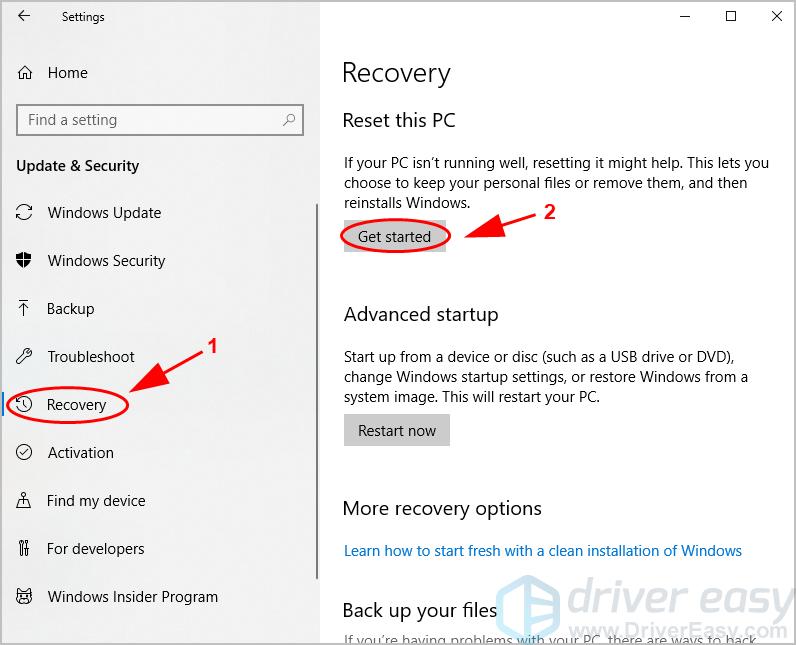
Go to Settings > Update & Security > Recovery. Select “Reset this PC” and choose “Remove everything” to restore factory settings. Follow on-screen prompts to complete.
Can I Reset Toshiba Laptop Without Recovery Partition?
Yes, use a USB recovery drive created beforehand. Boot from USB and follow instructions to restore factory settings without the recovery partition.
Will Resetting Toshiba Laptop Delete Personal Files?
Choosing “Remove everything” deletes all personal files and apps. Select “Keep my files” to preserve personal data but reset system settings.
Conclusion
Resetting your Toshiba laptop to factory settings clears old data and fixes issues. It helps your laptop run fresh and smooth again. Remember to back up important files before starting the reset process. Follow the steps carefully to avoid mistakes.
This simple reset can save time and improve your laptop’s performance. Keep this guide handy for future use. Your Toshiba laptop can feel like new with just a few easy actions. Ready to get started?
As an Amazon Associate, I earn from qualifying purchases.

