
Want to capture exactly what’s on your Gateway laptop screen but don’t know how? Taking a screenshot can save you time and help you share important information quickly.
Whether you need to save an error message, share a cool image, or keep a copy of something important, knowing the right steps makes all the difference. In this guide, you’ll discover simple, clear methods to screenshot on your Gateway laptop.
By the end, you’ll be able to snap and save your screen with confidence—no tech skills needed. Keep reading to unlock these easy tricks!
Credit: recorder.itopvpn.com
Built-in Screenshot Options
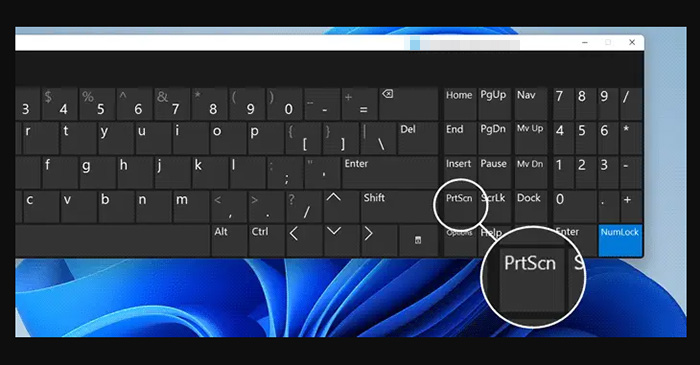
Pressing the Print Screen (PrtScn) key takes a screenshot of the entire screen. This saves the image to the clipboard. Paste it into apps like Paint or Word by pressing Ctrl + V.
To capture only the active window, press Alt + PrtScn. This copies just the window you’re using. Paste it where you want to save or edit the image.
The Snipping Tool lets you draw a shape around what to capture. Open the tool from the Start menu. Click New and select the area. Save or copy the snip after taking it.
Keyboard Shortcuts For Screenshots
Print Screen key captures the entire screen. Press it once to copy the screenshot to the clipboard. Paste it into Paint or Word using Ctrl + V.
Windows + Shift + S opens the Snip & Sketch tool. Drag the cursor to select a part of the screen. The selected area copies to the clipboard for easy pasting.
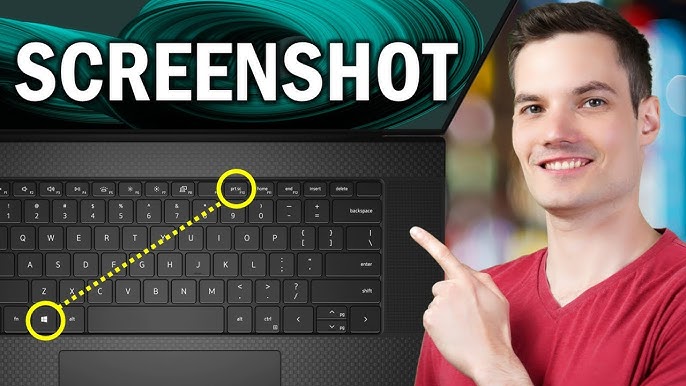
Some Gateway laptops need to press the Fn (Function) key with Print Screen. Try Fn + PrtSc or Fn + Windows + Shift + S. This depends on your keyboard model.
Third-party Screenshot Tools
Many free apps can help take screenshots on a Gateway laptop. Some popular choices include Lightshot, Greenshot, and ShareX. These tools offer easy ways to capture your screen quickly.
Good features to check for include the ability to capture full screen or just a part of it, easy saving options, and simple editing tools like cropping or adding text. Some apps also let you share screenshots directly.
For installation, download the app from its official website to avoid malware. Follow the step-by-step instructions during setup. Most apps install in a few clicks and start working immediately.
Credit: www.youtube.com
Saving And Editing Screenshots
Screenshots taken on a Gateway laptop usually save in the Pictures folder, under Screenshots. This makes it easy to find your images quickly. You can also save screenshots to the Clipboard by pressing PrtScn, then paste them in any program.
Basic editing tools like crop, resize, and draw help improve your screenshots. These tools are simple and fast to use. They let you focus on the important parts of your image.
The Paint app is a great choice for editing. Open your screenshot, then use the toolbar to add text or shapes. You can save your edited image in many formats.
The Photos app also works well. It offers easy cropping, rotating, and filters. Just open your screenshot and explore the editing options.
Troubleshooting Common Issues
Print Screen Not Working can happen if the keyboard’s Function (Fn) key is locked. Try pressing Fn + PrtSc together. Sometimes, the key might be damaged or disabled in settings. Check keyboard drivers and update them if needed.
Screenshot Quality Problems occur when the screen resolution is low or the screenshot tool compresses the image. Use built-in tools like Snipping Tool or Snip & Sketch for better quality. Adjust screen settings to a higher resolution for clearer images.
Keyboard Function Key Lock can stop some keys from working right. Look for a Fn Lock key, often near the Esc key. Press it once to toggle the function key’s state. This may fix screenshot key issues.
Credit: www.quora.com
Frequently Asked Questions
How Do I Take A Screenshot On A Gateway Laptop?
Press the “PrtSc” (Print Screen) key to capture the entire screen. Paste it into an image editor like Paint and save.
Can I Screenshot Only A Part Of My Gateway Screen?
Yes, press “Windows + Shift + S” to open Snip & Sketch. Select the area you want to capture.
Where Are Gateway Laptop Screenshots Saved?
Screenshots taken with “Windows + PrtSc” save automatically in the Pictures > Screenshots folder.
How To Capture A Screenshot Of An Active Window On Gateway?
Press “Alt + PrtSc” to capture only the active window. Paste it into an image editor to save.
Conclusion
Taking a screenshot on a Gateway laptop is simple and quick. Use the keyboard shortcuts to capture your screen easily. You can save or edit the image right away. Screenshots help you share information or save important details. Practice a few times to get comfortable with the steps.
No extra software is needed, making it handy for everyone. Now, capturing your screen is just a few clicks away. Try these methods and see how useful they are.
As an Amazon Associate, I earn from qualifying purchases.

