
Are you struggling to figure out how to set your monitor as the primary display? Whether you’re working, gaming, or just browsing, having the right screen as your main focus can make all the difference.
Imagine clicking on your favorite app and it instantly opening exactly where you want it. Sounds simple, right? This guide will walk you through easy steps to make your monitor the primary one, so you can boost your productivity and enjoy a smoother experience.
Keep reading—you’ll have your setup just the way you want it in no time.
Credit: m.majorgeeks.com
Choosing Your Primary Monitor
Choosing the right primary monitor helps improve your work and entertainment. The primary monitor shows the main taskbar and start menu. It also opens new windows by default.
Pick a monitor that fits your daily needs. Consider size, resolution, and position on your desk. Your eyes will thank you for a good choice.
Assess Screen Size And Resolution
A larger screen shows more content clearly. Higher resolution offers sharper images and text. Choose a monitor that matches your work style.
Consider Monitor Position
Place the primary monitor directly in front of you. This reduces neck strain and improves comfort. Keep other screens to the side or secondary positions.
Check Connectivity And Features
Ensure the monitor supports your computer’s ports. Look for useful features like brightness control and blue light filters. These improve your viewing experience.
Credit: www.cedarville.edu
Connecting Dual Displays
Connecting dual displays allows you to expand your workspace. It improves productivity and helps multitask easily. Setting up two monitors requires some basic steps. First, check the types of cables your monitors and computer support. Then, connect them properly to avoid display issues.
Check Cable Types
Identify the ports on your computer and monitors. Common cables include HDMI, DisplayPort, DVI, and VGA. HDMI and DisplayPort offer better quality and support higher resolutions. Older monitors may use VGA or DVI cables. Use cables that both your computer and monitor support.
Choosing the right cable ensures smooth display and better image quality. Avoid mixing too many adapters as they can cause problems. Note the cable length to place your monitors comfortably on your desk.
Secure Proper Connections
Connect the cables firmly to both the computer and monitors. Loose connections can cause flickering or no display. Power on the monitors after connecting the cables. Check if the computer detects both screens in the display settings.
Adjust the cable if the screen does not show up or is unstable. Secure the cables to prevent accidental disconnections. Proper connections lead to a stable and clear dual display setup.
Accessing Display Settings
Accessing display settings is the first step to set a monitor as primary. These settings control how your screens work together. You can choose which screen shows your main desktop and taskbar. Each operating system has its own way to open these settings. Below are the simple steps for Windows and Mac users.
Windows Display Settings
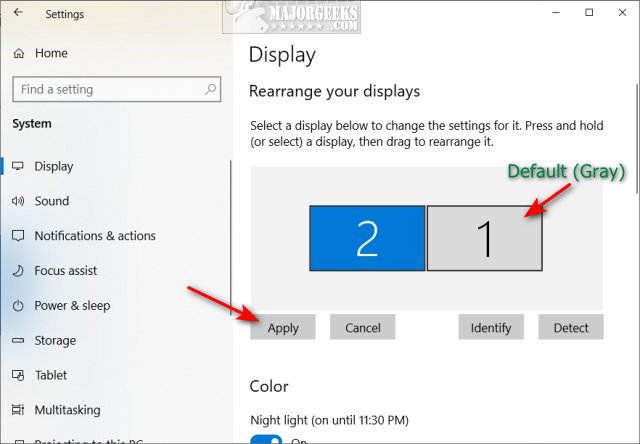
Right-click on the desktop. A menu will appear. Select “Display settings” from this menu. A new window will open with display options. You will see all connected monitors here. Click on the screen you want to make primary. Scroll down to find “Make this my main display.” Check this box. Your chosen screen will become the primary monitor. Close the window when done.
Mac Display Preferences
Click the Apple icon at the top-left corner. Choose “System Preferences” from the dropdown. Select “Displays” from the options. A new window with display settings will appear. Click the “Arrangement” tab. You will see blue boxes representing each monitor. Drag the white menu bar to the screen you want as primary. This changes your main display. Close the window to save changes.

Credit: www.youtube.com
Setting Your Primary Monitor
Setting your primary monitor helps you control where your main work happens. It decides which screen shows your taskbar, start menu, and main apps. This makes your computer easier to use and more organized.
Changing the primary monitor is quick and simple. Follow clear steps to pick the main display. Then save your changes to keep the setup.
Selecting The Main Display
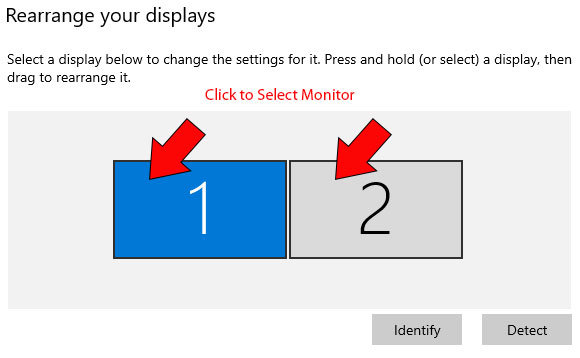
Open your computer’s display settings. Look for the screen options or multiple displays section. You will see all connected monitors shown as boxes. Click on the box that matches the monitor you want as primary.
Find the option labeled “Make this my main display” or “Set as primary.” Check this box or click this button. This marks the chosen monitor as the main screen.
Applying And Saving Changes
After selecting your primary monitor, look for the apply button. Click “Apply” to test the change. Your taskbar and desktop icons will move to the new main screen. Check if everything looks right.
If the setup works well, click “Save” or “OK.” This saves your choice and closes the settings. Your primary monitor stays set until you change it again.
Arranging Multiple Monitors
Arranging multiple monitors helps create a smooth workflow and better screen space. It lets you move your mouse and windows naturally across screens. Proper arrangement reduces confusion and boosts productivity.
Setting up your monitors correctly means adjusting how they appear in your system settings. This setup matches how your screens sit on your desk. It makes your digital space reflect your real workspace.
Adjusting Screen Order
Start by opening your display settings on your computer. You will see rectangles representing each monitor. Drag these rectangles to match the order of your physical screens.
This step ensures your mouse moves smoothly from one screen to another. It also helps apps open on the correct monitor. Check this by moving your mouse across screens and seeing if it flows naturally.
Matching Physical Layout
Look at your desk setup and note where each monitor sits. Arrange the digital screens to match this layout. For example, if one monitor is higher or to the side, adjust its position in settings.
Matching the layout prevents awkward mouse jumps or window placements. It feels more natural and reduces mistakes. Take time to fine-tune this setup for the best comfort and efficiency.
Troubleshooting Common Issues
Setting a monitor as primary can sometimes cause issues. These problems stop your computer from working right. Knowing how to fix common issues saves time and stress. Below are solutions for frequent troubles you might face.
Display Not Detected
Your computer may not see the monitor. Check all cables. Make sure they are plugged in tightly. Restart your computer. Try another cable or port if possible. Update your graphics drivers. This often solves detection problems.
Resolution Problems
The screen may look blurry or cut off. Open display settings and check resolution options. Choose the resolution recommended for your monitor. If options are limited, update your video drivers. Sometimes restarting your PC helps reset the resolution.
Cursor Movement Issues
The mouse pointer might not move between screens correctly. Check monitor arrangement in display settings. Drag screens to match their physical positions. Make sure the primary monitor is set correctly. Try disconnecting and reconnecting monitors. This can fix cursor flow problems.
Optimizing Dual Display Setup
Setting up two monitors can improve your work and entertainment experience. It lets you see more content at the same time. But to get the best from dual displays, you need to set one as primary. This means your main tasks and apps will open on that screen. Optimizing this setup makes your computer easier to use and more efficient.
Customizing Display Settings
Start by opening your computer’s display settings. Here, you can see both monitors listed. Choose the screen you want as primary. Click the option that says “Make this my main display.” This moves your taskbar and start menu to that monitor. Adjust the screen resolution to match each display’s size. Align the monitors to match their physical position on your desk. This helps the mouse move smoothly between screens. You can also change the display mode to extend or duplicate the screens.
Using Third-party Tools
Some software tools help manage multiple monitors better than default settings. These tools offer extra features like quick switching between primary monitors. They let you save different layouts for work or gaming. You can also set custom hotkeys to change displays fast. These tools work well if you often change your setup. Check reviews to pick reliable and easy-to-use software. Many free options are available for Windows and Mac. They simplify managing dual monitors and improve productivity.
Frequently Asked Questions
How Do I Set A Monitor As Primary In Windows?
Go to Display Settings, select the desired monitor, then check “Make this my main display. ” Click Apply to save changes.
Can I Set Any Connected Monitor As Primary?
Yes, you can set any connected and detected monitor as the primary display through your system’s display settings.
Why Set A Monitor As Primary Display?
The primary monitor shows the main taskbar, start menu, and desktop icons, improving workflow and user experience.
Does Setting Primary Monitor Affect Multiple Displays?
Yes, the primary monitor controls main display functions, while others act as secondary or extended screens.
Conclusion
Setting your monitor as primary improves your workflow and focus. It helps organize your screen space clearly. Adjusting settings takes just a few steps. You gain better control over display options. This guide makes the process simple and fast. Try these steps on your computer today.
Enjoy a cleaner, more efficient desktop setup. Your main monitor will show the taskbar and apps first. Easy changes lead to better daily use. Give it a go and see the difference yourself.
As an Amazon Associate, I earn from qualifying purchases.

