Are you ready to take your gaming experience on Mac to the next level? Setting up a gaming controller on your Mac can make your gameplay smoother, more precise, and a lot more fun.
But if you’ve ever struggled with connecting your controller or wondered if it will even work, you’re not alone. This guide will walk you through every simple step to get your controller up and running quickly. By the end, you’ll be fully equipped to enjoy your favorite games with the comfort and control you deserve.
Keep reading, and let’s get your Mac gaming setup just right!
Choosing The Right Controller
Choosing the right gaming controller for your Mac is important. It affects your gameplay and comfort. Picking a suitable controller makes gaming more fun and less frustrating.
Consider how you want to play and what type of games you enjoy. Some controllers work better for certain games. Others offer ease of use or better battery life. Think about these factors before buying.
Wired Vs Wireless Controllers
Wired controllers connect directly to your Mac with a cable. They provide a steady connection and no delay. You do not need to charge them. The downside is the limited movement due to the cable.
Wireless controllers connect through Bluetooth. They allow freedom to move around. No cables to worry about. They need batteries or charging. Sometimes, wireless signals can lag a bit. Choose based on how you play and where you sit.
Popular Controller Models For Mac
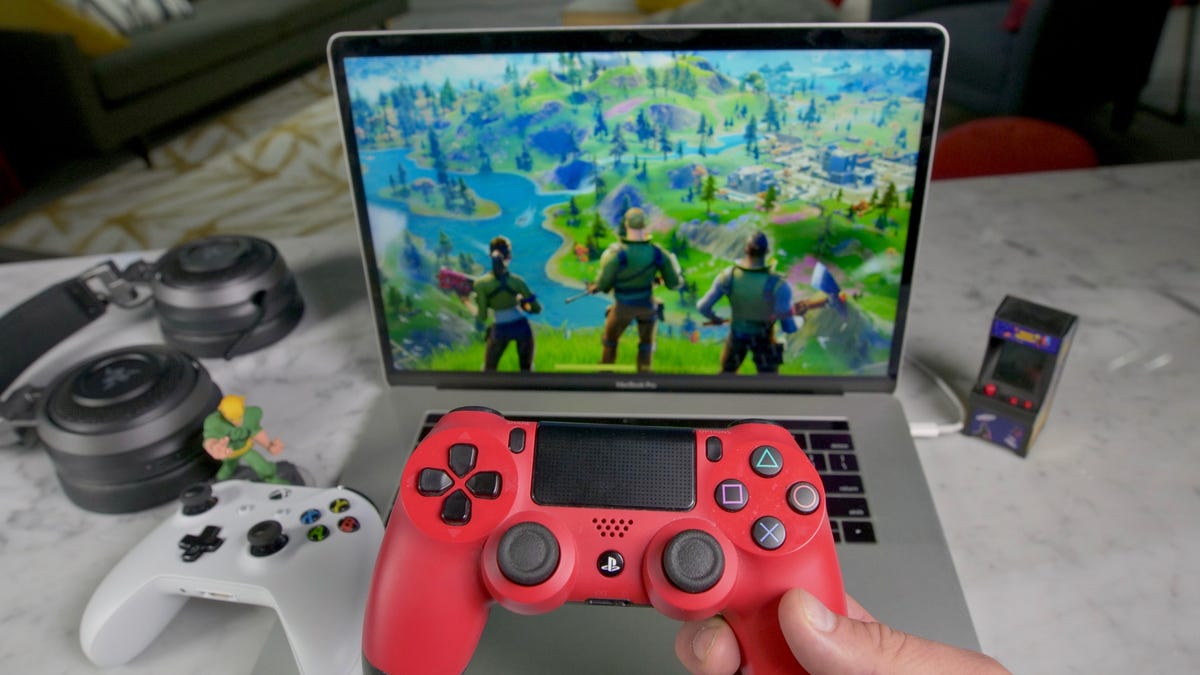
Many controllers work well with Mac computers. The Xbox Wireless Controller is very popular. It pairs easily with Macs via Bluetooth. The PlayStation DualShock 4 also works well. It offers a comfortable grip and good button layout. Another option is the 8BitDo controllers, known for their compatibility and retro style. These controllers cover a wide range of preferences and budgets.
Compatibility Considerations
Not all controllers work perfectly with Mac. Check if the controller supports macOS. Some games only support certain controllers. Make sure your Mac’s Bluetooth or USB ports match the controller’s connection. Updating macOS can also improve compatibility. Testing the controller before serious gaming helps avoid issues.
Credit: eshop.macsales.com
Connecting Your Controller To Mac
Connecting your gaming controller to a Mac is the first step to enjoy games comfortably. You can link it wirelessly or with a cable. Both methods are simple and quick. This guide helps you connect your controller easily and start playing fast.
Using Bluetooth For Wireless Setup
Turn on your controller’s Bluetooth mode. On your Mac, open System Preferences and click Bluetooth. Make sure Bluetooth is on. Look for your controller’s name in the device list. Click Connect to pair the controller. Wait for the connection to confirm. Your controller is ready to use wirelessly.
Connecting Via Usb Cable
Plug one end of the USB cable into your controller. Connect the other end to your Mac’s USB port. Mac will detect the controller automatically. No extra setup is needed. This method works well for stable and fast response. Check your controller works in games or apps.
Troubleshooting Connection Issues
Check if your controller has enough battery or is charged. Restart Bluetooth on your Mac if it won’t connect. Try unplugging and plugging the USB cable again. Make sure your controller is in pairing mode. Update your Mac’s software for better compatibility. Sometimes, restarting your Mac helps fix connection problems.
Configuring Controller Settings
Configuring controller settings on your Mac is important for smooth gameplay. It helps make sure the controller works just right for each game. Adjusting settings lets you change how buttons respond and how the controller feels in your hands. This section covers key steps to set up your controller for the best experience.
Mapping Buttons And Controls
Mapping buttons means assigning game actions to controller buttons. Mac games may not always match your controller’s default layout. You can change which button does what. This makes playing easier and more natural. Many games let you map buttons inside their settings. Some controllers also have their own software for button mapping.
Adjusting Sensitivity And Dead Zones
Sensitivity controls how fast your controller reacts to movements. Higher sensitivity means quicker moves, but less precision. Dead zones are areas where small joystick movements do nothing. Setting dead zones helps avoid unwanted moves from slight joystick shifts. Adjust both settings to match your play style. Experiment to find the best balance of control and comfort.
Using Third-party Software
Third-party software offers more control over your gaming controller. Apps like Steam Input or Joystick Mapper help customize buttons and sensitivity. They also allow profiles for different games. This software can fix compatibility issues on Mac. It gives you more options than default system settings. Choose reliable software and follow instructions carefully to avoid problems.
Credit: www.cnet.com
Testing Your Controller
Testing your gaming controller on Mac ensures it works correctly before play. It helps catch connection or button issues early. You can check if all buttons respond and if the joystick moves smoothly. Testing also confirms your Mac recognizes the controller properly. This step saves time and frustration during gaming sessions.
Built-in Mac Tools For Testing
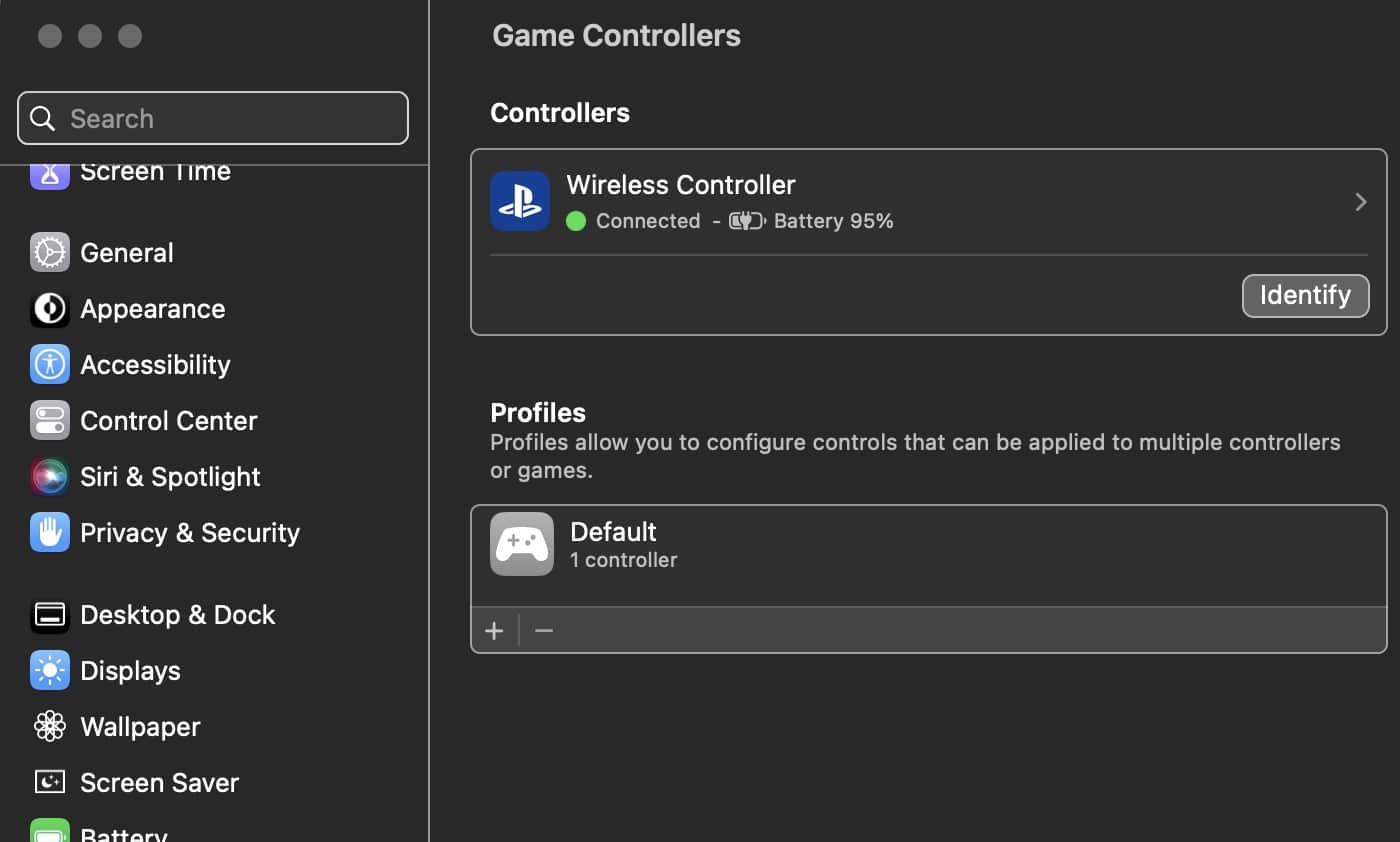
Mac includes simple tools to test your controller. Open the “System Report” under “About This Mac.” Look for your controller listed under USB or Bluetooth devices. Use the “Game Controller” section in System Preferences if available. It shows input responses when you press buttons or move sticks. This quick check confirms basic controller functions.
Using Games To Verify Setup
Testing with games gives a real feel of controller performance. Launch a game that supports controllers. Use the controller to navigate menus and play. Check if all buttons and triggers work smoothly. Notice if there is any lag or unresponsiveness. Games give the best way to confirm full compatibility.
Fixing Common Performance Problems
Controller issues often come from connection or software glitches. Restart your Mac and reconnect the controller first. Update MacOS and controller firmware to the latest version. Try different USB ports or Bluetooth settings. Reset the controller if buttons stick or lag. These steps fix most common problems quickly.
Tips For Seamless Gaming Experience
Playing games on your Mac feels best with a smooth and steady controller setup. Small steps improve your gaming time. These tips help avoid delays, crashes, and other issues. Follow simple habits for a better gaming experience.
Keeping Firmware Updated
Controller firmware controls how the device works. Updates fix bugs and add new features. Check the manufacturer’s website for updates. Connect your controller to a PC or Mac to update firmware. Updated firmware keeps your controller fast and reliable.
Optimizing Battery Life
Battery life affects how long you can play. Turn off the controller when not in use. Lower vibration settings save battery power. Use rechargeable batteries for better value. Keep spare batteries ready for long gaming sessions.
Ensuring Game Compatibility
Not all games work well with every controller. Look for games that list your controller in their settings. Use software like Steam Big Picture mode for better support. Test your controller before starting a new game. This avoids frustration and wasted time.

Credit: www.youtube.com
Frequently Asked Questions
How Do I Connect A Gaming Controller To Mac?
To connect a controller, use Bluetooth or a USB cable. Turn on your Mac’s Bluetooth, then pair your controller. For wired controllers, plug it into a USB port. Your Mac will recognize it automatically for gaming.
Which Gaming Controllers Work Best With Mac?
Popular controllers like Xbox, PlayStation DualShock, and Nintendo Switch Pro are Mac compatible. They support Bluetooth or USB connections. These controllers offer seamless integration and responsive gameplay on most Mac games.
How To Troubleshoot Controller Not Connecting On Mac?
Restart your Mac and controller. Check Bluetooth settings or USB connection. Update your Mac’s software and controller firmware. If issues persist, try resetting the controller or using a different USB cable.
Can I Customize Gaming Controller Buttons On Mac?
Yes, use third-party apps like “Joystick Mapper” or “Gamepad Companion. ” These tools let you remap buttons and adjust sensitivity. Customization improves gameplay experience by tailoring controls to your preference.
Conclusion
Setting up a gaming controller on your Mac is simple and quick. Follow the steps carefully for smooth gameplay. Most controllers connect easily via Bluetooth or USB. Adjust settings to fit your gaming style. Enjoy better control and a more fun experience.
Keep your controller updated for best results. Happy gaming!
As an Amazon Associate, I earn from qualifying purchases.