Are you ready to take your gaming experience to the next level? Setting up a gaming controller on your PC can make gameplay smoother, more comfortable, and way more fun.
But if you’ve never done it before, the process might seem tricky or confusing. Don’t worry—you’re in the right place. This guide will walk you through each simple step, so you can start playing with your controller quickly and easily.
Keep reading, and you’ll be controlling your favorite games like a pro in no time.
Choosing The Right Controller
Choosing the right controller is key to a good gaming experience on your PC. The right controller fits your hands well and works smoothly with your games. It makes playing more fun and less frustrating. This guide helps you pick a controller that suits your needs and setup.
Wired Vs Wireless Controllers
Wired controllers connect directly to your PC with a cable. They offer steady signals and no delay. No batteries needed. You can start playing right away without charging.
Wireless controllers use Bluetooth or a USB receiver. They give you freedom to move around. No cables to get tangled. But they need batteries or charging. Sometimes, wireless signals can lag a little.
Popular Controller Models
The Xbox Wireless Controller is very popular. It feels comfortable and works well with many games. The PlayStation DualShock 4 and DualSense also work on PC. They have great buttons and touchpads. Nintendo Switch Pro Controller is another good choice. It connects easily and has a nice grip.
Compatibility With Pc
Not all controllers work perfectly with every PC game. Xbox controllers usually have the best compatibility. Many games recognize them automatically. PlayStation controllers need extra software for full use. Check if your game supports the controller you choose. This avoids problems during play.
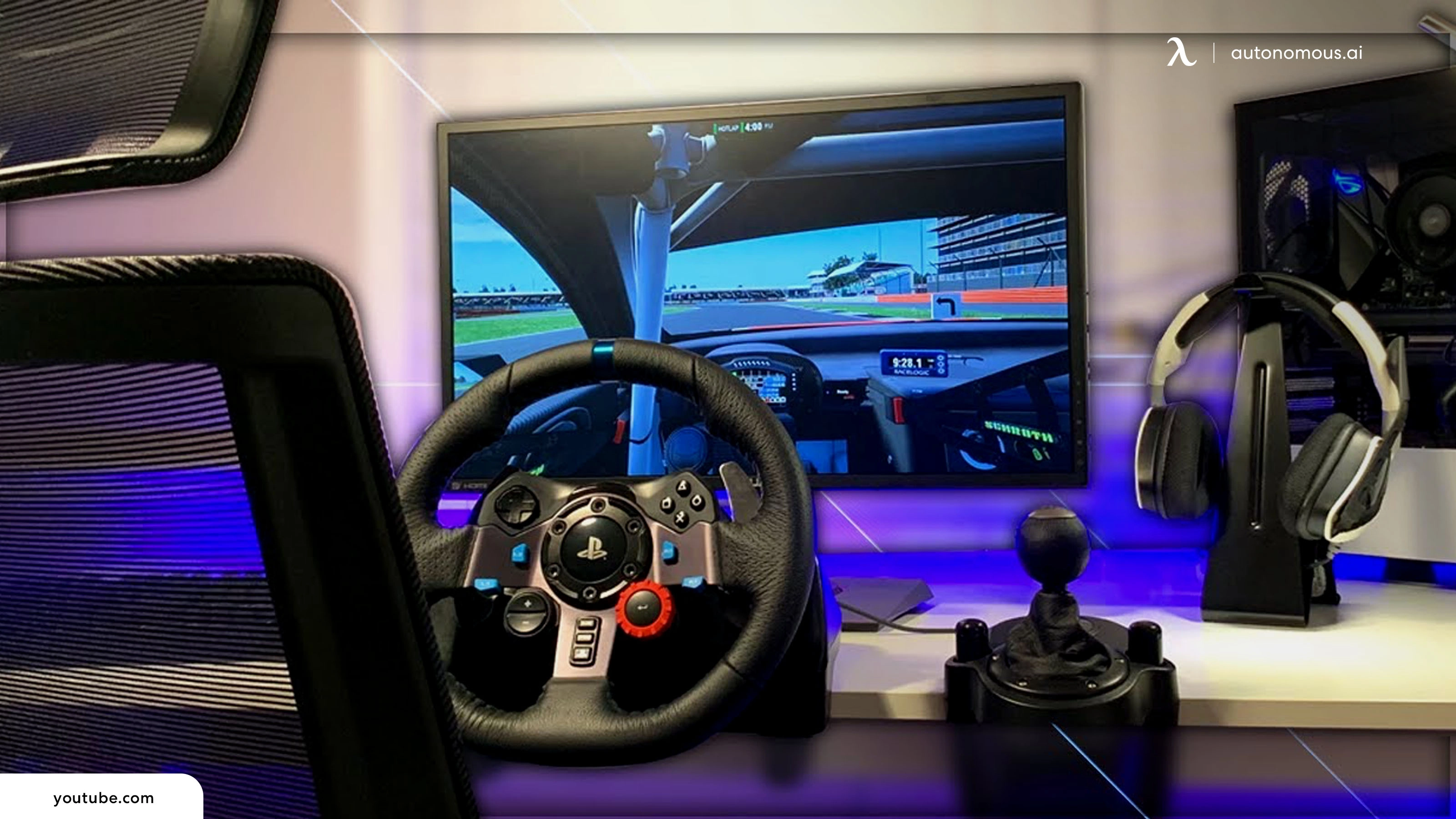
Credit: www.autonomous.ai
Preparing Your Pc
Preparing your PC is the first step to connect a gaming controller. A smooth setup depends on your computer being ready. This section guides you through simple tasks to get your PC ready.
Checking System Requirements
Check if your PC supports the gaming controller. Look at your computer’s operating system version. Most controllers need Windows 10 or later. Also, verify your USB ports or Bluetooth compatibility. Some controllers need specific ports or wireless support.
Updating Drivers
Drivers help your PC communicate with the controller. Outdated drivers cause connection problems. Visit your PC manufacturer’s website for the latest drivers. Search for USB or Bluetooth drivers based on your controller type. Install updates and restart your PC to apply changes.
Installing Necessary Software
Some controllers need special software to work properly. Check the controller’s official website for any required apps. Install the software to customize buttons and improve performance. This software often includes troubleshooting tools too. Keep it updated for best results.
Connecting The Controller
Connecting your gaming controller to your PC is the first step to start playing. This process is simple and does not take much time. You can connect the controller using a cable or wirelessly. Each method has clear steps to follow.
Using Usb Connection
Plug your controller’s USB cable into the PC. The computer will detect the controller automatically. Wait a few seconds for drivers to install. Once installed, your controller is ready to use. USB connection is fast and reliable. It also charges your controller during play.
Pairing Via Bluetooth
Turn on your controller and enable Bluetooth on your PC. Open the Bluetooth settings on your computer. Search for new devices and select your controller from the list. Follow on-screen prompts to complete pairing. Once connected, your controller works wirelessly. Bluetooth lets you play without cables.
Troubleshooting Connection Issues
Check if your cable or Bluetooth is working properly. Restart your PC and controller if connection fails. Update your PC’s Bluetooth drivers and controller firmware. Try another USB port or use a different cable. Make sure your controller is charged. These steps fix most connection problems quickly.
Configuring Controller Settings
Configuring your gaming controller on PC improves your gameplay experience. Adjusting settings lets you play comfortably and react quickly. This section guides you through key steps to set up your controller properly.
Calibrating Your Controller
Calibration ensures your controller sends correct signals to your PC. Most controllers need this step for accurate movement. Use built-in calibration tools found in Windows or your controller’s software. Follow the on-screen instructions to move sticks and press buttons. Calibration fixes drift and lag issues.
Mapping Buttons
Button mapping lets you assign functions to different buttons. Games have different control schemes. Customize button layout to suit your style and comfort. Use software like Steam Big Picture or third-party apps for easy remapping. Save profiles for each game for quick switching.
Adjusting Sensitivity
Sensitivity controls how fast your character or camera moves. Low sensitivity offers precise control. High sensitivity allows faster turns and reactions. Adjust sensitivity in your game or controller software. Test settings in gameplay and tweak until you feel right.
Testing The Controller
Testing your gaming controller on your PC ensures it works correctly. It helps find any issues before playing games. Testing is simple and can be done using Windows tools or in games. You can also diagnose common problems quickly.
Using Built-in Windows Tools
Windows has a tool to check your controller. Open the “Devices and Printers” section in Control Panel. Find your controller icon and right-click it. Choose “Game Controller Settings” and then “Properties.” Press buttons and move sticks to see if Windows detects them. The screen shows button presses and stick movements in real-time. This helps confirm your controller is connected and working.
Testing In Games
Many games support controllers and can test them inside the game. Open a game that supports controllers. Go to the settings or options menu. Look for controller configuration or calibration tools. Test each button and stick by pressing or moving them. The game usually shows a response on screen. This verifies the controller works well with the game.
Diagnosing Common Problems
If buttons do not respond or sticks feel off, try a few fixes. Check the USB or Bluetooth connection. Restart your PC and reconnect the controller. Update your controller drivers using Device Manager. Calibrate the controller through Windows settings. Try the controller on another PC to see if the problem continues. These steps help solve most common controller issues.

Credit: www.youtube.com
Optimizing For Different Games
Optimizing your gaming controller for different games improves your play experience. Each game demands unique controls and button layouts. Adjusting the controller settings helps you play better and enjoy more.
Customizing controls allows quick changes between games. You can tailor the controller to fit the style and pace of each game. This flexibility keeps your gameplay smooth and responsive.
Custom Profiles
Create custom profiles for each game you play. Save button layouts and sensitivity settings per profile. Switch profiles easily without resetting your controller. This saves time and keeps your controls consistent.
Many controllers allow multiple profiles to be stored. Assign names to profiles for easy identification. Load the right profile before starting your game.
Using Third-party Software
Third-party software enhances controller customization beyond default settings. Programs like DS4Windows or Xpadder offer more control options. Remap buttons, adjust sticks, and create macros with ease.
Some software supports profiles that auto-switch by game. This feature saves manual effort. It also improves gaming flow by matching controls automatically.
Syncing Settings Across Games
Syncing settings helps maintain a familiar feel across different games. Use cloud saves or software to keep profiles updated on multiple devices. This way, your controller settings follow you everywhere.
Consistent settings reduce confusion and improve muscle memory. Your fingers react faster when button layouts stay similar. Sync profiles regularly to avoid outdated configurations.
Maintaining Your Controller
Keeping your gaming controller in good shape helps it work well and last longer. Regular care stops problems and keeps your games fun. Follow simple steps to protect your controller from damage and wear.
Cleaning Tips
Turn off and unplug your controller before cleaning. Use a soft cloth slightly dampened with water. Wipe the surface gently to remove dirt and sweat. Avoid harsh chemicals or too much moisture. Clean around buttons and joysticks with a dry cotton swab. Do this weekly to keep the controller fresh and smooth.
Firmware Updates
Check for firmware updates regularly. Updates fix bugs and improve controller performance. Connect your controller to the PC and open the official app. Follow on-screen instructions to download and install updates. Keep your device connected until the process finishes. Updates help your controller work well with new games and software.
Extending Controller Lifespan
Store your controller in a cool, dry place. Avoid dropping or hitting it against hard surfaces. Remove batteries if you do not use it for a long time. Use a protective case for travel or storage. Handle buttons and sticks gently to prevent damage. Regular care and careful use make your controller last longer.

Credit: www.pcmag.com
Frequently Asked Questions
How Do I Connect A Gaming Controller To Pc?
To connect a gaming controller, use USB or Bluetooth. Plug in the USB cable or pair via Bluetooth settings. Install any required drivers automatically for proper recognition.
Which Controllers Are Best For Pc Gaming?
Xbox and PlayStation controllers are popular for PC. They offer wide compatibility and easy setup. Third-party controllers also work but check for driver support.
How To Troubleshoot Controller Not Detected On Pc?
Restart your PC and reconnect the controller. Update drivers via Device Manager. Check USB ports or Bluetooth connection. Try another cable or controller to isolate issues.
Can I Customize Controller Buttons On Pc?
Yes, use software like Steam Big Picture or third-party apps. These tools allow remapping buttons and adjusting sensitivity for better gameplay.
Conclusion
Setting up a gaming controller on your PC can be simple and quick. Just follow the steps carefully and connect your device. Testing the controller ensures it works well with your games. Enjoy smoother gameplay and better control. Playing becomes more fun and comfortable this way.
Keep your drivers updated for best results. Try different games to see how the controller feels. Now, you are ready to play with ease and confidence. Have fun gaming!
As an Amazon Associate, I earn from qualifying purchases.