
Have you ever needed to quickly capture something important on your Samsung laptop screen but didn’t know how? Taking a screenshot can save you time and make sharing information easier.
Whether it’s a funny chat, an important document, or a tricky error message, knowing how to take a screenshot on your Samsung laptop gives you control and confidence. In this guide, you’ll discover simple, step-by-step methods that anyone can follow—no tech skills needed.
Ready to master this useful trick? Let’s dive in and make your screen work for you!
Credit: www.wps.com
Screenshot Methods On Samsung Laptops
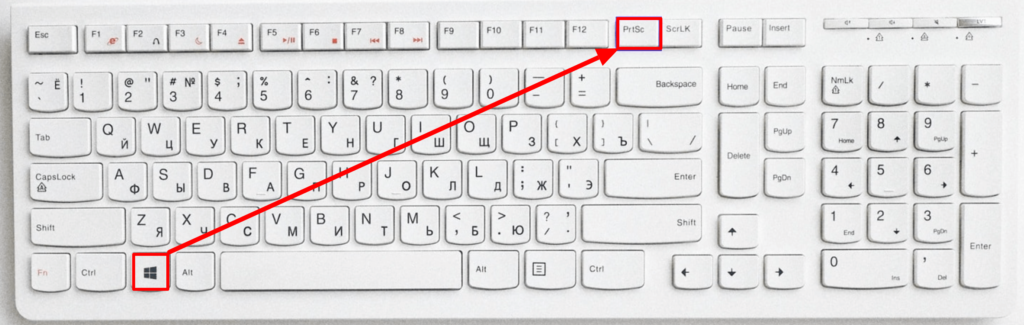
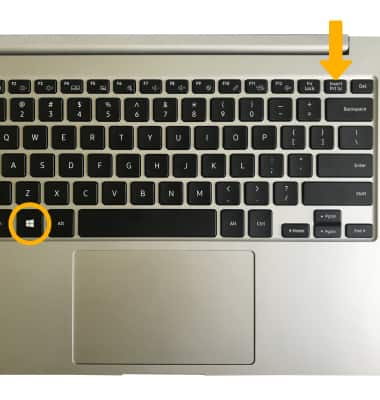
Keyboard shortcuts offer a fast way to capture your screen. Press PrtScn to copy the whole screen. Use Alt + PrtScn to capture only the active window. Press Windows + Shift + S to open the snipping toolbar and select your capture area.
The Snipping Tool is a simple app for screenshots. Open it from the Start menu. Click “New” to start a capture. You can draw around the area you want. Save or copy the image easily.
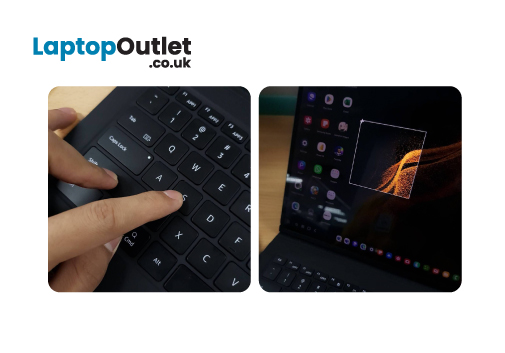
Snip & Sketch works like the Snipping Tool but with more options. Open it using Windows + Shift + S. Choose from rectangular, freeform, window, or full-screen snips. After capture, edit or save your screenshot.
| Third-Party Apps | Features |
|---|---|
| Lightshot | Easy editing, quick sharing, and simple interface |
| Greenshot | Customizable hotkeys and fast saving options |
| Snagit | Advanced editing and video capture features |
Credit: www.att.com
Keyboard Shortcut Details
The PrtScn key captures the entire screen. Press it once to copy the screenshot to the clipboard. Then, paste it into a program like Paint or Word to save.
Pressing Windows + PrtScn saves the full screen directly as a file. The screenshot goes to the Pictures > Screenshots folder. This method is quick and handy.
The Alt + PrtScn shortcut captures only the active window. This saves time by focusing on one window instead of the whole screen. Paste it into an image editor to save or edit.
Using Snipping Tool Features
Open the Snipping Tool by typing its name in the Start menu search. Click the app to launch it. The tool appears as a small window on your screen.
Select the snip type by clicking the New button dropdown. Choose from Rectangular Snip, Freeform Snip, Window Snip, or Full-screen Snip. Each option captures your screen differently.
After taking a screenshot, the image opens inside the tool. Use the built-in pen, highlighter, or eraser to edit your snip. You can draw or highlight important parts easily.
Save the screenshot by clicking the Save icon or pressing Ctrl + S. Choose the file location and format such as PNG or JPEG. Your screenshot is ready to use.
Capturing With Snip & Sketch
Open the Snip & Sketch app by typing its name in the Start menu. Click the app icon to launch it. The tool lets you capture your screen easily.
Use the delay feature to set a timer before the screenshot is taken. Choose from options like 3 or 10 seconds. This helps capture menus or pop-ups that need time to open.
After taking a screenshot, use the built-in tools to draw or highlight. You can write notes or circle important parts. This makes your screenshots clearer and more useful.
Third-party Screenshot Tools
Several popular apps help take screenshots on Samsung laptops. Some common ones are Snagit, Lightshot, and Greenshot. These tools offer easy ways to capture your screen quickly.
Installing these apps is simple. Download from the official website, then run the setup file. Follow the on-screen steps to finish installation. Most apps work right away after setup.
Using third-party tools has many advantages. They often provide more options than built-in keys. For example, you can select a screen part or add text. Some apps let you save screenshots in different file types.
| App Name | Key Features | Setup Tips |
|---|---|---|
| Snagit | Capture video and images, edit shots | Download from official site, follow wizard |
| Lightshot | Quick selection, share online easily | Simple install, use shortcut keys |
| Greenshot | Annotate screenshots, save in many formats | Run installer, configure settings as needed |
Credit: www.laptopoutlet.co.uk
Saving And Sharing Screenshots
Choosing the right save location helps find screenshots easily later. Common places include the Pictures folder or Desktop. Some Samsung laptops save screenshots in a default folder named “Screenshots”. Changing the save path is possible in settings.
Common file formats for screenshots are PNG and JPEG. PNG keeps images clear and sharp. JPEG files are smaller but may lose some quality. Choose PNG for better quality and JPEG for smaller file size.
Sharing screenshots via email is quick. Attach the saved image to your message. Social media platforms like Facebook and Twitter allow direct uploads from your laptop. Use simple steps to share and show your screen captures to friends or colleagues.
Troubleshooting Screenshot Issues
Screenshot issues on Samsung laptops often happen due to outdated drivers or software. Keeping your system updated can fix many problems. Visit the Samsung website or use Windows Update to get the latest drivers.
Try alternative methods if the usual screenshot keys do not work. Use the Snipping Tool or Snip & Sketch app on Windows. Press Windows + Shift + S to capture part of the screen. You can also press Print Screen and paste the image in Paint or Word.
| Common Problem | Fix |
|---|---|
| Screenshot keys not working | Update keyboard drivers or use Snipping Tool |
| Screenshot saved but not found | Check default save folder or use clipboard paste |
| Partial screenshot needed | Use Windows + Shift + S for selection |
Frequently Asked Questions
How Do I Screenshot On A Samsung Laptop?
Press the “PrtSc” key to capture the whole screen. Paste it into Paint or Word and save your screenshot easily.
Can I Screenshot A Specific Area On Samsung Laptops?
Yes, press “Windows + Shift + S” to open the Snip & Sketch tool. Select the area to capture, and the screenshot saves to clipboard.
Where Are Samsung Laptop Screenshots Saved?
By default, screenshots saved with “Windows + PrtSc” are stored in the Pictures > Screenshots folder on your Samsung laptop.
How To Take A Screenshot On Samsung Chromebook?
Press “Ctrl + Show Windows” keys together. The screenshot will save automatically to the Downloads folder on your Chromebook.
Conclusion
Taking a screenshot on a Samsung laptop is quick and simple. Just follow the steps described above. You can save important information or share your screen easily. Practice a few times to get comfortable. Screenshots help with work, study, or fun moments.
Keep your laptop ready and use these tips anytime. No need to worry about complicated methods. Enjoy capturing your screen with confidence and ease.
As an Amazon Associate, I earn from qualifying purchases.

