
Are you struggling to get your Bose headphones up and running? You’re not alone.
Sometimes, even the simplest step like turning on your headphones can feel confusing if you’re unsure where to start. But don’t worry—this guide will walk you through the exact steps to power on your Bose headphones quickly and easily. By the end, you’ll be ready to enjoy your favorite tunes or calls without any hassle.
Keep reading to unlock the full potential of your Bose headphones right now.
Credit: www.youtube.com
Locate The Power Button
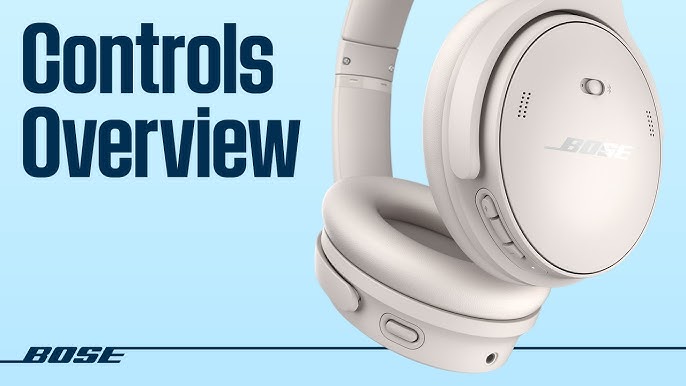
Finding the power button on your Bose headphones is the first step to turning them on. The button’s location varies by model but is usually easy to spot. Knowing where it is helps you start your music or calls quickly.
Most Bose headphones have a small button or switch dedicated to power. It might feel different from other buttons on your device. Some models use a push button, while others use a slide switch.
Check The Headband Or Ear Cup
Look closely on the headband or near the ear cups. The power button often sits on the right ear cup. It may be marked with a power symbol or a small circle.
Feel For A Small Button Or Switch
Run your fingers along the headphone edges. The power button is usually distinct and easy to press. Some have a click sound or a slight resistance when pressed.
Refer To Your Model’s Manual
Use the manual that came with your headphones. It shows exact button placement. If you lost the manual, check Bose’s website for a digital copy.
Look For Led Indicators
Power buttons often have nearby LED lights. These lights turn on or blink when the headphones power up. Spotting these lights helps confirm the button location.
Charge Your Headphones
Charging your Bose headphones is the first step to using them. Without power, they will not turn on or work properly. Keep your headphones charged to enjoy clear sound and long listening sessions.
Most Bose headphones come with a built-in rechargeable battery. You can easily charge them using the included USB cable. It takes a few hours to get a full charge, so plan ahead before you need to use them.
Locate The Charging Port
Find the charging port on your headphones. It is usually near the earcup or on the bottom of the headband. This small slot fits the USB charging cable.
Connect The Usb Cable
Plug the USB cable into the charging port. Connect the other end to a power source like a computer, wall adapter, or power bank. Ensure the connection is secure for charging to start.
Check The Charging Indicator
Look for the charging light on your headphones. It usually glows red or amber during charging. When fully charged, the light changes to green or turns off.
Charge Time And Battery Life
Charging can take up to 3 hours, depending on the model. A full charge gives many hours of listening time. Avoid using the headphones while charging for faster power-up.
Powering On Step-by-step
Powering on your Bose headphones is simple and quick. This step-by-step guide helps you start your listening experience without confusion. Follow each step carefully to switch on your headphones correctly.
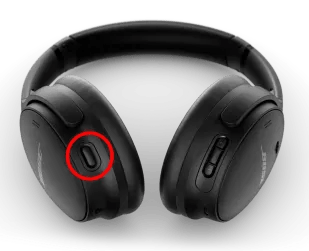
Look for a small button on the headphones. It is usually on the earcup or near the charging port. This button turns the headphones on and off.
Press And Hold The Power Button
Press the power button gently. Hold it for about two seconds. You will hear a tone or see a light indicating the headphones are powering on.
Wait For The Headphones To Activate
After pressing the button, wait a moment. The headphones connect to their system. You may hear a voice prompt or see a blinking light.
Check The Battery Level
Some Bose headphones show battery status when powered on. Listen for a voice that tells battery level. This helps avoid sudden power loss.
Start Using Your Headphones
Once powered on, your headphones are ready. Connect them to your device. Enjoy clear sound and noise cancellation features.
Credit: www.boseapac.com
Confirming The Headphones Are On
Confirming that your Bose headphones are on is a key step before you start listening. Sometimes, the headphones may seem on but actually stay off. This can cause frustration or confusion. Knowing how to check ensures your device works properly.
There are simple signs and sounds that tell you the headphones are powered on. Recognizing these helps you avoid unnecessary troubleshooting. It also saves time and lets you enjoy your music or calls right away.
Checking The Power Indicator Light
Bose headphones have a small LED light. This light shows the power status clearly. When the headphones are on, the light usually glows white or blue. If the light is off, the headphones are not powered.
Look closely at the headphones near the power button. The light may blink or stay steady. A steady light means the device is ready to use. A blinking light might mean pairing mode or low battery.
Listening For Startup Sounds
Many Bose models play a sound when powered on. This sound confirms the headphones are active. It usually lasts a few seconds and is clear and pleasant.
Make sure the volume is not too low or muted. Hearing the startup tone is a good sign the headphones are on. No sound may mean the device did not turn on.
Feeling The Power Button Response
Press the power button and notice any feedback. Some headphones give a slight click or vibration. This physical response shows the button worked.
If there is no response, try pressing the button again firmly. Holding the button for a few seconds often turns the device on. Without this feedback, the headphones might be off or need charging.
Troubleshooting Power Issues
Power issues can stop your Bose headphones from turning on. This problem is common and fixable. Understanding simple troubleshooting steps can help get your headphones working again. Follow the steps below to solve power problems quickly.
What To Do If Headphones Don’t Turn On
First, check if the headphones have enough battery. Connect them to a charger and wait at least 15 minutes. Try turning them on again after charging. Make sure the charging cable and adapter are working. Use a different charger if you can.
Next, inspect the power button. Press and hold it for a few seconds. Sometimes, a quick press does not work. Also, make sure the headphones are not stuck in sleep mode. Try pressing the power button longer to wake them up.
Resetting Your Bose Headphones
If the headphones still won’t turn on, try resetting them. Resetting can fix software glitches causing power issues. Find the reset method in your headphone manual.
Usually, this involves pressing and holding certain buttons together. Hold them for about 10 seconds or until the lights blink. This action restores the headphones to factory settings.
After resetting, charge your headphones fully. Then, power them on to check if the issue is fixed. Resetting often solves problems without needing repair or replacement.
Using Voice Prompts And Indicators
Using voice prompts and indicators helps you operate Bose headphones easily. These features guide you through turning on the device and other settings. They give clear, spoken messages and sound signals. This makes the process simple even for new users.
Voice prompts announce when the headphones power on. They also tell you about battery levels and connection status. Sound indicators confirm your actions, like pairing with devices. This feedback keeps you informed without needing to look at the headphones.
How Voice Prompts Work On Bose Headphones
Voice prompts speak directly through the headphones. They say messages like “Power on” or “Connected.” This helps you know the headphone status quickly. You do not need to check a screen or app.
The prompts use clear, slow speech. This makes it easy to understand for all users. The volume of the voice is balanced to avoid being too loud or quiet.
Types Of Sound Indicators To Expect
Bose headphones use simple beeps and tones. A short beep usually means the headphones turned on. A different tone signals a connection with a phone or device. Low battery warnings come as a series of beeps.
Each sound is different. This helps you identify what the headphones are doing. You learn to recognize sounds quickly with use.
Benefits Of Using Voice Prompts And Indicators
These features make using headphones easier and faster. You get instant updates without checking your phone. This helps keep focus on what you are doing.
Voice prompts and sounds also help in noisy places. You hear clear signals even with background noise. They reduce confusion and make the user experience smooth.

Credit: pluum.fr
Frequently Asked Questions
How Do I Turn On Bose Headphones?
Press and hold the power button for 2-3 seconds. You will hear a voice prompt or see a light indicating the headphones are on. Ensure the battery is charged for proper startup.
Why Won’t My Bose Headphones Turn On?
Check if the headphones are charged. If not, connect to a charger for at least 30 minutes. Also, press and hold the power button correctly to turn them on.
How Can I Tell If Bose Headphones Are On?
Look for a blinking or solid LED light near the power button. You may also hear a voice prompt confirming the power status.
What To Do If Bose Headphones Don’t Power Up?
Try resetting the headphones by turning them off and on again. If still unresponsive, charge fully or consult the user manual for troubleshooting steps.
Conclusion
Turning on Bose headphones is simple and quick. Just press and hold the power button. Wait for the light or sound to confirm power on. Make sure your headphones have enough battery. This helps avoid interruptions during use. Now, enjoy your music or calls clearly.
Keep your headphones charged for the best experience. Using these steps will save time and frustration. Ready to enjoy great sound anytime you want?
As an Amazon Associate, I earn from qualifying purchases.

