
Are you struggling to unpair your Bose headphones and unsure where to start? Whether you want to connect them to a new device or simply reset the connection, unpairing can sometimes feel tricky.
Don’t worry—this guide will walk you through simple, step-by-step instructions to get your headphones unpaired quickly and without hassle. Keep reading to take full control of your audio experience and make your Bose headphones work exactly how you want.
Why Unpair Bose Headphones
Unpairing your Bose headphones is a simple but important step for many users. It helps manage connections and solve common issues. Knowing why to unpair can save time and improve your experience.
Common Reasons To Unpair
One common reason is to fix connection problems. Sometimes headphones fail to connect properly. Unpairing can reset the link and make it work again.
Another reason is to switch devices. If you want to use your headphones with a new phone or laptop, unpairing from the old device helps. It clears the connection and avoids confusion.
Also, unpairing is useful when selling or giving away headphones. It protects your privacy by removing your device from the headphones’ memory.
When To Unpair Your Device
Unpair your Bose headphones if they do not connect automatically. This step can refresh the Bluetooth settings.
Try unpairing if the sound quality drops or cuts out. It may solve interference or connection issues.
Unpair before pairing with a new device to avoid pairing conflicts. This makes the process smoother and faster.
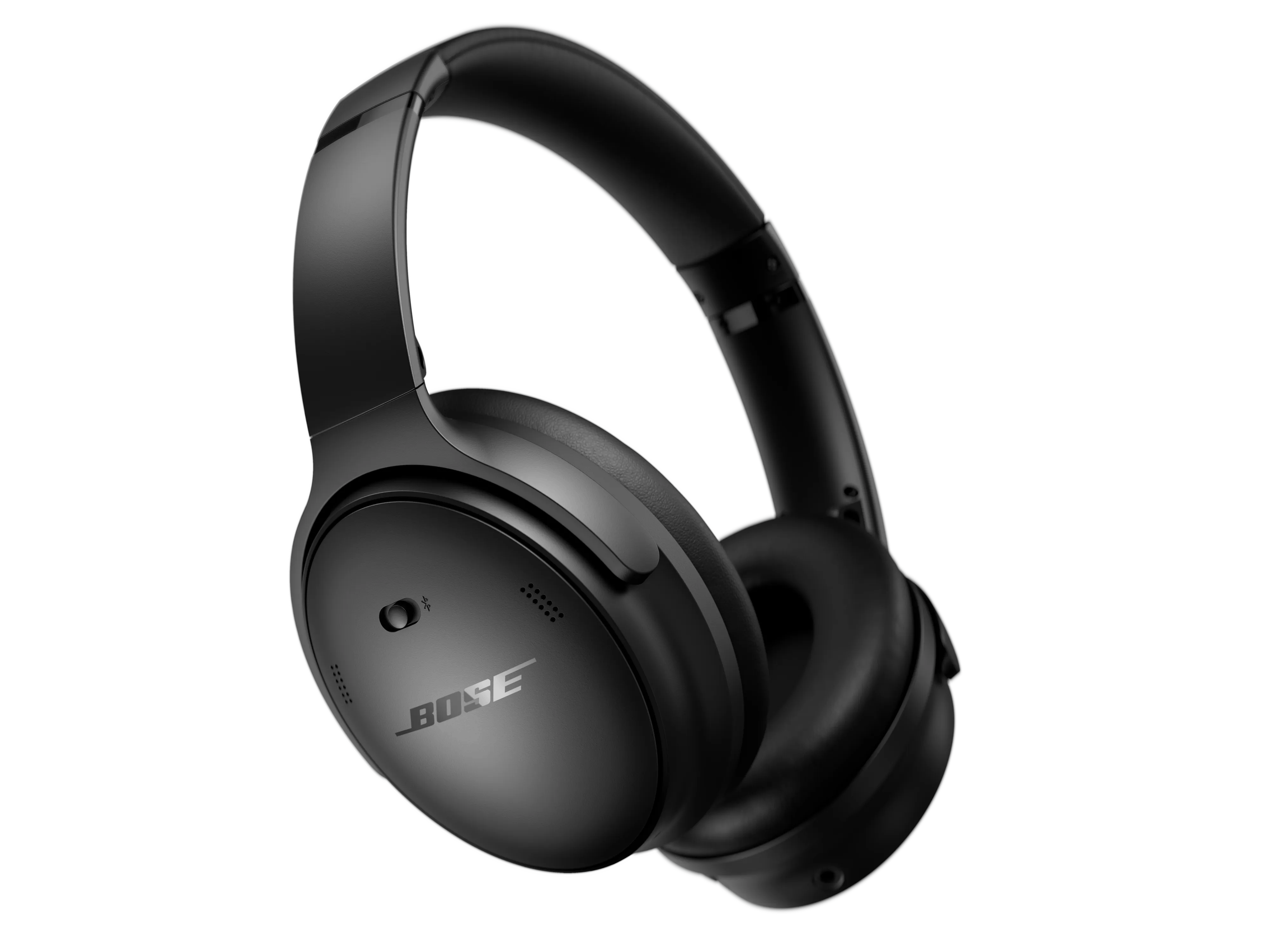
Credit: support.bose.com
Preparing Your Headphones
Before unpairing your Bose headphones, take a moment to prepare them properly. This step helps avoid problems during the unpairing process. Proper preparation ensures a smooth and quick experience.
Start by checking the battery level. Low power can cause interruptions or failures. Next, turn off any active connections. This prevents your headphones from automatically reconnecting to a device.
Check Battery Level
Make sure your Bose headphones have enough battery power. A full or near-full charge keeps the device working well. If the battery is low, charge your headphones first. This avoids shutdowns during unpairing.
Most Bose models show battery status with LED lights or voice prompts. Use these indicators to confirm battery health before you proceed.
Turn Off Active Connections
Disconnect your headphones from all connected devices. Active Bluetooth links can interfere with unpairing. Turn off Bluetooth on your phone, tablet, or computer. This stops automatic reconnection.
Some Bose headphones have a power button. Switch off the headphones to close all connections. Doing this clears active links and prepares the device for unpairing.
Unpairing Via Bluetooth Settings
Unpairing your Bose headphones through Bluetooth settings is a simple way to disconnect devices. This method helps stop automatic connections and frees your headphones for new pairings.
Each device type has a slightly different process to unpair. Follow the clear steps below for your device.
On Ios Devices
Open the Settings app on your iPhone or iPad. Tap on “Bluetooth” to see the list of paired devices. Find your Bose headphones in the list. Tap the “i” icon next to the headphones’ name. Select “Forget This Device.” Confirm by tapping “Forget Device.” Your Bose headphones will unpair and disconnect.
On Android Devices
Open the Settings app on your Android phone or tablet. Tap on “Connections” or “Bluetooth,” depending on your device. Find your Bose headphones in the paired devices list. Tap the gear icon or settings button next to the headphones. Choose “Unpair” or “Forget.” The headphones will disconnect and remove from the list.
On Windows And Mac
On Windows, open the Start menu and go to “Settings.” Click on “Devices,” then “Bluetooth & other devices.” Find your Bose headphones, click on them, and select “Remove device.” Confirm the removal to unpair.
On Mac, open “System Preferences” from the Apple menu. Click “Bluetooth” to open the device list. Find your Bose headphones, hover over them, and click the “X” button. Confirm to remove and unpair the headphones.

Credit: www.youtube.com
Using Bose Headphones Controls
Using the controls on your Bose headphones can help you manage many functions. You can play music, adjust volume, and even unpair devices. These controls make it simple to reset or factory reset your headphones without extra tools. Understanding these steps helps keep your headphones working well.
Resetting Your Headphones
Resetting your Bose headphones clears the current Bluetooth connections. This is useful if you want to unpair a device quickly. To reset, turn off your headphones first. Then, press and hold the power button for about 10 seconds. Release the button when the Bluetooth light blinks. Your headphones are now reset and ready to pair with new devices.
Factory Reset Steps
A factory reset erases all settings and paired devices from your headphones. This step is helpful if you want to start fresh. To begin, power off the headphones. Press and hold the power button for 10 seconds. Keep holding until you hear a voice prompt or see the light blink repeatedly. This means the factory reset is complete. Your Bose headphones are now back to original settings.
Troubleshooting Unpairing Issues
Unpairing Bose headphones may sometimes cause problems. Devices might not disconnect properly or keep reconnecting. This section helps solve those issues quickly. Follow these tips to unpair your headphones without stress.
When Unpairing Fails
Sometimes, the headphones stay connected even after trying to unpair. The device might remember the headphones in its Bluetooth list. This can cause repeated automatic connections. Restarting both devices often clears this problem. Also, check if the headphones have a reset option. If the problem continues, deleting the device from your phone’s Bluetooth list helps.
Tips For Successful Reset
Resetting Bose headphones can fix many connection issues. First, turn off the headphones completely. Hold the power button for 10 seconds or until the light blinks. This action resets most models. After resetting, remove the headphones from your device’s Bluetooth list. Then, pair the headphones again as a new device. This process clears old connection data and starts fresh.

Credit: www.youtube.com
Reconnecting After Unpairing
After unpairing your Bose headphones, reconnecting them is simple. This step ensures your device communicates smoothly with your headphones again. Follow clear steps to pair with new devices or manage several connections effectively.
Pairing With New Devices
Turn on your Bose headphones. Press and hold the Bluetooth button until the light blinks blue. This means the headphones are ready to pair. Open Bluetooth settings on the new device. Look for your Bose headphones in the list. Tap the name to connect. Wait for confirmation that pairing is successful. Now, your headphones work with the new device.
Managing Multiple Connections
Bose headphones can remember several devices. They connect to one device at a time. To switch devices, pause audio on the first device. Turn Bluetooth off or disconnect on the first device. Then, connect your headphones to the second device. Managing connections this way avoids confusion. It ensures smooth audio switching between devices.
Frequently Asked Questions
How Do I Unpair Bose Headphones From A Device?
Go to your device’s Bluetooth settings. Find your Bose headphones on the paired list. Select “Forget” or “Unpair” to remove the connection.
Can I Unpair Bose Headphones From Multiple Devices?
Yes, you can unpair Bose headphones from each device individually. Remove them from the Bluetooth settings on every connected device.
What Happens When I Unpair Bose Headphones?
Unpairing disconnects the headphones and removes stored Bluetooth connections. You’ll need to pair them again to reconnect.
How To Reset Bose Headphones For Unpairing?
Press and hold the power button for 10 seconds until the indicator flashes. This resets the headphones and clears all paired devices.
Conclusion
Unpairing your Bose headphones is simple and quick. Follow the steps carefully for best results. Doing this helps avoid connection problems and frees your device. Keep your headphones ready for new devices anytime. Enjoy clear sound without interruptions. Regularly unpair to manage your Bluetooth connections easily.
Stay in control of your audio experience. Now, your Bose headphones are set for fresh pairing. Easy to do, no stress involved. Try it yourself and hear the difference.
As an Amazon Associate, I earn from qualifying purchases.

