
Struggling to find the arrow keys on your 60% keyboard? You’re not alone.
These compact keyboards save space but often hide essential keys, making navigation tricky. If you want to move your cursor smoothly without reaching for a mouse, mastering the arrow keys is a must. You’ll discover simple tricks and tips to use arrow keys on your 60% keyboard effortlessly.
Keep reading, and you’ll unlock faster, smarter typing in no time.
Credit: geekhack.org
Layout Challenges On 60% Keyboards
60% keyboards are popular for their small size and portability. They save desk space and are easy to carry. But this compact design brings layout challenges. Many keys found on full-sized keyboards are missing. This affects how users access important functions like arrow keys.
Compact Design And Missing Keys
60% keyboards remove keys like the function row, navigation cluster, and numpad. This keeps the board small but reduces key options. Users lose dedicated keys for Home, End, Page Up, and Page Down. The arrow keys are often affected too. This forces manufacturers to rethink key placement.
Impact On Arrow Key Placement
With fewer keys, arrow keys cannot fit in their usual spot. Some 60% keyboards place arrows in a cluster with other keys. Others use layers or function keys to activate arrow keys. This can confuse users at first. Learning these new layouts takes time. But it keeps the keyboard compact and functional.

Credit: www.youtube.com
Common Arrow Key Configurations
Using arrow keys on a 60% keyboard can be tricky. These keyboards lack dedicated arrow keys due to their small size. Users rely on different configurations to navigate easily. Understanding common arrow key setups helps you choose the best option for your needs. Below are popular methods to use arrow keys on a 60% keyboard.
Function Layer Arrow Keys
The function layer is a popular way to access arrow keys. You hold the Fn key and press other keys for arrows. Usually, I, J, K, and L act as up, left, down, and right arrows. This method saves space and keeps the keyboard compact. It works well for casual users who don’t use arrows often.
Dedicated Arrow Key Clusters
Some 60% keyboards have small arrow key clusters built-in. These clusters are usually placed near the bottom right. They provide physical arrow keys but take some space. This setup is good for users who want easy arrow access without layers. It feels more like a full-size keyboard but still compact.
Using Modifier Keys
Modifier keys like Shift, Alt, or Ctrl can change other keys into arrows. This method requires pressing a modifier plus a letter key. It offers flexibility but needs practice. Some users customize their keyboard firmware to set these shortcuts. It helps if you want arrows but also want to keep original key functions.
Setting Up Arrow Keys On Your Keyboard
Setting up arrow keys on a 60% keyboard can improve your typing and navigation. Because 60% keyboards have fewer keys, arrow keys are not always visible. You must customize your keyboard to use arrow keys efficiently. This section guides you through easy steps to set up arrow keys.
Using Firmware Customization Tools
Firmware tools like QMK or VIA let you change key functions. You can assign arrow keys to any key on your keyboard. These tools are free and simple to use. Download the firmware, connect your keyboard, and open the software. Then, choose the key you want to turn into an arrow key. Save the changes and flash the firmware to your keyboard.
Programming Layers For Arrow Keys
Layers let you create multiple key layouts on one keyboard. You can put arrow keys on a separate layer. Hold a function key to switch to the arrow key layer. This way, you keep your main keys clean. Use firmware tools to create and edit layers easily. Test the new layer to ensure arrow keys work correctly.
Assigning Arrow Keys To Key Combos
Key combos use two or more keys pressed together to act as arrow keys. For example, pressing Fn + I could act as the up arrow. This method saves space and keeps the keyboard compact. Set combos using your keyboard’s firmware software. Choose combos that feel natural and easy to press. Practice combos to get used to the new setup.
Popular 60% Keyboards With Arrow Key Solutions
60% keyboards save desk space by removing extra keys. This compact design means arrow keys are not separate. Users need special solutions to use arrow keys comfortably. Some popular 60% keyboards come with clever arrow key functions. These models help you navigate easily without a full keyboard.
Anne Pro 2
The Anne Pro 2 offers arrow keys through a function layer. Pressing Fn plus certain keys activates arrow keys. This method keeps the keyboard small and efficient. The keys are easy to reach once learned. It suits users who want compactness with full navigation.
Ducky One 2 Mini
Ducky One 2 Mini uses a similar function key approach. Press Fn and specific letters to move the cursor. The keyboard has a clear layout for these commands. Many users find this setup quick and natural. It keeps the keyboard tiny without losing arrow key use.
Vortex Pok3r
Vortex Pok3r integrates arrow keys into a function layer too. Pressing Fn plus other keys activates arrows. The keyboard’s design balances size and functionality. Users can navigate documents and menus easily. This model is popular among compact keyboard fans.
Tips To Improve Arrow Key Usage
Using arrow keys on a 60% keyboard can feel tricky because these keyboards lack dedicated arrow keys. You must use layers or shortcuts to access them. Improving your arrow key usage makes navigation faster and more comfortable. Here are some useful tips to help you.
Memorizing Layer Shortcuts
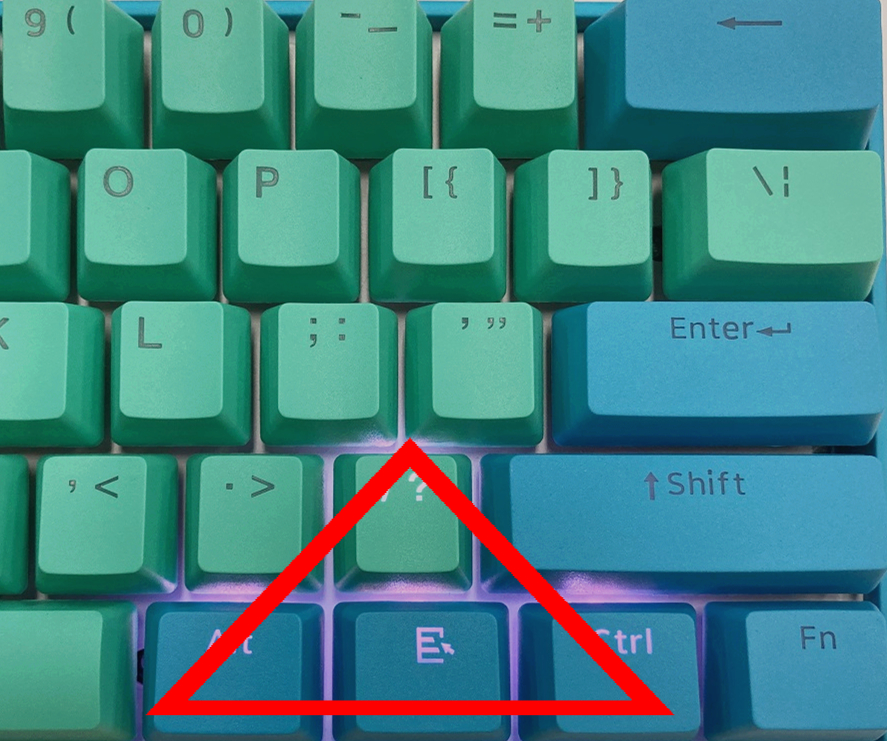
Most 60% keyboards use layers to access arrow keys. Learn the specific key combinations for your keyboard. Practice pressing these keys until it feels natural. This reduces the time you spend searching for the arrows. Keep a small note with the shortcuts nearby if needed.
Using External Software For Remapping
Software like QMK or VIA lets you customize key functions. You can assign arrow keys to easy-to-reach buttons. This makes navigation smoother and more intuitive. Test different layouts to find what fits your typing style. Save your settings to avoid repeating the setup.
Ergonomic Considerations
Position your hands comfortably while using arrow keys. Avoid stretching your fingers too far to reach keys. Use a wrist rest to keep your hands steady. Take short breaks to prevent strain from repetitive movements. A good posture improves your overall typing experience.
Credit: www.boyikeyboard.com
Troubleshooting Arrow Key Issues
Troubleshooting arrow key issues on a 60% keyboard can be tricky. These keyboards use layers or function keys to access arrow keys, so problems may arise.
Understanding common problems and their fixes helps get your arrow keys working again. Sometimes, resetting the keyboard firmware solves deeper issues. Community support offers valuable tips and advice from users with similar experiences.
Common Problems And Fixes
Arrow keys might not work due to incorrect layer settings. Check if you are pressing the right function key combination.
Sticky or unresponsive keys can result from dust or dirt. Clean the keyboard gently using compressed air or a soft brush.
Firmware bugs can cause arrow keys to stop functioning. Updating the keyboard’s firmware often resolves these bugs.
Resetting Keyboard Firmware
Resetting firmware restores the keyboard to factory settings. This can fix software glitches affecting arrow keys.
First, check the keyboard manual for reset instructions. Usually, it involves holding specific keys while plugging in the keyboard.
After resetting, reprogram any custom layers or macros you had before.
Seeking Community Support
Online forums and groups have many 60% keyboard users. Sharing your problem there can provide quick solutions.
Look for communities on Reddit, Discord, or keyboard-specific websites. Experienced users often share troubleshooting guides and tips.
Posting clear details about your issue helps others understand and assist you better.
Frequently Asked Questions
How Do I Access Arrow Keys On A 60% Keyboard?
On a 60% keyboard, arrow keys are usually accessed using the Fn key. Hold Fn and press specific keys like I, J, K, and L to navigate. This compact design saves space without losing arrow key functionality.
Can I Remap Arrow Keys On A 60% Keyboard?
Yes, most 60% keyboards support key remapping via software. You can customize arrow keys to any preferred location. This feature enhances typing efficiency and comfort according to your needs.
Are Arrow Keys Less Responsive On 60% Keyboards?
No, arrow keys on 60% keyboards are as responsive as full-sized ones. The smaller layout does not affect key performance or tactile feedback. Quality 60% keyboards maintain excellent responsiveness.
Why Do Some 60% Keyboards Lack Dedicated Arrow Keys?
60% keyboards prioritize compactness, so they omit dedicated arrow keys. Instead, they assign arrow functions to secondary key layers. This design balances portability and essential key functions.
Conclusion
Using arrow keys on a 60% keyboard is simple with the right steps. Practice the key combinations to move around easily. This helps you work faster and with less effort. Small keyboards save space but still offer full control. Keep trying and soon it will feel natural.
Your typing experience can improve with these tips. Enjoy the compact design without losing functionality.
As an Amazon Associate, I earn from qualifying purchases.

