
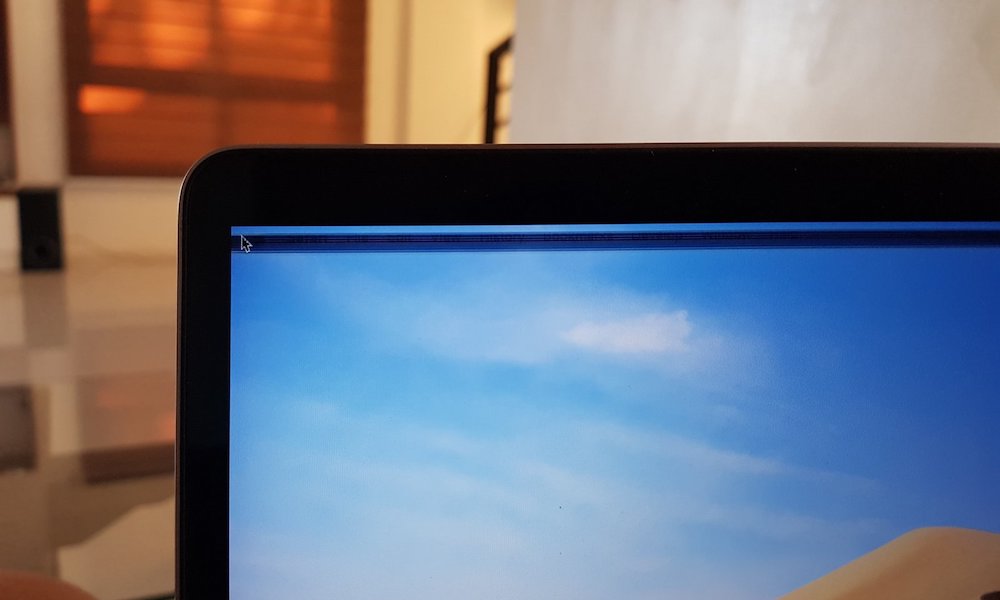
Have you ever noticed black lines suddenly appearing on your laptop screen? It can be frustrating and confusing, especially when you rely on your device every day.
These lines might seem like a small problem at first, but they can quickly affect your work, gaming, or streaming experience. Understanding what causes these black lines is the first step to fixing them and protecting your laptop. Keep reading to discover the common reasons behind this issue and how you can tackle it before it gets worse.
Your laptop’s screen deserves the best care, and so do you.
Credit: www.idropnews.com
Types Of Black Lines
Black lines on a laptop screen show in different ways. These lines vary by shape and direction. Knowing the types helps find the cause. Some lines run across the screen, while others go up and down. Some appear in no clear order. Each type points to different screen issues.
Horizontal Lines
Horizontal lines run from left to right. They often mean a problem with the screen’s ribbon cable. This cable connects the screen to the laptop’s main board. Damage or loose connection can cause these lines. Sometimes, the screen itself has a fault. Horizontal lines can also show if the graphics driver is outdated.
Vertical Lines
Vertical lines go from top to bottom. These lines usually mean a damaged screen panel. The issue might be with the screen’s hardware layers. Vertical lines can appear after dropping the laptop. They can also happen if the screen’s controller chip fails. Repair or screen replacement might be needed to fix this.
Random Patterns
Random patterns of black lines look messy and irregular. These lines often point to a graphics card problem. Overheating or hardware failure can cause this issue. Software bugs or corrupted drivers may also create random lines. This type is harder to diagnose without testing hardware and software parts.

Credit: h30434.www3.hp.com
Hardware Problems
Hardware problems often cause black lines on a laptop screen. These issues affect the physical parts inside your device. They can disrupt the display and create visible lines.
Identifying the exact hardware problem helps fix the screen quickly. Common issues include screen damage, loose cables, and graphics card problems.
Screen Damage
The screen itself might have cracks or pressure marks. Dropping the laptop or hitting the screen can cause damage. Broken pixels or damaged LCD layers often show as black lines. Replacing the screen usually solves this problem.
Loose Or Damaged Cables
Inside the laptop, cables connect the screen to the motherboard. These cables can become loose or damaged over time. Movement or rough handling may cause poor connections. A loose cable can cause flickering or black lines. Checking and securing cables might restore the display.
Graphics Card Issues
The graphics card controls what appears on the screen. If it malfunctions, display problems occur. Black lines may appear due to overheating or hardware failure. Updating drivers or replacing the card can fix this issue. Testing with an external monitor helps identify graphics card faults.
Software And Driver Issues
Black lines on a laptop screen can be caused by software and driver issues. These problems affect how the screen displays images. The screen might show lines if the software is not working right. This section explains some common software and driver causes.
Corrupted Display Drivers
Display drivers help the laptop show images on the screen. If these drivers get corrupted, the screen may show black lines. Corruption can happen after updates or crashes. Reinstalling or updating the driver can fix this problem. Using the correct driver for your laptop model is important.
Operating System Glitches
Sometimes, the operating system has bugs or glitches. These glitches can cause display errors, including black lines. Restarting the laptop can clear temporary glitches. Installing system updates often helps fix these issues. Keeping the system up to date avoids many screen problems.
Third-party Software Conflicts
Some third-party software may conflict with the display settings. These conflicts can create black lines or flickering. Software that changes screen resolution or colors is a common cause. Removing or disabling the conflicting software can solve the issue. Always check software compatibility with your system.
Environmental Factors
Environmental factors can harm a laptop screen and cause black lines. These lines may appear suddenly or grow over time. Understanding these factors helps protect your device better.
Extreme Temperatures
Very hot or cold temperatures can damage the screen’s delicate parts. Heat can cause the liquid crystals inside the screen to break down. Cold can make the screen brittle and prone to cracks. Both conditions can lead to black lines appearing.
Physical Impact
A strong hit or drop can harm the screen’s layers. The pressure may cause tiny cracks or damage the pixels. These issues often show as black lines or spots. Even small impacts can cause lasting screen problems.
Moisture Exposure
Water or high humidity can seep inside the laptop screen. Moisture can cause short circuits or corrosion in the screen’s electronics. This damage often shows as black lines or patches on the display. Keeping the laptop dry is essential to avoid this problem.
Troubleshooting Steps
Black lines on a laptop screen can be frustrating. These lines might mean a simple issue or a bigger problem. Following clear steps can help find the cause. Start with easy checks before moving to more technical fixes.
Check For Loose Connections
Loose cables inside the laptop often cause screen lines. Turn off the laptop and unplug it. Open the back cover carefully. Look for any cable that may be loose or disconnected. Gently press the cable back into place. Close the cover and turn on the laptop. See if the lines disappear.
Update Or Reinstall Drivers
Outdated or corrupt drivers can cause display problems. Go to the device manager on your laptop. Find the display adapter section. Right-click the graphics driver and choose to update it. If updating does not help, uninstall the driver. Restart the laptop to reinstall the driver automatically. Check the screen again for black lines.
Run Display Diagnostics
Many laptops have built-in tools to test the screen. Restart the laptop and enter the diagnostic mode. Follow the instructions to run the display test. The tool will check for dead pixels or display errors. Note any error messages. This test helps to know if the screen hardware is faulty.
Test External Monitor
Connect your laptop to an external monitor or TV. Use the correct cable for your laptop’s output. If the external screen shows no lines, the laptop screen is the problem. If lines appear on both screens, the issue is likely with the graphics card. This test narrows down the cause of the black lines quickly.

Credit: h30434.www3.hp.com
When To Seek Professional Help
Black lines on a laptop screen can signal deeper problems. Some issues clear up with simple fixes. Others need expert help to prevent more damage. Knowing when to seek professional service saves time and money. Watch the screen closely and learn the signs that need expert care.
Persistent Display Issues
Black lines that do not disappear after restarting are a concern. Flickering or blinking lines show a serious problem. Temporary glitches might fix with updates or cable checks. Constant problems mean the screen or internal parts may fail. Avoid using the laptop for long periods with these issues.
Signs Of Hardware Failure
Physical damage can cause black lines, such as drops or hits. Overheating may also harm the screen’s components. Unusual colors or dead pixels appear along with lines sometimes. These symptoms point to broken or loose hardware inside. Only trained technicians should open and repair the laptop.
Warranty And Repair Options
Check if your laptop is still under warranty. Warranty often covers screen issues caused by defects. Avoid self-repair during this period to keep the warranty valid. Authorized repair centers use genuine parts for fixing problems. For out-of-warranty laptops, compare service costs before deciding.
Frequently Asked Questions
What Causes Black Lines On A Laptop Screen?
Black lines on a laptop screen usually result from damaged pixels, faulty display cables, or hardware issues. Physical impact or pressure can also cause screen damage. Identifying the root cause helps determine if repair or replacement is needed.
Can Software Issues Cause Black Lines On Screens?
Software problems rarely cause black lines on laptop screens. Most black lines stem from hardware faults like screen damage or connection issues. However, updating display drivers can sometimes fix minor screen glitches.
How To Fix Black Lines On A Laptop Screen?
Fixing black lines often requires checking display cables and reconnecting them securely. Restarting your laptop or updating drivers can help. For physical damage, screen replacement is usually necessary.
Are Black Lines On Screens Permanent?
Black lines caused by hardware damage are typically permanent. Software-related issues may be fixed with updates or settings changes. Timely diagnosis helps prevent worsening screen problems.
Conclusion
Black lines on a laptop screen usually mean a hardware or connection issue. They can appear from screen damage, loose cables, or graphic card problems. Fixing these lines often needs checking the screen and connections carefully. Sometimes, replacing parts is the best choice.
Regular care helps avoid such problems. Watch your screen for any changes early. That way, you can keep your laptop working well for a long time. Taking action quickly can save you money and stress later.
As an Amazon Associate, I earn from qualifying purchases.

